
Resolving Procore Conflicts
When an action item that’s synced to Procore is modified in both NSPEC-X and Procore between syncs, NSPEC-X detects the conflict and shows the Procore Changes Detected modal so you can decide how to reconcile the difference before saving. This article explains what the modal shows, the three choices you have, and which one to pick.
When the Conflict Modal Appears
Section titled “When the Conflict Modal Appears”The modal opens automatically in two cases:
- You open an action item whose linked Procore observation has changed since the last sync (the card shows the document icon — see Understanding Action Item Sync States)
- You click Save on the Edit Action Item modal and NSPEC-X detects the Procore side has also changed
What the Modal Shows
Section titled “What the Modal Shows”At the top, the modal identifies the observation in Procore:
- Type and number — e.g. Safety Observation #42
- Name — the observation title
- Project — the Procore project name
- Company — the Procore company
Below that, a scrollable change list shows every field that differs between the NSPEC-X copy and the Procore copy. Each entry describes the change in plain language — for example, “Status changed from Initiated to Ready for Review” or “Assignee changed from John Doe to Jane Smith”.
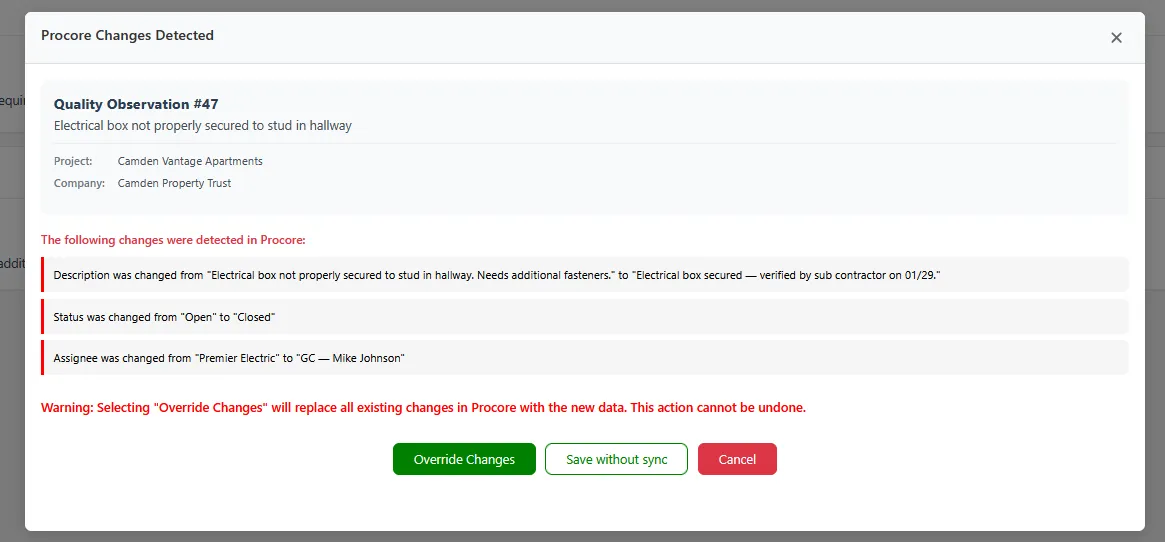
The Three Choices
Section titled “The Three Choices”The modal ends with three buttons. Each has different consequences — read the table before you click.
| Button | What happens | When to use it |
|---|---|---|
| Override Changes | NSPEC-X replaces the Procore version with your local edits. The Procore-side changes listed in the modal are discarded. | You’re confident your version is correct and the Procore edit was a mistake or is out of date. |
| Save without sync | Your local edits are saved, but the item is left in an out-of-sync state (orange alert icon). Procore is not touched. | You need to keep working offline or want to resolve the conflict later with a teammate. |
| Cancel | Nothing is saved. The modal closes and your pending edits stay in the Edit Action Item form. | You want to re-read the Procore changes or talk to the person who edited in Procore before deciding. |
How to Decide
Section titled “How to Decide”-
Read every change in the scrollable list, top to bottom
-
If a change is one you already made in NSPEC-X, it’s not a real conflict — you can Override safely
-
If a change is new and someone else made it in Procore (status update, new assignee, etc.), treat it as a real conflict:
- If your local edits are more recent / more correct, pick Override Changes
- If the Procore edit should win, pick Cancel, then re-open the action item — NSPEC-X will pull the Procore version in and you can re-edit on top of it
- If you’re not sure, pick Save without sync and sort it out later with the team
Multiple Conflicts at Once
Section titled “Multiple Conflicts at Once”If more than one action item has pending Procore changes, the modal shows each conflict stacked vertically with its own Override / Save without sync / Cancel buttons. Resolve each one independently — you don’t have to pick the same option for all of them.
After You Choose
Section titled “After You Choose”- Override Changes — A spinner appears while NSPEC-X pushes to Procore. When it finishes, the action item shows no sync icon (green menu icon only) — fully in sync.
- Save without sync — The modal closes. The action item card shows an orange alert-circle icon. Tap it to re-open the conflict modal and try again.
- Cancel — The modal closes. No changes are saved locally or in Procore.
Troubleshooting
Section titled “Troubleshooting”Override Changes failed
Section titled “Override Changes failed”Solutions:
- Check your internet connection — Procore sync requires online access
- Check your Procore permissions — you need write access to Observations on the linked project. See Procore Permissions Guide.
- If the Procore observation was deleted, you can’t override it. Remove the action item in NSPEC-X instead.
Cancel button does nothing
Section titled “Cancel button does nothing”Solutions:
- Wait for any in-progress save to finish — the Cancel button is hidden while the spinner is showing
Modal says “No changes detected in Procore”
Section titled “Modal says “No changes detected in Procore””Solutions:
- The conflict was already resolved (possibly by another teammate). Close the modal — your next save will go through cleanly.