
Managing NSPEC-X Clients
In NSPEC-X, a “Client” is the link between nSpec and a Procore company. Adding a client by its Procore Company ID lets you pull projects from that company into nSpec, and you can connect as many Procore companies as you need from a single nSpec account. This article explains how clients work, how to find your Procore Company ID, how to add and edit clients, and how to filter projects by client.
How NSPEC-X Clients Work
Section titled “How NSPEC-X Clients Work”Each NSPEC-X client maps to one Procore company. The Procore Company ID is the unique identifier that tells nSpec which Procore company to fetch projects from. Once a client is set up:
- nSpec uses your logged-in Procore credentials to read projects for that company
- When you click Refresh Projects on the Projects screen, nSpec pulls all projects you have access to across all connected clients
- You can filter the projects list by client to focus on a specific company
- Action items you create on those projects sync back to the correct Procore company automatically
Finding Your Procore Company ID
Section titled “Finding Your Procore Company ID”Before you can add a client, you need the Procore Company ID for that company. There are two reliable ways to find it.
Method 1: From the URL (easiest)
Section titled “Method 1: From the URL (easiest)”- Sign in to Procore at app.procore.com
- Open any company-level tool (the Company Dashboard works well)
- Look at the URL in your browser’s address bar
- The number that follows
app.procore.com/is your Company ID
Example: in the URL https://app.procore.com/4274178/company/home, the Company ID
is 4274178.
Method 2: After logging in
Section titled “Method 2: After logging in”- Sign out of Procore completely
- Sign back in
- You will be redirected to a URL like
https://app.procore.com/4274178/company/home/list - The number in the URL is your Company ID
For more details, see Procore’s official guide to finding the Company ID.
Adding a Client
Section titled “Adding a Client”- Sign in to nSpec at inspect-app.nspec.app
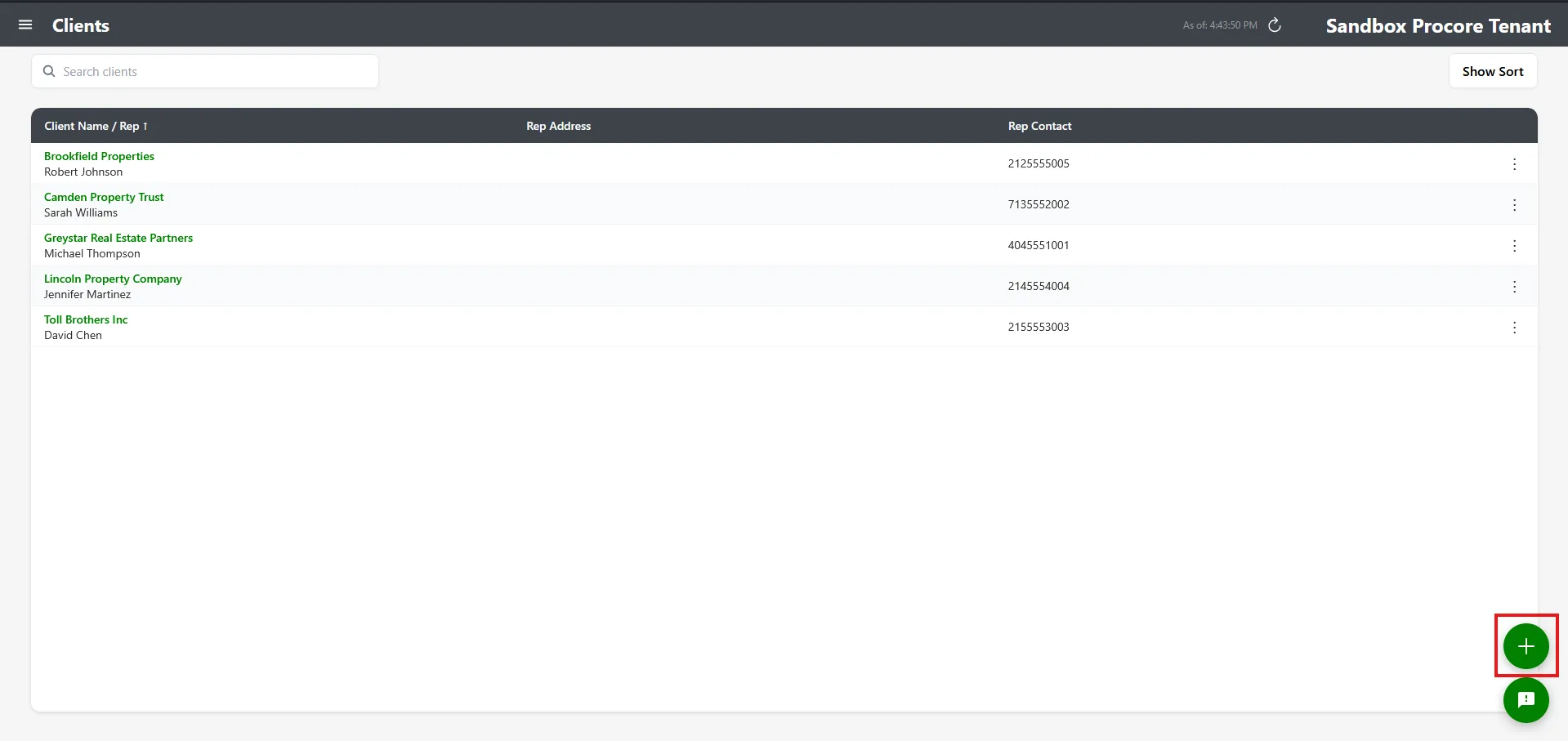
- Open the Clients screen from the sidebar
- Click the Add (plus) button in the top right
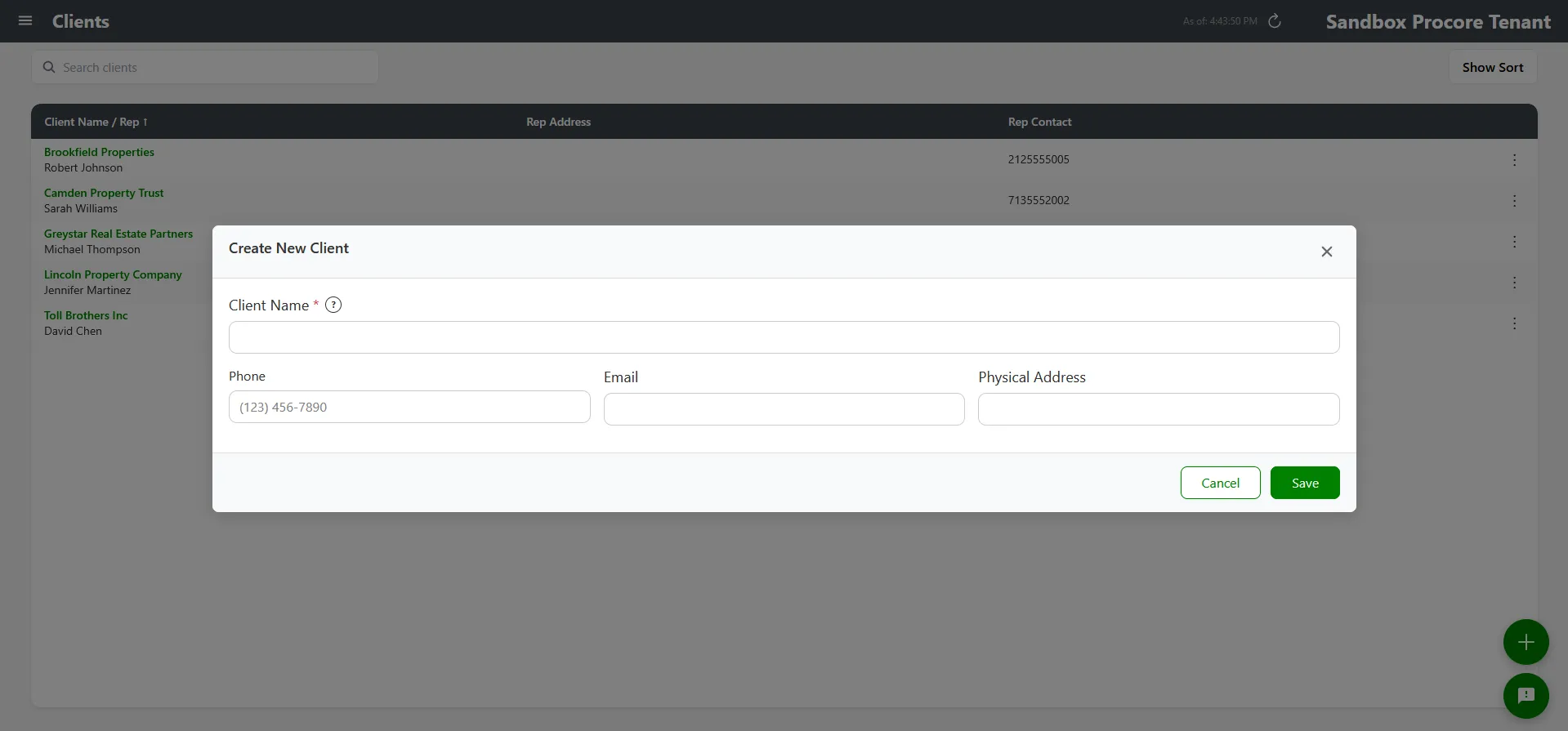
- The Add Client form opens. Fill in the fields below:
Required Fields
Section titled “Required Fields”- Client Name — How the company will appear throughout nSpec. Use a clear name so you can tell it apart from other clients later.
- Procore Company ID — The number you found in the previous section. This is the most important field — if it’s wrong, no projects will sync.
Optional Fields
Section titled “Optional Fields”- Physical Address — The company’s main address. Optional for Procore tenants (it’s only required on standard nSpec accounts).
- Phone Number — Main contact number for the company
- Email Address — Primary contact email
- Double-check the Procore Company ID one more time
- Click Save to create the client
- Open the Projects screen and click Refresh Projects to sync projects from the new client
Verifying the Client Connection
Section titled “Verifying the Client Connection”After adding a client, confirm it’s connected correctly:
- Open the Projects screen
- Click the Refresh Projects button at the top of the screen (this button only appears for Procore tenants)
- Wait for the sync to complete — the button label changes to “Refreshing…” while it’s working
- Look for projects from the new client appearing in the list
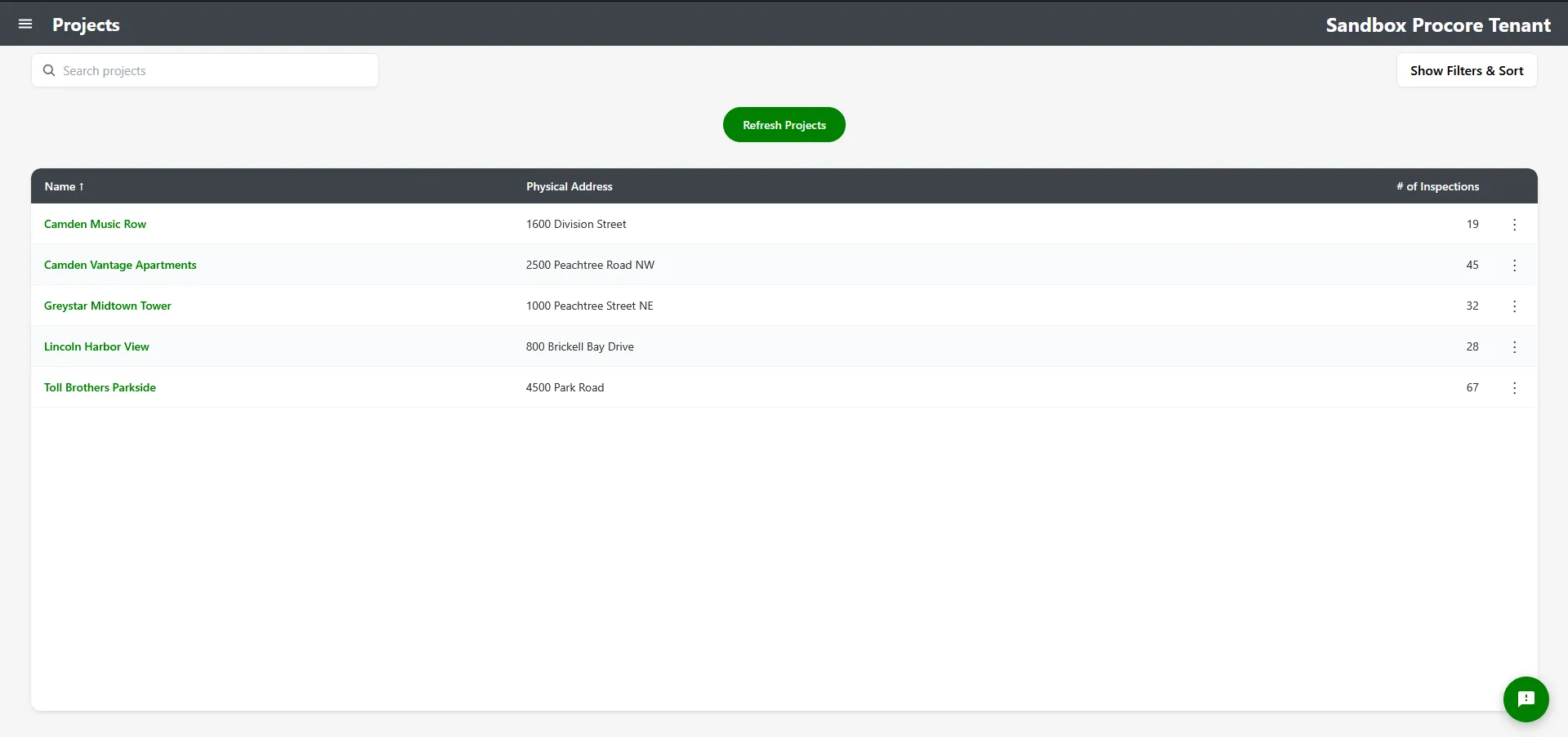
If projects appear, the client is set up correctly. If nothing appears, see the troubleshooting section below.
Filtering Projects by Client
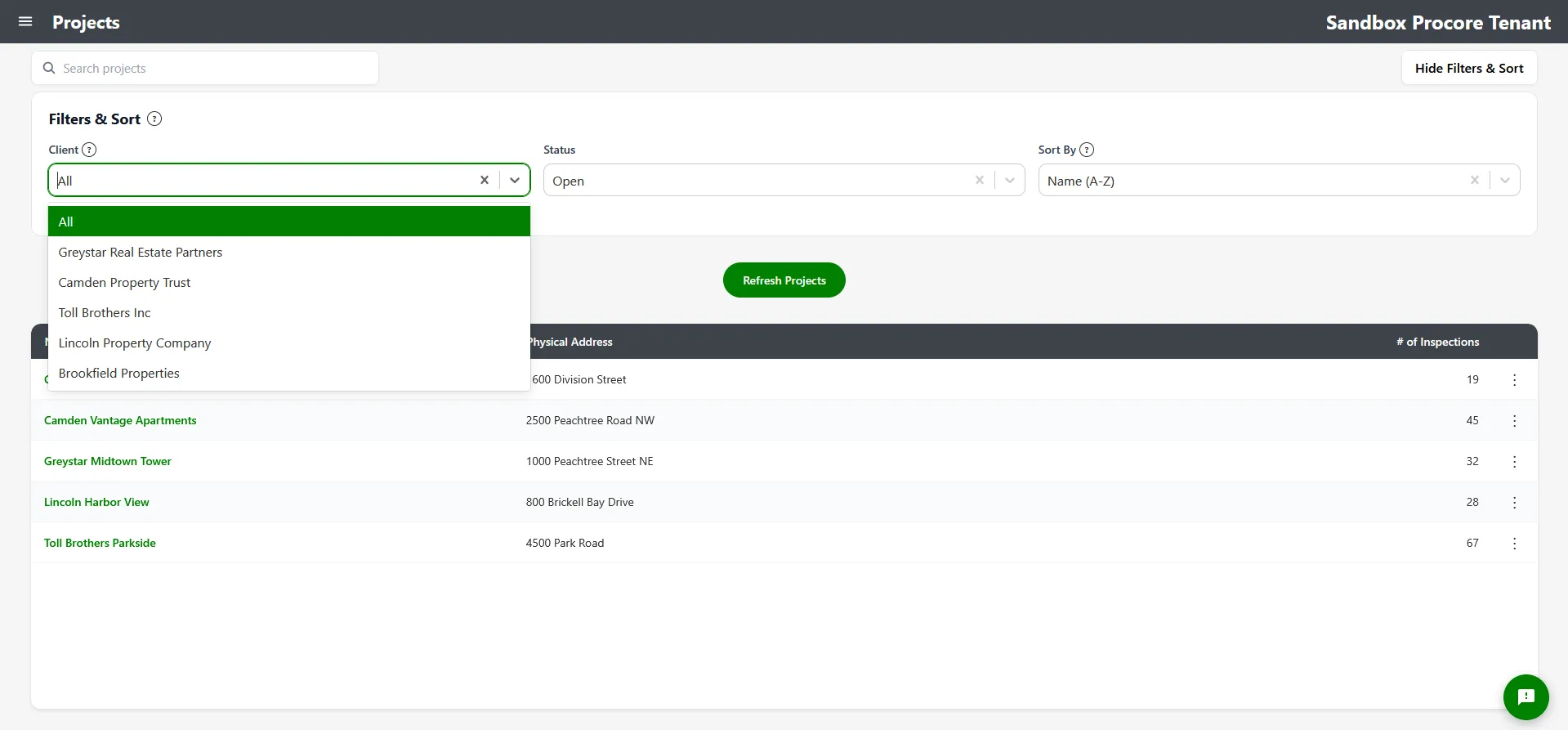
Section titled “Filtering Projects by Client”When you have several clients connected, the Projects screen has a client filter so you can focus on one company at a time.
- Open the Projects screen
- Find the Client filter in the filters panel (sidebar on desktop, or the filter modal on mobile)
- Choose All to see projects from every client, or pick a specific client to see only their projects
- The list updates immediately
Editing or Deleting a Client
Section titled “Editing or Deleting a Client”Editing
Section titled “Editing”- Open the Clients screen
- Find the client and click the options menu (three dots) → Edit
- Update any field except the Procore Company ID, which is locked
- Click Save
Deleting
Section titled “Deleting”- Open the Clients screen
- Find the client and click the options menu (three dots) → Delete
- Confirm the deletion in the dialog that appears
Working in a Team
Section titled “Working in a Team”When multiple people on your team use the same nSpec tenant:
- All team members see the same set of clients (clients are tenant-wide, not per-user)
- Each user authenticates with their own Procore account, so the projects each person sees depend on their individual Procore permissions
- If a team member doesn’t have Procore access to a project, they will see an “access denied” message when they open it
- Team members without Procore access can still view nSpec action items (read-only) but cannot edit or sync them
Troubleshooting
Section titled “Troubleshooting”No projects appear after adding a client
Section titled “No projects appear after adding a client”Problem: You added a client and clicked Refresh Projects, but no projects show up under that client.
Solutions:
- Verify the Procore Company ID is correct. Go back to Procore, copy the ID from the URL again, and compare. This is the most common cause.
- Make sure your Procore user account has access to at least one project in that company. If you can’t see any projects in Procore for that company, you can’t see them in nSpec either.
- Check that the projects are active (not archived) in Procore. Archived projects are not synced.
- Try logging out of nSpec and back in to refresh your Procore session.
“Company ID not found” or similar error
Section titled ““Company ID not found” or similar error”Problem: Adding the client returned an error about an invalid or missing Company ID.
Solutions:
- Re-check the number — make sure you grabbed the Company ID from a company-level URL, not a project URL
- Confirm the number is digits only, no extra characters
- Make sure your Procore user has access to that company at all (try opening the company dashboard in Procore)
I need to change the Procore Company ID
Section titled “I need to change the Procore Company ID”Problem: You set up a client with the wrong Company ID.
Solutions:
- The Procore Company ID is locked after creation. Delete the client and create a new one with the correct ID.
- Deleting and re-adding does not affect anything in Procore — it only updates the link inside nSpec.
A team member can’t see client projects
Section titled “A team member can’t see client projects”Problem: A teammate added a client but cannot see its projects.
Solutions:
- This is controlled by Procore, not nSpec. The teammate’s Procore account must have project access in that Procore company.
- Have them log in to Procore directly and confirm they can see the projects there.
- If they can’t, ask the Procore admin for that company to grant access.
Next Steps
Section titled “Next Steps”- What is NSPEC-X — how nSpec and Procore work together
- Setting Up Procore Default Fields — speed up observation creation per project
- Creating Procore Observations — full action item walkthrough
- Procore Permissions Guide — what Procore permissions are needed and how to verify them
- Troubleshooting Sync Issues