
What is NSPEC-X
NSPEC-X is the Procore-integrated version of nSpec. It connects your inspections directly to your Procore projects so that observations and action items you create during a walk-through automatically sync to Procore — no double-entry, no copy-paste. This article explains what NSPEC-X is, who it is for, and how it differs from the standard nSpec experience.
What is NSPEC-X?
Section titled “What is NSPEC-X?”NSPEC-X turns nSpec into a front-end for Procore observations. Instead of running inspections in nSpec and then re-entering everything into Procore, your team:
- Logs in to nSpec, then connects their Procore account once
- Performs inspections using all the standard nSpec tools (photos, specimens, action items, reports)
- Has every action item automatically sync to Procore as a Procore observation, with the right type, trade, location, and assignee already populated
- Resolves any conflicts between nSpec and Procore in a single, clear interface
Who is NSPEC-X For?
Section titled “Who is NSPEC-X For?”NSPEC-X is built for inspection teams whose primary system of record is Procore. You will most likely benefit from NSPEC-X if:
- Your projects are tracked in Procore and you do not want to maintain duplicate data
- Your inspectors use nSpec in the field and your office staff use Procore
- You need observations created during inspections to appear in Procore for follow-up, assignment, and reporting
- You manage multiple Procore companies and need a unified inspection workflow across them
How Logging In Works
Section titled “How Logging In Works”NSPEC-X uses a two-step login. The first step is your normal nSpec login. The second step happens automatically the first time you visit, and it connects your Procore account so nSpec can sync data on your behalf.
- Open inspect-app.nspec.app and sign in with your nSpec credentials
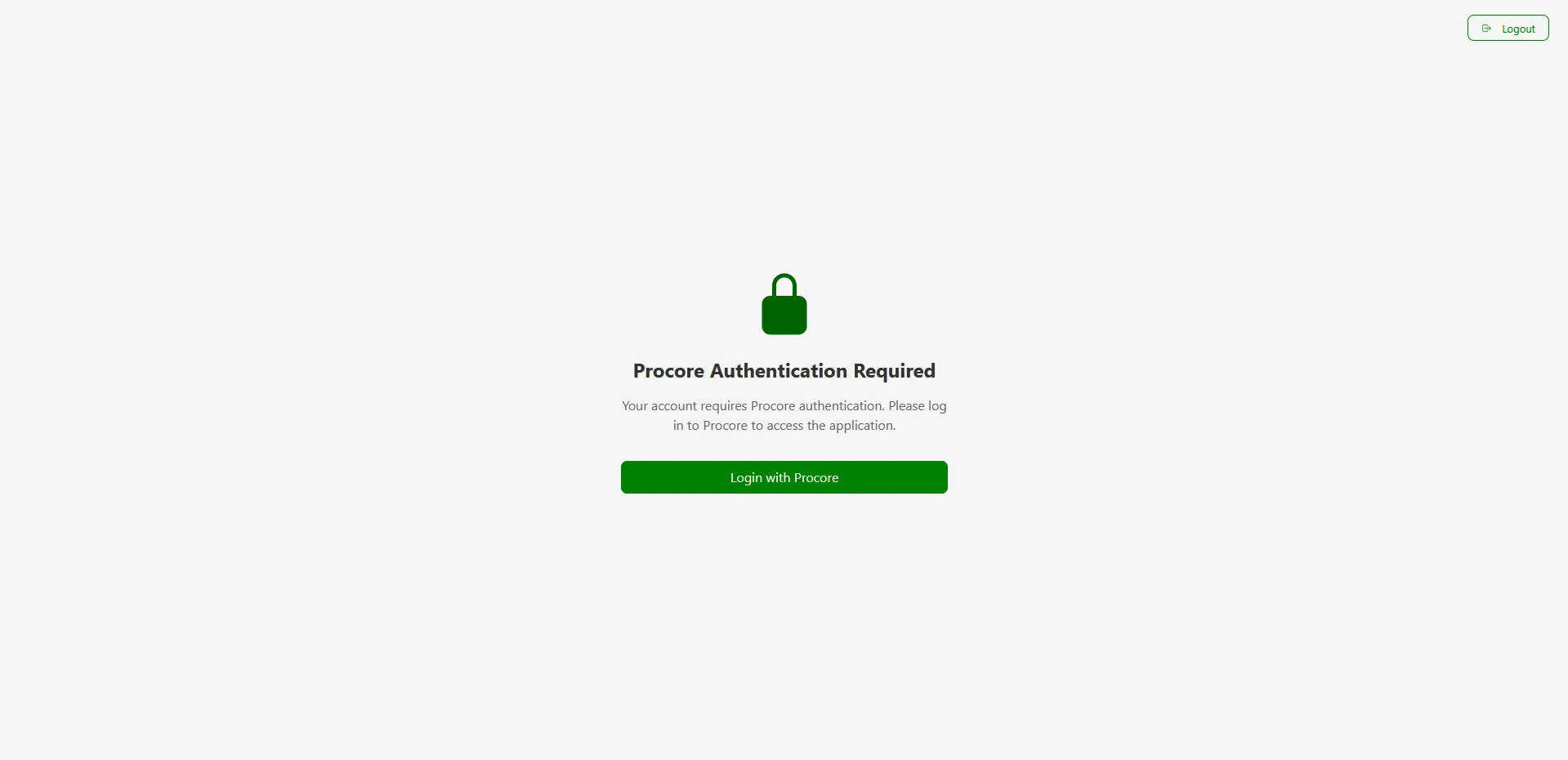
- If your organization is set up as a Procore tenant, nSpec will automatically redirect you to a Procore Authentication Required screen
- Click the Login with Procore button
- You will be taken to the official Procore login page. Sign in with your Procore credentials and authorize nSpec to access your account
- You will be redirected back to nSpec and dropped into the dashboard
Token Lifecycle and Auto-Refresh
Section titled “Token Lifecycle and Auto-Refresh”After your first successful Procore login, nSpec stores two things in your browser: a short-lived access token (used to call Procore on your behalf) and a longer-lived refresh token (used to get a new access token when the old one expires). You don’t manage these directly — nSpec handles the whole lifecycle in the background.
- Auto-refresh. Before every Procore sync, nSpec checks whether your access token is about to expire. If it is, nSpec uses the refresh token to get a new one silently. You won’t see a login prompt.
- Offline mode. If you’re offline when a token expires, nSpec queues the sync and refreshes the token when you reconnect. Your work isn’t blocked.
- Mid-inspection expiry. If both tokens expire while you’re in the middle of an inspection (for example, after several days without use), nSpec shows the Procore Authentication Required screen the next time you try to sync. Click Login with Procore, complete the sign-in, and you’ll be returned to exactly where you were — your unsaved work stays in the form.
- Per browser, not per device. Tokens are stored in the current browser’s storage. Opening nSpec in a different browser (Chrome after using Edge), a private/incognito window, or a different device requires a fresh Procore login.
When You Will Be Asked to Re-authenticate
Section titled “When You Will Be Asked to Re-authenticate”- You sign out of nSpec or Procore
- You clear your browser’s cookies, site data, or storage
- Your Procore administrator revokes nSpec’s access on your account
- You change your Procore password
- You haven’t opened nSpec long enough that the refresh token itself expires (typically several weeks of inactivity)
- Procore returns an authentication error on an API call (for example, your Procore account was suspended or a permission was removed)
In every case, the fix is the same: click Login with Procore on the Authentication Required screen and complete the Procore sign-in. Once you’re back, any queued syncs run automatically.
What is Different from Standard nSpec
Section titled “What is Different from Standard nSpec”Most of nSpec works exactly the same in NSPEC-X. The differences show up in places where Procore is the source of truth:
| Area | Standard nSpec | NSPEC-X |
|---|---|---|
| Login | One sign-in (nSpec only) | Two sign-ins (nSpec + Procore) |
| Dashboard | Shows “Last Viewed Inspections” | Shows “Last Viewed Projects” |
| Projects | Created and managed in nSpec | Linked to a Procore project; key fields are pulled from Procore |
| Clients | Address required | Procore Company ID required instead of address |
| Action items | Stored only in nSpec | Sync to Procore as observations on save |
| Edit conflicts | Not applicable | If someone changed the observation in Procore while you were editing in nSpec, you will see a Procore Changes dialog and can choose how to resolve it |
Procore Fields You Can Sync
Section titled “Procore Fields You Can Sync”When you create or edit an action item on a Procore-linked project, the modal shows extra fields that map directly to Procore observation fields. Filling these in once in nSpec means the corresponding Procore observation is created with the same values.
| nSpec Field | Procore Equivalent |
|---|---|
| Title | Observation name |
| Type | Observation type (Safety, Quality, etc.) |
| Trade | Responsible trade or contractor |
| Assignee | Person responsible for the observation |
| Location | Building, level, or area pulled from the Procore project |
| Specification Section | Related spec section |
| Priority | High, Medium, or Low |
| Due Date | When the observation must be resolved |
| Distribution | Users notified about the observation |
| Private | Whether the observation is restricted to certain users |
| Hazard | Safety hazard category |
| Contributing Behavior | Behavior that contributed to the issue |
| Contributing Condition | Condition that contributed to the issue |
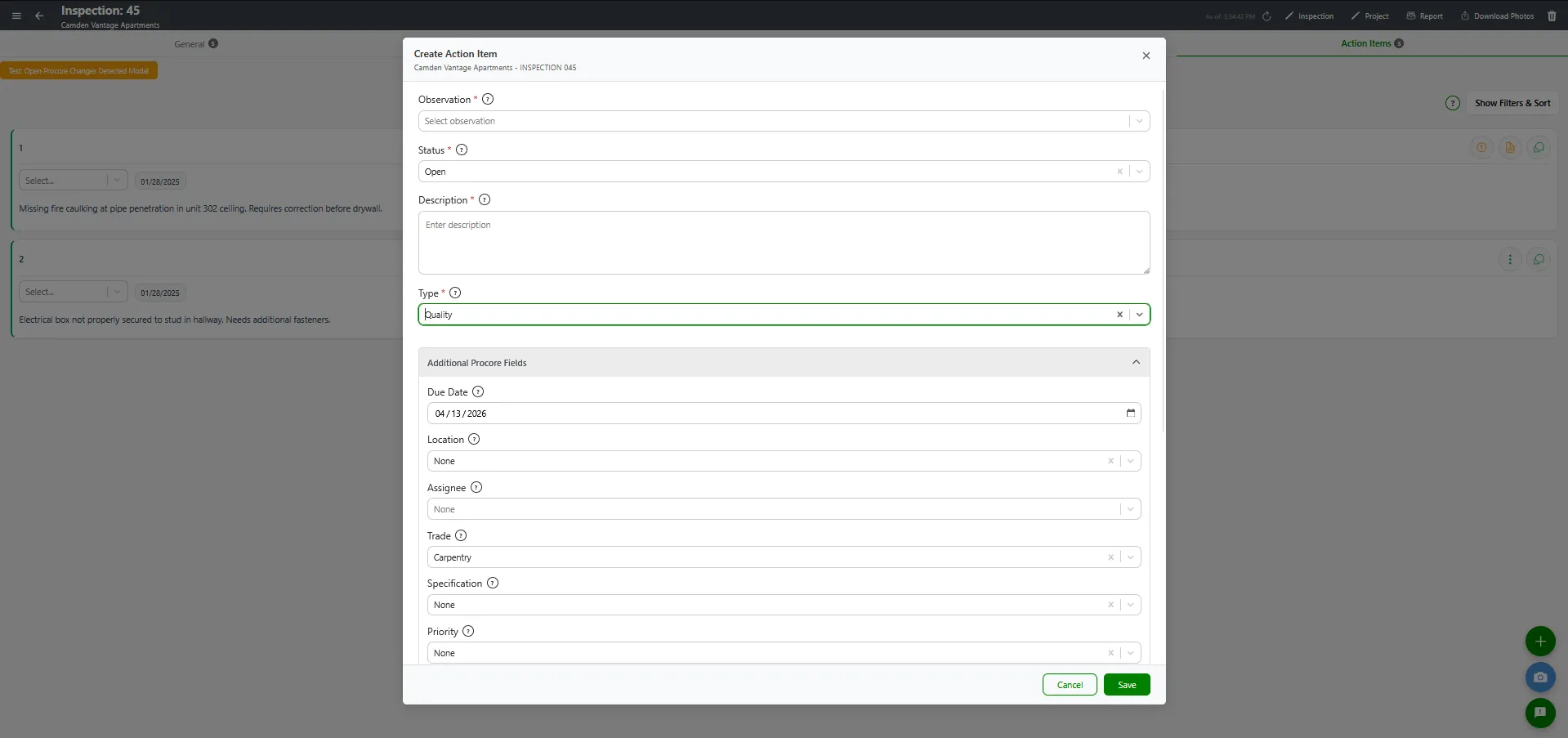
You do not need to fill all of these in for every observation. The Default Fields setup article shows how to pre-populate the most common values per project so creating an action item only takes a few seconds.
How Conflicts Are Resolved
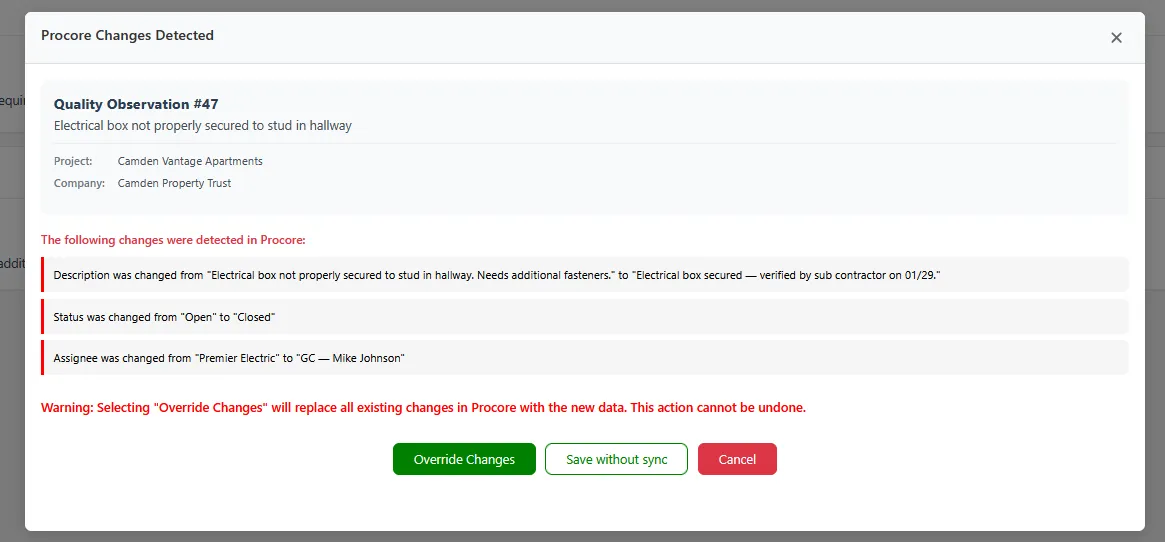
Section titled “How Conflicts Are Resolved”Because both nSpec and Procore can edit the same observation, NSPEC-X detects when an observation has changed in Procore while you were editing it in nSpec. When you click Save, the system checks Procore for any newer changes and, if it finds them, opens a Procore Changes dialog with two options:
- Override Changes — push your nSpec values up to Procore, replacing whatever changed there
- Save without sync — keep your changes locally in nSpec only, and do not touch Procore for this save
- Cancel — close the dialog without saving anything — nothing changes in either system
This guarantees you never accidentally overwrite a teammate’s Procore edits without knowing about it. For the full decision guide, see Resolving Procore Conflicts.
Requirements
Section titled “Requirements”On the nSpec Side
Section titled “On the nSpec Side”- An active nSpec account at inspect-app.nspec.app
- Your organization configured as a Procore tenant by your administrator
- A modern browser (Chrome, Edge, or Safari recommended)
On the Procore Side
Section titled “On the Procore Side”- An active Procore user account
- Permission to create and edit observations in the projects you will inspect
- Access to the Procore projects you want to link to nSpec
See the Procore Permissions Guide for the exact permission template settings.
Frequently Asked Questions
Section titled “Frequently Asked Questions”Can I use NSPEC-X without a Procore account?
Section titled “Can I use NSPEC-X without a Procore account?”No. Procore-tenant users must complete the Procore login the first time they open nSpec. If you do not have a Procore account, contact your administrator — they may be able to switch your tenant to standard nSpec.
Can I work with multiple Procore companies?
Section titled “Can I work with multiple Procore companies?”Yes. NSPEC-X supports multiple Procore companies under a single nSpec account. Each Procore company appears as a Client in nSpec, identified by its Procore Company ID. See Managing NSPEC-X Clients for details.
Does NSPEC-X work offline?
Section titled “Does NSPEC-X work offline?”Inspections can be performed offline just like in standard nSpec, and Procore sync happens automatically once you reconnect. The initial Procore login does require an internet connection.
Will I have to log in to Procore every day?
Section titled “Will I have to log in to Procore every day?”No. After your first successful login, nSpec stores a secure refresh token and renews your Procore session in the background. You will only be asked to sign in again if you sign out, clear browser data, or your Procore account credentials change.
Next Steps
Section titled “Next Steps”- Connecting to Procore — step-by-step guide to your first Procore login
- Setting Up Default Fields — pre-populate Procore fields per project to speed up data entry
- Creating Procore Observations — full walkthrough of creating action items that sync to Procore
- Managing NSPEC-X Clients — work with multiple Procore companies
- Procore Permissions Guide — required Procore permissions for NSPEC-X to function
- Troubleshooting Sync Issues — what to do when something does not sync as expected