
Procore Integration
nSpec integrates with Procore so your inspections can read project data from Procore and push action items back as Procore observations. This article explains the integration from an admin’s perspective: what it does, who can set it up, and how admins link clients and projects to Procore.
What the Integration Does
Section titled “What the Integration Does”When Procore integration is configured for a client:
- nSpec can fetch the list of Procore projects for that client
- You can link an nSpec project to a Procore project
- Action items created on a linked project sync to Procore as observations, including type, trade, location, assignee, and other Procore fields
- Conflicts between nSpec and Procore are detected and resolved through a guided dialog
- nSpec reaches Procore through the NSPEC Connector, an app the client installs in their Procore company. nSpec sees only the projects the client gave the connector.
The Enterprise Procore Permission
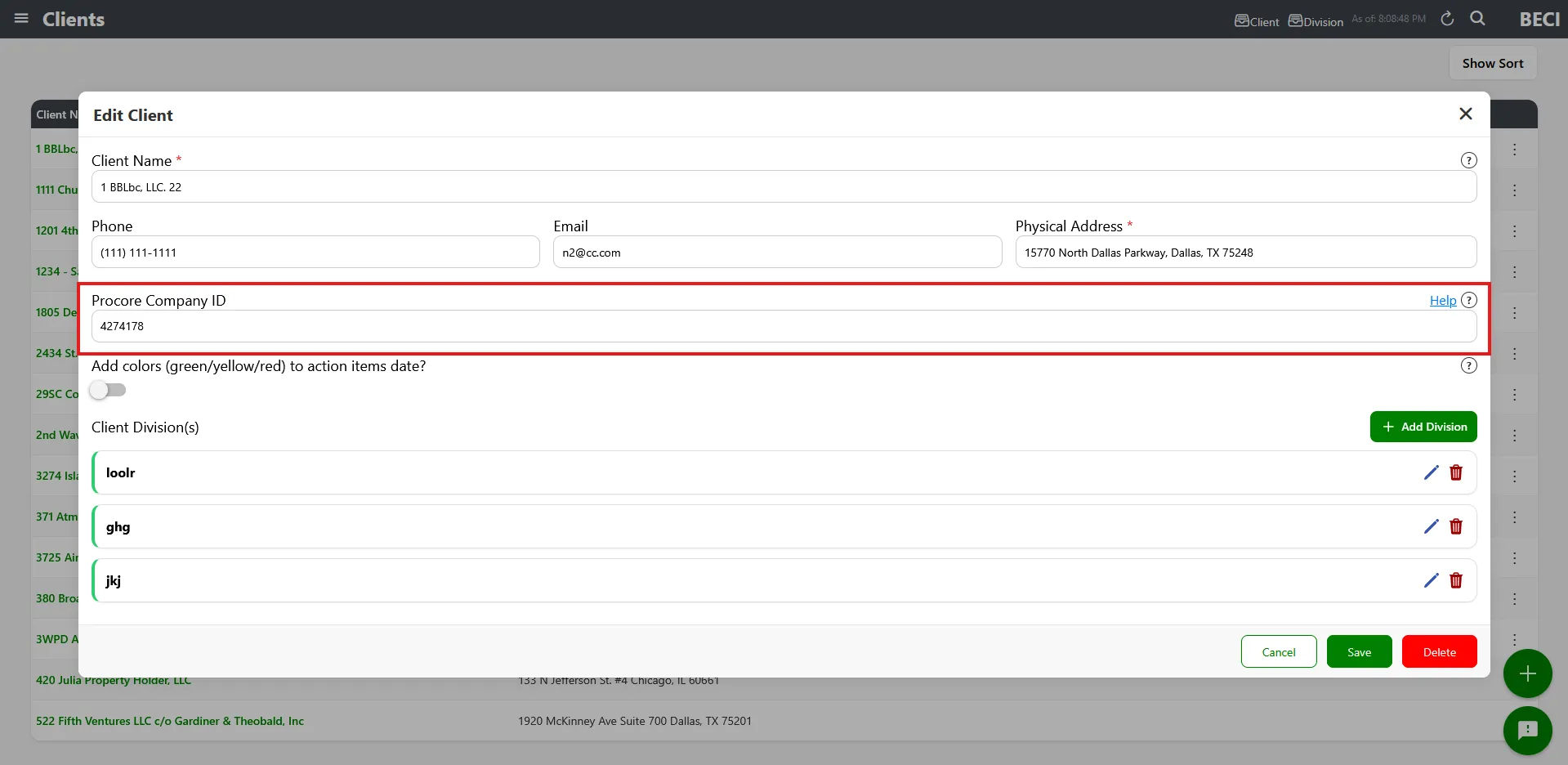
Section titled “The Enterprise Procore Permission”The Procore Company ID field on clients is gated by the Enterprise Procore Company permission. Without this permission, the field is hidden in the Create Client and Edit Client modals.
- Open Admin → Roles
- Edit a role (or create a new one)
- Check the Enterprise Procore Company permission
- Save
- Assign that role to admins who need to link clients to Procore
See Roles and Permissions for full role management instructions.
Linking a Client to Procore
Section titled “Linking a Client to Procore”Once you have the Enterprise Procore Company permission, you can attach a Procore Company ID to any client.
The client’s Procore administrator first installs the NSPEC Connector in their Procore company and emails you their company ID. Send them Installing the NSPEC Connector in Procore.
- Open the sidebar and click Clients
- Open the client (or create a new one)
- Find the Procore Company ID field
- Enter the Procore Company ID the client’s Procore administrator sent you
- Click Save
Linking a Project to Procore
Section titled “Linking a Project to Procore”Once a client has a Procore Company ID, projects under that client can be linked to specific Procore projects.
- Open the sidebar and click Projects
- Open the project (or create a new one) under a client with a Procore Company ID
- In the project edit form, find the Procore Project dropdown
- Pick the Procore project to link to from the list (the list is fetched live from Procore)
- Set the required Procore Default Type field that appears below the dropdown
- Optionally expand Optional Procore Defaults to set default values for Trade, Assignee, Location, etc. — see Setting Up Procore Default Fields
- Click Save
Do Users Sign In to Procore?
Section titled “Do Users Sign In to Procore?”No. nSpec reaches Procore through the NSPEC Connector the client installed, so every user sees the same Procore projects for that client: the ones the client gave the connector.
Required Procore Permissions
Section titled “Required Procore Permissions”The connector’s own permissions apply, not any user’s. See Permissions the Connector Requests.
Troubleshooting
Section titled “Troubleshooting”I don’t see the Procore Company ID field on clients
Section titled “I don’t see the Procore Company ID field on clients”Solutions:
- Confirm you have the Enterprise Procore Company permission. Ask your administrator.
- The field only appears for users with the right role — it’s not a tenant-wide setting
The Procore Project dropdown is empty
Section titled “The Procore Project dropdown is empty”Solutions:
- Make sure the parent client has a valid Procore Company ID set
- Ask the client to check that the NSPEC Connector is installed and that the project is one of its permitted projects. See Giving the Connector Access to a New Project.