
Annotating Images
Annotate mode lets you draw, reshape, re-class and delete Skand annotations from inside the ML Vision Tool, one photo at a time. This article is for anyone correcting or completing the labels on a dataset.
Opening a Photo
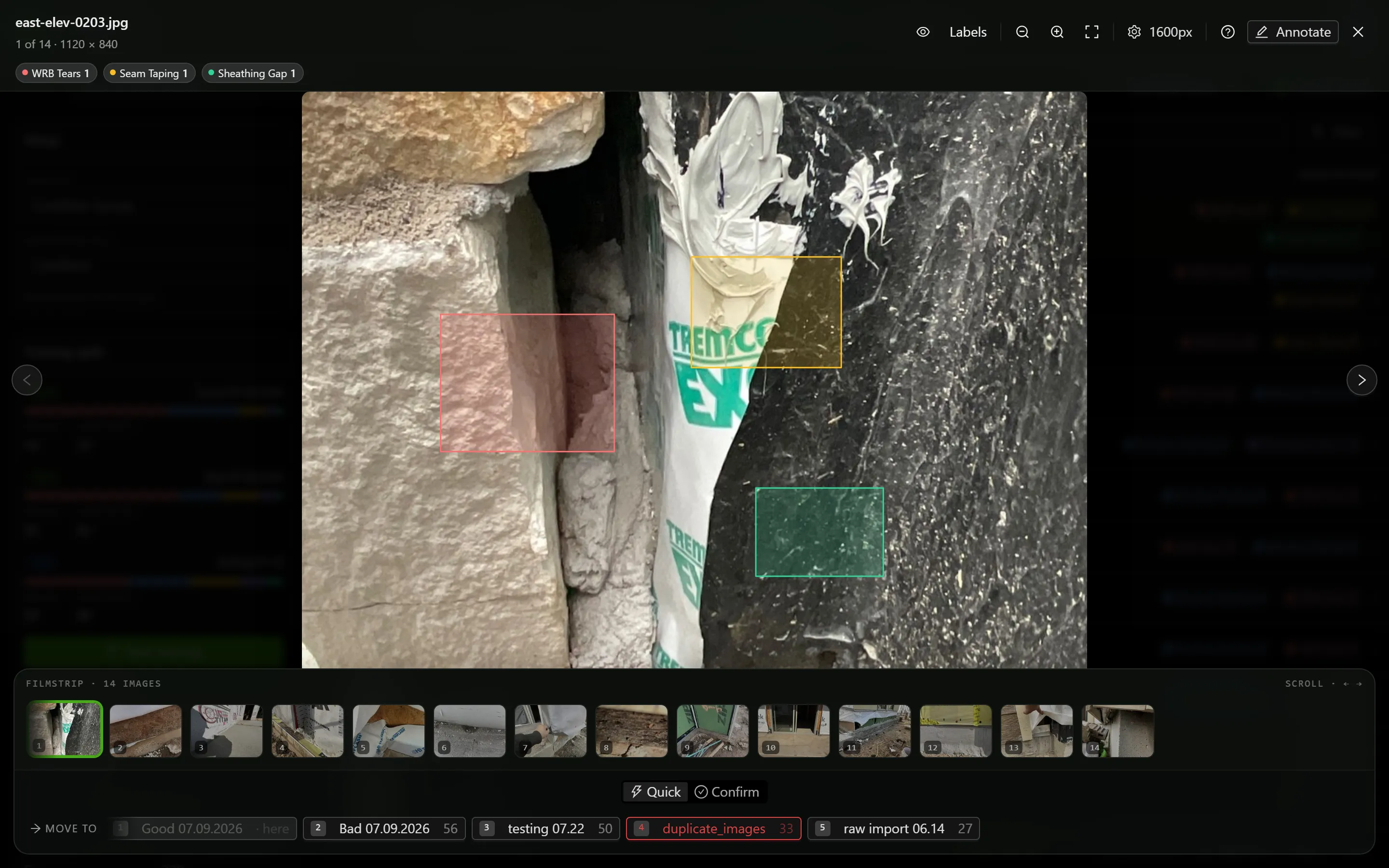
Section titled “Opening a Photo”Double-click a row in the image list. The photo opens full screen, with the filename at the top left and “N of N” beneath it, followed by the photo’s pixel dimensions once it has loaded.
- Move between photos with the left and right arrow keys, or the round buttons at either side of the photo.
- Along the bottom is the filmstrip, labelled “Filmstrip · N images” with “scroll · ← →” at its right end. It follows the photo you are on.
- Scroll to zoom, up to eight times. Drag to pan. Double-click to go back to the whole photo, and Reset zoom (F) does the same.
- Esc returns to the whole photo when you are zoomed in. Press it again, or click the dimmed area around the photo, to close.
Entering Annotate Mode
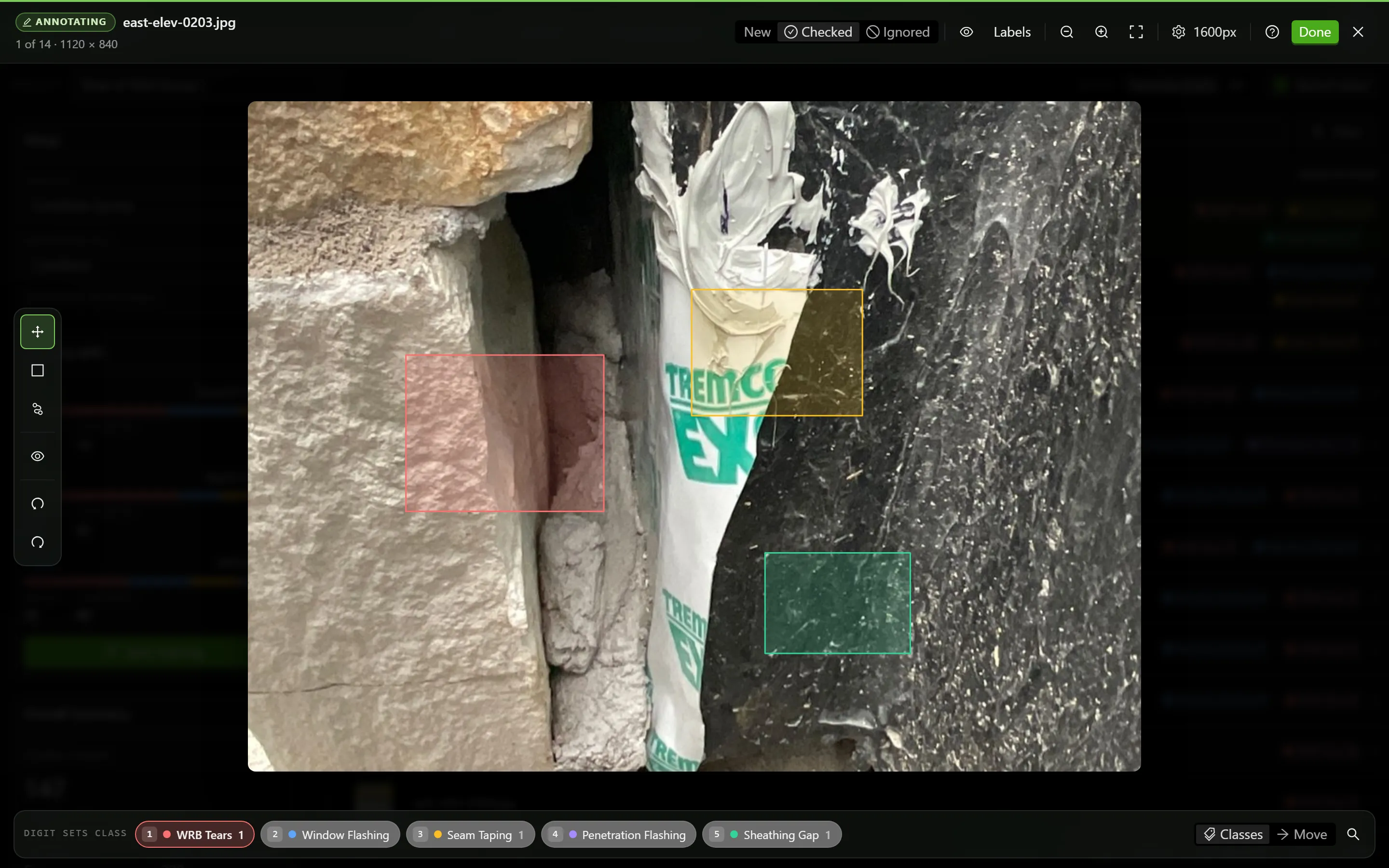
Section titled “Entering Annotate Mode”Select Annotate at the top right of the viewer, or press E. The tooltip reads “Annotate (E)”.
The screen changes in ways worth recognising:
- A green line appears along the top of the header, with an Annotating chip beside the filename.
- A tool rail appears down the left.
- The class palette replaces the filmstrip along the bottom.
- A New, Checked and Ignored control joins the header.
- The arrow buttons either side of the photo are removed. Use PgUp and PgDn to change photo instead.
The first time you ever enter, a card appears above the palette reading “Draw with B or P, pick a class with 1–9, mark the image Checked with C. Press ? any time for all shortcuts.” Got it dismisses it.
Leave with Done, whose tooltip reads “Exit annotate mode (E)”, or press E again.
When Annotate will not start
Section titled “When Annotate will not start”The button stays available but carries a small amber dot, and its tooltip names the reason. Selecting it opens a panel instead of the editor. The reasons are:
- “Select a project first”
- “Select a process first”
- “Select a template and label field in Setup to annotate”
- “Your Skand account can’t edit this project”
For the third, the panel is headed Pick a template and dropdown field to annotate and explains “Annotate mode needs to know which field holds the class list. Choose them in the sidebar’s Setup card.” Open Setup closes the viewer and takes you to the card.
The Tools
Section titled “The Tools”The rail down the left holds three tools and three actions. Each has a keyboard shortcut, and the shortcut is the faster way to work.
| Tool | Key | What it does |
|---|---|---|
| Select | V | Click a shape, drag to move it, drag a handle to reshape it. |
| Box | B | Draw a rectangle. |
| Polygon | P | Draw a shape point by point. |
| Hide shapes (hold to peek) | H | Hides every shape. Holding the key peeks instead of toggling. |
| Undo | Ctrl+Z | Step back. |
| Redo | Ctrl+Shift+Z | Step forward. |
In the header, Labels shows the class name against every shape, with the tooltip “Toggle class labels (L)”. Labels start off on every photo; a shape you hover over or select is labelled anyway.
Drawing an Annotation
Section titled “Drawing an Annotation”Pick the class first. A digit sets the class the next shape will get, and the palette caption confirms it: “Digit sets class”.
- Press B.
- Press on one corner and drag to the opposite one, then release. Or click once on a corner and click again on the opposite corner — the shortcut sheet describes both as “Box — press-drag, or click two corners”.
A polygon
Section titled “A polygon”- Press P.
- Click each point in turn.
- Close the shape by clicking the first point again, by pressing Enter, or by double-clicking. Backspace removes the last point, and Esc abandons the shape.
Choosing and Changing a Class
Section titled “Choosing and Changing a Class”The palette along the bottom shows one chip per class, each with a number, a colour and a count of that class on the photo. A chip’s tooltip gives the key and “N on this image · Alt+click to show only this”.
- With nothing selected, a digit or a chip sets the class for the next shape. The caption reads “Digit sets class”.
- With shapes selected, the same digit re-classes them, and the caption changes to “Digit re-classes”.
- Press /, or double-click a shape, to search by name. The panel prompts “Find a class…” and is headed Class for the next shape, or Re-class and the shape’s name. Its footer reads “Type to filter · ↑ ↓ move · ↵ apply · Esc close”, and an unmatched search reads “No class matches” with what you typed.
Where the field carries no options at all, the palette reads “This field has no options.”
Editing a Shape
Section titled “Editing a Shape”- To select, click a shape. Shift-click adds one, Shift-drag on empty space draws a marquee, Ctrl+A takes them all, and Tab steps through them.
- To move, drag the body, or nudge with the arrow keys, one pixel at a time and ten with Shift held.
- To reshape, drag a box by its corner and edge handles. Drag a polygon’s own points, or resize it as a whole by the dashed box around it. Holding Shift keeps the proportions.
- To add a point, Alt-click an edge or double-click it. This works on a box too, which turns it into a polygon.
- To remove a point, select it and press Del. This is allowed only on shapes with more than three points.
- To rotate, drag the handle above the shape, or press [ and ] for one degree, fifteen with Shift held.
- To copy, use Ctrl+C and Ctrl+V, Ctrl+D to duplicate, and Ctrl+Shift+V to paste every shape from the previous photo. The clipboard survives moving between photos.
- To delete, press Del or Backspace. This is the one change that raises a message, and it carries an Undo button for about five seconds.
How Saving Works
Section titled “How Saving Works”Each change is drawn on screen at once and sent to Skand behind it. The save indicator sits on the same line as the filename and shows nothing while everything is settled.
| What it shows | What is happening |
|---|---|
| “Saving…” | A change is on its way. With several in flight it counts them. |
| “Saving… (retrying)” | The first attempt failed and it is trying again on its own. |
| “Saved” | Everything has landed. Shown for two seconds. |
| “Offline — will save when you reconnect” | The connection has dropped. |
| “N failed” | Changes were rolled back. Retry re-applies them. |
A change that cannot be saved after several attempts is undone on screen and reported as Couldn’t save to Skand, with Retry and Dismiss. Photos carrying unsaved or failed work are badged in the image list, “N unsaved” or “N failed”.
Marking the Photo
Section titled “Marking the Photo”The control in the header sets the photo’s status, tooltipped “Checked = training-ready (C) · Ignored = excluded from training (I)”.
- C switches between Checked and New.
- Shift+C marks it Checked and moves to the next photo, which is the quickest way to work through a process.
- I switches between Ignored and New.
A status change can be undone with Ctrl+Z like any other edit. To set the status on many photos at once, use the action bar in the image list instead, described in Balancing a Training Dataset.
Setting the Image Quality
Section titled “Setting the Image Quality”Inspection photos are large, which makes panning and zooming sluggish. The viewer can load a smaller copy. The control sits in the header and shows the current width — Original, or a pixel width. Selecting it opens Image quality.
- Type a width in pixels, or choose one of the quick picks beside the box. Original never shrinks a photo.
- Select Apply, or press Enter.
Widths run from 320 to 4096 and snap to the nearest 64 pixels, which the panel notes as “Rounded to the nearest 64px.” Type 1500 and 1472 is saved. Where nobody has chosen, photos are capped at 1600 pixels wide.
A narrower photo opens and pans faster but carries less detail when you zoom in, so pick a wider one when the work turns on hairline cracks. The setting changes only what you look at. It does not touch the stored photo, the annotations, or the resolution a model trains at.
Keyboard Shortcuts
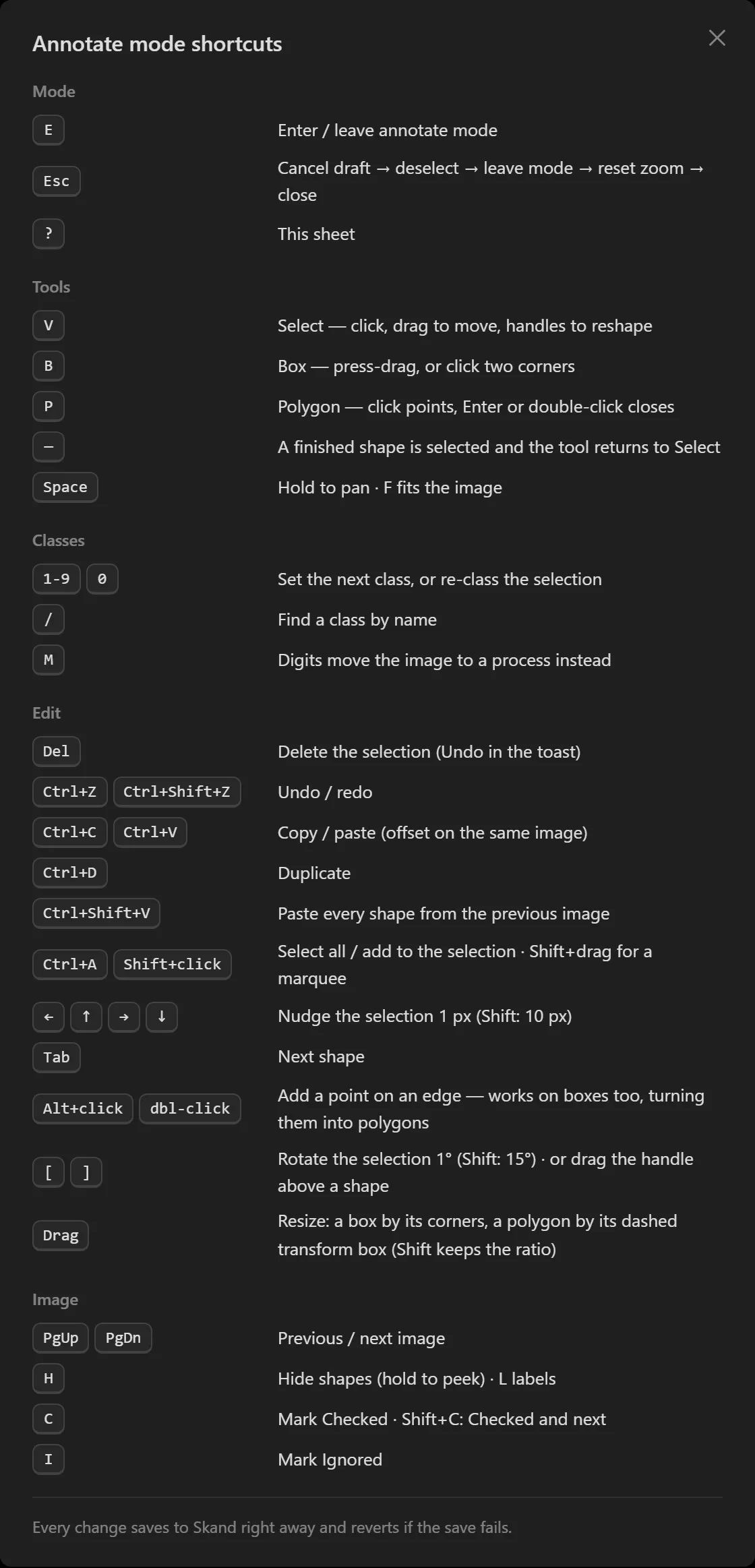
Section titled “Keyboard Shortcuts”Press ? for Annotate mode shortcuts, which lists every one. The ones worth learning first:
| Key | Action |
|---|---|
| E | Enter or leave annotate mode |
| V B P | Select, box, polygon |
| 1-9 0 | Set the next class, or re-class what is selected |
| / | Find a class by name |
| M | Hand the digits to the move bar instead |
| Del | Delete the selection |
| Ctrl+Z | Undo, on this photo only |
| C | Mark the photo Checked. Shift+C also advances |
| I | Mark the photo Ignored |
| H L | Hide shapes, toggle labels |
| Space | Hold to pan. F fits the photo |
| PgUp PgDn | Previous and next photo |
Troubleshooting
Section titled “Troubleshooting”A shape I drew is not there
Section titled “A shape I drew is not there”Solutions:
- It was probably too small. A box under four image pixels on either side, and a polygon with fewer than three points, are discarded silently.
- Check whether shapes are hidden. The rail’s tooltip reads “Show shapes” when they are.
- Check whether one class is isolated. Alt-clicking a palette chip shows only that class; Alt-click it again to bring the rest back.
A number key did nothing, or moved the photo
Section titled “A number key did nothing, or moved the photo”Solutions:
- Check the Classes and Move switch on the palette. On Move, digits send the photo to a process. Press M to switch back.
- Where the template has fewer than ten classes, the leftover digits do nothing at all.
Rotating does nothing
Section titled “Rotating does nothing”Solutions:
- A rotation that would push any part of the shape outside the photo is refused, and refused silently. Move the shape inwards first, or make it smaller.
A shape will not move or re-class
Section titled “A shape will not move or re-class”Solutions:
- It is locked. Locked shapes are labelled “Read-only” and the palette caption reads “Locked · read-only”, explained as “This shape has no parent id in Skand and cannot be edited here”.
- Edit it in Skand instead.
Everything stopped saving after one error
Section titled “Everything stopped saving after one error”Solutions:
- Where Skand refused a change as a permissions problem, the message reads “Your Skand account can’t edit this project. The change was reverted.” and editing is switched off for the rest of the session. Reload the page.
- Where it is the token, the message reads “Skand token problem — the change was reverted and will retry after you fix the token.” Save a fresh token and the failed changes are re-sent. Saving a team token does not re-send them, so use Retry on the save indicator afterwards.
The Labels button is greyed out
Section titled “The Labels button is greyed out”Solutions:
- Shapes are hidden, and a hidden shape has nothing to label. Press H to bring them back, then L for the labels.
Related Articles
Section titled “Related Articles”- Balancing a Training Dataset — Setting up the project and process this mode annotates
- Starting a Training Run — What happens to an annotated dataset next
- Working an Annotation Task in Skand — Starting and submitting a dataset, which is still done in Skand