
SuperClear AI Review
SuperClear AI Review is where BECI and NXT reviewers check the photos a client uploads to SuperClear AI before the client gets their punch list. You correct the AI’s defect boxes and captions, mark each photo reviewed, and then send the punch list yourself. This article is for anyone reviewing that work, and for the administrators who decide who is emailed about it.
How a Review Works
Section titled “How a Review Works”Review applies to the clients an administrator has put in review, whether a single client or a whole company account, from the moment review was switched on for them. For those clients, an upload goes like this:
- The client uploads photos to SuperClear AI, which analyzes them as usual. The punch-list email the client would normally get is held back.
- The inspection appears as a card on the review board, and everyone on the review email list is emailed. If nobody has sent it 12 hours later, they are emailed once more.
- A reviewer corrects the AI’s work on every photo and marks each one reviewed.
- The reviewer sends the punch list. The client receives it as the same SuperClear AI email they would have had anyway.
A review is due 24 hours after it opens. Going overdue turns its clock red, but it never sends anything: the held photos wait until a reviewer sends them.
Uploads are grouped into passes. A pass is every photo uploaded within 24 hours of the first one, and sending a punch list closes it. When the client uploads more photos after a send, they start a new pass and the inspection moves from Sent back to To review.
Opening SuperClear AI Review
Section titled “Opening SuperClear AI Review”- Sign in to the ML Vision Tool.
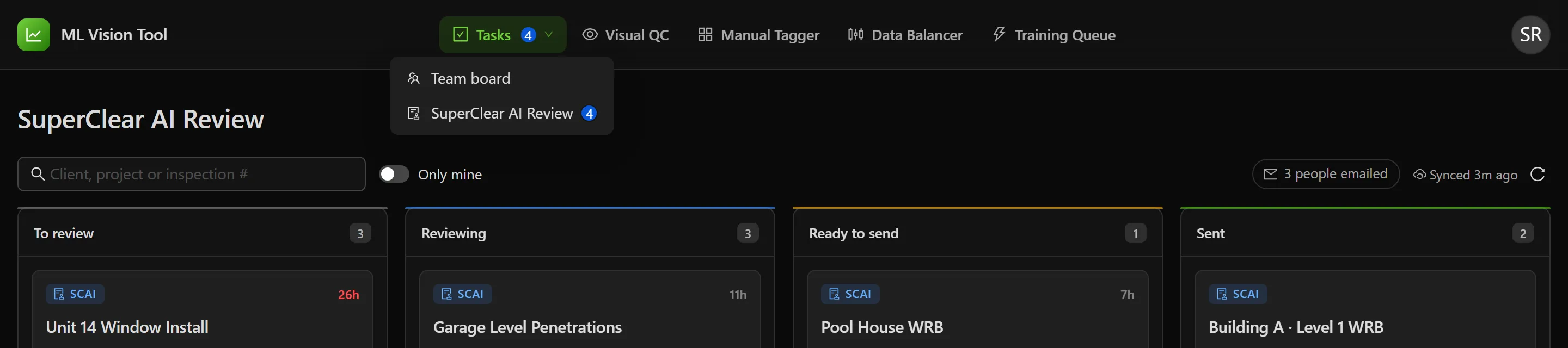
- In the top navigation bar, point to Tasks. A menu opens under it.
- Select SuperClear AI Review. The review board opens.
Selecting Tasks itself always opens the Team board, so use the menu. On a touch
screen, where there is nothing to point with, use the strip below the tool cards on the
home page instead. It reads SuperClear AI Review followed by how many inspections
are waiting to review and ready to send, and selecting it opens the board. The strip
only appears while something is waiting; otherwise, go to /tasks?view=superclear in
the ML Vision Tool.
The number beside Tasks counts the inspections waiting in To review and Ready to send, as of the last time someone opened the board. Inspections someone is already reviewing are not counted.
The Review Board
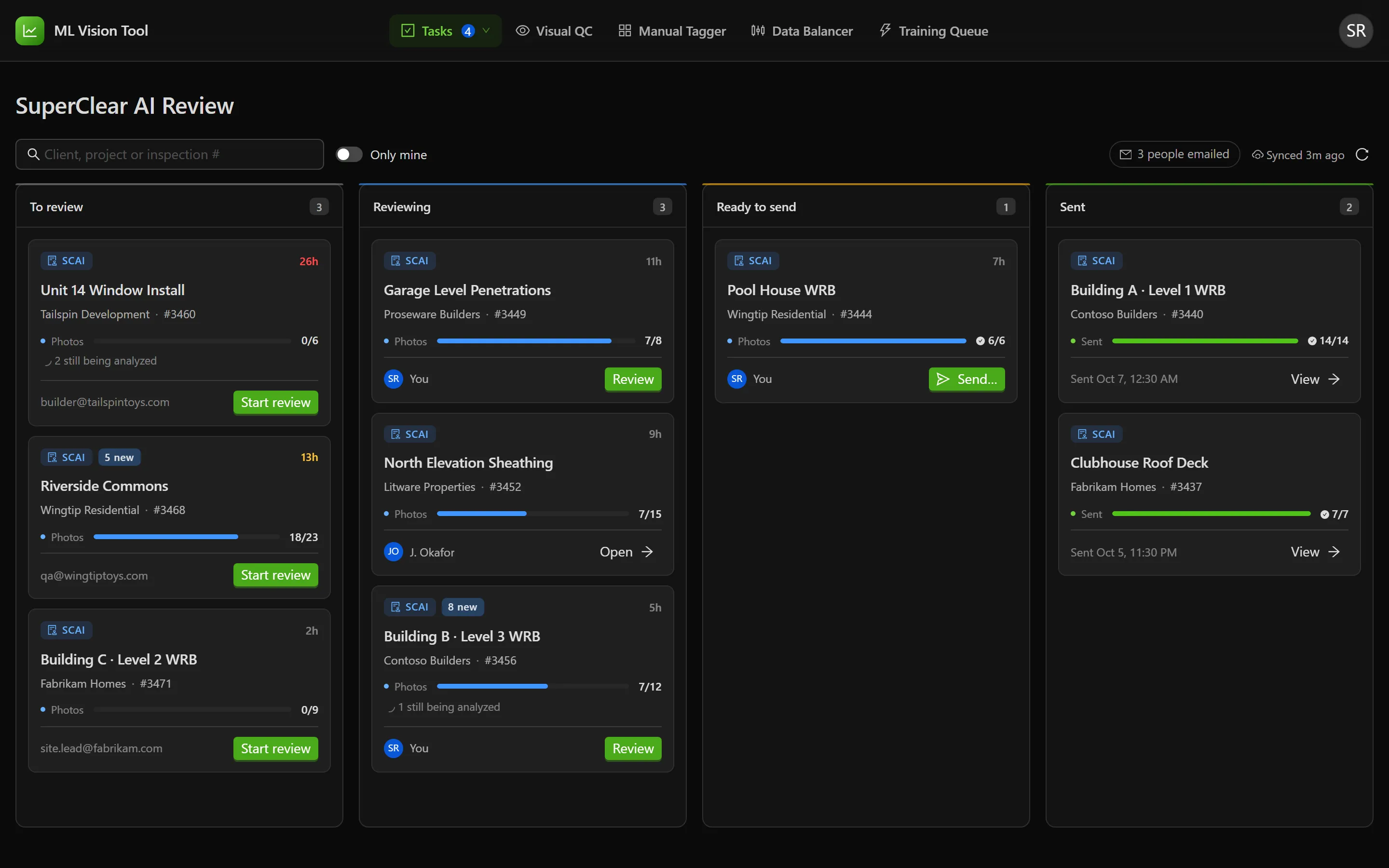
Section titled “The Review Board”The board holds one card for each client inspection with photos in review. The cards move on their own as the review progresses: there is nothing to drag.
| Column | What it holds | Message when empty |
|---|---|---|
| To review | Photos waiting, and nobody reviewing them yet. | “Nothing waiting” — “New client uploads land here.” |
| Reviewing | Someone has the inspection, and photos are still open. | “Nobody reviewing” — “Start a review and it moves here.” |
| Ready to send | Every unsent photo is reviewed. Only sending is left. | “Nothing ready” — “Every photo reviewed, waiting for its punch list.” |
| Sent | Everything has gone to the client. The newest 20 are shown. | “Nothing sent yet” — “A new upload brings an inspection back.” |
What a card shows
Section titled “What a card shows”- SCAI — every review card carries this badge. A second badge, N new, means the client uploaded more photos after the last punch list went out.
- The age, top right — how long the review has been open, such as
5h. It turns amber at 12 hours and red at 24. Point to it for “Open for hh:mm · due in hh:mm”, or how long it is overdue. - The inspection’s name, then the client and the inspection number.
- Photos — how many photos are reviewed out of the total. Photos already sent count as reviewed. A spinner line, “N still being analyzed”, means SuperClear AI has not finished with some of them.
- Along the bottom — who has the review (You or their name), or the client’s uploader if nobody does. A sent card shows when it was sent.
Each card has one button, which depends on its state:
| Button | When it shows | What it does |
|---|---|---|
| Start review | Nobody has the inspection. | Makes it yours and opens the review. |
| Review | It is yours. | Opens the review. |
| Send… | It is ready to send, and it is yours or nobody’s. | Makes it yours if nobody has it, then opens the review with the punch list preview open. |
| Open | Someone else has it. | Opens their review, read-only until you take it over. |
| View | It has been sent. | Opens the review for reference. |
Finding an inspection
Section titled “Finding an inspection”- Type in the search box, which reads “Client, project or inspection #”. It also matches the name of whoever has the review.
- Turn on Only mine to see only the inspections assigned to you. Sent inspections drop out, because sending clears the assignee.
The board checks SuperClear AI for new uploads while someone has it open, at most once a minute. The status at the right of the toolbar says when it last did, such as “Synced 3m ago”. Select the refresh icon beside it to check now.
Inspection Details
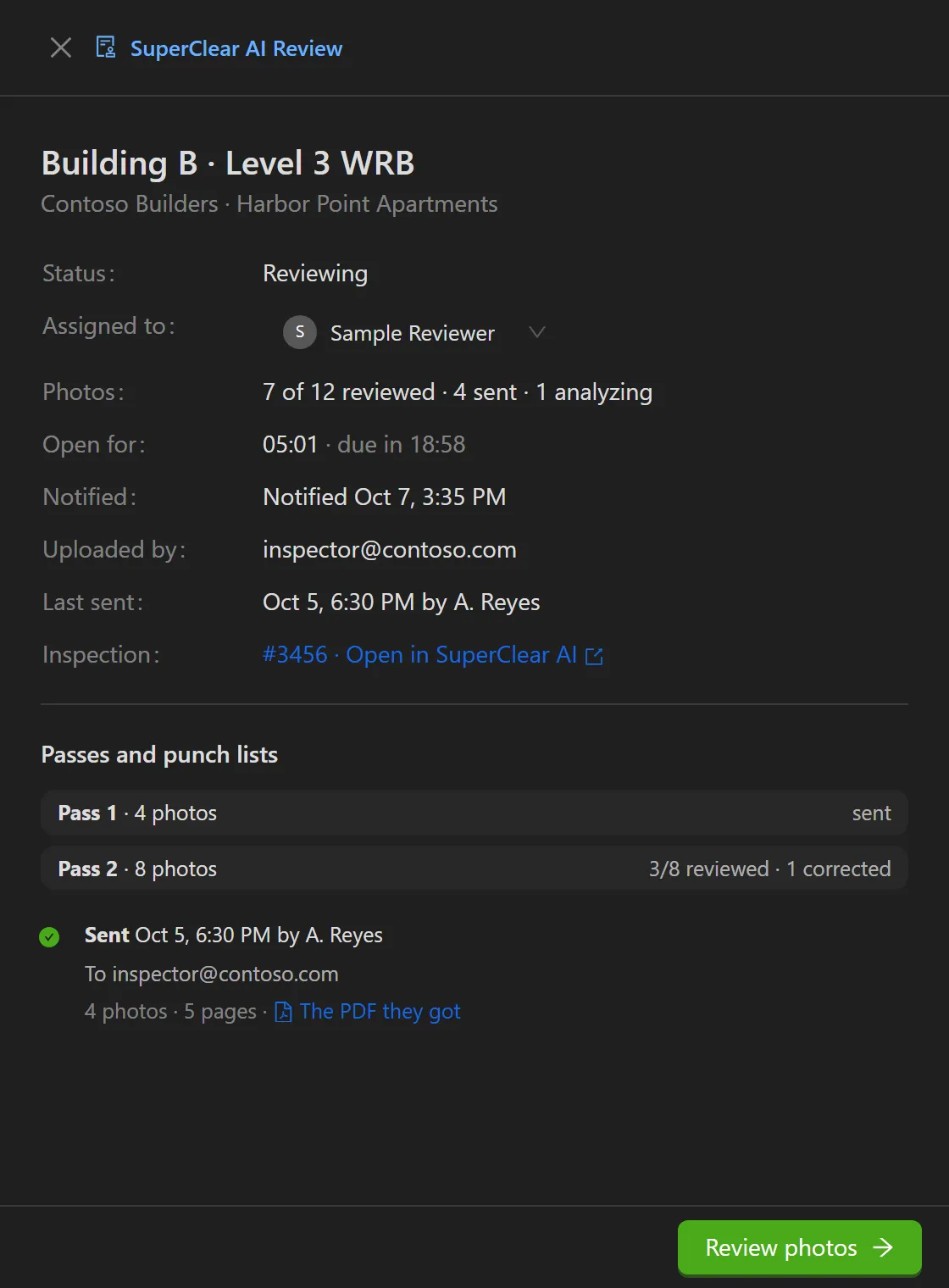
Section titled “Inspection Details”Select anywhere on a card, other than its button, to open the inspection’s details.
| Field | What it tells you |
|---|---|
| Status | The card’s column. It follows the review; you cannot set it. |
| Assigned to | Who has the review. See the next section. |
| Photos | For example, “7 of 12 reviewed · 4 sent · 1 analyzing”. |
| Open for | How long the review has been open, and when it is due. A sent inspection shows Closed after instead. |
| Notified | When the review email list was emailed, and when the reminder went out. “Not yet” means no email has gone out so far. A reminder marked skipped means the first email went out late enough to cover it. |
| Uploaded by | Up to five of the client’s people who uploaded the unsent photos. The uploaders are who the punch list goes to. |
| Last sent | When the last punch list went out, and who sent it. |
| Inspection | The inspection number, with a link to Open in SuperClear AI in a new tab. |
Assigning a review
Section titled “Assigning a review”- To take it yourself, select Assign to me.
- To give it to someone else, choose them in Assigned to. Only people with a BECI or NXT email address are offered. They are emailed that you assigned it to them.
- To free it up, clear the field. The message reads “Nobody is assigned now.”
Passes and punch lists
Section titled “Passes and punch lists”The lower half of the panel lists each pass with its photo count, and either sent or how many are reviewed so far. Below that is every punch list sent for the inspection, newest first: when it went, who sent it and who received it, with a link to The PDF they got for one a reviewer sent. A send that went wrong is listed too, as Failed or Outcome unknown. Two tags can appear on a send:
- Automatic email — SuperClear AI emailed those photos itself, without a review. This happens to photos uploaded before the client was put in review, for example.
- Released automatically — review was switched off for the client, so the photos still held went out as the normal punch list, without a review.
At the bottom of the panel is Start review, or Send punch list… when it is ready to send, if nobody has the inspection; Review photos if it is yours; and Open otherwise.
Reviewing an Inspection
Section titled “Reviewing an Inspection”Reviewing means checking every photo in the inspection that has not been sent yet: fixing the defect boxes and the caption where the AI got them wrong, then marking the photo reviewed. The review opens full screen, with no navigation bar; the arrow at the top left takes you back to the board.
Starting a review
Section titled “Starting a review”- On the board, find the inspection in To review.
- Select Start review. The inspection is assigned to you, its card moves to Reviewing, and the review opens on the first photo that needs review.
If someone else has the inspection, a banner across the photo reads “{name} is reviewing this inspection.” and nothing can be changed. To carry on with it yourself, select Take over. The message “The inspection is yours now.” confirms it. There is no confirmation step, so check with them first.
Finding your way around the workspace
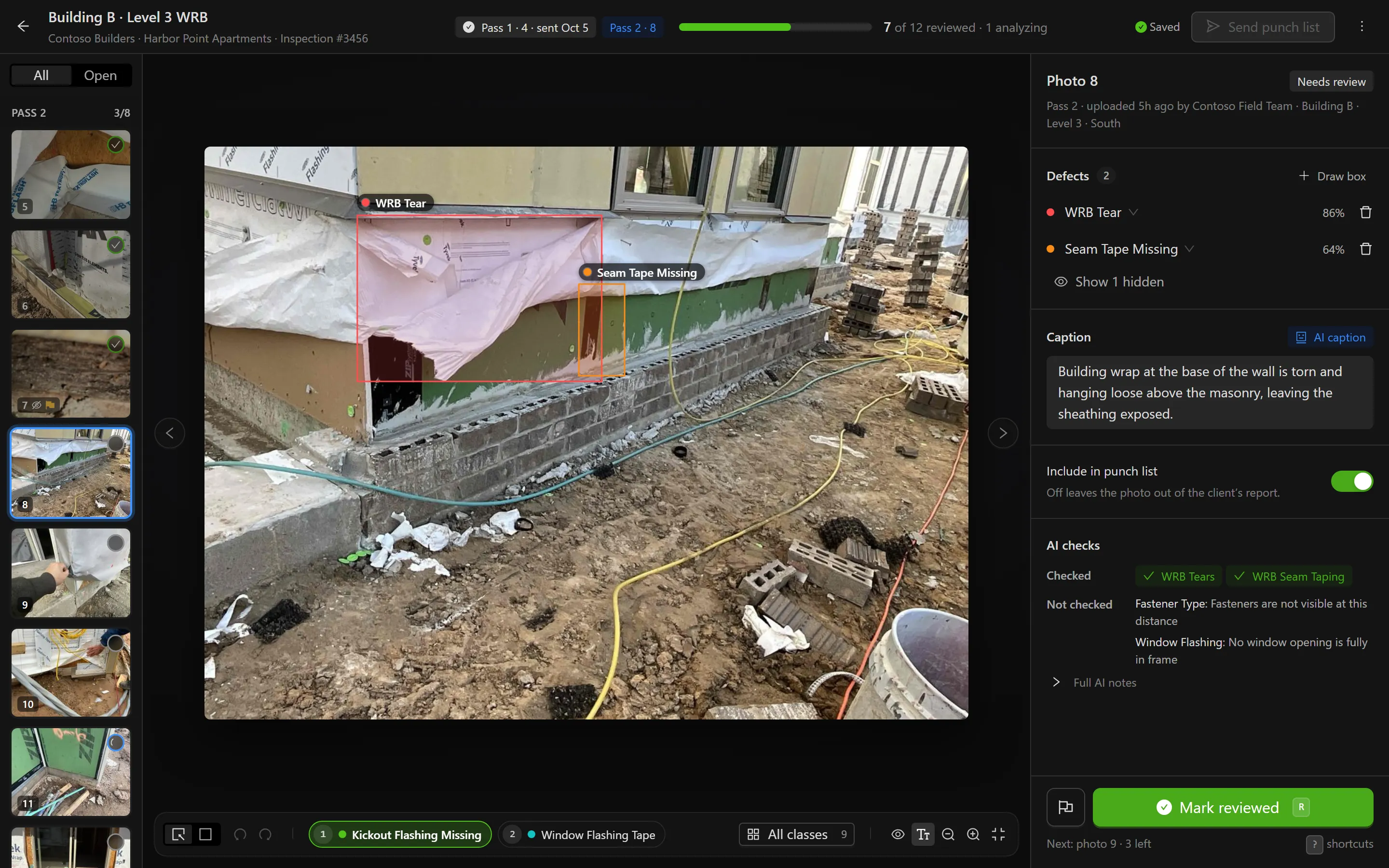
Section titled “Finding your way around the workspace”- Along the top are the inspection’s name and client, a tag for each pass when there is more than one, and a progress bar reading “N of N reviewed”. On the right are the save status, Send punch list, and a menu under the three dots with Send history, Open in SuperClear AI and Keyboard shortcuts.
- The filmstrip on the left holds every photo, grouped by pass: passes still to send first, then sent passes for reference. Switch between All and Open to hide what is done. A green check marks a reviewed photo, a spinner one that is still being analyzed, an eye with a line through it one left out of the punch list, and a flag one you flagged. Point to a thumbnail for its state.
- The photo in the middle has the defect boxes drawn on it. The tool bar underneath holds the drawing tools, the class chips, and the view controls: show or hide boxes and labels, zoom, and fit.
- The review panel on the right holds the photo’s state, its Defects, Caption, Include in punch list and AI checks, with Mark reviewed at the foot.
Correcting the boxes
Section titled “Correcting the boxes”Each box on the photo has a row under Defects. A box the AI drew shows its
confidence, such as 86%. Point to a row to highlight its box, or select it to select
the box.
- To draw a missing box, select Draw box (Draw a box on a photo with none) or press B, then drag across the defect. The new box takes the class for the next box, and the tool goes back to selecting, so press B again for each box.
- To move or resize a box, use the select tool (V): drag the box to move it, or drag a corner or edge to resize it.
- To change a box’s class, select the box, then select a class chip under the photo or press its number. Or open its row’s class list, double-click the box, or press / to search every class by name.
- To remove a wrong box, select the trash icon on its row, or press Del.
With no box selected, the class chips, numbers and / set the class for the next box you draw instead. All classes lists every class, grouped by condition. The first ten classes are numbered, and your browser keeps each one’s number for the inspection, so a key always means the same class while you work.
A removed box that was already saved is hidden, not deleted, so the record keeps what the AI proposed. A box you drew and have not saved is simply removed. Hidden boxes fold away under Show N hidden, together with suggestions the AI was not confident enough to show. A box removed since the last save is marked Removed; the others show the AI’s confidence, if they have one. Select the eye icon on one to put it back on the photo. Ctrl+Z undoes and Ctrl+Shift+Z redoes, one photo at a time.
A row tagged New is a box you drew, and Edited one you changed, since the photo was last saved.
Editing the caption
Section titled “Editing the caption”Type in the Caption box, or press T to jump into it and Esc to go back to the photo. A tag beside the heading says where the caption came from:
- AI caption — SuperClear AI wrote it.
- Edited — you have changed it since it was last saved. The revert icon beside the tag puts back the saved caption.
- Edited by BECI — a reviewer rewrote it. Pointing to the tag reads “Written in review. The client still sees it as SuperClear AI’s caption.”
Leaving a photo out of the punch list
Section titled “Leaving a photo out of the punch list”Turn off Include in punch list for a photo that should not be in the client’s report. It still has to be reviewed, and it still counts as sent once the punch list goes out; it just does not appear in the PDF.
Reading the AI checks
Section titled “Reading the AI checks”AI checks lists what SuperClear AI looked for in this photo. Checks under Checked ran. Checks under Not checked did not, with the AI’s reason beside each one, which usually explains a defect with no box. Full AI notes opens the rest of the AI’s notes on the photo. You cannot change any of it.
Flagging a photo for training
Section titled “Flagging a photo for training”Select the flag icon beside Mark reviewed, or press X, to tell the model’s trainers something only a person can judge. Flags are for training only; the client never sees them.
- Not relevant — “Not a photo SuperClear AI should judge”. Press 1 while the menu is open.
- Poor image quality — “Too blurry, dark or far away to judge”. Press 2.
- A note, for anything else worth knowing.
Each change is saved as you make it.
Marking a photo reviewed
Section titled “Marking a photo reviewed”- When the boxes and caption are right, select Mark reviewed or press R. The photo is marked reviewed, and the next photo that still needs review opens.
- Repeat until no photo is left to review.
To undo a mark, open the photo and select Reopen or press U. The tag at the top of the panel shows where a photo stands:
- Needs review — not reviewed yet.
- Reviewed by you, or by a colleague’s name — done.
- Changed since review — it was reviewed, but then changed in SuperClear AI, so it needs another look.
- Analyzing — SuperClear AI has not finished with it, so it cannot be reviewed yet.
- Sent — it is in a punch list the client already has, and cannot be changed.
Keyboard Shortcuts
Section titled “Keyboard Shortcuts”Press ? in the review to see these at any time. They do nothing while you are typing in a box, except Esc and Ctrl+Enter.
| Key | What it does |
|---|---|
| R | Mark reviewed and go to the next open photo. Enter does the same when no box is selected, and Ctrl+Enter works from inside the caption. |
| U | Reopen a reviewed photo. |
| N | Next photo that still needs review. |
| J / K | Next or previous photo. → and ← do the same when no box is selected. |
| T | Edit the caption. Esc goes back to the photo. |
| X | Flag the photo, then 1 for not relevant or 2 for poor image quality. |
| B | Draw a box. |
| V | Select, move and resize boxes. |
| 1–9, 0 | Class for the next box, or relabel the selected box. |
| / | Find a class by name. Enter does the same when a box is selected. |
| Del | Remove the selected box. |
| Ctrl+Z / Ctrl+Shift+Z | Undo or redo. |
| Tab | Select the next box. |
| Arrow keys | Nudge the selected box. Hold Shift to move it further. |
| H | Hide the boxes. Hold it to hide them only while the key is down. |
| L | Labels on or off. |
| + / − / F | Zoom in, out, or fit the photo. Hold Space and drag to pan. |
| Esc | Clear the selection, or with nothing selected, reset the zoom. |
On a photo you cannot edit (one that is sent, still being analyzed, or someone else’s), F, Space-drag and holding H do nothing. Use the tool bar under the photo instead.
How Your Changes Are Saved
Section titled “How Your Changes Are Saved”As you work, your changes are kept in your browser. They are saved to SuperClear AI when you move to another photo, mark the photo reviewed or reopen it, or switch away from the browser tab. Staying on one photo does not save it, and neither does leaving the review with the back arrow: the changes stay in your browser, unsaved, until you come back to the inspection. So before you leave, move off the last photo you changed or mark it reviewed. Changes kept in your browser are dropped if the photo changes in SuperClear AI in the meantime, or after seven days.
The top bar shows where things stand:
- ● Edited — there are changes that are not saved yet.
- Saving… — a save is in progress.
- Saved — everything is saved.
- Not saved — a save failed. The photo’s panel reads “This photo didn’t save”; select Retry.
- Conflict — a photo changed in SuperClear AI while you were editing it. See When the Client Changes Something.
Sending the Punch List
Section titled “Sending the Punch List”You can send once every unsent photo is reviewed. When you mark the last one, a card reads “All N photos reviewed” and names the pass that is ready.
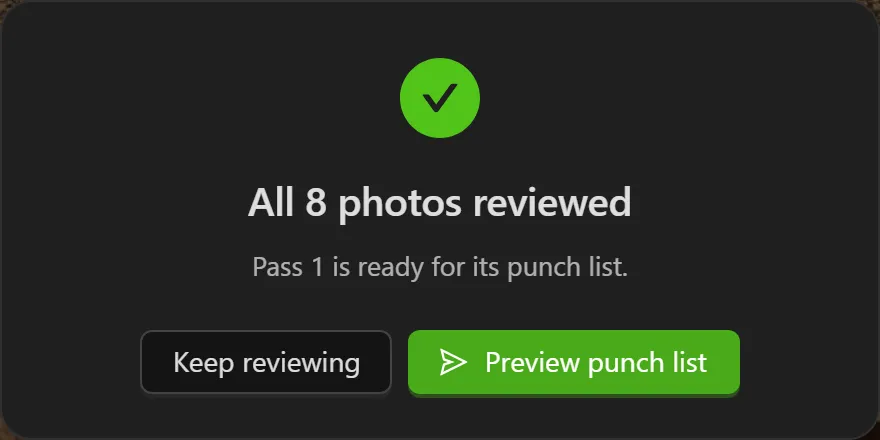
- Select Preview punch list on that card, or Send punch list in the top bar. The punch list is generated, which can take a moment, and shown on the left exactly as the client will receive it.
- Check the PDF page by page.
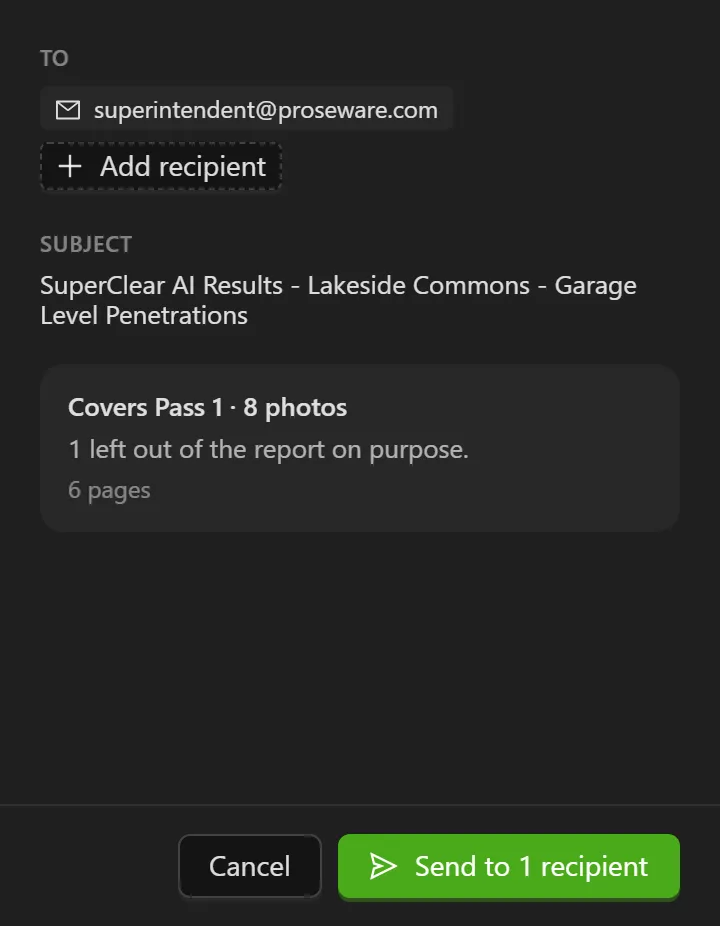
- Check who it goes to. Under TO are the client’s people who uploaded the photos. You cannot remove them, or anyone under CC when that appears.
- Optional: To send it to someone else as well, select Add recipient and type their address. They are added under TO. You can add up to ten. Each one must be at the client’s own email domain, or a BECI or NXT address, or the send is refused.
- Check what it covers: which pass, how many photos, and how many are left out of the report on purpose.
- Select Send to N recipients. The panel changes to “Punch list sent”.
Once everything is sent, the card moves to Sent and nobody is assigned to it any more. The send, with the PDF the client got, appears in the inspection’s history and under Send history in the review’s menu under the three dots.
When the Client Changes Something
Section titled “When the Client Changes Something”The client can keep working in SuperClear AI while you review, and the review adjusts to what they do.
- If they upload more photos, the new photos join the review and the card goes back to needing review. The message “N new photos arrived (Pass N).” appears if you are in the review at the time. If the punch list has already gone, the new photos start a new pass instead, the card returns to To review with an N new badge, and the review email list is emailed again.
- If they change a photo you reviewed, it shows Changed since review and has to be reviewed again. The same happens when the AI is run again on it.
- If they change a photo you are editing, the panel warns “Changed in SuperClear while you were editing”. When you save, a window asks which version the punch list should use. Keep my edits applies your changes on top of theirs. Use theirs drops your changes; if you were marking the photo reviewed, mark it again.
- If they delete a photo, it leaves the review. If they delete every photo, the card leaves the board.
- If they rotate a photo, its boxes can then only be edited in SuperClear AI. You can still edit its caption and mark it reviewed.
The Review Email List
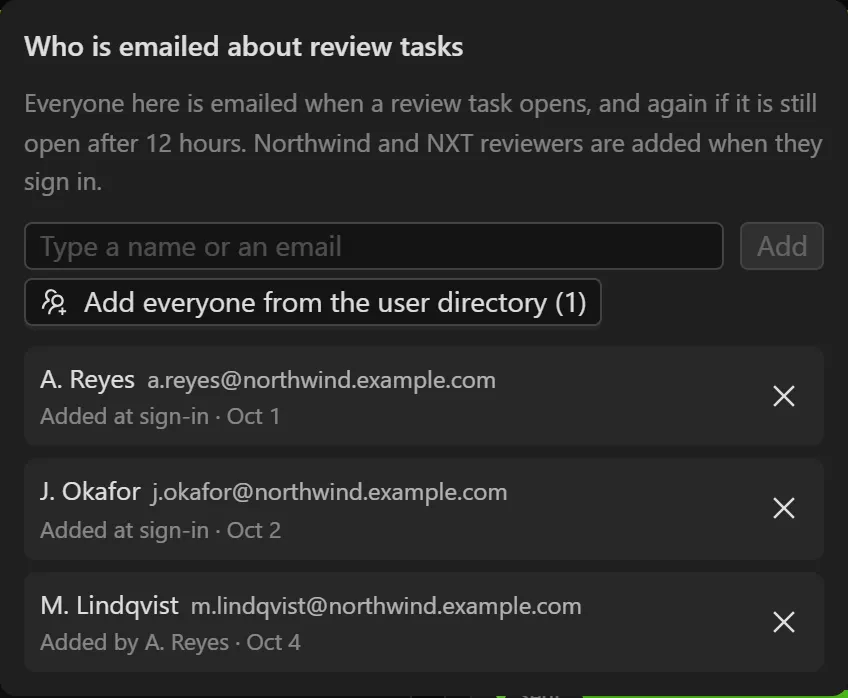
Section titled “The Review Email List”One list decides who is emailed about review work, for every client. Everyone on it is emailed when a review opens, and again if it is still open after 12 hours. BECI and NXT reviewers are added the first time they sign in. The pill at the top right of the board shows how many people are on it, such as “3 people emailed”; select it to see who.
Only administrators can change the list. Everyone else sees it read-only, with “Only admins can change the list.”
Adding people
Section titled “Adding people”- On the board, select the pill that reads N people emailed.
- Type a name or email address. Matching people from the ML Vision Tool are suggested; select one to add them straight away. Or type a full address and select Add.
Only BECI and NXT addresses can be added, and the list holds up to 100. To add everyone who uses the ML Vision Tool at once, select Add everyone from the user directory (N).
Removing people
Section titled “Removing people”- Open the list and select the remove icon (×) beside the person.
- Select Remove to confirm.
Someone you remove is not added back when they next sign in, or by the bulk add. Adding them by hand puts them back.
Troubleshooting
Section titled “Troubleshooting”I don’t see SuperClear AI Review under Tasks
Section titled “I don’t see SuperClear AI Review under Tasks”Solutions:
- Point to Tasks rather than selecting it. Selecting it goes straight to the Team board.
- Check that you signed in with your BECI or NXT Microsoft account. A username-and-password account cannot see the review.
- If you were just given access, sign out and sign back in.
The photo says someone else is reviewing this inspection
Section titled “The photo says someone else is reviewing this inspection”Solutions:
- The inspection is assigned to them, so it is read-only for you. Ask them whether they are still working on it.
- To carry on yourself, select Take over.
Send punch list is greyed out
Section titled “Send punch list is greyed out”Solutions:
- Point to the button: it says what is in the way, such as “N photos still need review.” or “N photos are still being analyzed.”
- If it says “Saving your changes…”, a save is in progress, or a photo has changes that are not saved yet. Move off the photo you changed, or mark it reviewed, to save it. If the button is still greyed out, point to it again: something else may be in the way.
- If it says “Only SuperClear reviewers can send punch lists.”, sending is limited to some reviewers. Ask an administrator.
I can’t change the boxes on a photo
Section titled “I can’t change the boxes on a photo”Solutions:
- “SuperClear AI is still analyzing this photo.” — wait for the AI to finish. The review picks up the result within a minute.
- “This photo was rotated in SuperClear, so its boxes can only be edited there.” — edit its boxes in SuperClear AI. Its caption and review mark still work here.
- “This photo’s boxes can’t be placed reliably here — edit them in SuperClear.” — the photo’s shape does not match the frame its boxes were drawn in, so edit them in SuperClear AI.
A photo didn’t save because the client is offline
Section titled “A photo didn’t save because the client is offline”Solutions:
- The message “{name} has this inspection open offline in SuperClear. Try again once they sync.” means the client is working on the inspection offline, which locks it for everyone else.
- Your changes are kept. Select Retry once the client is back online and their work has synced.
A window says a photo changed in SuperClear AI
Section titled “A window says a photo changed in SuperClear AI”Solutions:
- The client, or the AI running again, changed the photo while you were editing it. Compare the two versions side by side.
- Select Keep my edits to keep your changes and take theirs where you changed nothing, or Use theirs to drop yours.
- Until it is resolved, the top bar shows Conflict and the punch list cannot be sent.
The preview says photos changed
Section titled “The preview says photos changed”Solutions:
- “Photos changed since this preview” means something changed after the punch list was generated. Select Refresh to generate it again, check it, and then send.
The board says SuperClear unreachable
Section titled “The board says SuperClear unreachable”Solutions:
- The board could not reach SuperClear AI, so it is showing what it last knew. Point to the message to see why.
- Select the refresh icon to try again. If it keeps failing, contact support.
Related Articles
Section titled “Related Articles”- Task Board — The Team board, under the same Tasks menu
- Visual QC Review — Reviewing a defect model’s predictions batch by batch
- Reviewing AI Detections — How clients see and correct detections in SuperClear AI
- Creating Punch Lists from AI Detections — The punch list a client creates in SuperClear AI