
Task Board
The Task Board is where review and tagging work is posted, claimed and tracked. Anyone signed in to the ML Vision Tool can put a task on the board, pick one up without being assigned it, and move it along as the work gets done. This article is for anyone taking on that work or handing it out.
Opening the Task Board
Section titled “Opening the Task Board”- Sign in to the ML Vision Tool. The home page reads “Choose a tool to get started”.
- Select Tasks in the top navigation bar, or the Task Board card on the home page, which reads “Pick up prioritized review and tagging work.”
The page is titled Task Board, though the navigation bar calls it Tasks — they are the same screen. The home page also carries a summary strip reading “N tasks open”, followed by “N assigned to you” or “N ready to pick up”, which opens the board when selected.
How the board is laid out
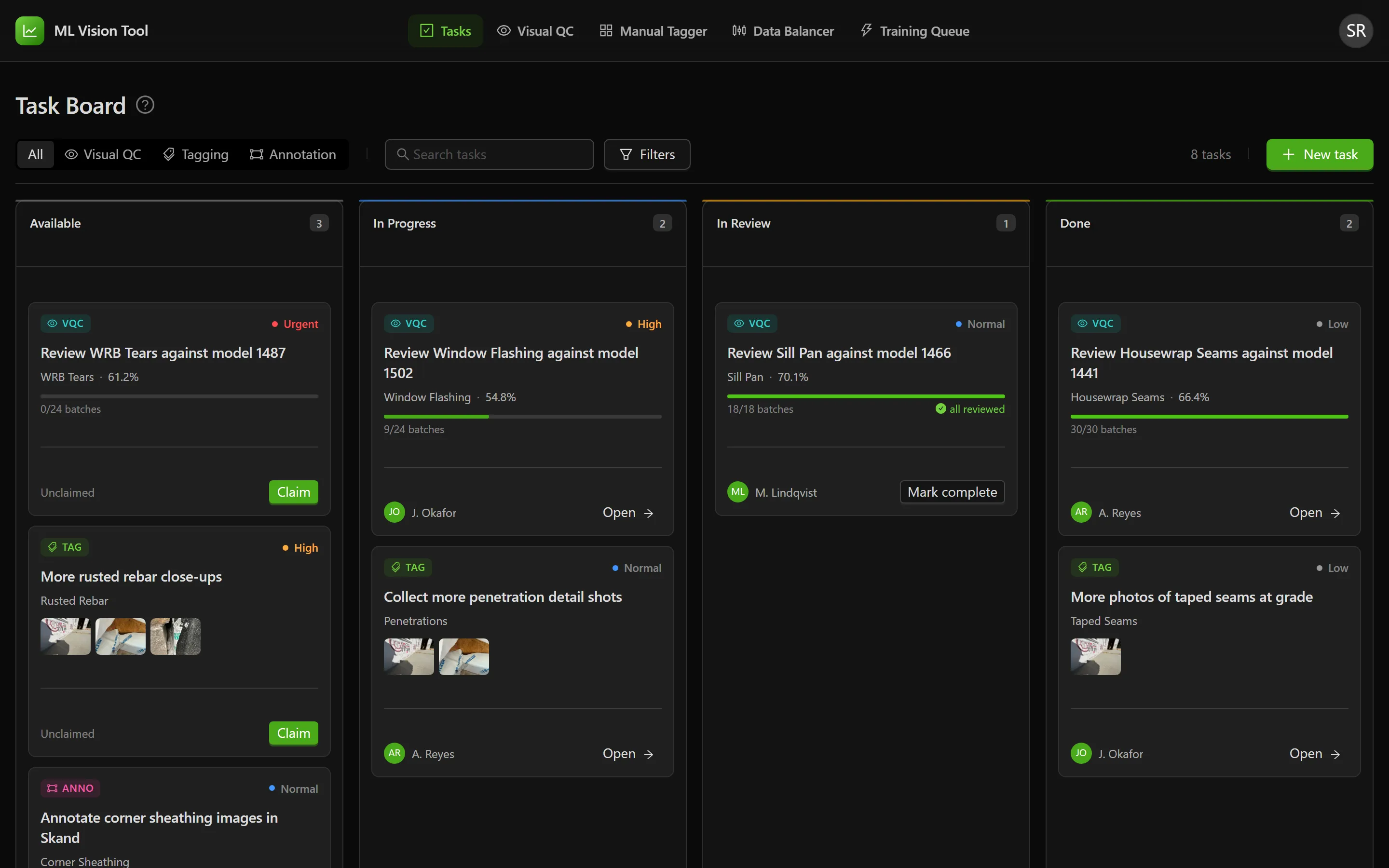
Section titled “How the board is laid out”Tasks sit in four columns, left to right. Each column header shows its name and a count. An empty column explains what belongs in it.
| Column | What it holds | Message when empty |
|---|---|---|
| Available | Posted work nobody has taken yet. | “Nothing available” — “New tasks land here for anyone to claim.” |
| In Progress | Work someone has claimed. | “Nothing in flight” — “Claim a task and it moves here.” |
| In Review | Work waiting on a second pair of eyes. | “Nothing to check” — “Work waiting on a second look shows up here.” |
| Done | Finished work. | “Nothing finished yet” — “Completed tasks collect here.” |
Cards are ordered for you and there is no sort control: highest priority first, then oldest first, so the most urgent work that has been waiting longest sits at the top. Done reverses that, showing the most recently finished first, and renders only the newest twenty — below them a line reads “N older completed tasks not shown”. The column count still reflects the true total.
The board reloads itself every thirty seconds so a group working it together sees each other’s claims. While it checks, an Updating tag appears at the right of the toolbar, with the tooltip “Checking for changes from other reviewers”.
Before anything has been posted, the board shows a single message: “Nothing on the board yet. Add a task and anyone can pick it up from here without being assigned it.” The toolbar stays hidden until there is something to filter.
What a task card shows
Section titled “What a task card shows”- A type badge — VQC, TAG or ANNO — and a priority: Urgent, High, Normal or Low.
- The task title.
- The tag name, and for a Visual QC task the model’s mAP50 score as a percentage.
- A progress bar reading “N/N batches” or “N/N images”, on Visual QC tasks only. At full progress it adds “all reviewed”.
- A strip of up to three example photos, on tagging and annotation tasks, with a
+Nchip where there are more. - A footer showing Unclaimed or the assignee’s initials and name, and exactly one action: Claim, Mark complete or Open.
Selecting anywhere else on the card opens the task’s detail panel.
The three kinds of task
Section titled “The three kinds of task”| Type | Badge | What the card shows | Where Open goes |
|---|---|---|---|
| Visual QC | VQC | A review progress bar. Needs both a tag and a model. | The Visual QC review screen for that tag and model. |
| Tagging | TAG | Example photos of what to go and collect. | The Manual Tagger. |
| Annotation | ANNO | Example photos of what needs boxing. | The project named by the task’s Skand link, in a new tab. The boxes are drawn outside this application. Where no link has been set, the task gets no Open button. |
Finding a task
Section titled “Finding a task”The toolbar above the columns narrows what the board shows.
- All, Visual QC, Tagging, Annotation — filter by type.
- The search box, “Search tasks”, matches the title, the tag name and the assignee’s name.
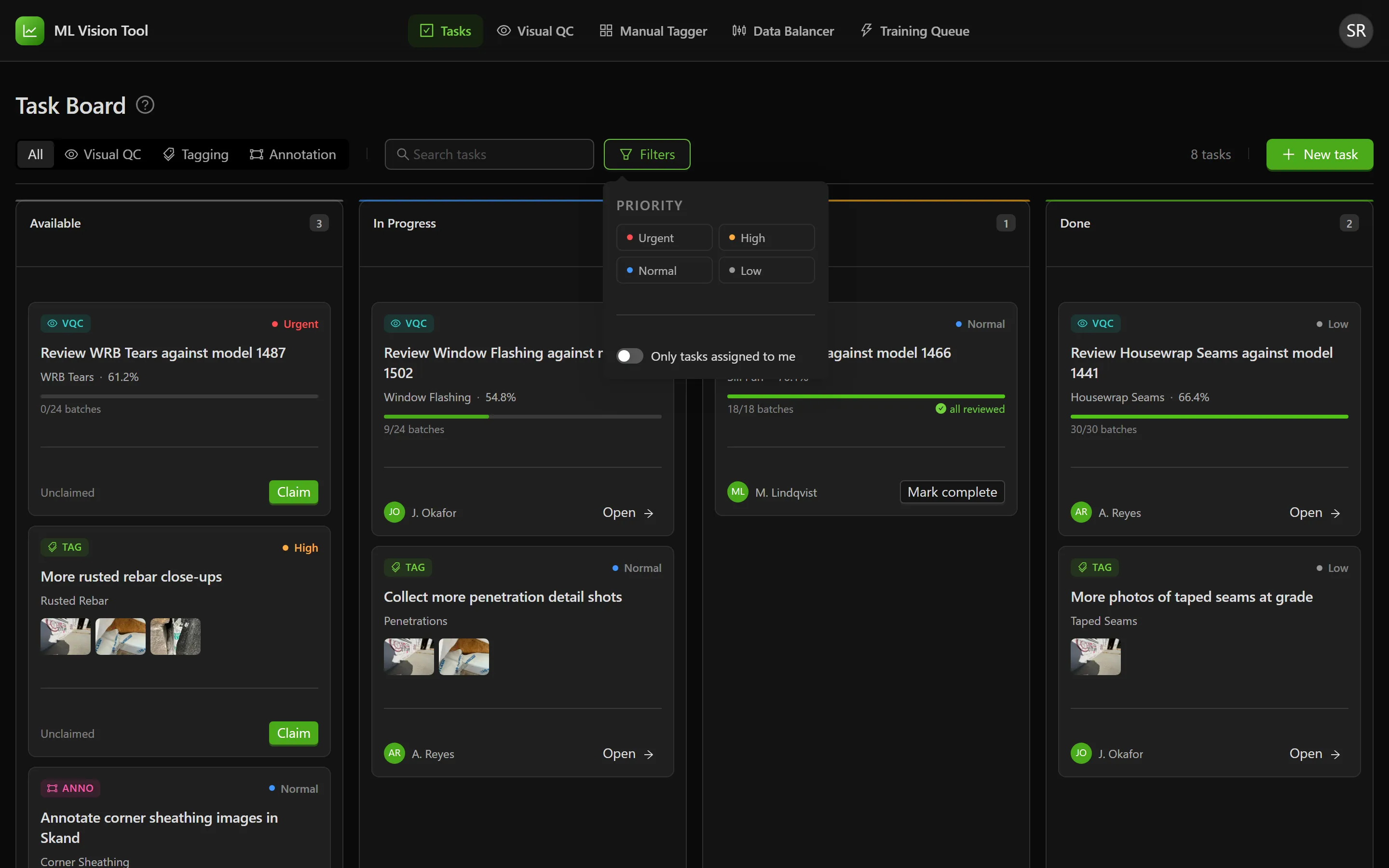
- Filters opens a panel holding Priority chips for Urgent, High, Normal and Low, and a switch for Only tasks assigned to me. A badge on the button counts what is set inside it. Clear all filters resets the panel.
With nothing filtered, the count at the right reads “N tasks”. Once a filter is set it changes to “N of N”.
Claiming and moving a task
Section titled “Claiming and moving a task”A task does not have to be assigned to you before you start it. Anything sitting in Available is yours to take.
- Select Claim on the card, or open the task and select Claim this task. The task moves to In Progress under your name.
- Select Open to go to the tool where the work is done.
- When the work is finished, drag the card to the column it belongs in, or open it and use the Status control.
Release, in the open task, hands it back — the task returns to being unclaimed so someone else can take it. Cards can be dragged between any two columns.
Two people can reach for the same task at once. Where someone gets there first, a message reads “Someone just claimed this task. Refreshing the board.” and the board reloads to show who has it.
Creating a task
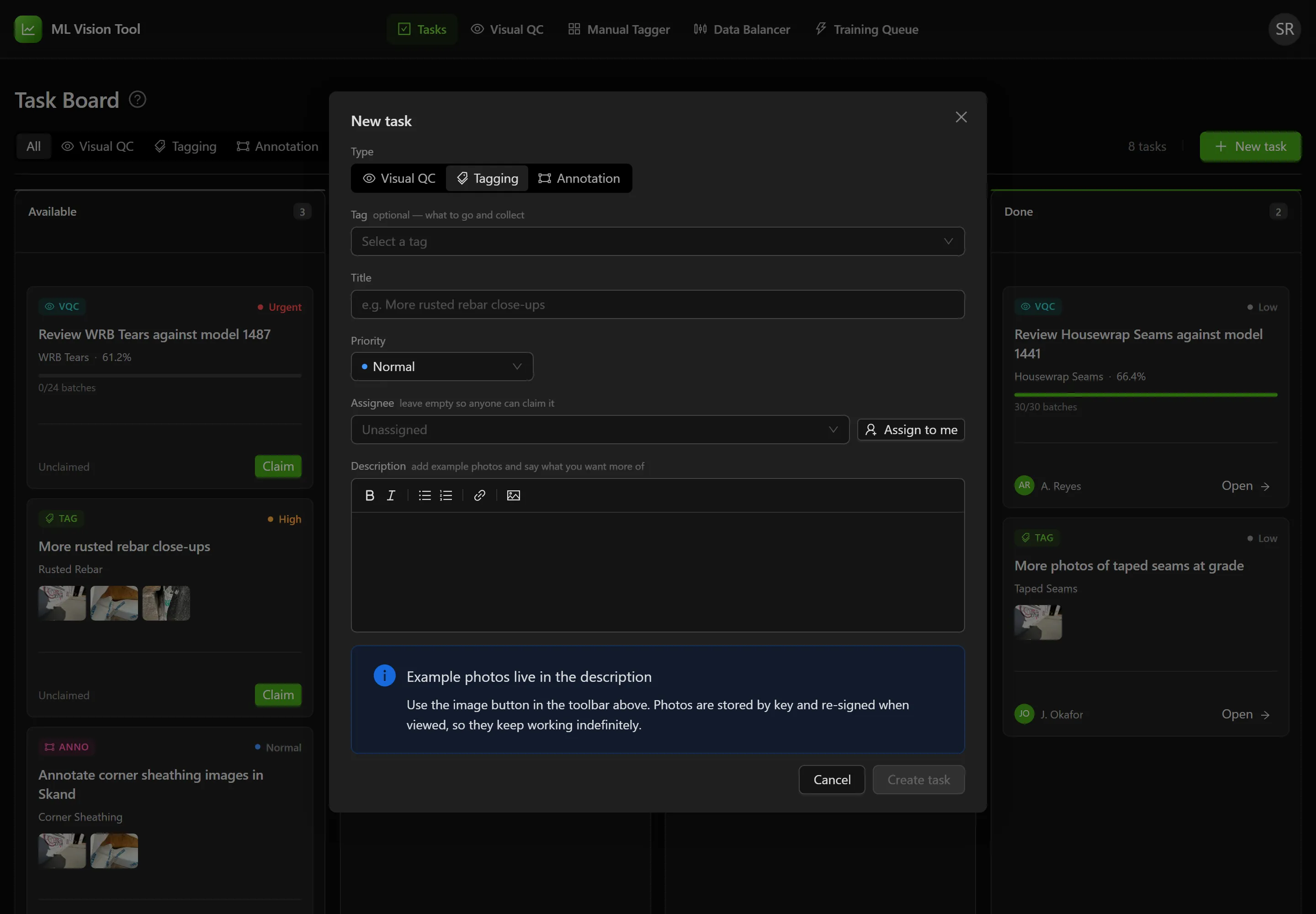
Section titled “Creating a task”- Select New task.
- Choose a Type: Visual QC, Tagging or Annotation.
- Choose a Tag. On a Visual QC task this is required; on the other two it is optional and described as “what to go and collect” or “which class the boxes belong to”.
- For a Visual QC task, choose a Model. The list prompts “Pick a tag first” until a tag is set.
- For an annotation task, paste the Skand link — the field is described as “where the boxes get fixed — becomes the task’s Open button”. It has to be a Skand address; anything else is refused with “Must be a Skand link (https://app.skand.io/…)”. Leaving it empty is allowed, and costs the task its Open button.
- Enter a Title — the box suggests “e.g. More rusted rebar close-ups”.
- Set a Priority, and optionally an Assignee. Leaving the assignee empty is what makes a task claimable by anyone, as the field’s own hint says: “leave empty so anyone can claim it”.
- Write the Description, then select Create task.
On a tagging task the description is the task: the box asks you to “Paste or upload a few example photos, then describe the aspect you want more of…”. A note beside it, Example photos live in the description, explains that photos are added with the image button in the editor toolbar and keep working indefinitely.
Tracking progress on a tagging task
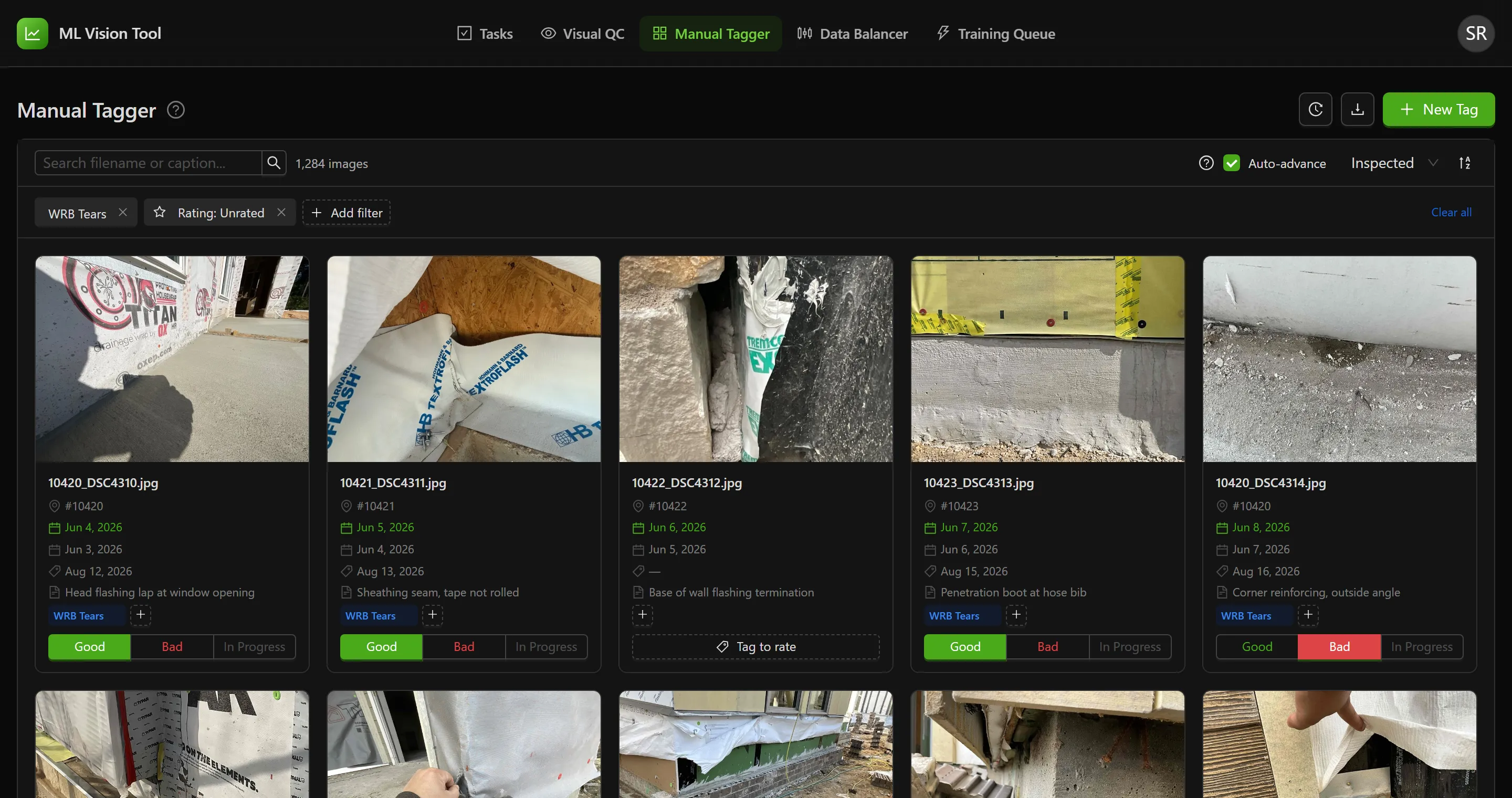
Section titled “Tracking progress on a tagging task”You track a tagging task by filtering in the Manual Tagger instead. Rating a photo against the task’s tag is what marks it handled, so the photos still carrying no rating are the work that is left.
Selecting Open on a tagging task takes you to the Manual Tagger with no filter applied. That is deliberate: the tag on a tagging task describes what to go and collect across the corpus, not a slice to browse. Apply the filter yourself.
- In the Manual Tagger, select Add filter and choose the task’s tag.
- Select Add filter again and choose Rating.
- Choose Unrated. The grid now shows only the photos still to do, and the count beside the search box reads “N images”.
- Switch Rating to Good, Bad or In Progress to see what you have already handled.
Rating only appears in the filter list once a tag is selected, because a rating belongs to a photo and a tag together rather than to the photo alone.
For what you personally got through, open Activity log in the Manual Tagger. Where there is activity today, a line above the entries reads “Today: N tagged, N untagged, N rated”. Narrow it to yourself with the All users list under More filters.
Working an Annotation Task in Skand
Section titled “Working an Annotation Task in Skand”A dataset is started and submitted in Skand, so the task exists to tell you which project to open and which datasets are yours. This section covers that work.
An annotation task carries both. Under What needs annotating are pictures of the dataset cards you have been assigned, and a Link row offers Open in Skand. Older tasks have the link written into the description instead, as the one below does — either way it points at the same project.
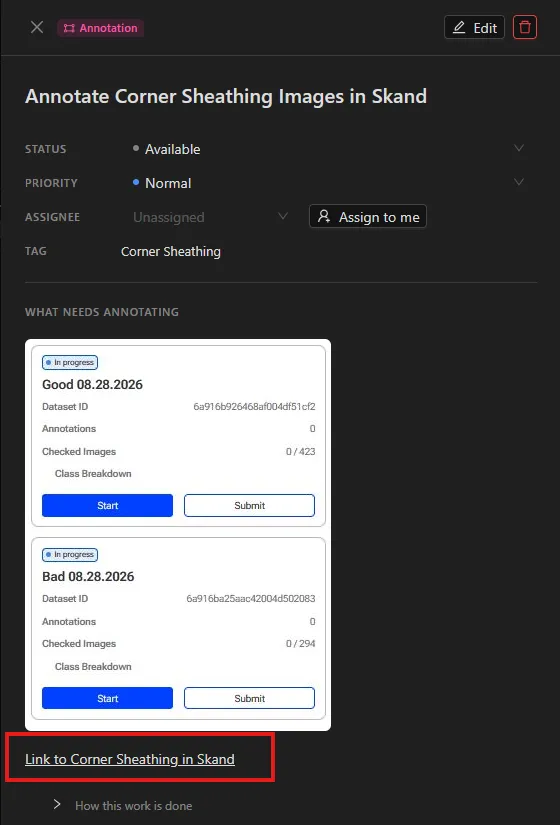
Opening the project
Section titled “Opening the project”- Select Open in Skand in the task, or Open on its card. The project opens in a new tab, leaving the board where it was.
- In the vertical bar down the left of Skand, select AI Datasets.
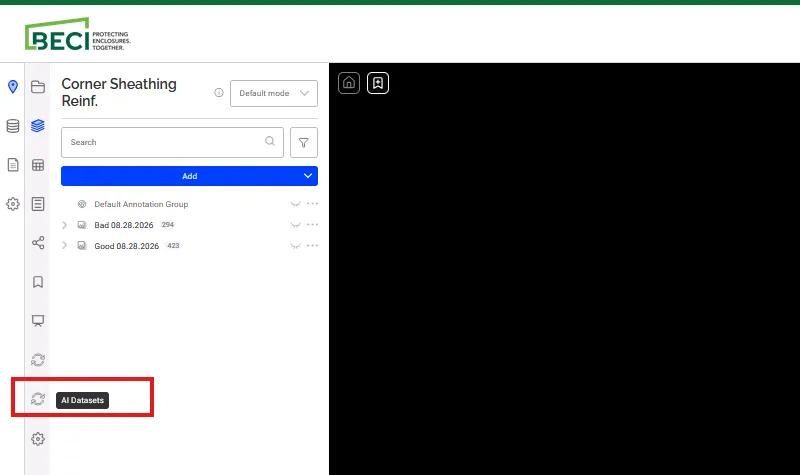
Starting a dataset
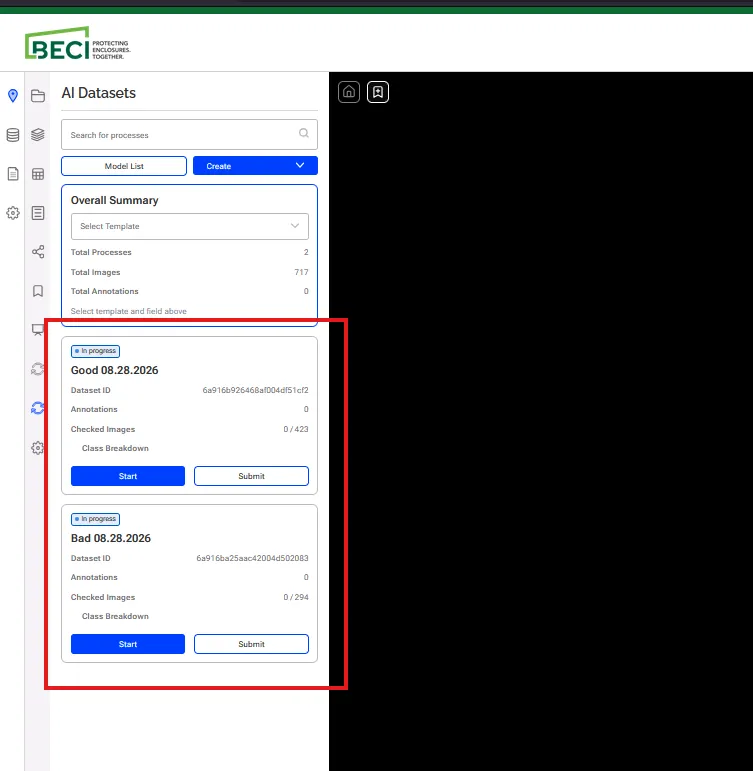
Section titled “Starting a dataset”The AI Datasets panel lists every process on the project, with an Overall Summary above them counting Total Processes, Total Images and Total Annotations.
- Find the cards named on your task. Each shows a Dataset ID, an Annotations count, a Checked Images count against the dataset total, and a Class Breakdown.
- Select Start on the card you are working. It becomes Stop, and that card’s Submit greys out until you stop again.
- Select Image viewer, at the right of the toolbar above the view. A panel opens listing every image in the dataset, each with its filename.
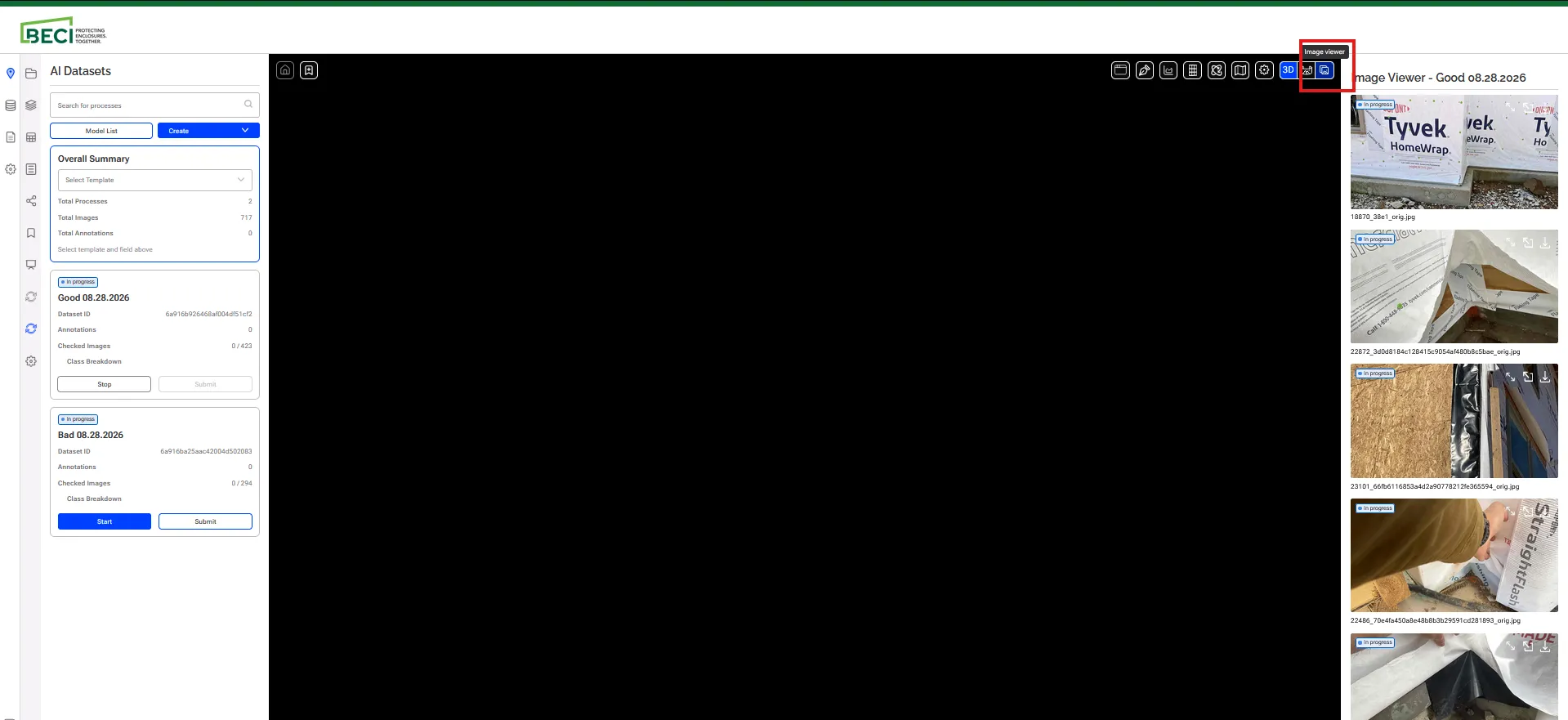
Finishing the work
Section titled “Finishing the work”Select Submit on a card once its dataset is done. Work through every card the task names — a task usually covers more than one.
Editing and deleting a task
Section titled “Editing and deleting a task”Open a task to see its full detail. Its properties sit in rows — Status, Priority, Assignee, Tag, and then Link on an annotation task or Model and Progress on a Visual QC one. Most can be changed straight from the row without entering edit mode. Below them is the description, under a heading that changes with the type — Notes, What we want more of or What needs annotating — then How this work is done, which quotes this guide for the kind of task you are looking at, and the date it was created and by whom.
- Select Edit to change the title or the description.
- Select Save, or Cancel to abandon the change.
Status, Priority and the assignee can be changed at any time without entering edit mode. The assignee list offers Assign to me as a shortcut.
Troubleshooting
Section titled “Troubleshooting”A task I was about to claim went to someone else
Section titled “A task I was about to claim went to someone else”Solutions:
- The board is shared and refreshes every thirty seconds, so two people can reach for the same card. The message “Someone just claimed this task. Refreshing the board.” means the other claim landed first.
- Ask the person who has it whether they have started, and take another task from Available in the meantime.
There is no Mark complete on my tagging task
Section titled “There is no Mark complete on my tagging task”Solutions:
- This is expected. Mark complete appears only when a progress count reaches the end, and only Visual QC tasks have one.
- Finish a tagging task by dragging its card to Done, or by opening it and setting Status to Done.
I cannot delete a task
Section titled “I cannot delete a task”Solutions:
- Deleting is limited to the person who created the task and to administrators. The message reads “Only the person who created this task (or an admin) can delete it.”
- Ask whoever created it — the Created line in the open task shows the date and their email address.
- Where the task is finished rather than mistaken, move it to Done instead. Only the newest twenty stay on the board.
An annotation task has no Open button
Section titled “An annotation task has no Open button”Solutions:
- No Skand link has been set on it. The button is the link — without one there is nowhere in this application for it to lead, because the boxes are drawn in Skand.
- Select Edit and paste the project’s Skand address into Link. It must start with
https://app.skand.io/. - Check the description under What needs annotating first — on older tasks the link was written in there rather than into the field.
The Manual Tagger opened showing everything
Section titled “The Manual Tagger opened showing everything”Solutions:
- This is expected. A tagging task’s tag describes what to collect, not a set to browse, so the tagger opens on the whole corpus.
- Apply the tag and Rating filters yourself to see what is outstanding.
My change was rejected as out of date
Section titled “My change was rejected as out of date”Solutions:
- A message ending “the task changed since you loaded the board. Refresh and try again.” means someone edited the task while your copy was open. Reload the page and make the change again.
- Leaving the board open for a long time makes this more likely, though it refreshes on its own every thirty seconds.
I cannot pick anyone in the assignee list
Section titled “I cannot pick anyone in the assignee list”Solutions:
- Where the list of people cannot be loaded it reads “Directory unavailable” and explains: “Can’t list other people right now — you can still assign yourself, and anyone can claim unassigned tasks.”
- Leave the task unassigned so the person you had in mind can claim it, or use Assign to me.
Related Articles
Section titled “Related Articles”- Manual Image Tagger — Filtering, tagging and rating the photos a tagging task asks for
- Visual QC Review — Working through the batches behind a Visual QC task