
Balancing a Training Dataset
The Data Balancer is where a Skand project’s photos are sorted into the processes a model will train on, so that no class is starved and none of them swamps the rest. This article is for anyone preparing a dataset before a training run.
Opening the Data Balancer
Section titled “Opening the Data Balancer”- Sign in to the ML Vision Tool.
- Select Data Balancer in the top navigation bar, or the Data Balancer card on the home page, which reads “Move images to balance class distribution.”
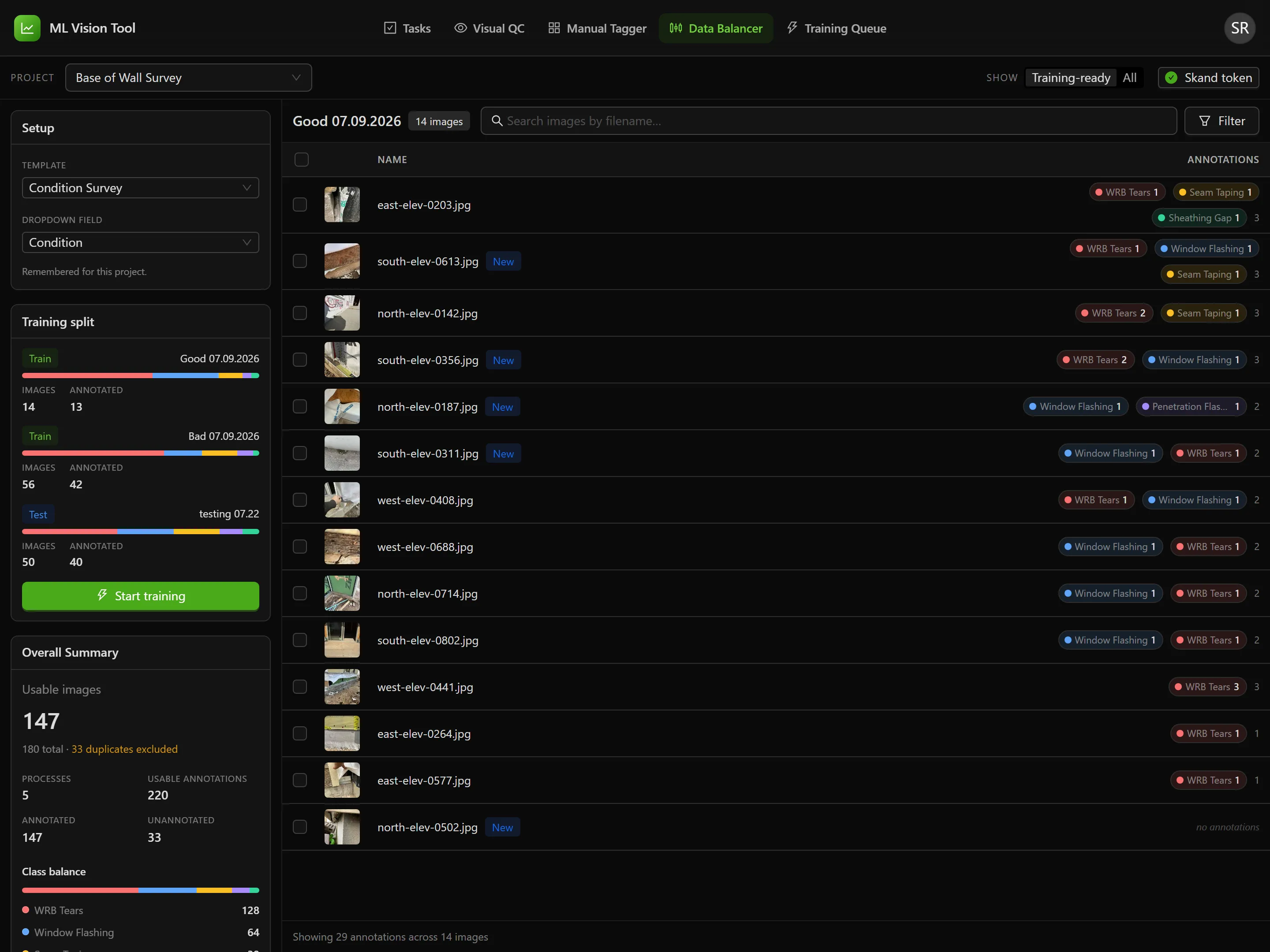
The screen is in two parts. On the left, a sidebar holding Setup, Training split, Overall Summary and the list of Processes. On the right, the photos in whichever process you have selected. Until you pick a project the right-hand side reads “Select a project to get started”.
Connecting to Skand
Section titled “Connecting to Skand”Every project, process and photo on this screen is read from Skand, and every change is written back to it. That traffic is signed with a Skand token, and the button that manages it sits in the header.
There are two tokens and only one of them is in force at a time. The team token is kept on the server and shared by everyone. A personal token is kept in your own browser and overrides the team one for you alone. Using the team token requires an administrator account; a personal token works whoever you are.
| Button | What it means |
|---|---|
| Set Skand token | No token is set. The tooltip reads “No Skand token set — click to add a team token”. |
| Skand token | A token is in force, with a green tick. |
| Token expires in N days | Amber. Shown once a token is within three days of expiry. |
| Token expired | Red. Nothing will load until it is replaced. |
Selecting the button opens Skand token. Under Team token the panel explains “Stored on the server and used by everyone on the team — never sent to browsers.” Paste a token into the box, which prompts “Paste a fresh Skand token (eyJhbGciOi…)”, and select Save for team. Under Personal token, described as “Overrides the team token for you only, stored in this browser. You usually don’t need this.”, the equivalent button is Save personal. Done closes the panel.
The panel opens by itself when no token is set, when one has expired, and whenever Skand turns a request away.
Choosing a Project
Section titled “Choosing a Project”Select a project from the Project list at the top of the screen, which prompts “Select a project”. It searches as you type. While the project loads, the page reads “Loading project data…”.
Beside it, Show offers Training-ready and All, explained as “Which processes to list — only training-relevant ones, or every process in the project”. The difference is not cosmetic: Training-ready leaves photos marked Ignored out of every count on the screen, while All reproduces the numbers Skand itself shows. Expect the totals to change when you switch.
Everything you choose is written into the page address, so a reload keeps your place and a copied link takes a colleague to the same view.
Naming the Class List
Section titled “Naming the Class List”The Data Balancer cannot show a class balance until it knows which field in Skand holds the classes. That is the Setup card at the top of the sidebar.
- Under Template, prompted “Select template”, choose the project’s annotation template.
- Under Dropdown field, choose the field that holds the class list. Until a template is picked it reads “Select a template first”; after that, “Select field”. Only the template’s dropdown fields are offered.
With both set, the card adds a quiet line: “Remembered for this project.” The pair is saved against the project on the server, not in your browser, so it is waiting for whoever opens the project next, on any machine. A link that names a template of its own still wins.
Until both are set, the class sections read “Choose a template and dropdown field in Setup to see the class balance.” Annotating is unavailable for the same reason.
Reading the Class Balance
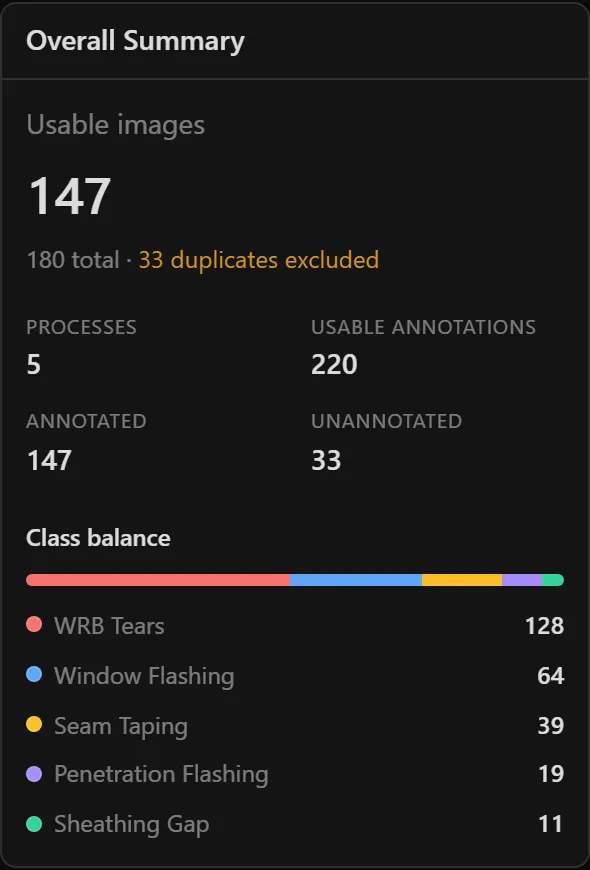
Section titled “Reading the Class Balance”The Overall Summary card is the project in one view. Its headline figure is Total images, or Usable images where the project has a process with “duplicate” in its name, in which case that process’s photos are subtracted and the line beneath reads “N total · N duplicates excluded”.
Beneath it sit Processes, Annotations, Annotated and Unannotated, then Class balance — a proportion bar with one row per class, largest first. That bar is the thing this tool exists to flatten.
Working with Processes
Section titled “Working with Processes”A process is Skand’s named bucket of photos. Each one has a card in the sidebar, and selecting a card fills the image list on the right. A search box, “Search for processes”, narrows the list by name.
Every card carries:
- A status of Pending, In progress or Completed, worked out from how many of its photos are marked Checked.
- A role chip reading Train, Test or the name of a custom bucket. Where no role is set it reads Set role.
- The photo count, and a class bar.
- Annotations, Annotated and Unannotated. The selected card adds Checked and a per-class breakdown.
Setting a role is how a process is nominated for training. Select the chip and choose Train, Test, an existing custom bucket, or + New bucket…. A red Clear appears once a role is set, and it takes effect immediately without asking. Custom buckets are for your own organisation only — they never feed a training run.
Hiding a process
Section titled “Hiding a process”Projects accumulate processes nobody balances against: imports, dumps, experiments. The eye button on a card takes it out of the way, with the tooltip “Hide — takes it out of this list, the project totals and the move targets, for everyone on the team. Nothing changes in Skand.”
Once anything is hidden, the process count reads “N of N” and a footer appears reading “N hidden”, with Show all beside it. Expanding that footer lists each hidden process with an eye button to bring it back.
The Image List
Section titled “The Image List”Selecting a process fills the list on the right with its photos. Two columns carry headings. Name holds the filename, followed by an Ignored or New tag where the photo carries that status. Annotations holds a coloured chip per class with its count, then the total. A photo with none reads “no annotations”.
The list cannot be sorted. It is ordered by how many classes a photo carries and then by how many annotations, both highest first, so the richest photos sit at the top. Every photo in the process loads at once, and while that happens the panel reads “Loading images…”. At the foot, “Showing N annotations across N images” counts what the filters have left rather than what the process holds.
Narrowing the list
Section titled “Narrowing the list”- The search box, “Search images by filename…”, matches any part of a filename.
- Filter opens a panel with two sections. Filter by Status offers New, Checked and Ignored with counts. Filter by Class lists every class in the process with a colour and a count, under an All checkbox. Where some photos carry nothing, a No annotations entry joins them.
- Once a class is cleared, Strict match appears. Left off it keeps “Images with at least one selected class”. Switched on it keeps “Only images with exclusively selected classes”.
Selecting photos
Section titled “Selecting photos”- Click a row to select it on its own.
- Ctrl-click, or Cmd-click, to add a row or take it out.
- Shift-click to take every row between the last one you clicked and this one, replacing what was selected.
- Ctrl-Shift-click to add that range to the selection.
- The checkbox in the heading row takes every photo the filters have left, and clears it again.
Marking Photos Checked, Ignored or New
Section titled “Marking Photos Checked, Ignored or New”A photo’s status is what decides whether it reaches training. Checked means training-ready, Ignored means excluded, and New means neither yet.
Select photos and the foot of the list becomes an action bar reading “N images selected”, then Mark and three buttons: Checked, Ignored and New. A button is unavailable when the whole selection already carries that status, and says so — “All N already Checked”. Otherwise its tooltip reads “Mark N images Checked in Skand”. Clear drops the selection.
The change reaches Skand at once. A message reports “N images marked Checked”, with “N already were.” beneath it where some were already there, and an Undo button that lasts about six seconds. Where part of the batch fails, the message reads “Couldn’t mark N images Checked” and “The rest were reverted. “
Moving Photos Between Processes
Section titled “Moving Photos Between Processes”Moving photos is how the balance changes. A photo leaves one process and joins another in the same project, taking its annotations with it.
Moving a selection
Section titled “Moving a selection”- Select the photos to move.
- Drag them onto the destination process card in the sidebar. A small chip follows the pointer reading “N images”, and the cards you can drop onto take a dashed border.
- Release. Move Images opens, naming the source and the destination and listing Movable images, Total annotations and, for a large move, API batches needed.
- Select Move, or Move (N batches) on a large one.
While it runs the dialog cannot be closed and reports “Moving images… Batch N of N” over a progress bar, with “N of N images moved” beneath. It finishes on Move Complete.
Moving one photo
Section titled “Moving one photo”The full-screen viewer carries its own move bar, behind a Move to label, with a Quick and Confirm switch above it. Quick lays every process out as a numbered button and moves the photo the moment one is pressed. Confirm replaces them with a list, prompted “Select a destination…”, and a Move button. The choice is remembered on your own machine.
A single move reports “Image moved” with an Undo button that lasts about five seconds. Undo is a second move back rather than a rollback, so it can fail: “Couldn’t find the moved image yet — try again shortly.”
Troubleshooting
Section titled “Troubleshooting”The project list is empty
Section titled “The project list is empty”Solutions:
- Check the token button in the header. Where it reads Set Skand token or Token expired, nothing can load until a working token is in place.
- Where the button looks healthy and the list is still empty, the team token is set but your account is not allowed to use it. Paste your own token under Personal token and select Save personal.
- The list can also be limited to one project group, in which case projects outside it never appear.
A project shows “Couldn’t load this project”
Section titled “A project shows “Couldn’t load this project””Solutions:
- Select Retry. Skand rate-limits bursts of requests and a second attempt usually succeeds.
- Check the token has not expired while you were working. The button re-checks itself every minute.
- Where the project genuinely holds nothing, the message is different: “No processes found for this project”.
There is no class balance, only a prompt
Section titled “There is no class balance, only a prompt”Solutions:
- The card reads “Choose a template and dropdown field in Setup to see the class balance.” Set both in the Setup card.
- Where Dropdown field offers nothing, the template has no dropdown field, and a different template is needed.
- Where the pair keeps emptying itself between visits, the template was probably deleted in Skand — the Data Balancer leaves Setup blank rather than guessing a replacement.
The numbers do not match Skand’s
Section titled “The numbers do not match Skand’s”Solutions:
- Set Show to All. Training-ready leaves out every photo marked Ignored, which changes every count on the screen.
- Check whether any process is hidden. Hidden processes are left out of the project totals on purpose, and the “N of N” count beside Processes is the giveaway.
- A small residual difference on a process that shares photos with another is expected. Skand credits shared annotations to one process while still drawing them in both.
A process I assigned has gone
Section titled “A process I assigned has gone”Solutions:
- A process deleted in Skand leaves its role behind. The Training split card flags the row Deleted in Skand and strikes it through.
- Select Remove on the row, or Remove all N where there are several. Training cannot start until they are gone.
- A process that is merely hidden is not deleted, and is never reported this way.
Related Articles
Section titled “Related Articles”- Annotating Images — Draw, correct and delete annotations without leaving the Data Balancer
- Starting a Training Run — Assign train and test processes, set the config, and queue the run
- Manual Image Tagger — Tag and rate inspection photos to build a training set
- Task Board — Where annotation and tagging work is posted and claimed