
Starting a Training Run
Once a dataset is balanced and annotated, the Data Balancer is where you nominate the processes to train and test on, settle the training config, and put the run on the queue. This article is for anyone launching a model training run.
Assigning Train and Test Processes
Section titled “Assigning Train and Test Processes”A process joins the run by being given a role. On each process card in the sidebar, select the role chip — it reads Set role where none is set — and choose Train or Test.
Each choice appears in the Training split card, one row per process, with a green Train or blue Test tag, a class bar, and Images and Annotated counts. Before anything is assigned the card reads “Assign one or more processes as Train or Test using the role chip on each process below.”
Processes deleted in Skand
Section titled “Processes deleted in Skand”A process deleted in Skand keeps its role, and the role outlives the card that could clear it. The Training split card flags these rows Deleted in Skand and strikes them through, above a warning naming how many — “1 assigned process no longer exists in Skand”, or the plural for several.
Select Remove on a row, or Remove all N. Training cannot start until every one is gone.
Opening Start Training
Section titled “Opening Start Training”Start training sits at the foot of the Training split card. It stays unavailable until the run is viable, and its tooltip names what is missing:
- “Assign at least one Train and one Test process”
- “Select a template and dropdown field in Setup”
- “Remove the assigned processes that no longer exist in Skand”
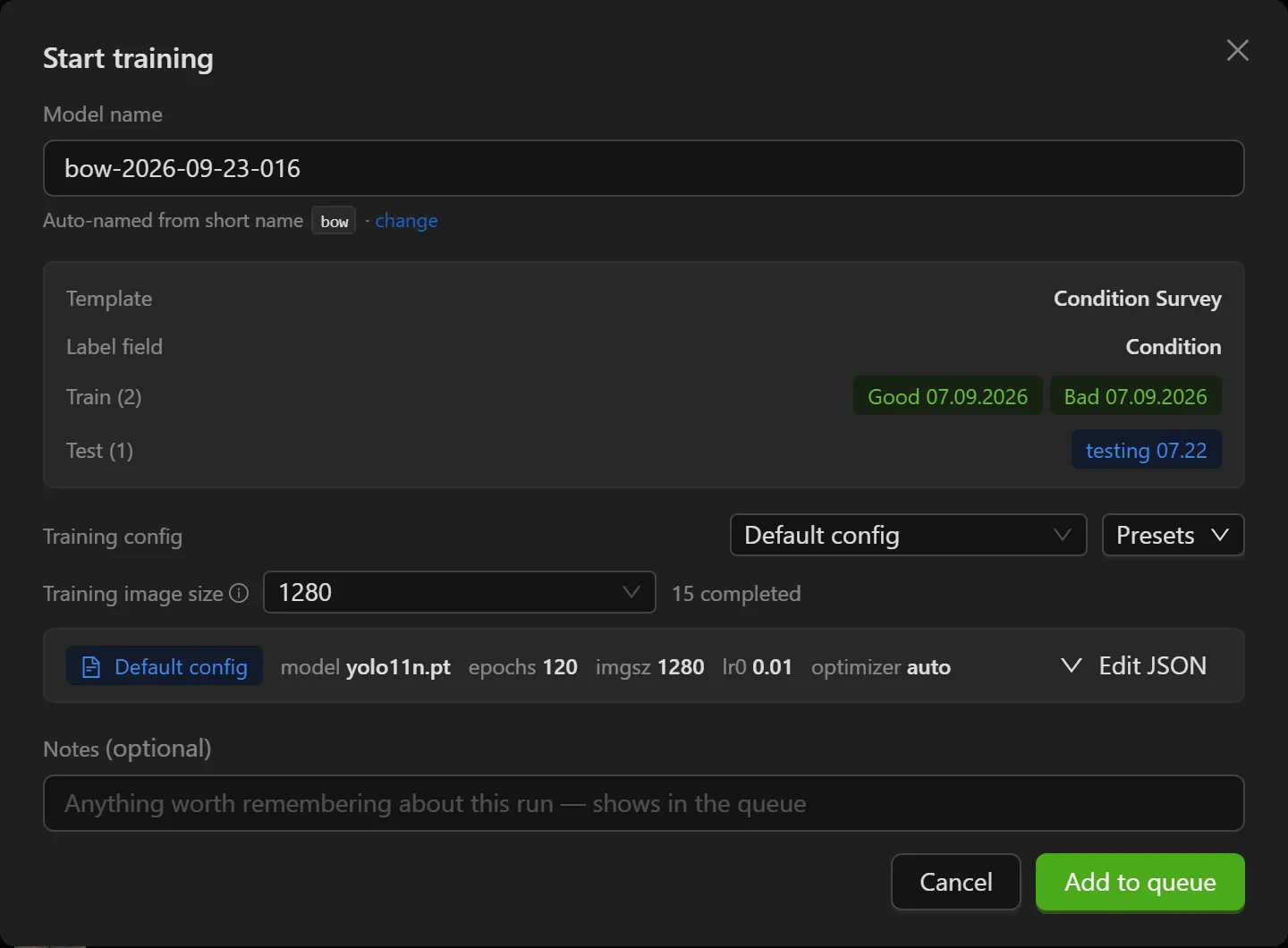
Selecting it opens Start training, already filled in: a suggested model name, a summary of what will be trained, and a config seeded from the project’s pinned preset, or its last-used config, or the shared default, in that order.
Naming the Model
Section titled “Naming the Model”Model names are generated, not typed: a project’s short name, the date, and a counter,
as in wrb-2026-09-23-001. The counter is one above the highest already on the queue
for that prefix.
The line under Model name offers set one, or change where a short name exists, and opens Model naming.
- Short name — prompted “e.g. wrb, base-wall, seam-taping”. Lower-case letters, digits and hyphens only, up to forty characters. The rule appears as “Lowercase letters, digits and hyphens only.” when you break it.
- Family name, marked “(display label)” — the readable label, prompted “e.g. WRB Damage”.
- Default config preset, marked “(seeds the start-training editor)” — or None — use last-used / app default.
Save confirms with “Short name {name} saved”, quoting the name as it was stored.
The Training Config
Section titled “The Training Config”The config is a JSON document sent to Skand exactly as it appears. A summary bar shows where it came from — Default config, Last used (this project), a preset’s name, or Custom config — and adds “· edited” once you change anything. Beside it, chips show the values people compare: the model, the epochs, the image size, the learning rate and the optimizer.
Edit JSON opens the document, and Hide JSON closes it again.
Training image size
Section titled “Training image size”Training image size is lifted out of the JSON because it is the setting most often reached for, and the one most likely to kill a run. Its tooltip explains that it is “The resolution the model trains at”, that “Bigger resolves smaller defects but costs GPU memory, and past a point the run dies”, and that “The counts come from this team’s own training queue.”
Each size in the list carries what has actually happened at it, as “N completed · N failed”, or “not tried” where there is no history. Only completed runs count as success, because a run that died looks exactly like one still going.
- Where a size is larger than anything that has ever completed, a warning appears naming the largest that has, and notes that larger runs “have died without writing results”.
- Where a size has both completed and failed, the note reads “This size has both completed and failed here — it is near the limit for some datasets.”
The value snaps to a multiple of 32, which the trainer requires, and it is written to both the training and the evaluation settings so a model is never scored at a resolution it did not learn at. The control disables itself while the JSON is unusable, showing “fix the JSON first”.
Config presets
Section titled “Config presets”Presets saves a config for reuse. Save as new preset… asks for a Name and optional Notes, prompted “e.g. 300 epochs @ 1600px — for small-defect models”. Set as default for this project pins one, which then seeds the dialog every time it opens and is tagged project default. Manage presets… lists them all, each with who last updated it and when.
Adding the Run to the Queue
Section titled “Adding the Run to the Queue”- Check the summary: Template, Label field, and Train and Test with their process counts and chips.
- Optional: add Notes, marked “(optional)” and prompted “Anything worth remembering about this run — shows in the queue”.
- Select Add to queue.
While it submits, the dialog cannot be closed and reads “Adding to the training queue…”. It finishes on Added to the training queue, which states that “Nothing has been sent to Skand yet” and offers a Training Queue link. A failure reads Couldn’t add to the training queue and offers Retry.
Troubleshooting
Section titled “Troubleshooting”Start training will not open
Section titled “Start training will not open”Solutions:
- Read the button’s tooltip. It names the one thing blocking the run.
- A run needs at least one Train process and at least one Test process. One of each is the minimum, not one in total.
- Clear any row flagged Deleted in Skand from the Training split card.
Add to queue is unavailable
Section titled “Add to queue is unavailable”Solutions:
- The config has an error rather than a warning. Open Edit JSON and read the red lines beneath it; warnings in amber do not block.
- Model name is empty.
- A struck-through process chip is still in the summary. Remove it with its ×.
The image size warns that nothing has completed
Section titled “The image size warns that nothing has completed”Solutions:
- The warning is read from the team’s own queue, so on a new queue there is simply no history yet and the message says so.
- Where it names a largest completed size, treat that as the safe ceiling. A run that dies writes no results and is not marked failed automatically, so it can sit as running for days.
A setting I changed had no effect
Section titled “A setting I changed had no effect”Solutions:
- Check the key’s position in the JSON. Skand accepts the document whatever its shape and drops keys that are in the wrong place, without an error.
- Reopen the editor and look for an amber or red line, then use Fix shape where it is offered.
Two runs got the same name
Section titled “Two runs got the same name”Solutions:
- The counter only looks at runs queued from this application. A run started elsewhere is not counted, so the numbers can collide.
- The date in the name is your own local date, so the counter restarts at your midnight rather than anyone else’s.
Related Articles
Section titled “Related Articles”- Balancing a Training Dataset — Preparing the processes this run trains on
- Annotating Images — Correcting the labels before a run
- Visual QC Review — Judging the model once it has trained