
Visual QC Review
Visual QC is where a trained model’s predictions are judged against the labels they should have matched. You grade one image at a time, and those grades become the model’s VQC Score — a measure of how much hand-correction the model would need in real use. This article is for anyone doing that review.
Opening Visual QC
Section titled “Opening Visual QC”- Sign in to the ML Vision Tool. The home page reads “Choose a tool to get started”.
- Select the Visual QC card, or Visual QC in the top navigation bar.
Reviewing runs through four screens, each one narrowing the scope:
- Pick a tag — the defect class you want to review.
- Pick a model — one training run for that tag.
- Review that model’s batches, grading image by image.
- Analysis — read back what you and others graded.
Choosing a Tag
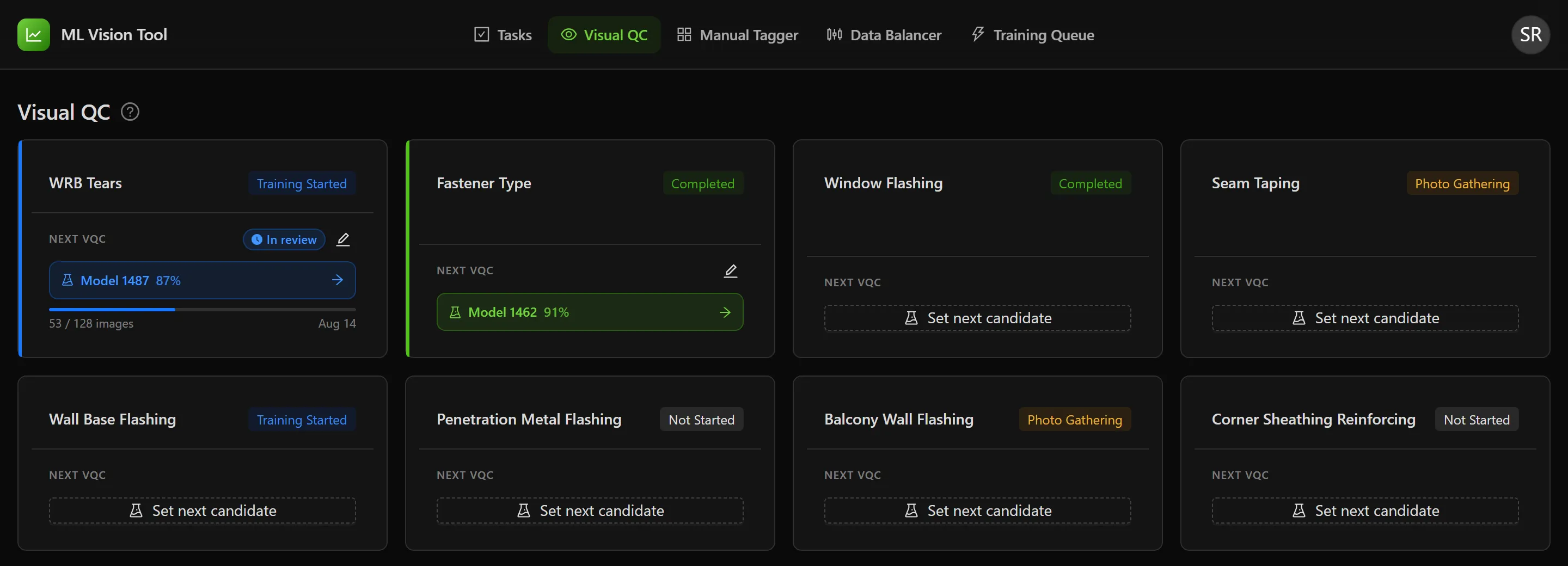
Section titled “Choosing a Tag”The first screen shows one card per tag. Each carries the tag’s name, a status, and a footer labelled NEXT VQC. Select the card to see that tag’s models.
Where no tags appear at all, the screen reads “No tags available. Add tags in the Tags page to start reviewing batches.” There is no Tags page in the ML Vision Tool’s navigation, so this means asking whoever maintains the tag list rather than looking for that page.
The next model up for review
Section titled “The next model up for review”A team can nominate which model should be reviewed next for a tag, so that several reviewers work on the same one.
- Where a model is nominated, the card shows a star, marked “Up next for VQC”, and a green button naming the model and its accuracy. Selecting that button opens the review screen for it directly.
- Where none is, the card shows Set next candidate.
Either control opens Select Next VQC Candidate, a table of that tag’s models with Model ID, Test mAP50 and Training Date. Choose a row and select Select Candidate, or use Clear Selection to remove the nomination. A message confirms “Next VQC updated”. To change an existing one, use the pencil control, labelled Change Next VQC.
Choosing a Model
Section titled “Choosing a Model”Each row is one training run. Select any row to start reviewing it. The columns sort, and the sort and page position are held in the address bar.
| Column | What it shows |
|---|---|
| Model ID | Identifies the training run. |
| Training Date | When the model was trained. |
| Test mAP50 | Accuracy measured automatically against the test set. |
| VQC Score | The score from human review. A dash means nobody has graded a scoring assessment yet. |
| Review Status | Batches reviewed out of the total, with a progress bar; or Not reviewed; or Legacy, meaning “Reviewed via legacy CSV import” rather than in this tool. |
| Last Review | When the model was last reviewed, or a dash. |
Where the tag has no models, the screen reads “Train some models first.”
Reviewing a Model
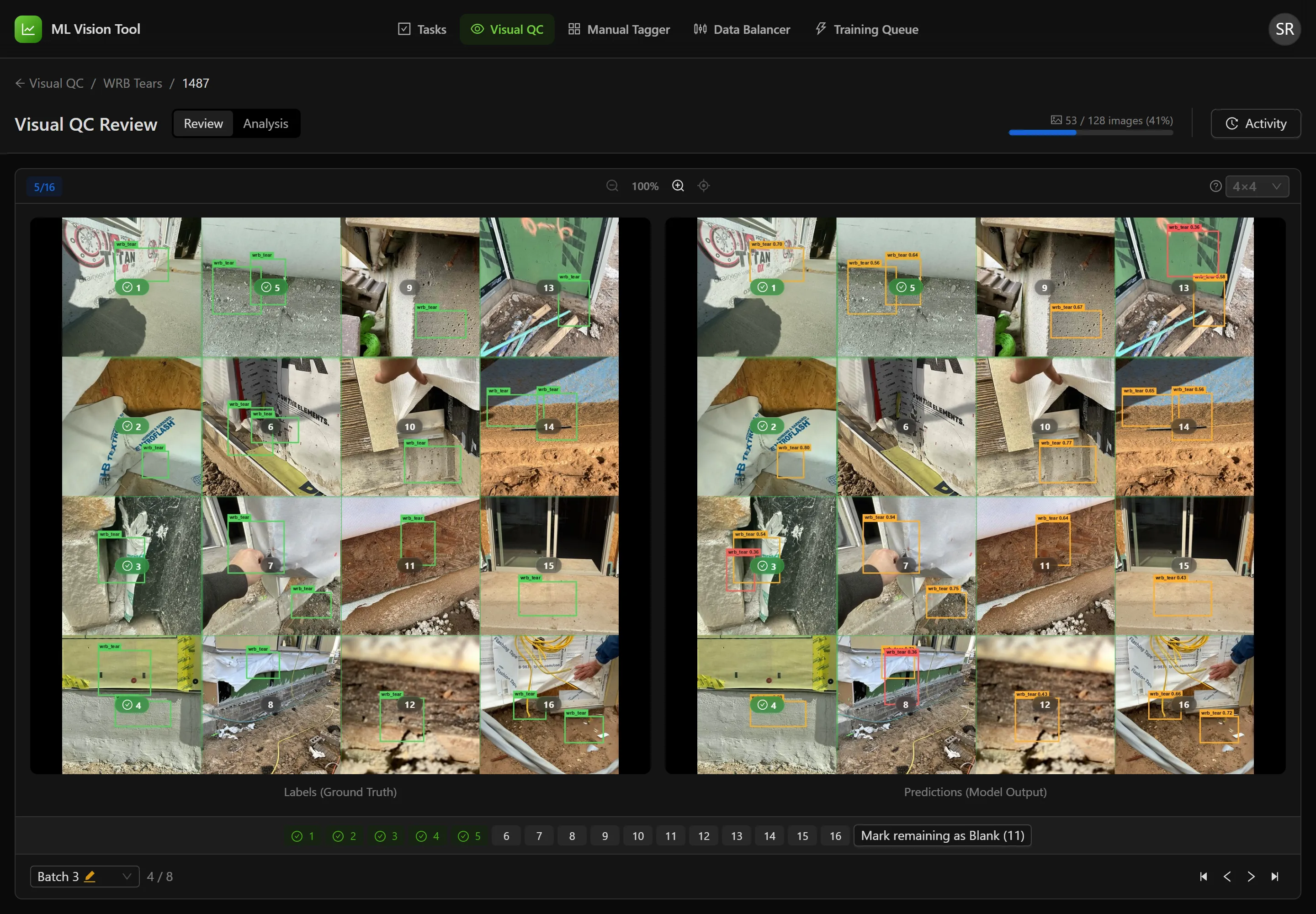
Section titled “Reviewing a Model”The review screen shows one batch at a time. A batch is a single composite image — a grid of individual photos tiled together — and it appears twice, side by side: on the left Labels (Ground Truth), what the model should have found; on the right Predictions (Model Output), what it actually found. A green grid is drawn over both, with each cell numbered. You grade one cell at a time by comparing the two.
Along the top: the title Visual QC Review, a Review and Analysis switch, overall progress through the model, who else is here, and Activity. Beneath the images, numbered chips mirror the grid cells, and a bar at the bottom moves between batches.
Setting the grid size first
Section titled “Setting the grid size first”The grid must match how many photos the batch composite actually tiles. The size list offers four square layouts, from 2×2 up to 5×5, and is described as “Match this to the mosaic layout”.
How the cells are numbered
Section titled “How the cells are numbered”Numbering runs down each column, not across each row. On a 4×4 grid, cells 1 to 4 are the first column top to bottom, 5 to 8 the second column, and so on. Reading it as rows means grading the wrong photo, and nothing on screen will tell you.
Zooming in
Section titled “Zooming in”- Scroll, or use the plus and minus controls, to zoom up to eight times. The current level shows as a percentage.
- Drag to move around while zoomed in.
- Double-click, or use the reset control, to go back.
Both panels zoom and pan together, so the same area stays in view on each — which is the point, since the comparison is what you are grading.
Grading one image
Section titled “Grading one image”- Select a grid cell on either panel, or its numbered chip below. A dialog opens titled Rate Image, naming the batch and which image of the batch it is.
- Choose one Overall Assessment *. This is required.
- Optional: pick up to two error tags under Error Tags (Optional — select up to 2), which “Identify specific issues with the prediction”.
- Optional: add Notes (Optional), prompted “Add any observations…”. Up to 500 characters.
- Select Save Review.
The cell turns green with a checkmark and its chip does the same. Saving closes the dialog and stays where it is — nothing advances automatically, so select the next cell yourself.
The seven assessments
Section titled “The seven assessments”| Assessment | Meaning | Score |
|---|---|---|
| No Intervention | “Perfect prediction, no correction needed” | 100 |
| Minimal Intervention | “Minor adjustments needed (1-2 clicks)” | 75 |
| Moderate Intervention | “Some corrections needed (3-5 clicks)” | 50 |
| Major Intervention | “Significant corrections needed (6+ clicks)” | 25 |
| Not Usable | “Prediction is completely wrong, must redo” | Not scored |
| Not Relevant | “Image not applicable for this class” | Not scored |
| Blank | “Empty cell — no image to review” | Not scored |
The six error tags
Section titled “The six error tags”| Error tag | Meaning |
|---|---|
| AI Extraneous | “False positive - AI detected something that should not be there” |
| AI Missed | “False negative - AI missed something that should be detected” |
| AI Wrong Class | “AI detected the right area but classified it incorrectly” |
| Label Error | “The ground truth label is incorrect” |
| Poor Image Quality | “Image is blurry, dark, or otherwise hard to analyze” |
| Other | “Other issue not covered by above options” |
Empty cells at the end of a batch
Section titled “Empty cells at the end of a batch”A composite often tiles fewer photos than the grid has cells — the last batch of a model rarely divides evenly. Those cells look black or empty. Grade them Blank.
To clear them all at once:
- Grade at least one real image in the batch first. Until you do, the control is disabled and reads “Review at least one image first”.
- Select Mark remaining as Blank ({n}).
- Confirm. The prompt explains: “This will mark {n} unreviewed cell(s) as Blank. Blank cells are excluded from the VQC score.” Select Mark as Blank.
This writes one review per empty cell, so on a 5×5 grid it can be two dozen saves at once. Where some fail, you are left with a mix of blank and ungraded cells — grade the stragglers by hand.
Changing or removing a grade
Section titled “Changing or removing a grade”Select any graded cell again. The dialog opens as Edit Review with your entries filled in, and offers Update to change it, Cancel to leave it, or Delete to remove the grade entirely and return the cell to ungraded.
Deleting the last remaining grade on a model clears its VQC Score back to a dash.
Moving between batches
Section titled “Moving between batches”Use the left and right arrow keys, the navigation buttons, or the batch list. Each entry in that list carries a mark: a green checkmark where the batch is fully graded, an orange pencil where it is part-graded, nothing where it is untouched. Beside the list, a counter shows your position.
Your batch position is kept in the address bar, so reloading or sharing the link returns to the same batch. The browser’s Back button does not step back through batches.
Knowing when a model is done
Section titled “Knowing when a model is done”- A batch is finished when its counter is replaced by All Reviewed and Mark remaining as Blank disappears.
- A model is finished when the progress at the top reaches 100 per cent and its bar turns green.
Activity
Section titled “Activity”Select Activity to open a list of every review on this model, newest first, counted in the header. All covers the whole model; Current Batch narrows to the batch you are on. Each entry names the assessment, the batch and image, who graded it, and when. Entries group under Today and Yesterday, then by date. More load as you scroll. With nothing there yet it reads “No reviews yet”, or “No reviews for this batch” on the narrowed tab.
Older entries may show Good, Acceptable, Poor or Unusable instead of one of the seven assessments. Those come from an earlier way of grading a whole batch at once, which no longer has a screen. They are history, not something you can produce.
Reviewing Alongside Other People
Section titled “Reviewing Alongside Other People”Anyone else on the same model appears as an avatar in the header, listed under “Also viewing this model:” with the batch each is on. Where someone is on your batch, their entry is marked same batch and a warning appears: Batch in use, explaining that they are “currently viewing this batch. Your changes may conflict with theirs.”
Reading Back What Was Graded
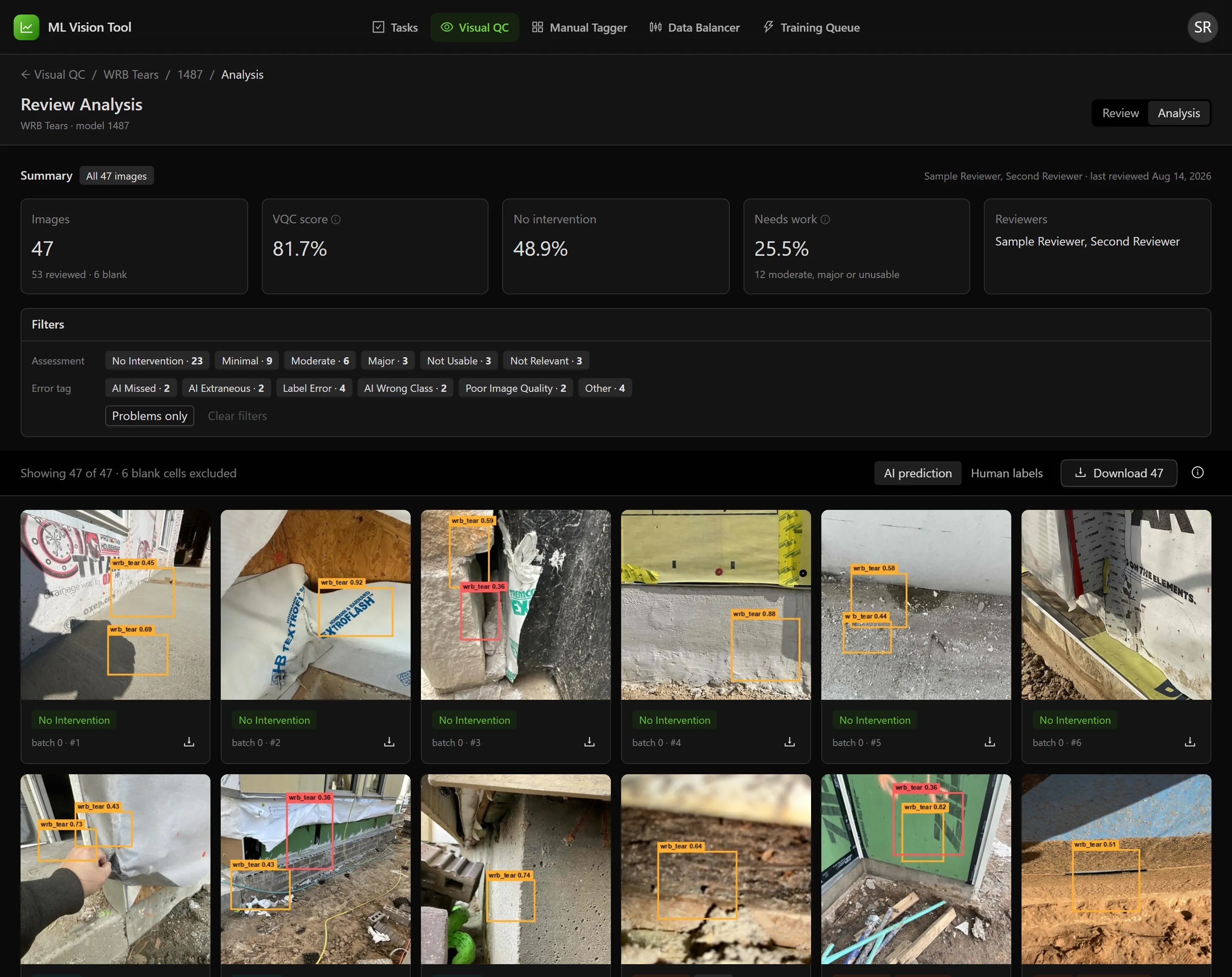
Section titled “Reading Back What Was Graded”Switch the header control from Review to Analysis to open Review Analysis for the model. Where nothing has been graded it reads “No Visual QC reviews recorded for this model yet. Switch to Review to start assessing images.”
Across the top, four figures:
- Images analyzed — how many were graded, and how many of those were blank
- VQC score
- No-intervention — the share graded No Intervention
- Reviewers — how many people took part, and when the last grade was made
Under Filters, every assessment and error tag is listed with its count, so this is where to look for how often the worst outcomes came up. Select any to narrow the gallery below. Problems only selects the three heaviest at once — Moderate Intervention, Major Intervention and Not Usable. Clear filters resets.
The gallery shows every graded image, blank cells left out, each labelled with its batch and position. Switch between AI prediction and Human labels to see either version. Select a card to preview it larger. Download saves one image, and Download all with its count saves the whole filtered set as an archive.
Best Practices
Section titled “Best Practices”- Set the grid size before your first grade. It cannot be changed afterwards.
- Compare the same area on both panels — zoom is linked, so zoom in once and both follow.
- Use error tags consistently. They are what turns a score into a diagnosis: a model that is mostly AI Missed needs different work from one that is mostly AI Extraneous.
- Use Label Error when the fault is the ground truth rather than the model. Grading those as model failures makes a good model look bad.
- Add notes on anything unusual. They are the only free-text record a later reader has.
- Agree who takes which batches before starting, since nothing prevents two people overwriting each other.
- Grade the real images first, then use Mark remaining as Blank ({n}) for the empty cells.
Troubleshooting
Section titled “Troubleshooting”I set the wrong grid size and cannot change it
Section titled “I set the wrong grid size and cannot change it”Solutions:
- The control locks once any review exists on the model: “Grid size is locked because reviews already exist”.
- Delete every review on the model to unlock it — open each graded cell and use Delete. There is no bulk way to do this.
- Where the model has been extensively graded already, ask an administrator rather than deleting other people’s work.
The model has no images to review
Section titled “The model has no images to review”Solutions:
- The screen reads “No batch images found. This model doesn’t have any batch images available for review.” The training run produced no comparison images, so there is nothing a reviewer can do. Report the model to whoever ran the training.
The first batch takes a long time to appear
Section titled “The first batch takes a long time to appear”Solutions:
- The comparison images are sometimes unpacked from the training run’s archive on first use. Later batches are quicker, and the next few are fetched ahead of you while you work.
My grade did not save
Section titled “My grade did not save”Solutions:
- A failed save shows “Failed to save review. Please try again.” and returns the cell to ungraded. The dialog has already closed, so reopen the cell and enter it again.
- Where several cells fail at once after Mark remaining as Blank ({n}), grade the remaining ones individually.
The VQC Score does not change when I grade poor predictions
Section titled “The VQC Score does not change when I grade poor predictions”Solutions:
- This is expected. Not Usable, Not Relevant and Blank are excluded from the score rather than scored zero.
- Use Major Intervention where the prediction is bad but still recognisably an attempt — that scores 25 and does move the number.
- Reserve Not Usable for predictions that have to be redone entirely, and read its count on Analysis.
The VQC Score shows a dash
Section titled “The VQC Score shows a dash”Solutions:
- Nothing scoring has been graded yet. A model graded entirely Blank, Not Usable or Not Relevant has no score to average.
- Grade at least one image as one of the four scoring assessments.
Someone changed my grade
Section titled “Someone changed my grade”Solutions:
- Any reviewer can edit or delete any review. Check Activity to see who graded what and when.
- Divide work by batch, and watch for Batch in use.
The cell I graded was not the photo I was looking at
Section titled “The cell I graded was not the photo I was looking at”Solutions:
- Cell numbers run down columns, not across rows. Cell 5 on a 4×4 grid is the top of the second column, not the first cell of the second row.
- Reopen the cell and use Delete, then grade the right one.
Related Articles
Section titled “Related Articles”- Manual Image Tagger — Tag and rate the photos that models are trained on
- Analytics Dashboard — Where no-intervention rates are reported across defect categories
- Understanding AI Detection Scores — How detection confidence differs from a VQC Score