
Creating Punch Lists from AI Detections
Once you’ve reviewed and edited the AI detections on your photos, you can export everything to a PDF “punch list” report that you can share with your team or client. SuperClear AI generates the punch list server-side, embeds the annotated photos with their detections and captions, and downloads it to your browser as a PDF. This article walks through the generation process and the options you have for what goes in the report.
Step 1: Open the SuperClear AI Screen
Section titled “Step 1: Open the SuperClear AI Screen”- Sign in to superclearai.nspec.app
- From the dashboard, find the inspection you want to generate a report for
- Click View SuperClear AI on the inspection card (or open the inspection and click “Open SuperClear AI Inspection”)
- The SuperClear AI Screen opens with all photos and their AI detections
Step 2: Prepare Your Photos
Section titled “Step 2: Prepare Your Photos”Before generating the report, take a moment to confirm everything is ready:
- AI processing is complete — Make sure no photos are still showing the “Analyzing…” overlay
- Edits are saved — If you’ve added manual annotations in the image editor, save them
- Captions are written — Photos with descriptive captions look much better in the report
- Tags are assigned — Photos grouped by condition tag are easier to navigate in the PDF
- Metadata is set — Building, floor, and elevation appear under each photo in the report
Step 3: Choose What to Include
Section titled “Step 3: Choose What to Include”You have two ways to control what ends up in the report:
Include all photos
Section titled “Include all photos”If you want every photo in the inspection to be in the report, leave the selection empty and skip straight to generation. This is the most common case.
Include only specific photos
Section titled “Include only specific photos”If you only want a subset of photos in the report:
- Use the filter and sort controls in the toolbar to narrow down what’s visible
- Check the boxes on the photos you want in the report
- Use Select All in the toolbar to grab everything visible at once
When you generate the report, only the selected photos will be included.
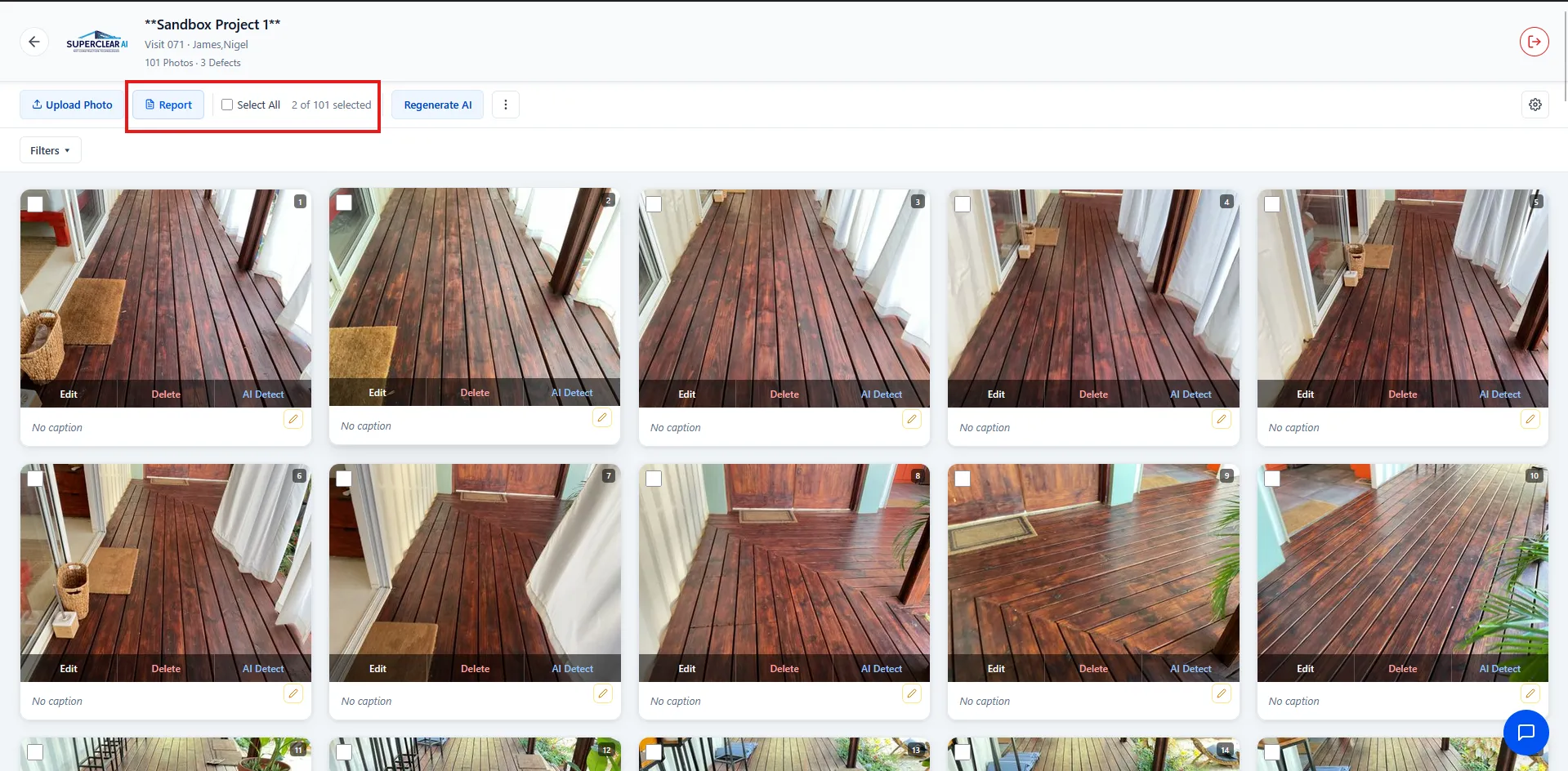
Step 4: Generate the Report
Section titled “Step 4: Generate the Report”- Click the Report button in the toolbar (blue button with document icon)
- A confirmation dialog appears asking you to confirm the generation
- If you have photos selected, the dialog confirms that only those photos will be in the report
- Click Generate
- The button changes to “Generating…” while SuperClear AI renders the PDF on the server
- When the PDF is ready, your browser automatically downloads it
- The file is named
SuperClearAI_Photo_Log_Report.pdf - A success toast appears in the corner: “Report downloaded”
What’s in the Report
Section titled “What’s in the Report”The generated PDF includes:
-
Cover page — Project name, inspection name, inspection date, inspector
-
Photo log — One photo per entry, with:
- The photo with all AI-detected and manually-added annotations baked in
- Building, floor, and elevation metadata
- The caption you wrote
- Assigned condition tags
-
Detection summary — Counts of detected defects by condition
How Long It Takes
Section titled “How Long It Takes”Most punch lists generate in a few seconds to a minute. Large inspections with many high-resolution photos take longer. The button shows “Generating…” for the entire wait — don’t refresh the page or click Report again, that just creates extra work for the server.
If Generation Fails
Section titled “If Generation Fails”If something goes wrong, you’ll see an error toast: “Failed to generate PDF. Please try again.”
Common causes:
- Slow or interrupted connection — Check your internet and try again
- Inspection is too large — Try selecting fewer photos and generating in smaller batches
- Server temporary error — Wait a few seconds and click Report again
Best Practices
Section titled “Best Practices”- Generate the report after reviewing all photos — Don’t generate, find a missing tag, then generate again. Get everything ready first.
- Use selection for client-specific subsets — If you want to send a punch list with just the critical findings, select those photos and generate
- Group photos by tag before generating — Tagged photos are organized into sections in the PDF
- Add captions for the client’s benefit — A photo with no caption is just a photo. With a caption, it’s a finding.
- Double-check the file before sending — Open the downloaded PDF to confirm everything looks right
Troubleshooting
Section titled “Troubleshooting”I don’t see a Report button
Section titled “I don’t see a Report button”Solutions:
- Make sure you’re on the SuperClear AI Screen, not the Detailed Inspection View. The Report button is in the toolbar at the top of the SuperClear AI Screen.
- Refresh the page
The PDF didn’t download
Section titled “The PDF didn’t download”Solutions:
- Check your browser’s downloads folder — the file may have downloaded silently
- Check that pop-ups and downloads aren’t blocked for the SuperClear AI domain
- Try a different browser to confirm whether the issue is browser-specific
The PDF is missing photos
Section titled “The PDF is missing photos”Solutions:
- Confirm AI processing completed for all photos before generating — incomplete photos may not appear
- If you used selection, double-check which photos were selected
- Try regenerating
The button is stuck on “Generating…”
Section titled “The button is stuck on “Generating…””Solutions:
- Wait — large reports can take a minute or more
- If it’s been more than 5 minutes, refresh the page and try generating again with fewer photos selected
- Check your internet connection