
Using the Mobile App (PWA)
SuperClear AI is delivered as a Progressive Web App (PWA), which means you use it through your browser but it can be installed on your device like a native app — with a home screen icon, full-screen view, and offline support. This article walks through the PWA’s main features: the dashboard, the settings, the connection modes, and how to install it on phones, tablets, and desktops.
Opening SuperClear AI
Section titled “Opening SuperClear AI”- Open https://superclearai.nspec.app in your browser
- Sign in with your nSpec credentials (see System Requirements and Setup for sign-in details)
- You’ll land on the SuperClear AI dashboard (called the “Main View” in the code)
The Dashboard
Section titled “The Dashboard”The dashboard is your home base for SuperClear AI. From here you can see all your inspections, create new ones, connect to existing ones, open the AI detection screen, and reach the settings.
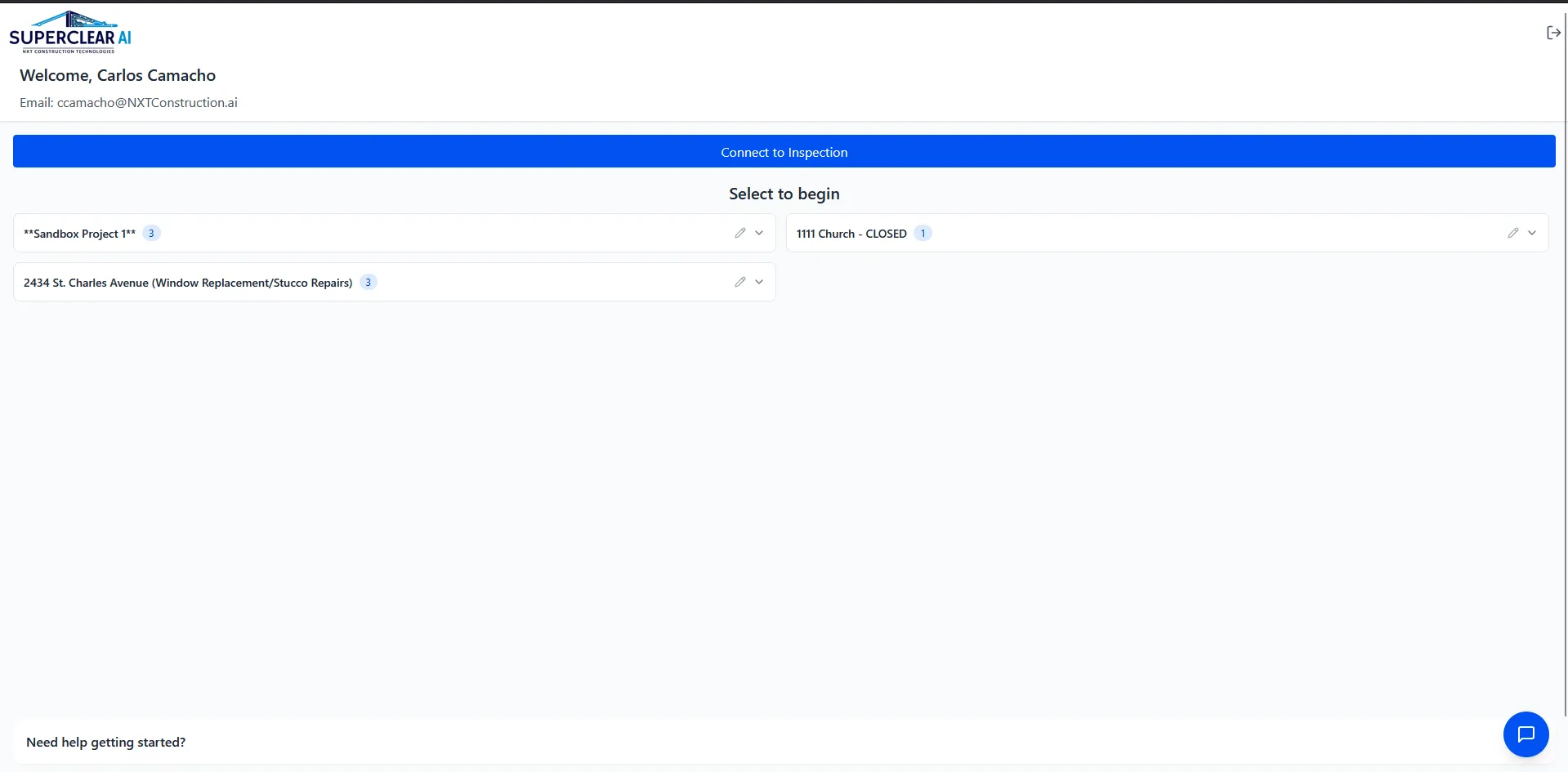
Header
Section titled “Header”- NXT SuperClear AI logo in the top-left
- Settings (gear icon) in the top-right — opens the settings sidebar
Welcome banner
Section titled “Welcome banner”Below the header you’ll see a welcome banner showing your name and email. This confirms you’re signed in to the right account.
Action buttons
Section titled “Action buttons”Depending on your tenant’s connection mode, you’ll see one or both of:
- Connect to Inspection — Available in NSPEC and SuperClearOnly modes. Opens the Project Selector for picking an existing nSpec inspection.
- Create an Inspection — Available in Procore and SuperClearOnly modes. Opens the Create New Inspection modal.
Inspection list
Section titled “Inspection list”Your inspections appear below the action buttons, grouped by project. Each project group is collapsible — click the project name to expand or collapse its inspections.
Each inspection card shows:
- Inspection name
- Date (or “N/A” if no date is set)
- Inspector name (when not in SuperClearOnly mode)
On the right side of each card you have three actions:
- Click the card body (the area with the inspection name) — Opens the Detailed Inspection View where you can upload photos
- External link icon (“Open in app”) — Goes straight to the SuperClear AI Screen for AI detection review
- X icon — Removes the inspection (with confirmation)
At the project group header (above the inspection cards), there’s a small pencil icon for editing the project’s building and floor options.
Help section and feedback button
Section titled “Help section and feedback button”- “Need help?” — Click to expand the help section. Includes a link to the Knowledge Base and the support email.
- Feedback button — Floating button in the bottom-right that opens the Feedback Modal where you can rate the app or submit a support request
The Settings Panel
Section titled “The Settings Panel”Click the gear icon in the top-right to open the settings sidebar.
Connection Mode
Section titled “Connection Mode”The settings panel includes a Connection Type section where you choose which workflow you want to use. Only the modes your tenant supports are shown — most users see one or two of these:
- NSPEC Connection — Connect to existing nSpec inspections
- Procore Connection — Create stand-alone inspections (typical for Procore-driven teams)
- SuperClearOnly — Hybrid mode with both options available
Pick one and the dashboard’s action buttons update to match.
Logout
Section titled “Logout”At the bottom of the settings panel is a red Logout button. Click to sign out — you’ll be returned to the email verification screen.
Installing SuperClear AI on Your Device
Section titled “Installing SuperClear AI on Your Device”Installing the PWA gives you a one-tap launch icon, full-screen mode (no browser address bar), and faster startup. There’s no app store involved.
The install prompt
Section titled “The install prompt”About 3 seconds after the page loads, you’ll see an install banner in the bottom-left corner of the screen. The banner content depends on your device:
- Desktop (Chrome / Edge) and Android Chrome: Banner shows a green Install button. Click it and confirm in your browser’s prompt.
- iPhone / iPad (Safari): Banner shows step-by-step instructions to use Safari’s Share menu and tap Add to Home Screen.
If you click Not now (or Got it on iOS), the banner reappears 7 days later. If you accept the install, the banner disappears permanently for that device.

After installation
Section titled “After installation”Once installed:
- SuperClear AI appears as an app icon on your home screen, Start menu, or Applications folder
- Launching it opens the app in full-screen mode without browser bars
- The install prompt won’t appear again on this device
- Your sign-in is remembered across sessions
Working from the Dashboard
Section titled “Working from the Dashboard”Creating a new inspection
Section titled “Creating a new inspection”- Click Create an Inspection on the dashboard
- The Create New Inspection modal opens
- Pick an existing project from the dropdown, or click + Create New Project to define a new one (with name, building options, and floor options)
- Type the inspection name and pick a date
- Click Create Inspection
Connecting to an existing nSpec inspection
Section titled “Connecting to an existing nSpec inspection”- Click Connect to Inspection on the dashboard
- The Project Selector opens — search by project name or address
- Pick the project, then check the inspections you want to connect
- Click Connect
Opening an inspection
Section titled “Opening an inspection”Click the Open link (arrow icon) on any inspection card to go to the Detailed Inspection View, where you can upload photos and start AI processing.
Reviewing AI detections
Section titled “Reviewing AI detections”Click View SuperClear AI on any inspection card (or open the inspection and click “Open SuperClear AI Inspection”) to go to the SuperClear AI Screen where you can see all photos with their AI detections.
Editing project details
Section titled “Editing project details”Click the pencil icon on a project header to open the Edit Project modal, where you can update the comma-separated Building Options and Floor Options that show up in the photo metadata dropdowns.
Offline Support
Section titled “Offline Support”SuperClear AI is built as a PWA with service worker caching, so you can do basic things even when you lose your connection:
- View existing photos that have already been loaded
- See inspection details from cached responses
- Read most pages from the cache
When you’re offline, a yellow banner appears at the top of the page: “You are currently offline. Some features may be limited.”
These features still require an internet connection:
- Sign-in
- Uploading new photos
- Running the AI detection
- Generating PDF punch lists
- Saving any data changes (captions, tags, metadata edits)
Troubleshooting
Section titled “Troubleshooting”I don’t see Connect to Inspection or Create an Inspection
Section titled “I don’t see Connect to Inspection or Create an Inspection”Solutions:
- Open the settings panel (gear icon) and check your Connection Type — your tenant may not have any modes enabled, or you may need to pick one
- If your tenant only allows one mode, only one button will appear (which is correct)
- Contact your administrator if neither button shows up
My dashboard is empty
Section titled “My dashboard is empty”Solutions:
- If you’ve never connected an inspection before, this is normal — click Connect to Inspection or Create an Inspection to get started
- If you expected to see inspections, refresh the page
- Confirm you signed in to the right tenant (open settings and check)
The install button does nothing
Section titled “The install button does nothing”Solutions:
- Some browsers (older versions, certain mobile browsers) don’t support PWA install prompts
- Try Chrome or Edge on desktop, Safari on iOS, Chrome on Android
- If the prompt doesn’t appear at all and you’re already in the installed app, that’s normal