
Regenerating AI Analysis
Sometimes the AI’s first pass on a photo isn’t perfect — maybe the conditions changed in your tenant, the AI model was updated, or you just want to retry a photo that didn’t get the result you expected. SuperClear AI lets you regenerate the AI analysis for one photo at a time or for many at once. This article explains both flows and how to cancel a regeneration in progress.
When to Regenerate
Section titled “When to Regenerate”- The AI missed an obvious defect on the first pass
- You added new condition tags to your tenant since the photo was first processed
- The AI model was updated and you want fresh results
- A photo’s processing failed (red X on a status circle) and you want to retry
- You changed the confidence threshold and want to see updated annotations
Regenerating a Single Photo
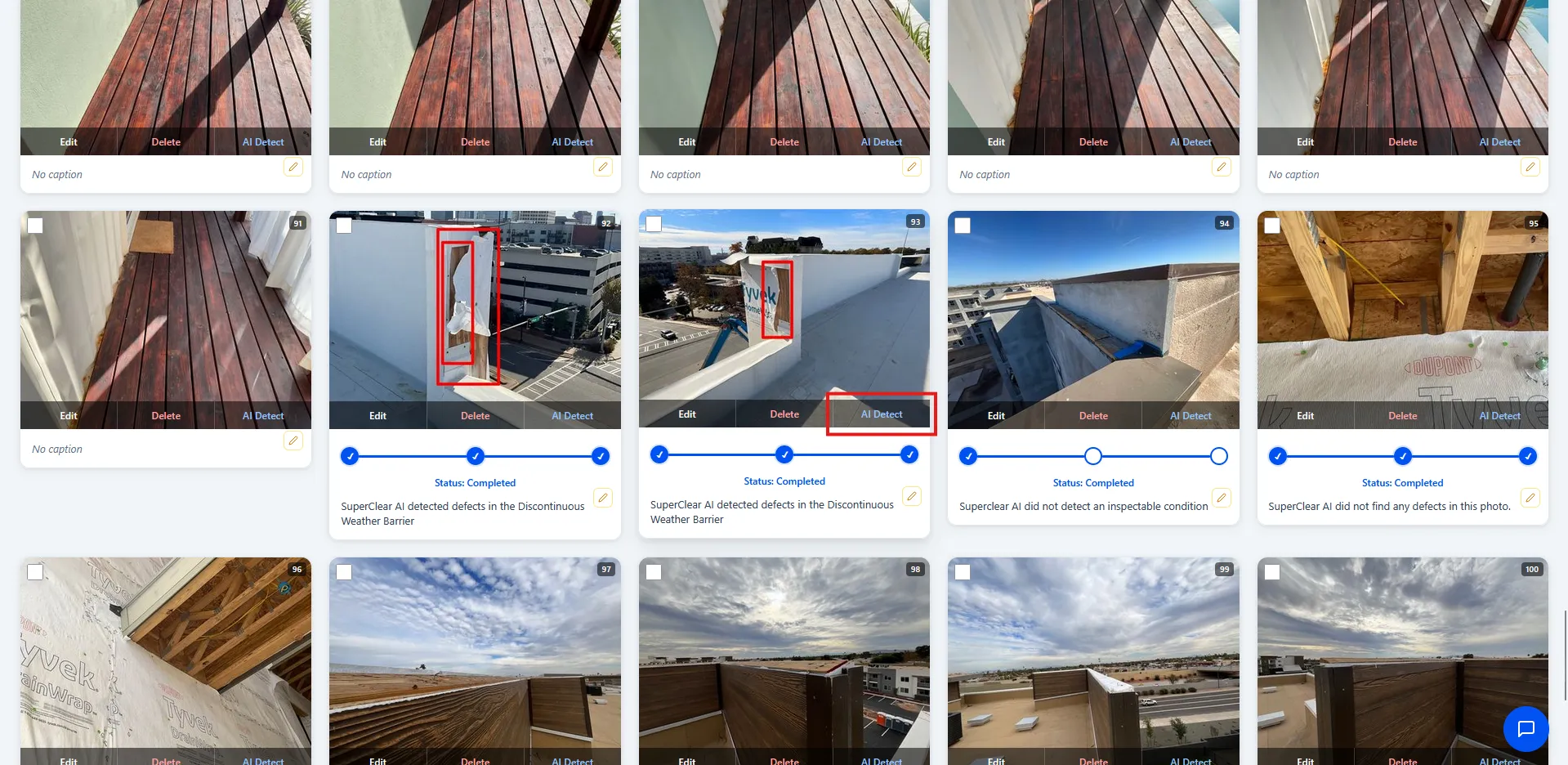
Section titled “Regenerating a Single Photo”- Open the SuperClear AI Screen for your inspection
- Find the photo you want to reprocess
- Hover over it to show the action overlay
- Click AI Detect (the blue button in the action overlay)
- The photo enters processing mode — you’ll see the scan-line animation overlay and “Analyzing…” text
- Wait for the status circles to update — when they’re both green, processing is done
Regenerating Multiple Photos
Section titled “Regenerating Multiple Photos”- On the SuperClear AI Screen, use the checkboxes to select the photos you want to reprocess
- Use Select All in the toolbar if you want every visible photo
- Click Regenerate AI in the toolbar (the green button that appears when photos are selected)
- A confirmation dialog asks “Regenerate AI for [X] selected photos?”
- Click Regenerate to confirm
- SuperClear AI starts a new AI batch — all selected photos are processed in parallel
- Each photo shows the processing overlay until its turn is done
Cancelling an In-Progress Batch
Section titled “Cancelling an In-Progress Batch”If you started a batch and want to stop it before it finishes:
- Look for the Cancel AI button in the toolbar (orange button — only visible while a batch is running)
- Click it
- The Batch Cancel modal opens with a list of currently-running batches
- Select the batch to cancel and click Cancel
- The batch stops, and any photos that hadn’t started processing yet stay in their original state
Watching Batch Progress
Section titled “Watching Batch Progress”While a batch is running:
- The header at the top of the SuperClear AI Screen shows “X Photos · Y Defects · Z In Progress” (the In Progress count is highlighted in red/orange)
- Each photo currently being processed shows the scan-line animation overlay
- Photo cards in the queue stay in their previous state until their turn comes up
- The page polls for status updates every few seconds
If a Photo Fails
Section titled “If a Photo Fails”If a photo’s status circle turns red (error), the AI couldn’t process it. Click the red circle to see the failure reason in the Analysis Details modal.
Common causes:
- The image file was corrupted or unreadable
- The image quality was too low for the model to analyze
- A temporary server-side error
In most cases, regenerating again resolves the problem. If a specific photo keeps failing, try replacing it with a higher-quality version.
What’s Preserved When You Regenerate
Section titled “What’s Preserved When You Regenerate”Regenerating doesn’t wipe everything — it only refreshes the AI parts. These are kept intact:
- Manual annotations you added in the image editor
- Photo tags you assigned manually
- Captions, building, floor, and elevation metadata
- Photo conditions colors (in Photo Settings)
- The original photo file
These get refreshed:
- AI-detected bounding boxes
- AI condition assignments
- Per-tag annotation overlays
- Detection confidence scores
Best Practices
Section titled “Best Practices”- Regenerate selectively, not all at once. Reprocessing every photo in a large inspection takes a long time and costs server resources. Pick the photos that actually need a second look.
- Wait for batches to finish before starting a new one — running multiple batches in parallel can confuse the queue
- Don’t regenerate photos with manual edits unless necessary — your edits stay, but you’ll need to re-review the AI’s new findings
- Use confidence threshold first — if the issue is “too many” or “too few” detections showing, adjust the threshold in Photo Settings before regenerating
Troubleshooting
Section titled “Troubleshooting”A batch is stuck and doesn’t finish
Section titled “A batch is stuck and doesn’t finish”Solutions:
- Wait — large batches can take several minutes per photo
- If the In Progress counter hasn’t changed in 5+ minutes, click Cancel AI and retry the batch
- Check your internet connection — the page polls the server for status updates
I don’t see a Regenerate AI button
Section titled “I don’t see a Regenerate AI button”Solutions:
- The Regenerate AI button only appears when at least one photo is selected. Use the checkboxes to select photos first.
Cancel AI button doesn’t appear
Section titled “Cancel AI button doesn’t appear”Solutions:
- Cancel AI only appears while a batch is currently running. If no batch is running, there’s nothing to cancel.
I regenerated and got the same results
Section titled “I regenerated and got the same results”Solutions:
- That’s normal. The AI is deterministic — given the same photo, it produces the same results. Regenerating helps when something changed (model update, tenant tag changes), but not when nothing has changed.
- If you want different results, retake the photo with better quality and replace the original