
Generating AI Reports
SuperClear AI can write the first draft of your inspection report for you. When you click Generate AI Report, SuperClear AI reads through the inspection and automatically produces photo captions, observations, and action items — then packages everything into a QA report you can download as a PDF. This article walks through the whole flow: starting the AI report, what you’ll see while it runs, and downloading the finished QA report.
What the AI Report Does
Section titled “What the AI Report Does”The AI report runs on the server in three stages. As each stage finishes, the results are saved into your inspection automatically:
- Photo captions — Writes a descriptive caption for photos that don’t already have one
- Observations — Drafts written observations from the detected conditions
- Action items — Generates the follow-up action items for the report
This is different from the other report buttons in the toolbar. Here’s how the three compare:
| Button | What it does | Output |
|---|---|---|
| Report | Builds a photo log / punch list from your photos. Available to everyone. See Creating Punch Lists from AI Detections. | SuperClearAI_Photo_Log_Report.pdf |
| Generate AI Report | Runs the AI to write captions, observations, and action items into the inspection. | No file — it writes the report content |
| Download QA Report | Downloads the finished QA field report after the AI run completes. This button only appears once a run has finished. | QA_Report.pdf |
Before You Start
Section titled “Before You Start”- SuperClear defect detection must be finished — the Generate AI Report button stays disabled while photos are still being analyzed. Wait until the “In Progress” count in the header reaches zero.
- Review your photos first (recommended) — the AI writes captions only for photos that don’t already have one, and your own captions are never overwritten. Doing your review before generating gives the AI the best starting point.
Step 1: Open the SuperClear AI Screen
Section titled “Step 1: Open the SuperClear AI Screen”- Sign in to superclearai.nspec.app
- From the dashboard, find the inspection you want to generate a report for
- Click View SuperClear AI on the inspection card (or open the inspection and click “Open SuperClear AI Inspection”)
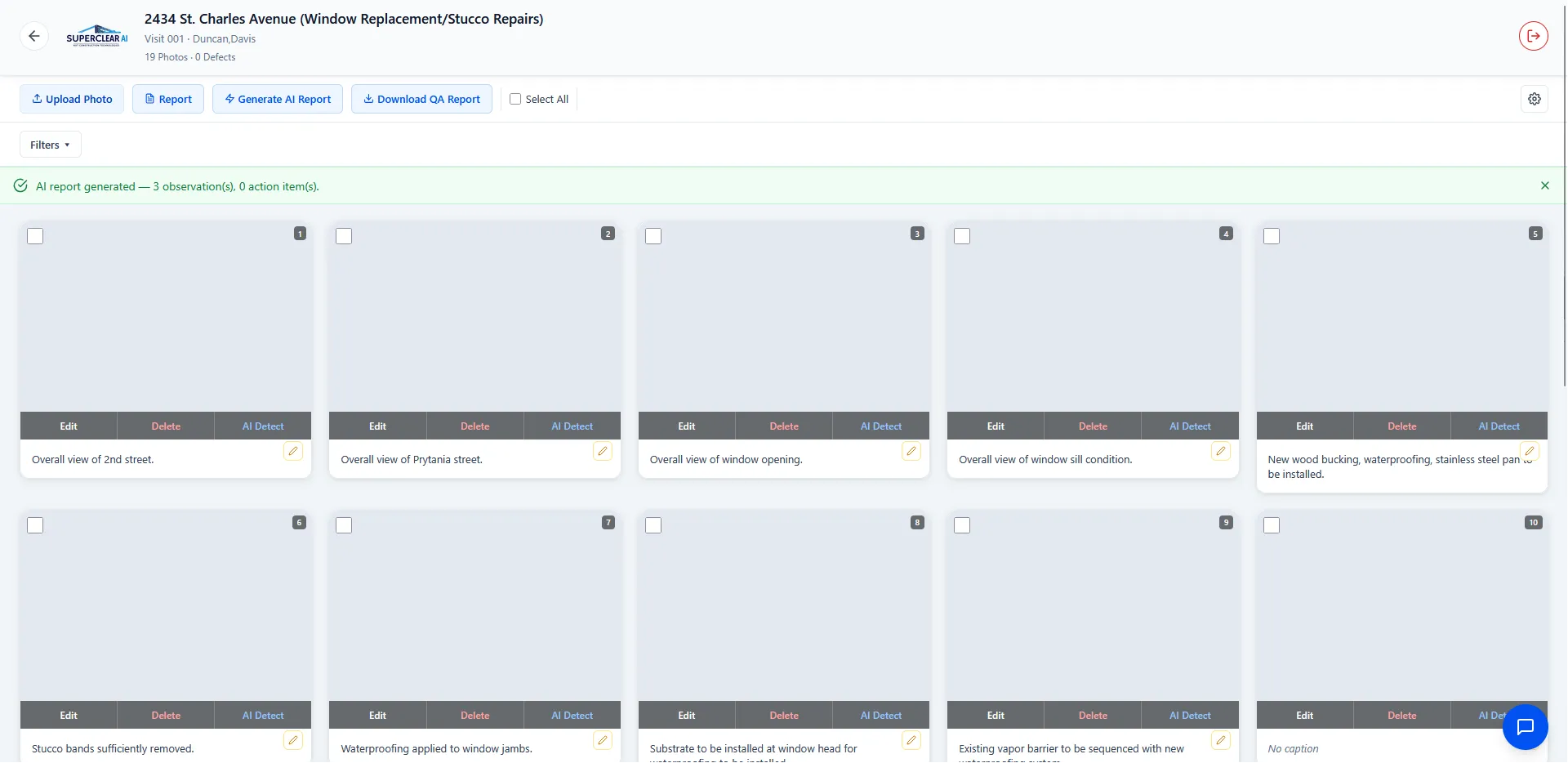
- The SuperClear AI Screen opens with all photos and their AI detections
Step 2: Start the AI Report
Section titled “Step 2: Start the AI Report”- In the toolbar, click Generate AI Report (the blue button with the lightning-bolt icon).
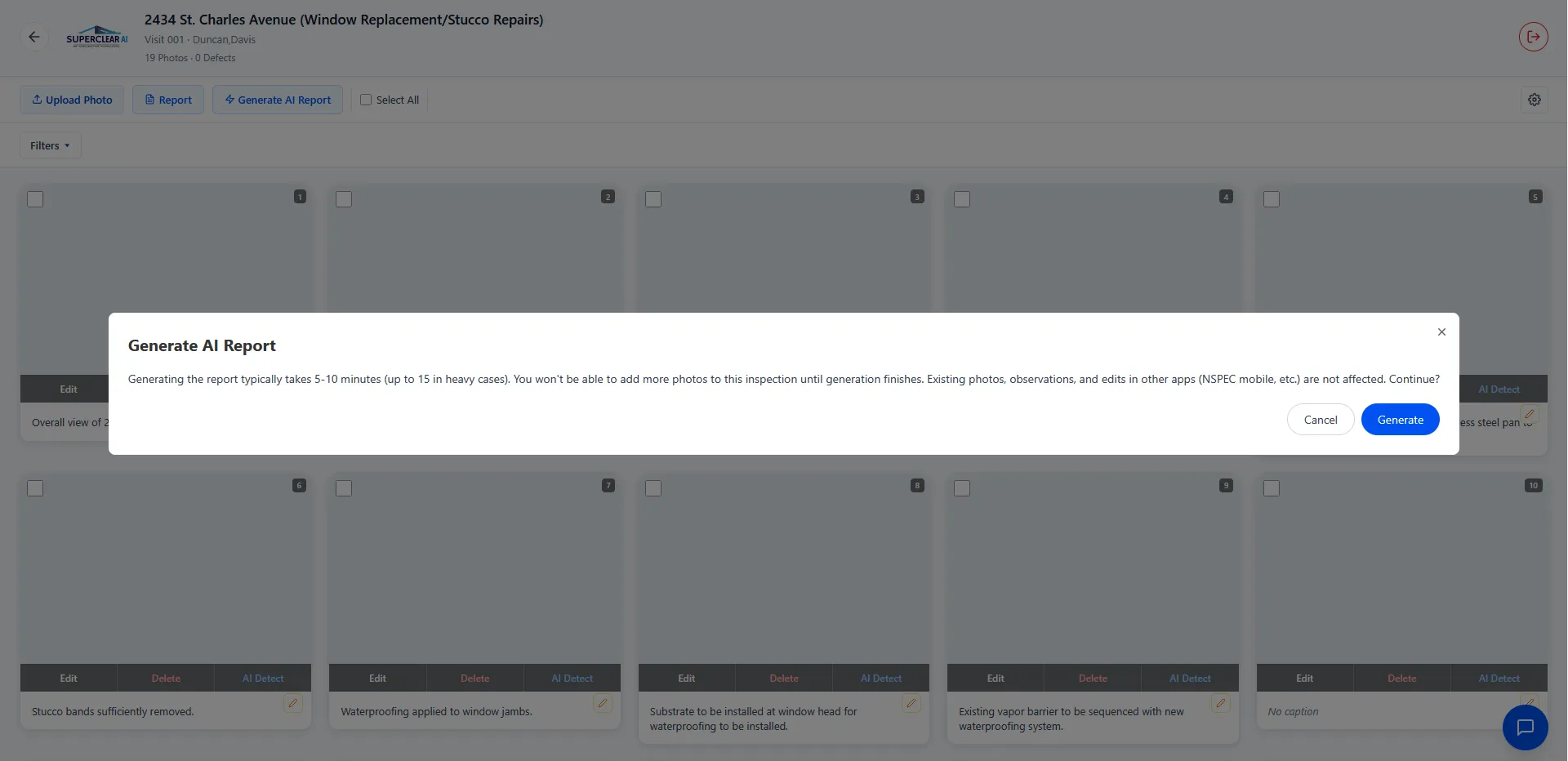
- A confirmation dialog titled Generate AI Report appears. It explains: “Generating the report typically takes 5-10 minutes (up to 15 in heavy cases). You won’t be able to add more photos to this inspection until generation finishes. Existing photos, observations, and edits in other apps (NSPEC mobile, etc.) are not affected.”
- Click Generate to start (or Cancel to back out).
- A toast confirms it started: “AI report generation started.”
Step 3: Wait While the AI Writes the Report
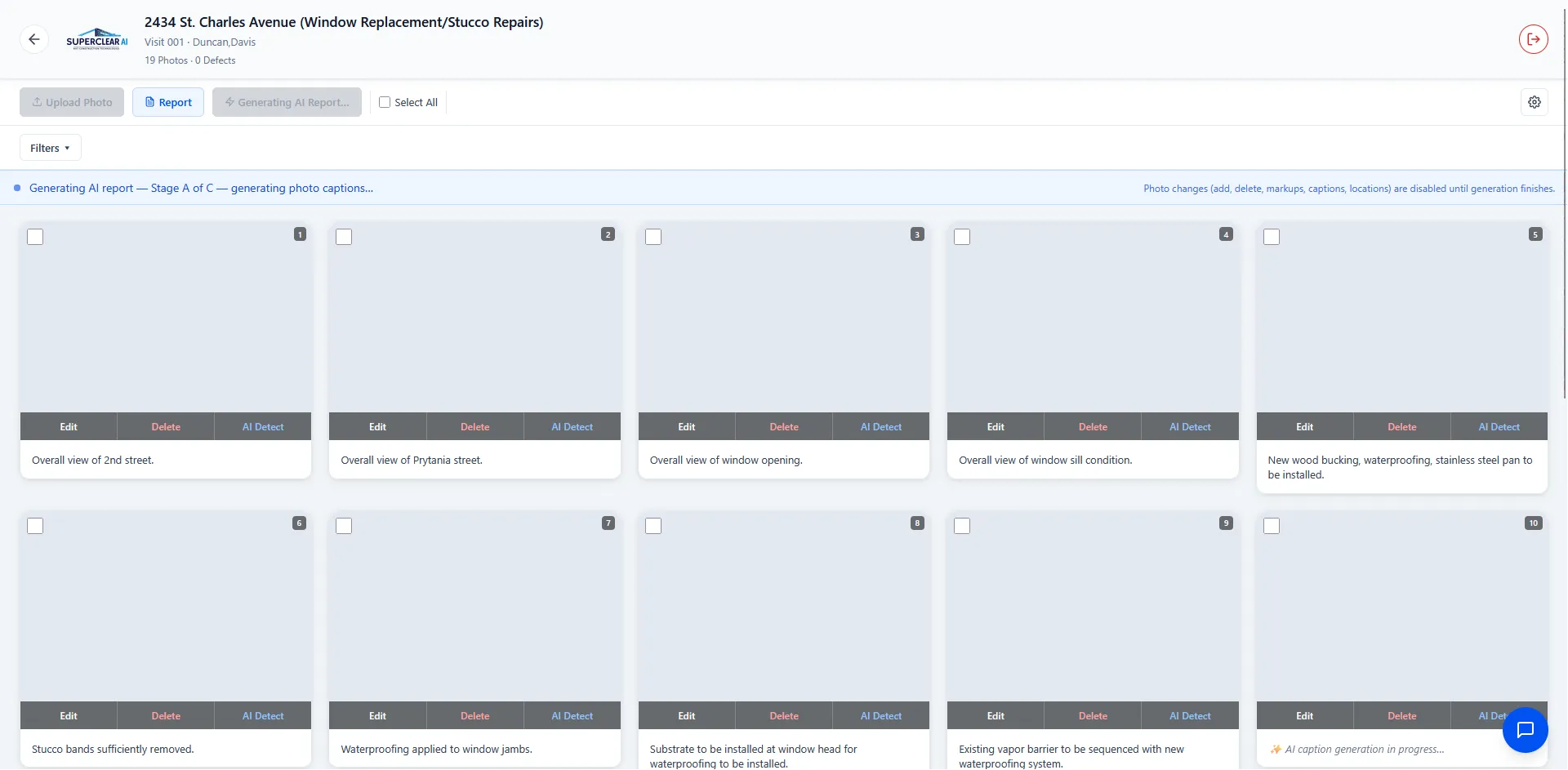
Section titled “Step 3: Wait While the AI Writes the Report”A progress banner appears at the top of the screen and updates as the AI works through the three stages. You’ll see messages like:
- “Generating AI report — Stage A of C — generating photo captions…”
- “Generating AI report — Stage B of C — generating observations…”
- “Generating AI report — Stage C of C — generating action items…”
While Stage A runs, photos that are waiting for an AI caption show “✨ AI caption generation in progress…” in place of the caption. As soon as captions are written, the photo grid refreshes on its own — you don’t need to reload.
When the run finishes, a green banner confirms it — for example: “AI report generated — 12 observation(s), 5 action item(s).” If the run completes but the AI flagged something to double-check, you’ll instead see “AI report generated with [N] quality flag(s) — review the observations before finalizing.”

Step 4: Download the QA Report
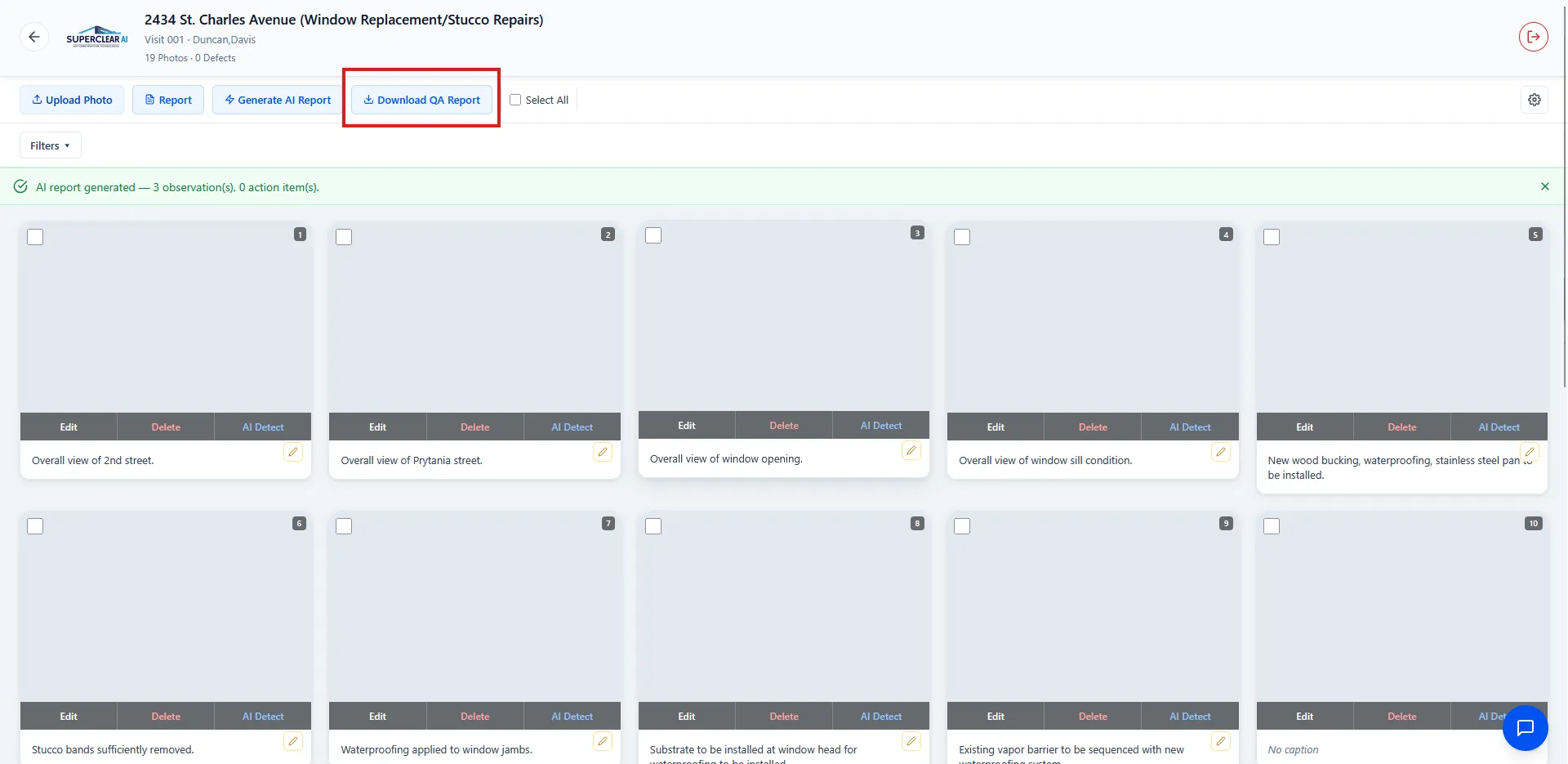
Section titled “Step 4: Download the QA Report”Once the run completes, a Download QA Report button appears in the toolbar (blue, with a download icon).
- Click Download QA Report.
- The button briefly shows “Preparing…” while the PDF is built on the server.
- Your browser downloads the file as
QA_Report.pdf. - A toast confirms it: “QA report downloaded.”
You can download the QA report as many times as you like. If you reopen the inspection later, the Download QA Report button is still there as long as the most recent AI run finished successfully.
What’s in the QA Report
Section titled “What’s in the QA Report”The QA report is the full QA field report for the inspection, including the AI observations and action items the run just wrote. Unlike the punch list (the Report button), the QA report always covers the entire inspection — there’s no photo selection step.
Where the Observations and Action Items Appear
Section titled “Where the Observations and Action Items Appear”The QA PDF isn’t the only place the results land. The observations and action items the AI writes are saved into the inspection itself. After the run finishes, open the same inspection in NSPEC Inspect (inspect-app.nspec.app) and you’ll see the new observations and action items reflected there for that inspection. From NSPEC Inspect you can review, edit, and finalize them — like any other inspection content — before you share the report.
Good to Know
Section titled “Good to Know”- One report at a time — Only one AI report can run per inspection at once. If you (or a teammate, or another browser tab) try to start a second one, you’ll see “An AI report is already being generated for this inspection.” and the screen will pick up the run that’s already in progress.
- It keeps running if you leave — The report runs on the server, so closing the tab or refreshing won’t stop it. The progress banner reappears when you return to the inspection.
- Your captions are safe — The AI only fills in captions that are empty or were AI-generated. Captions you wrote yourself are left untouched.
- Other apps aren’t blocked — Editing is paused only inside the SuperClear AI Screen for this inspection. Work in NSPEC mobile and other apps continues normally.
Troubleshooting
Section titled “Troubleshooting”I don’t see the Generate AI Report button
Section titled “I don’t see the Generate AI Report button”Solutions:
- Make sure you’re on the SuperClear AI Screen, not the Detailed Inspection View. The button is in the toolbar at the top of the SuperClear AI Screen.
- Refresh the page.
- If you still don’t see it, contact your administrator or our support team.
The Generate AI Report button is greyed out
Section titled “The Generate AI Report button is greyed out”Solutions:
- If you hover over it and see “Wait for SuperClear defect detection to finish,” SuperClear is still analyzing photos. Wait for the “In Progress” count in the header to reach zero, then try again.
- If you see “An AI report is already being generated,” a run is already underway for this inspection. Wait for it to finish.
It says SuperClear is still processing photos
Section titled “It says SuperClear is still processing photos”Solutions:
- You may see “SuperClear is still processing [N] photo(s). Wait for it to finish, then retry.” or “SuperClear defect detection has not finished yet. Wait for it to finish, then retry.”
- This means defect detection hasn’t finished. Wait for all photos to finish analyzing (no spinners on the status circles, “In Progress” at zero), then click Generate AI Report again.
It says too many AI reports are being generated
Section titled “It says too many AI reports are being generated”Solutions:
- The message “Too many AI reports are being generated right now. Try again in a few minutes.” means your organization has several reports running at once and has hit a temporary limit.
- Wait a few minutes and try again.
The report failed to generate
Section titled “The report failed to generate”Solutions:
- If you see “AI report generation failed. You can try again,” (it may name the stage where it stopped), click Generate AI Report again to retry.
- If you see “Could not start the AI report. Please try again,” check your internet connection and retry.
- If it keeps failing, contact support.
I don’t see the Download QA Report button
Section titled “I don’t see the Download QA Report button”Solutions:
- The Download QA Report button only appears after an AI report run has finished successfully. If you haven’t run one yet, start with Generate AI Report.
- If a run failed, there’s no QA report to download — generate the report again.
The QA report didn’t download
Section titled “The QA report didn’t download”Solutions:
- Check your browser’s downloads folder — the file
QA_Report.pdfmay have downloaded silently. - Check that downloads and pop-ups aren’t blocked for the SuperClear AI domain.
- If you saw “Failed to generate the QA report. Please try again,” wait a moment and click Download QA Report again.