
Installing the NSPEC Connector in Procore
The NSPEC Connector is a Procore app that turns the action items your inspection consultant records in NSPEC into observations on your Procore project. This article is for the Procore administrator who installs it. It covers the install, the company ID you send your consultant afterwards, and giving the connector access to projects you add later.
What the Connector Does
Section titled “What the Connector Does”Once the connector is installed and your consultant has linked your projects in NSPEC:
- When your consultant syncs an action item, NSPEC creates an observation on the linked Procore project. It carries the title, description, type, assignee, location, trade, due date, priority, distribution, and photos.
- Later edits sync to the same observation. When your consultant closes out the action item in NSPEC, the observation is closed in Procore.
- When your consultant deletes the action item in NSPEC, the observation is deleted from Procore.
- The connector can reach only the projects you add to its permitted projects.
Edits your team makes to an observation in Procore are not copied into NSPEC. NSPEC flags them to your consultant, who chooses which version to keep. See Resolving Procore Conflicts.
Installing the Connector
Section titled “Installing the Connector”- In Procore, click Select an App at the top right of the screen. A menu opens.
- Click App Management. The App Management page opens.
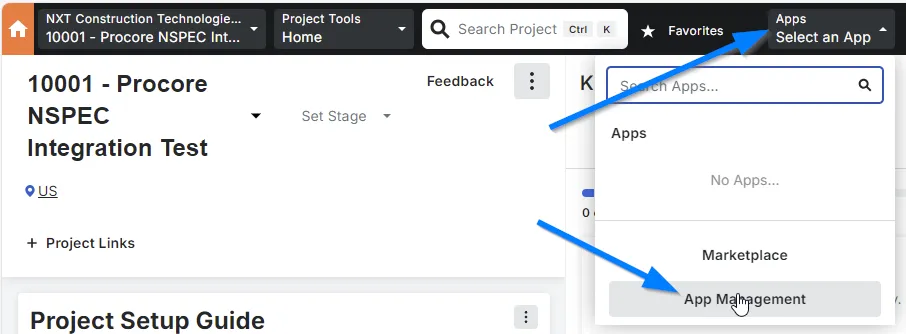
- Click Install App, then click Install Custom App. The Install App window opens.
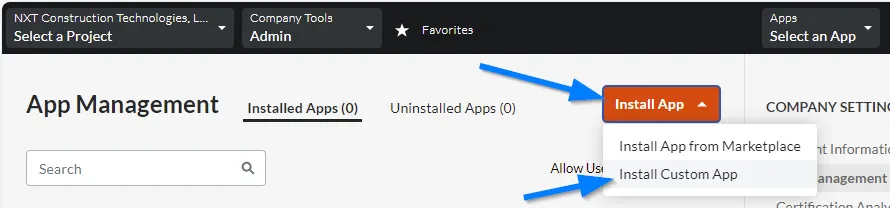
- Paste the App Version ID
1111662e-3bfe-44af-8ca3-ac594b2f96af, then click Install. A second window lists the permissions the app needs.
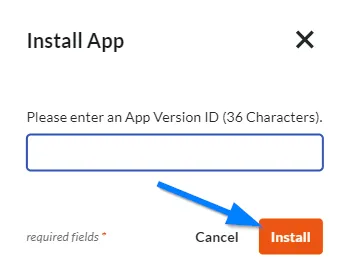
- Check that the window lists Home, Directory, Observations, and Emails, then click Install. The Add Permitted Projects window opens.
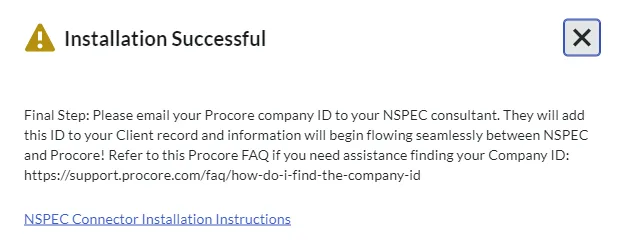
- In Select Projects, choose every project your consultant inspects, then click Add. The Installation Successful message appears.
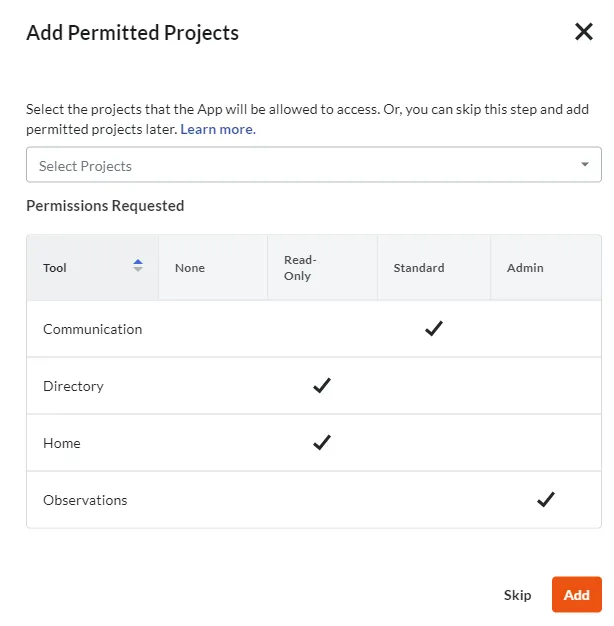
Not sure which projects yet? Click Skip and add them later, as described in Giving the Connector Access to a New Project. The connector cannot reach any project until you do.
Sending Your Company ID to Your Consultant
Section titled “Sending Your Company ID to Your Consultant”Installing the connector does not link anything yet. Email your Procore company ID to your NSPEC consultant. They add it to your client record in NSPEC and link each NSPEC project to its Procore project. Observations start arriving from then on.
Your company ID is the number after app.procore.com/ in your browser’s address bar on
any company-level page. For other ways to find it, see Procore’s How do I find the
company ID?
Giving the Connector Access to a New Project
Section titled “Giving the Connector Access to a New Project”The connector does not see projects you create after the install. Add each new project your consultant will inspect:
- Click Select an App, then click App Management.
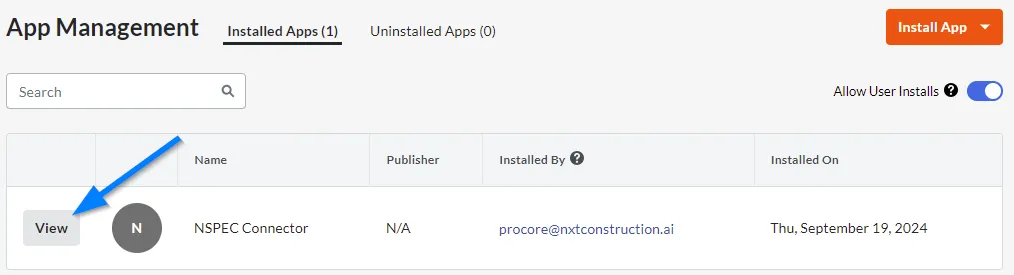
- On the Installed Apps tab, click View next to NSPEC Connector.
- Click the Permissions tab.
- Under Permitted Projects, choose the new projects in Select Projects, then click Add. They join the project list below.
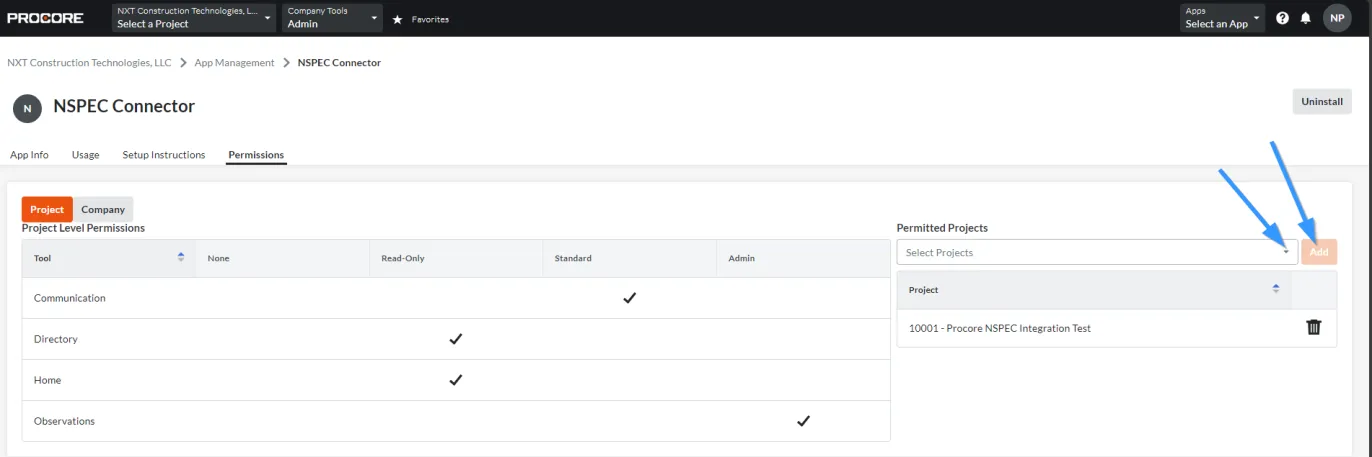
To stop the connector reaching a project, click the delete icon next to it in the list. Your consultant can no longer sync action items to that project.
Procore can also add the connector to every new project automatically, through a permission template in its Directory tool. See Procore’s Install a Custom App.
Permissions the Connector Requests
Section titled “Permissions the Connector Requests”All four permissions are project-level, and they apply only to the permitted projects. They belong to the connector, not to any person on your team.
| Procore tool | Permission | What it is for |
|---|---|---|
| Home | Read-Only | Reading your projects’ basic information, so your consultant can link each NSPEC project to the right Procore project |
| Directory | Read-Only | Reading the people on a project, so your consultant can pick an assignee and a distribution list |
| Observations | Admin | Creating, updating, closing, and deleting observations from NSPEC action items |
| Emails | Standard | Email notifications about observations. Some Procore screens call this tool Communication. |
Do not change these permissions by hand in Procore’s Directory tool. Procore advises against editing an app’s user account directly, and lower permissions stop observations from syncing.
Troubleshooting
Section titled “Troubleshooting”I don’t see App Management or Install Custom App
Section titled “I don’t see App Management or Install Custom App”Solutions:
- You need Admin on the company-level Directory tool to install a custom app. Ask your Procore company administrator to install the connector or grant you that permission.
My consultant can’t see one of our projects
Section titled “My consultant can’t see one of our projects”Solutions:
- Add the project to the connector’s permitted projects. See Giving the Connector Access to a New Project.
- Confirm you sent your consultant the company ID, not a project ID.
Observations stopped arriving
Section titled “Observations stopped arriving”Solutions:
- Open App Management and check that the NSPEC Connector is still on the Installed Apps tab.
- If the connector was updated or reinstalled, its permitted projects were cleared. Add your projects again.
- Check that nobody lowered the connector’s permissions in the Directory tool.
Related Articles
Section titled “Related Articles”- Procore Integration — how your consultant links your company and projects in NSPEC
- Resolving Procore Conflicts
- Managing Clients in nSpec
- Procore: Install a Custom App
- Procore: How do I find the company ID?