
Work Tracker and My Inspections
nSpec gives you two related views into inspection activity: My Inspections for your personal workload and Work Tracker for the team-wide view. They look similar but are designed for different jobs. This article explains the difference, what each view shows, and how to filter, sort, and search them effectively.
My Inspections vs Work Tracker
Section titled “My Inspections vs Work Tracker”| My Inspections | Work Tracker | |
|---|---|---|
| Who uses it | Inspectors | Supervisors, project managers |
| Scope | Inspections assigned to you | Every inspection in the tenant (team-wide) |
| Use for | Daily personal task tracking | Team workload, deadlines, audits |
| Where to find it | Sidebar → My Inspections | Sidebar → Analytics → Tracker tab |
| Permission | View Inspections | View Trackers / View Analytics |
Using My Inspections
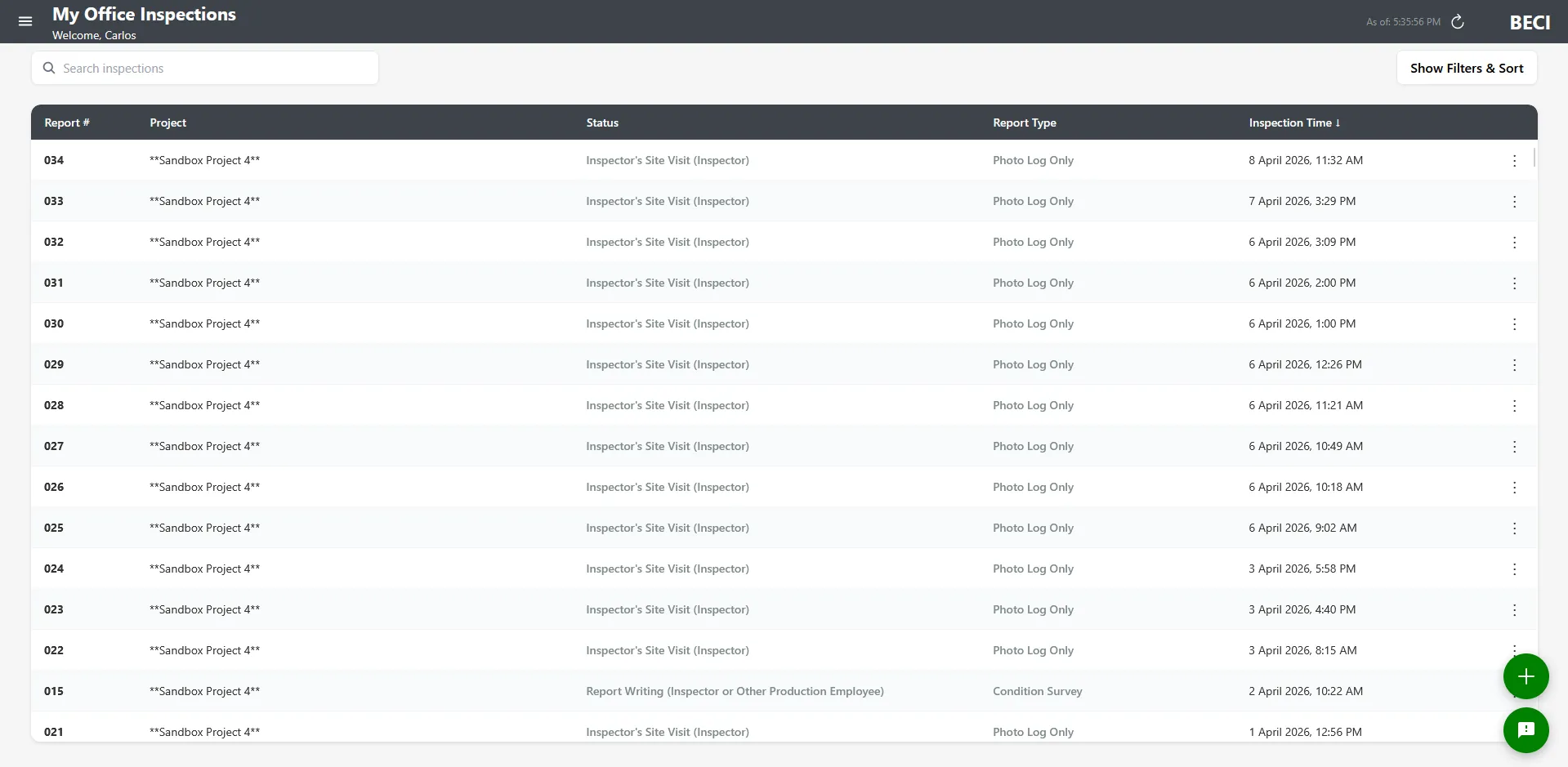
Section titled “Using My Inspections”My Inspections is your personal home for in-progress and recent work.
Opening it
Section titled “Opening it”- Sign in to nSpec at inspect-app.nspec.app
- Open the sidebar (☰)
- Click My Inspections
What’s on it
Section titled “What’s on it”- Inspections that have you as the inspector
- Sortable columns: report number, project, date, status
- Search by project name
- Click any row to open the inspection
Using Work Tracker
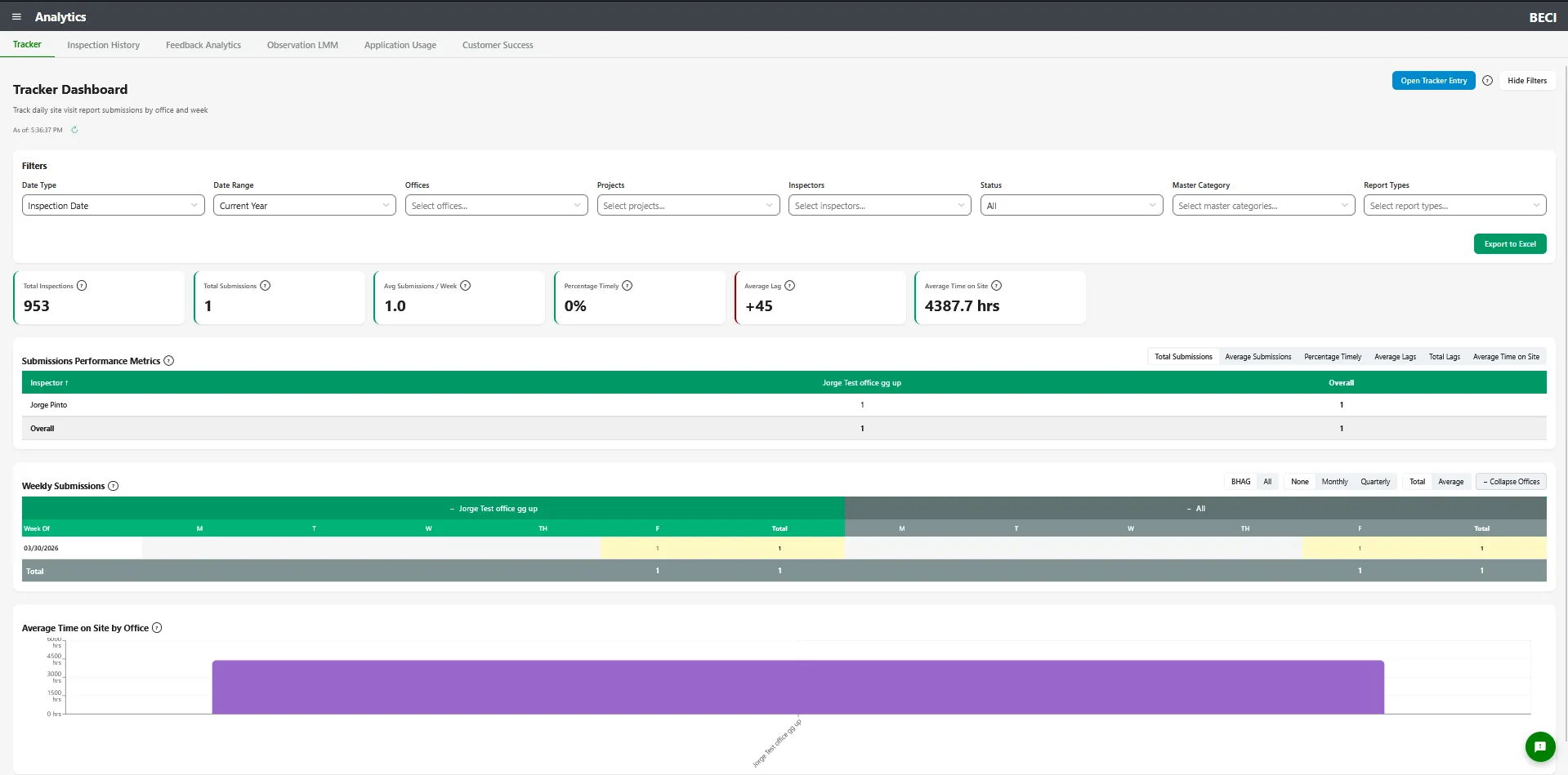
Section titled “Using Work Tracker”Work Tracker is the team-wide view. It shows every inspection in the tenant — not just yours — so supervisors and project managers can see what’s happening across the whole organization.
Opening it
Section titled “Opening it”Open the sidebar → Analytics → Tracker tab. There is no separate “Work Tracker” sidebar item.
Columns
Section titled “Columns”- Project — Project name
- Report # — Field report number
- Inspector — Who performed (or will perform) the inspection
- Inspection Date — When the inspection occurred
- Status — Current status
- Report Submittal Date — Target date for the report
- Deferred Date — If the report has been deferred, the new target
- Date Submitted — When the report was actually submitted
- Lag — Days between target and actual (negative numbers indicate the report is late)
- Report Type
- Office
Filters
Section titled “Filters”- Date Range — Current Year, Current Month, Last 30 Days, Last 90 Days, or Custom
- Office — Multi-select
- Status — Submitted vs Pending
- Project — Multi-select
- Inspector — Multi-select
- Parent Report Type — Filter by report type family
- Report Type — Filter by individual report type
- Search — Free-text search by project name, report type, or report number
Sorting
Section titled “Sorting”Click any column to sort by it. Work Tracker supports both ascending and descending order on every column. The Lag column is especially useful when sorted descending — it puts the most overdue reports at the top.
Exporting to Excel
Section titled “Exporting to Excel”- Apply any filters and sorting you want included in the export
- Click Export to Excel
- The XLSX file downloads to your browser
The export includes exactly what’s currently visible — same filters, same sort, same columns.
Understanding the Lag Column
Section titled “Understanding the Lag Column”Lag is one of the most important metrics in Work Tracker. It tells you how far behind (or ahead of) schedule each report is.
- Positive number — The report was submitted that many days early
- Zero — The report was submitted on time
- Negative number — The report is that many days late
Use the Status filter alongside Lag to focus on what needs attention: Pending + High Negative Lag = the most urgent reports to chase down.
NSPEC vs Procore Differences
Section titled “NSPEC vs Procore Differences”| Feature | NSPEC | Procore |
|---|---|---|
| My Inspections sidebar item | Visible | Hidden |
| Work Tracker location | Inside Analytics → Tracker tab | Inside Analytics → Tracker tab (same as NSPEC) |
| Default after login | Dashboard | Auto-redirected through Procore login first |
| Action items | Stored in nSpec | Synced to Procore observations |
Best Practices
Section titled “Best Practices”- Inspectors: Check My Inspections every morning to see your day’s work
- Supervisors: Open Work Tracker once a day and sort by Lag descending to see what’s slipping
- Project managers: Filter Work Tracker by project at the start of every status meeting
- Use Custom date ranges for end-of-quarter reviews — pick the quarter’s start and end dates and export the result
- Save common filter combinations as Excel exports so you can compare week-to-week without re-filtering each time
- Don’t ignore deferred reports. The Deferred Date column tells you which reports were officially pushed out — if you see lots of deferrals, it’s a process problem worth addressing
Troubleshooting
Section titled “Troubleshooting”I don’t see My Inspections in the sidebar
Section titled “I don’t see My Inspections in the sidebar”Solutions:
- You need the View Inspections permission. Ask your administrator.
I don’t see Work Tracker
Section titled “I don’t see Work Tracker”Solutions:
- Work Tracker is the Tracker tab inside Analytics — open the sidebar → Analytics → Tracker tab. There is no top-level “Work Tracker” sidebar item.
- You need View Analytics or View Trackers permission
Work Tracker is empty
Section titled “Work Tracker is empty”Solutions:
- Check the date range filter — if it’s set narrow, no inspections may match
- Check the Office and Inspector filters — make sure you haven’t accidentally limited to a person or office with no work
- Try setting the Status filter to “All” if you only see one half
Excel export downloaded but is empty
Section titled “Excel export downloaded but is empty”Solutions:
- Make sure the table on screen has rows before exporting — the export matches what’s visible
- Check the date range — exports respect filters