
Recommendations in Inspections
Recommendations are suggested fixes or actions that appear in water test inspection reports. They’re separate from observations (what you found) and from action items (what someone needs to do) — recommendations are the inspector’s professional advice on how to address the findings. This article explains what recommendations are, how to add them, and how they appear in the report.
Recommendations vs Observations vs Action Items
Section titled “Recommendations vs Observations vs Action Items”| What it is | Where it appears in the report | |
|---|---|---|
| Observation | What you found at the site | Findings section |
| Recommendation | What you suggest doing about it (water test only) | Recommendations section |
| Action Item | A specific task assigned to someone with a due date | Action Items section / synced to Procore |
Accessing the Recommendations Tab
Section titled “Accessing the Recommendations Tab”- Open a water test inspection
- Click the Recommendations tab
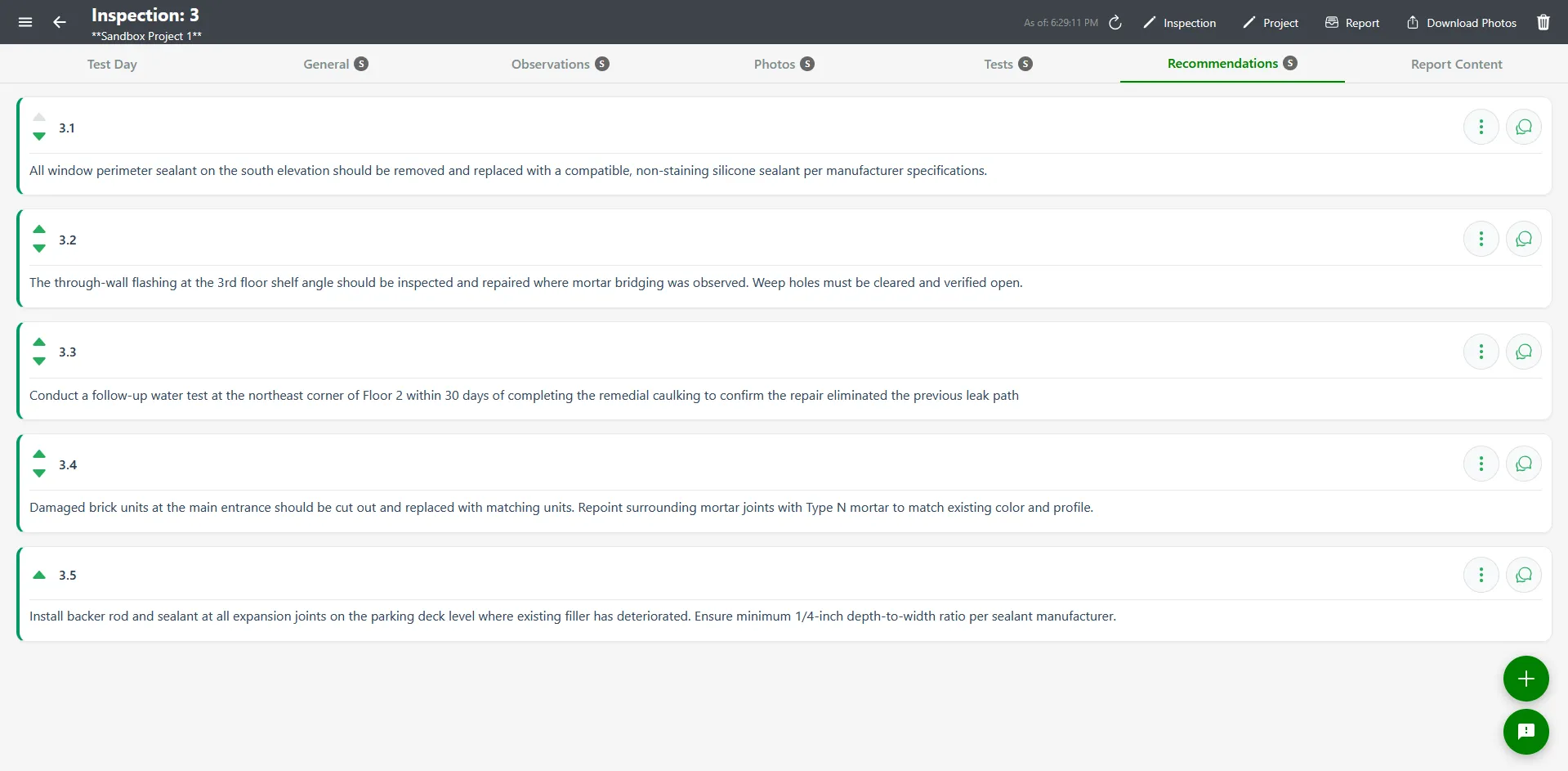
If you don’t see a Recommendations tab, the inspection isn’t a water test report. The tab is hidden for other report types.
Adding a Recommendation
Section titled “Adding a Recommendation”- On the Recommendations tab, click the + Add Recommendation floating action button
- The Add Recommendation modal opens
- Type your recommendation text — this is the only required field
- Optionally add up to 4 photos with captions, building/floor metadata, and tags
- Click Save
Reordering Recommendations
Section titled “Reordering Recommendations”Recommendations appear in the published report in the order they’re listed on the Recommendations tab. To change the order:
- Find the recommendation in the list
- Click the action menu (three dots)
- Click Move Up or Move Down
Repeat as needed to put recommendations in the right order before generating the report.
Editing a Recommendation
Section titled “Editing a Recommendation”- Find the recommendation in the list
- Click the action menu (three dots) → Edit
- Update text, captions, or photos
- Click Save
Deleting a Recommendation
Section titled “Deleting a Recommendation”- Find the recommendation in the list
- Click the action menu (three dots) → Delete
- Confirm in the dialog
Deletion is permanent. If the recommendation has photos you want to keep, save them somewhere else first.
Sub-Recommendations
Section titled “Sub-Recommendations”Like observations, recommendations can have sub-recommendations — child items linked to a parent. Sub-recommendations appear indented under their parent. To create one:
- Open Add Recommendation
- Check the Related checkbox
- Pick the parent recommendation from the dropdown
- Save
Collaboration Messages on Recommendations
Section titled “Collaboration Messages on Recommendations”Each recommendation has a Collaboration Message option in its action menu. Use it to send a quick message to your collaborators or team about a specific recommendation. The recipient sees the message via the Unread Collaboration Messages card on the dashboard.
Best Practices
Section titled “Best Practices”- Write recommendations as advice, not commands. “We recommend replacing the gasket within 30 days” reads better than “Replace gasket”.
- Tie recommendations to specific observations when possible — readers should be able to follow the chain from finding to recommendation
- Use sub-recommendations when one major recommendation has several sub-steps
- Reorder before generating the report — recommendations should flow logically from most to least important
- Photos help clients understand — a recommendation with a photo of the issue is much more persuasive than text alone
Troubleshooting
Section titled “Troubleshooting”I don’t see a Recommendations tab
Section titled “I don’t see a Recommendations tab”Solutions:
- Recommendations are water test only. If the inspection isn’t a water test report, the tab won’t be visible.
- If you need a different report structure, the inspection’s report type may need to be changed
Move Up / Move Down isn’t working
Section titled “Move Up / Move Down isn’t working”Solutions:
- The first recommendation can’t move up; the last can’t move down
- Refresh the page if the order doesn’t update