
AI Photo Captions
NSPEC can draft your photo captions. Pick the photos, choose a caption style, and the captions land in the photo log ready to edit. This article covers the three ways to caption, the project documents that Compliance-aware captions cite, and how to review and rate the results.
What AI Captions Do
Section titled “What AI Captions Do”- Captions go into the photo log. The AI writes into each photo’s caption field, which is what appears below the image in reports. Observation and action-item figures show the same caption unless you turn on Override caption for that figure.
- Every AI caption is marked. A small AI badge sits next to each caption the AI wrote, so you can tell which ones still need a person to read them. Hover it for “Caption written by AI. Edit to mark as human-written.”
- Captions help the rest of the report. The AI observation description works from your figure captions, so captioned photos make the rest of the writing faster too.
Caption Styles
Section titled “Caption Styles”Every place you can generate captions shows the same Caption style picker. Hover the ? next to each option in the app for a short explanation.
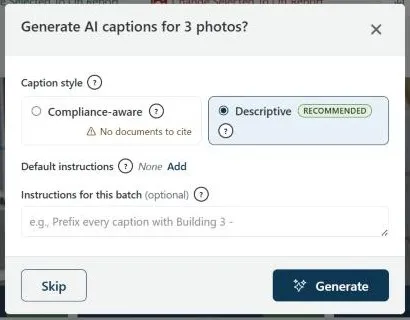
- Descriptive: describes what is visible, in the style of your other captions on the report. It needs no documents and takes about 5 seconds per photo. Use it for a fast first pass, progress photos, and projects without documents.
- Compliance-aware: cites your project documents and specifications and adds a brief compliance read. It needs documents uploaded to the project and takes about 10 to 15 seconds per photo. Use it for report-bound photos where a citation to a spec, submittal or detail adds value.
The Recommended label follows your documents. When the project has no indexed documents, Compliance-aware shows “No documents to cite” and Descriptive is recommended and pre-selected. Once at least one document is indexed, Compliance-aware shows how many (for example, “1 project document”) and becomes the recommendation. You can always pick either style.
Add Project Documents for Compliance-aware Captions
Section titled “Add Project Documents for Compliance-aware Captions”Compliance-aware captions are grounded in the documents uploaded to the project. You upload them once, and every inspection on that project uses the same set.
- Open the project. The Project Inspections list opens.
- In the header bar, click the Project documents icon, between the refresh and edit icons.
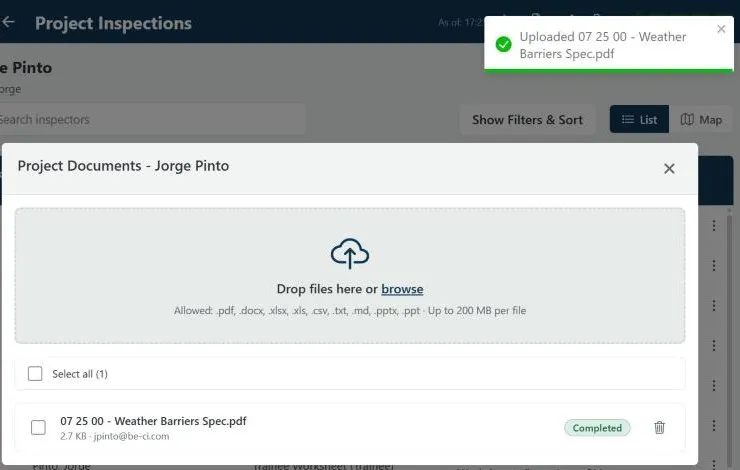
- In the Project Documents window, drop your files on the upload area or click browse. You can add several files at once.
- Wait for each file’s status to reach Completed. It moves from Uploading to Processing to Completed. Small PDFs finish in about a minute; large drawing sets take longer.
Only Completed documents count for captions. Allowed file types are .pdf, .docx,
.xlsx, .xls, .csv, .txt, .md, .pptx and .ppt, up to 200 MB per file.

What to upload
Section titled “What to upload”Upload anything a caption should be able to cite: specifications, approved submittals,
shop drawings and details, manufacturer installation instructions, and the project’s QA
plan. There is no category picker. The AI reads the content, so a clear file name such
as 07 25 00 - Weather Barriers.pdf is for you, not the AI.
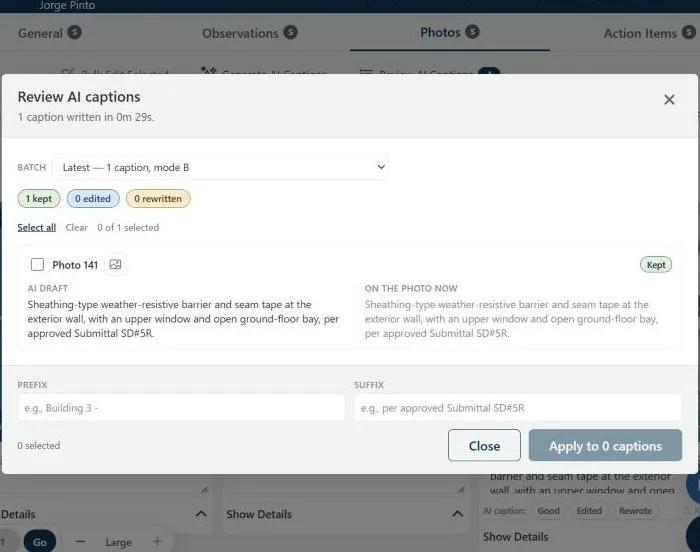
As soon as a document is Completed, every caption dialog on the project recommends Compliance-aware, and captions reference the documents where relevant. In testing, a spec that named Submittal SD#5R produced this caption: “Sheathing-type weather-resistive barrier and seam tape at the exterior wall, with an upper window and open ground-floor bay, per approved Submittal SD#5R.”
Site Maps are a separate feature. The caption AI does not read them.
Caption New Photos in Quick Capture
Section titled “Caption New Photos in Quick Capture”Use Quick Capture when you are adding photos and want captions written as soon as the upload finishes.
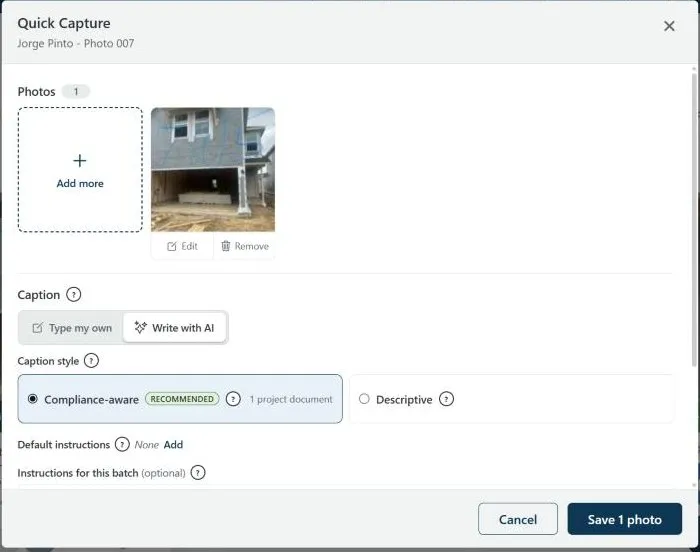
- Open the inspection’s Photos tab and click the round camera button at the bottom right. Quick Capture opens.
- Click Add photos and pick one or more images.
- In the Caption section, switch from Type my own to Write with AI. The caption style picker and the instructions appear.
- Choose Descriptive or Compliance-aware.
- Optional: add instructions. See Instructions.
- Set the location if you use it, then click Save N photos. The footer shows “Preparing upload…” and then “Starting AI caption generation…”, and the window closes with “AI caption generation started for N photos.”
- Your Type my own or Write with AI choice is remembered for the rest of your session.
- On water-test inspections you pick the specimen first, and AI captions start with the specimen and test label.
- If you close Quick Capture while photos are still uploading, NSPEC asks before cancelling the upload.
Caption Existing Photos from the Photos Tab
Section titled “Caption Existing Photos from the Photos Tab”Use the Photos tab to caption photos that are already in the photo log, from one photo to a whole inspection.
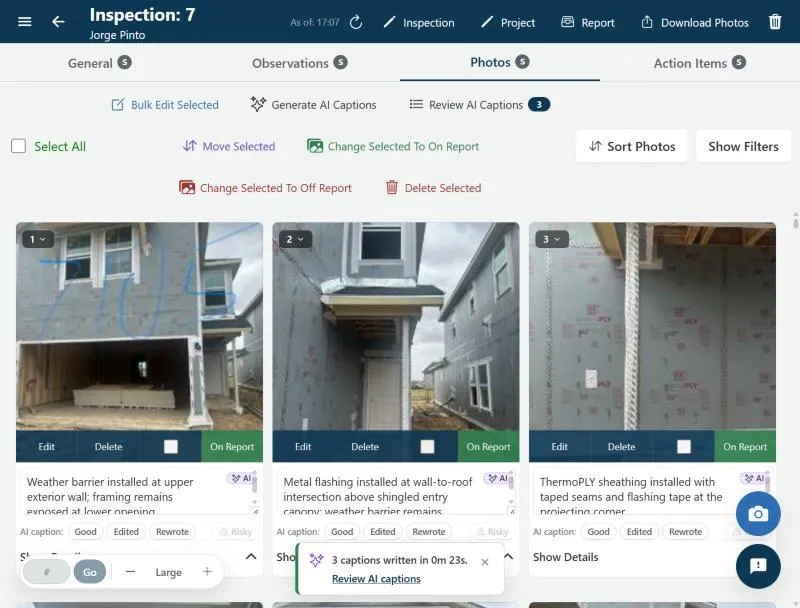
- On the Photos tab, select the checkbox on each photo card, or click Select All. Select All respects your current filters, so filter first if you only want part of the log.
- In the action bar above the grid, click Generate AI Captions. The dialog “Generate AI captions for N photos?” opens.
- Pick the caption style.
- Optional: add Instructions for this batch.
- Click Generate. The dialog closes, the selection clears, and the progress banner appears. Skip closes the dialog without generating.
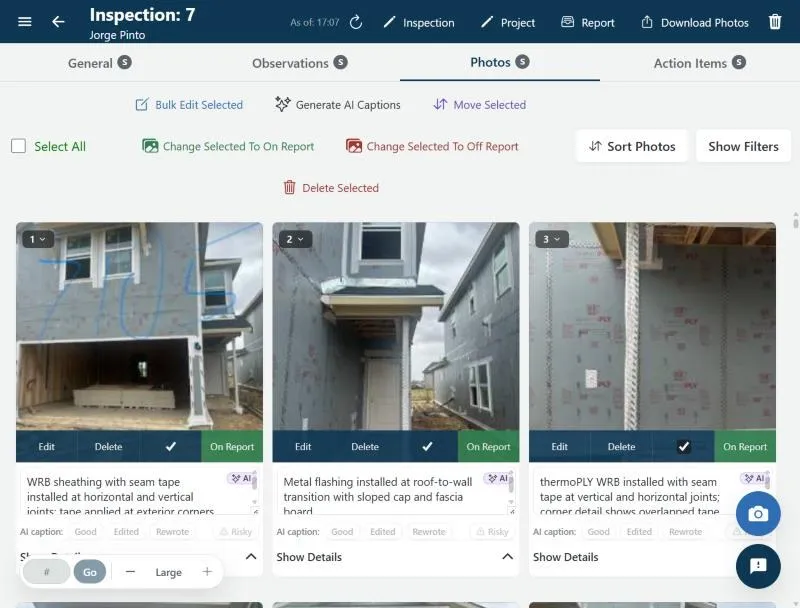
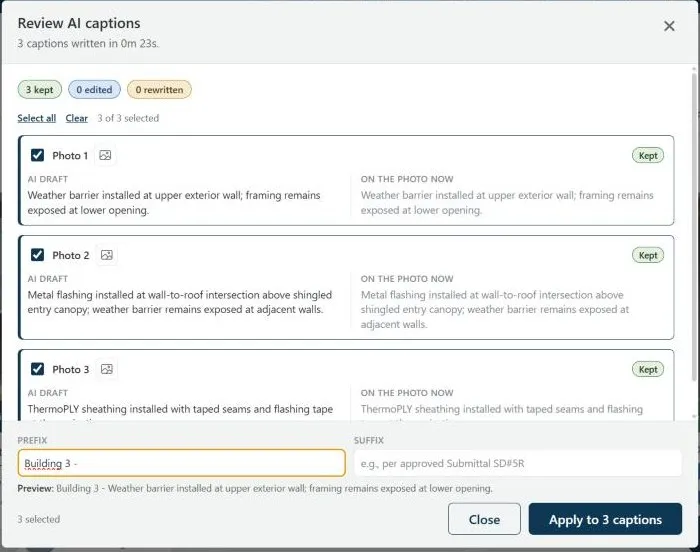
When the batch finishes, the new captions carry the AI badge and a rating row, a summary panel reports the result (for example, “3 captions written in 0m 23s.”), and Review AI Captions appears in the action bar with a count.
Caption Photos Inside Observations, Action Items and Specimens
Section titled “Caption Photos Inside Observations, Action Items and Specimens”While you write an observation, draft observation, action item, dynamic RC or specimen, you can caption its figures without leaving the form. The AI caption panel appears under the photo list once the item has at least one photo and you are online.
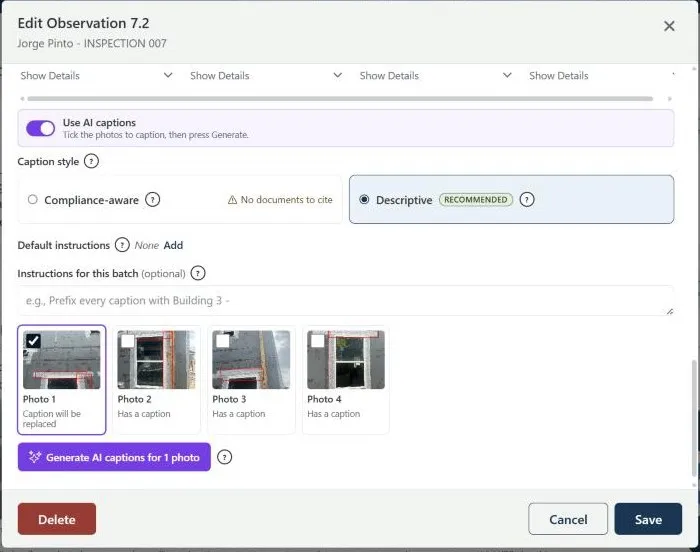
- Turn on Use AI captions. The hint changes from “Type your own captions.” to “Tick the photos to caption, then press Generate.”
- Pick the caption style, and optionally add instructions.
- Select the photos to caption. Photos without a caption start selected. A photo that already has one reads “Has a caption”, which changes to “Caption will be replaced” when you select it.
- Click Generate AI captions for N photos. Photos are uploaded first if needed, then each caption box fills in while the form stays open.
- Edit anything you like, then click Save. Save is disabled only while uploads are still running.
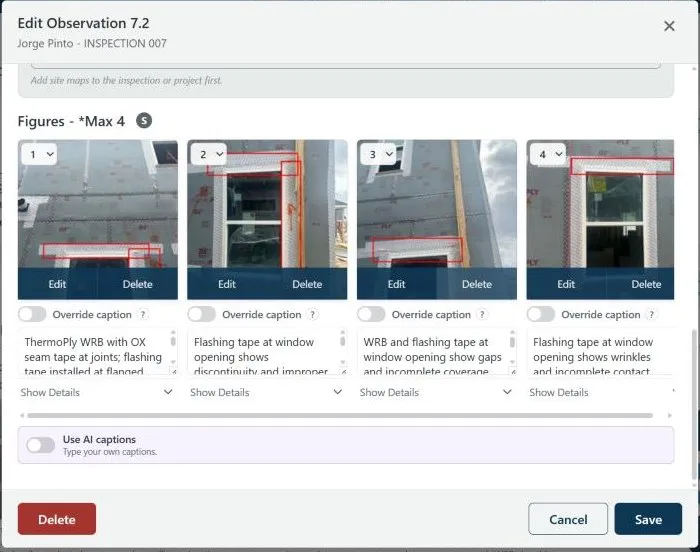
- Caption boxes show “Uploading photo for AI caption…” and then “Generating AI caption…”.
- If you start typing in a box while its caption is generating, that photo’s job is cancelled and your text wins. Turning the switch off cancels every running job.
- While captions run, the footer shows “Generating AI captions… X of Y”. Closing the form asks “AI captions are still being generated. Close anyway? Photos uploaded for AI captions will be removed.” with a Stop and close button.
Instructions
Section titled “Instructions”Instructions tell the AI how you want captions worded. There are two layers, and the more specific one wins.
- Instructions for this batch: up to 500 characters, applied only to the photos you are generating now. They are remembered for your session, so the next batch starts with the same text until you change it.
- Default instructions: up to 2,000 characters, applied to every batch you run on every inspection. Edit them with the Add or Edit link in any caption dialog, or in My Account under AI Caption Instructions. Batch instructions take priority over defaults.
- Also save as my default instructions: this checkbox appears once you type a batch instruction. Select it to save the text as your default before the batch starts.
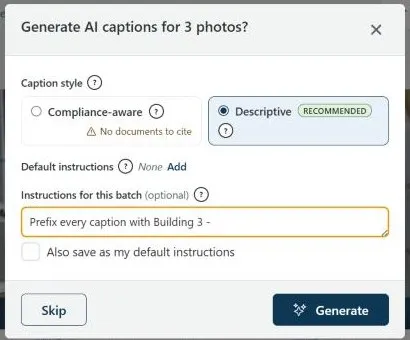
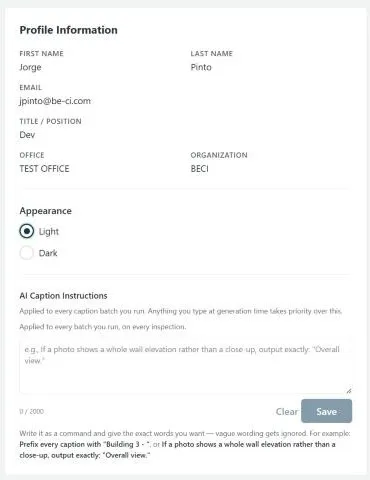
Write instructions as commands, with the exact words you want. Vague wording gets ignored. Examples that work well:
Prefix every caption with Building 3 -Keep captions under 10 wordsNote the elevation when it's visibleIf a photo shows a whole wall elevation rather than a close-up, output exactly: "Overall view."
If your instruction mentions drawings, submittals, specs or sheets while Descriptive is selected, the dialog reminds you that “Descriptive mode does not read project documents” and suggests Compliance-aware.
While Captions Are Generating
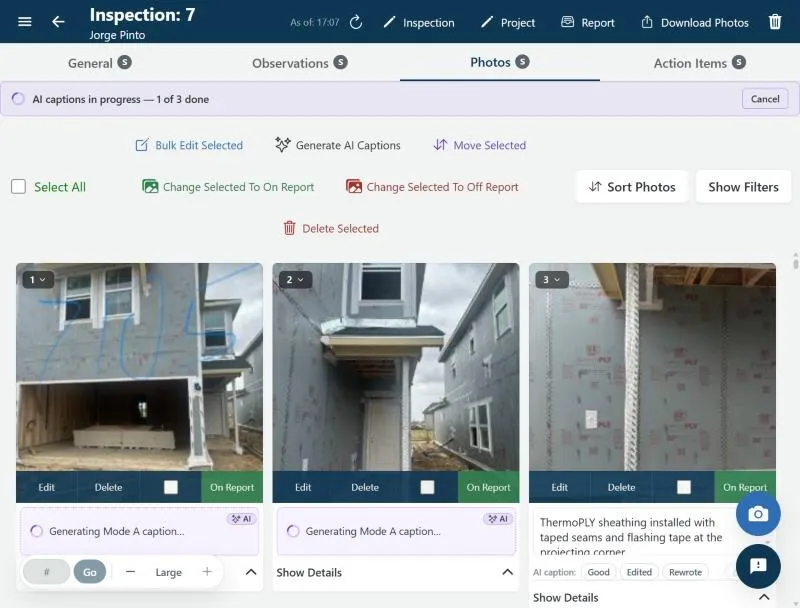
Section titled “While Captions Are Generating”- Progress banner. The top of the Photos tab shows “AI captions in progress — X of Y done”, with the failed count added if any photo could not be captioned. When a single job is running, the banner has a Cancel button. Captions that already finished are kept.
- Locked caption boxes. A photo that is still generating shows a spinner and “Generating Mode A caption…” (Descriptive) or “Generating Mode B caption…” (Compliance-aware) instead of its caption box. This is deliberate: anything you typed there would be overwritten a moment later. The box unlocks as soon as the caption lands.
- You can keep working. Switch tabs or open other inspections. When you come back, running jobs re-attach and the banner returns. A brief connection drop is fine.
- Reloading the page stops the live progress, but the job keeps running on the server. The captions appear the next time the photo log refreshes.
Review and Edit AI Captions
Section titled “Review and Edit AI Captions”Generate first, review second. Open the review from the Review AI captions link on the summary panel, or from the Review AI Captions button in the action bar, which counts the photos with AI drafts.
- Each row shows the AI draft beside what is On the photo now, with a pill that reads Kept, Edited, Rewritten or Cleared. Hover the photo icon to preview the image, or click it to open it large.
- Earlier batches. With more than one batch, the Batch list takes you back to earlier runs, up to 10 per inspection.
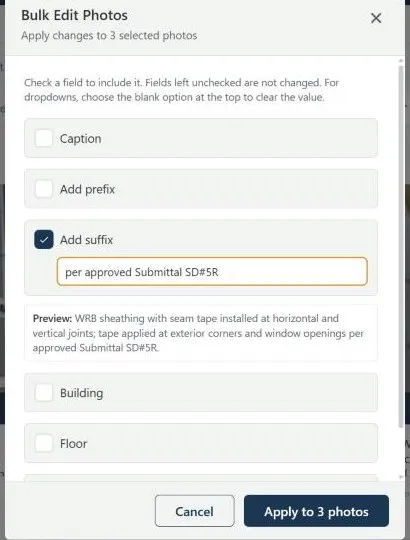
Add a prefix or suffix to many captions
Section titled “Add a prefix or suffix to many captions”- In Review AI captions, select the rows you want.
- Type a Prefix (for example,
Building 3 -) or a Suffix (for example,per approved Submittal SD#5R). - Check the preview, then click Apply to N captions.
A suffix that starts with a lowercase letter joins the sentence; anything else becomes a new sentence. To add a prefix or suffix to any photos, AI-captioned or not, select them and use Bulk Edit Selected, then Add prefix or Add suffix.
Edit a caption
Section titled “Edit a caption”Click into the caption box on the photo card, change the text, and click away to save. Any real change marks the caption as human-written, and the AI badge clears once the photo log refreshes. A light edit is the quickest way to turn a draft into a caption you trust.
Rate AI Captions
Section titled “Rate AI Captions”Under every AI caption is a rating row: AI caption: Good, Edited, Rewrote, and a Risky flag. One click per caption is the most useful thing you can do for us during the beta.
- Good: you kept the AI caption as written.
- Edited: you kept the AI caption but changed part of it.
- Rewrote: you replaced the AI caption with your own.
- Risky: the caption states something untrue or unsafe. Choose Good, Edited or Rewrote first, then add Risky if it applies.
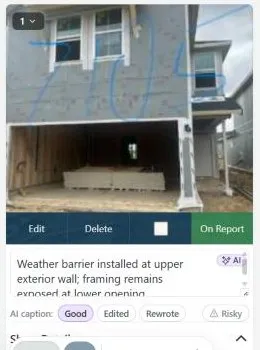
Ratings need a connection and are available for captions generated in your session. Regenerating a caption clears its rating.
Best Practices
Section titled “Best Practices”- Upload documents before the first batch so Compliance-aware has something to cite.
- Generate first, review second. Draft the whole batch, then read down the photo log once.
- Use clear construction photos. The AI captions the building, conditions and work in progress. A screenshot, a report page or a blurry shot can come back without a caption, or with a Reference, Note, Drawing or Unreadable badge instead of AI.
- Work in batches of about 50 photos. Split larger selections into several runs. The limit is 500 photos per run, and every photo in a run must belong to the same inspection.
- Use a prefix per area, such as
Building 3 -orLevel 2 -, either as an instruction or afterwards from the review window. - Generate while you are online, before you head to a site with poor coverage.
Troubleshooting
Section titled “Troubleshooting”The AI caption controls are missing
Section titled “The AI caption controls are missing”Solutions:
- You are offline or in offline mode. The AI controls are hidden until you reconnect.
- On the Photos tab, select at least one photo first. Otherwise you see “Select at least one photo to generate AI captions.”
I can’t type in a photo’s caption box
Section titled “I can’t type in a photo’s caption box”Solutions:
- That photo has a caption job in progress. Wait for the caption to land, or use Cancel on the progress banner.
It says the inspection is checked out by another inspector
Section titled “It says the inspection is checked out by another inspector”Solutions:
- Only the person who has the inspection checked out can generate or cancel captions. Ask them to finish, then try again.
Compliance-aware says “No documents to cite”
Section titled “Compliance-aware says “No documents to cite””Solutions:
- Upload documents to the project (see Add Project Documents) and wait for Completed. The count refreshes within about a minute.
Some photos in the batch didn’t get a caption
Section titled “Some photos in the batch didn’t get a caption”Solutions:
- The banner shows how many failed. Those photos keep their previous caption and stay editable. Generate again for just those photos, or caption them by hand.
- The photo may not be a clear construction image. Replace it with a clear shot of the condition, or write that caption yourself.
- If the whole batch failed, check your connection and try again. If it keeps failing, the AI service may be temporarily unavailable; email support.
The AI badge is still showing after I edited a caption
Section titled “The AI badge is still showing after I edited a caption”Solutions:
- The caption saves when you click out of the box, and the badge clears when the photo log refreshes. Make sure the text actually changed.
I reloaded and the progress banner disappeared
Section titled “I reloaded and the progress banner disappeared”Solutions:
- The job is still running on the server. Captions show up when the photo log refreshes. Open the inspection again to bring back the progress view.