
Managing Offices in nSpec
Offices represent the physical locations of your organization. Every employee belongs to an office, and projects can be assigned to one. Offices also control how reports are organized and let admins filter analytics by location. This article walks through creating, editing, and deleting offices.
Accessing the Offices Screen
Section titled “Accessing the Offices Screen”- Sign in to nSpec at inspect-app.nspec.app
- Open the sidebar (☰ menu)
- Click Offices
You need the View Offices permission to see this screen. If it’s not in your sidebar, ask your administrator to update your role.
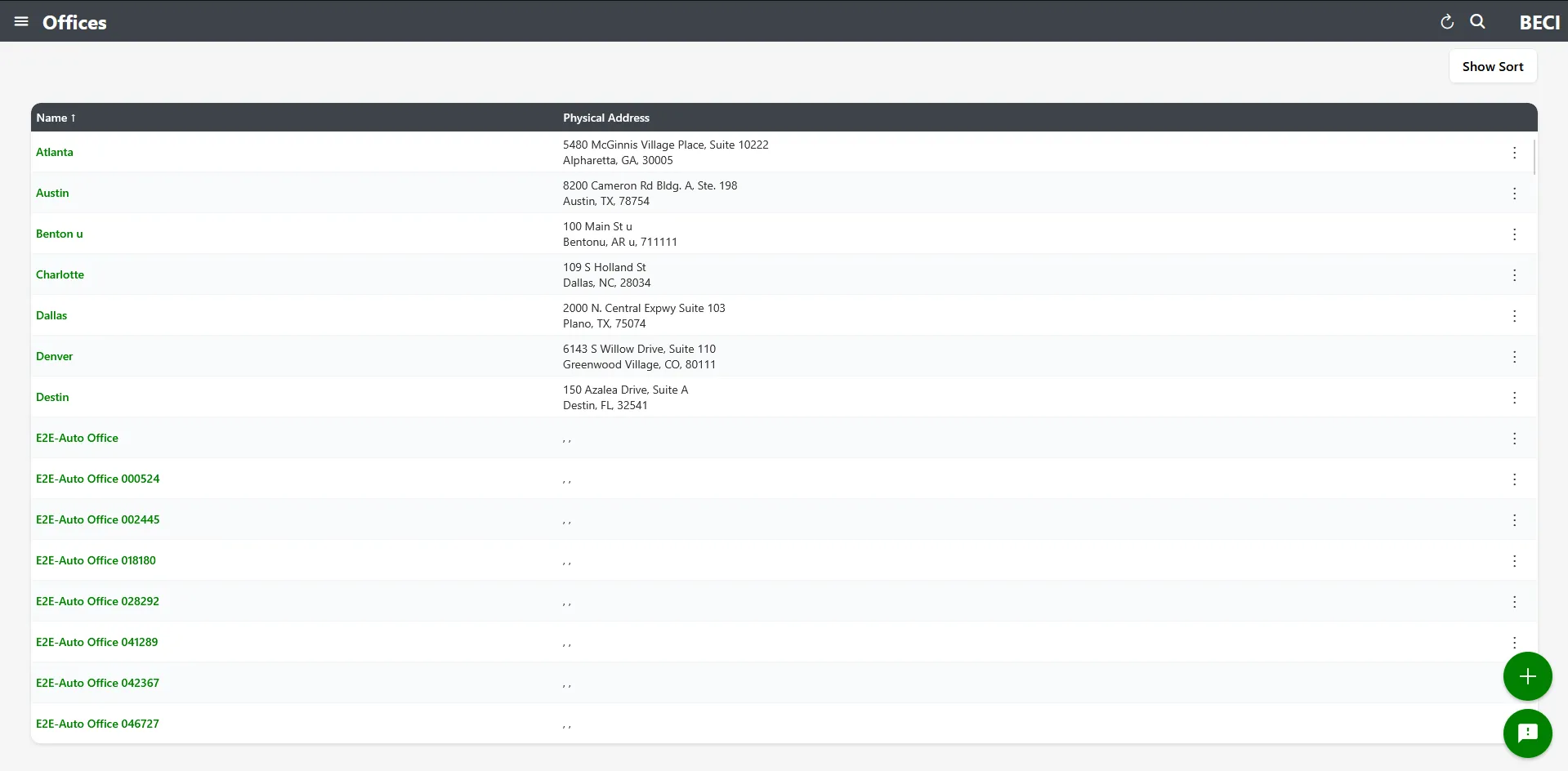
The Offices List
Section titled “The Offices List”The Offices screen shows every office in your organization with its address and contact info. You can search by name or address, and sort A-Z or Z-A by Name or Address.
Creating an Office
Section titled “Creating an Office”- On the Offices screen, click the + floating action button in the bottom-right
- The Create Office modal opens
- Fill in the fields below
- Click Save
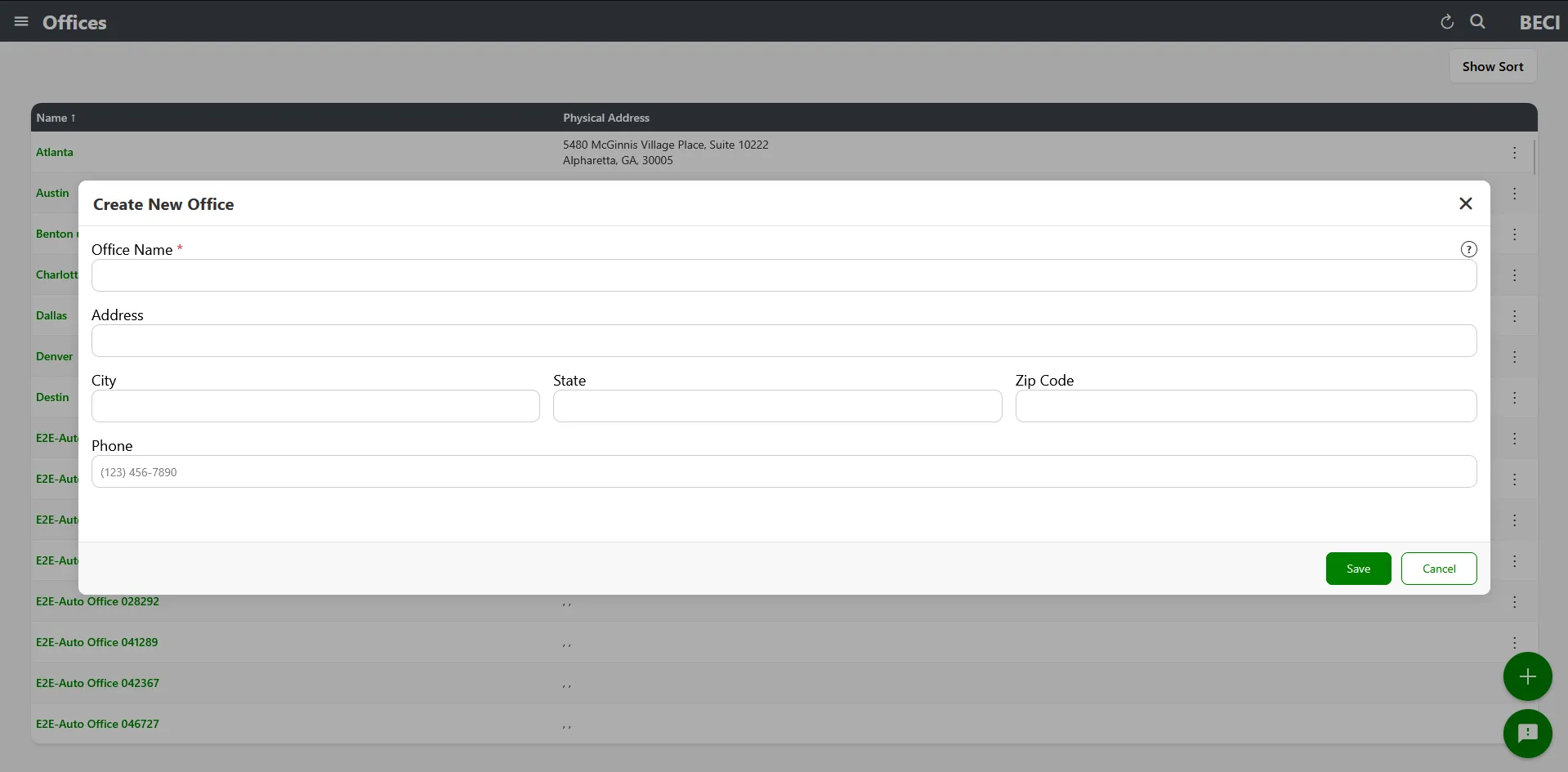
Office fields
Section titled “Office fields”| Field | Required | Notes |
|---|---|---|
| Office Name | Yes | Up to 200 characters. This is what employees and projects will reference. |
| Address | No | Street address of the office |
| City | No | City where the office is located |
| State | No | State or province |
| Zip Code | No | Numbers only, up to 6 characters |
| Phone | No | Numbers only |
Editing an Office
Section titled “Editing an Office”- Find the office in the list
- Click the row (or use the action menu → Edit)
- Update any fields you need to change
- Click Save
Deleting an Office
Section titled “Deleting an Office”- Find the office in the list
- Click the action menu (three dots) on the office row
- Click Delete
- Confirm in the dialog
You need the Delete Offices permission to see the Delete option. If it’s missing, contact your administrator.
How Offices Connect to Other Features
Section titled “How Offices Connect to Other Features”- Employees — Each employee is assigned to a primary office and can have additional offices. See Managing Employees in nSpec.
- Projects — Projects can be associated with a specific office for organization and filtering. See Managing Projects in nSpec.
- Inspections — Inspection reports include the office details on the cover page
- Analytics — Filter dashboards and stats by office. Admins with the appropriate permission can see stats across all offices.
Permissions Required
Section titled “Permissions Required”| Action | Permission |
|---|---|
| View the Offices screen | View Offices |
| Create or edit offices | Employee status (visibility flag) |
| Delete offices | Delete Offices |
| View statistics for a single office | Single Office Statistics |
| View statistics across all offices | All Office Statistics |
Troubleshooting
Section titled “Troubleshooting”Save button doesn’t work
Section titled “Save button doesn’t work”Problem: Clicking Save doesn’t create the office.
Solutions:
- Check that Office Name is filled in (required)
- Check that Zip Code contains only numbers (max 6 characters)
- Check that Phone Number contains only numbers
I don’t see the Delete option
Section titled “I don’t see the Delete option”Problem: The action menu doesn’t show Delete.
Solutions:
- You need the Delete Offices permission. Ask your administrator.
A new office isn’t appearing in employee/project dropdowns
Section titled “A new office isn’t appearing in employee/project dropdowns”Problem: You created an office but it doesn’t show in other forms.
Solutions:
- Refresh the page
- Verify the save was successful — open the Offices screen and confirm the office is in the list