
Draft Observations
Draft observations are quick, in-progress notes that don’t have to meet the standards of a finalized observation. They’re perfect for capturing something on the fly while you’re walking a site — a quick text note, a couple of photos, or a placeholder for something you’ll come back to later. This article explains when to use drafts, how they differ from regular observations, and how to convert a draft to a finalized observation.
Drafts vs Observations
Section titled “Drafts vs Observations”| Draft Observation | Observation | |
|---|---|---|
| When to use | Quick capture during a walk-through; you’re not sure yet if it’ll make the report | Finalized findings that will appear in the published report |
| Required fields | Just text | Text plus the structure your inspection type expects |
| Appears in report | No | Yes |
| Visible in | Observations tab with the Show Draft Observations toggle ON | Observations tab with the Show Draft Observations toggle OFF |
| Sort order | Newest at top by default | Manually orderable (move up/down) |
Where to Find Drafts
Section titled “Where to Find Drafts”- Open an inspection
- Click the Observations tab
- Inside the Observations tab, flip the Show Draft Observations toggle switch ON
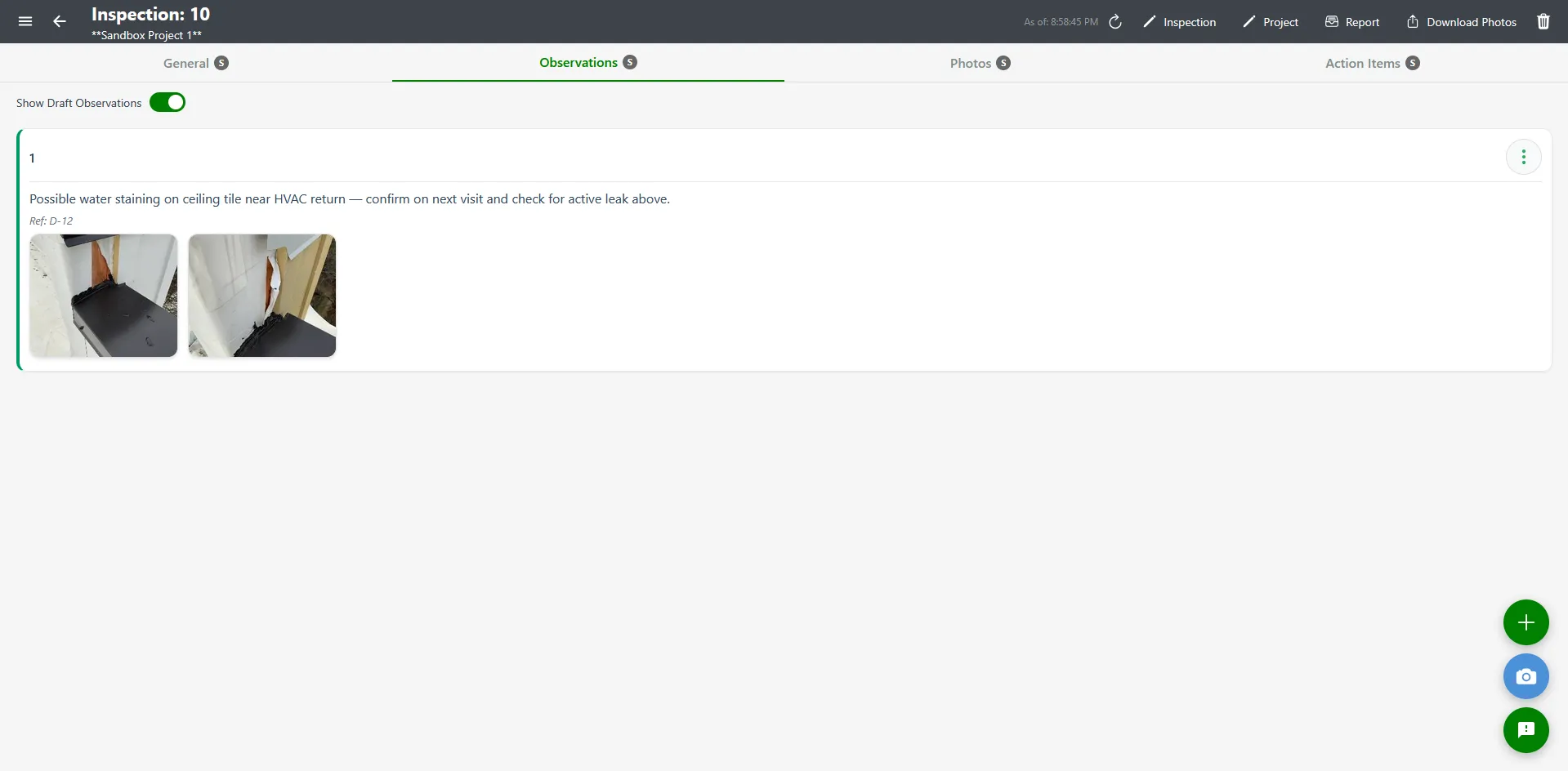
When the toggle is ON, the Observations tab shows every draft observation for the current inspection, newest at the top. Each draft card has a “DRAFT” badge and a count badge showing how many photos are attached. Flip the toggle OFF to switch back to finalized observations in the same view.
Adding a Draft Observation
Section titled “Adding a Draft Observation”- With the Show Draft Observations toggle ON, click the + Add Draft floating action button
- The Add Draft Observation modal opens
- Type your observation text — this is the only required field
- Optionally add a Detail Reference and up to 4 photos
- Click Save
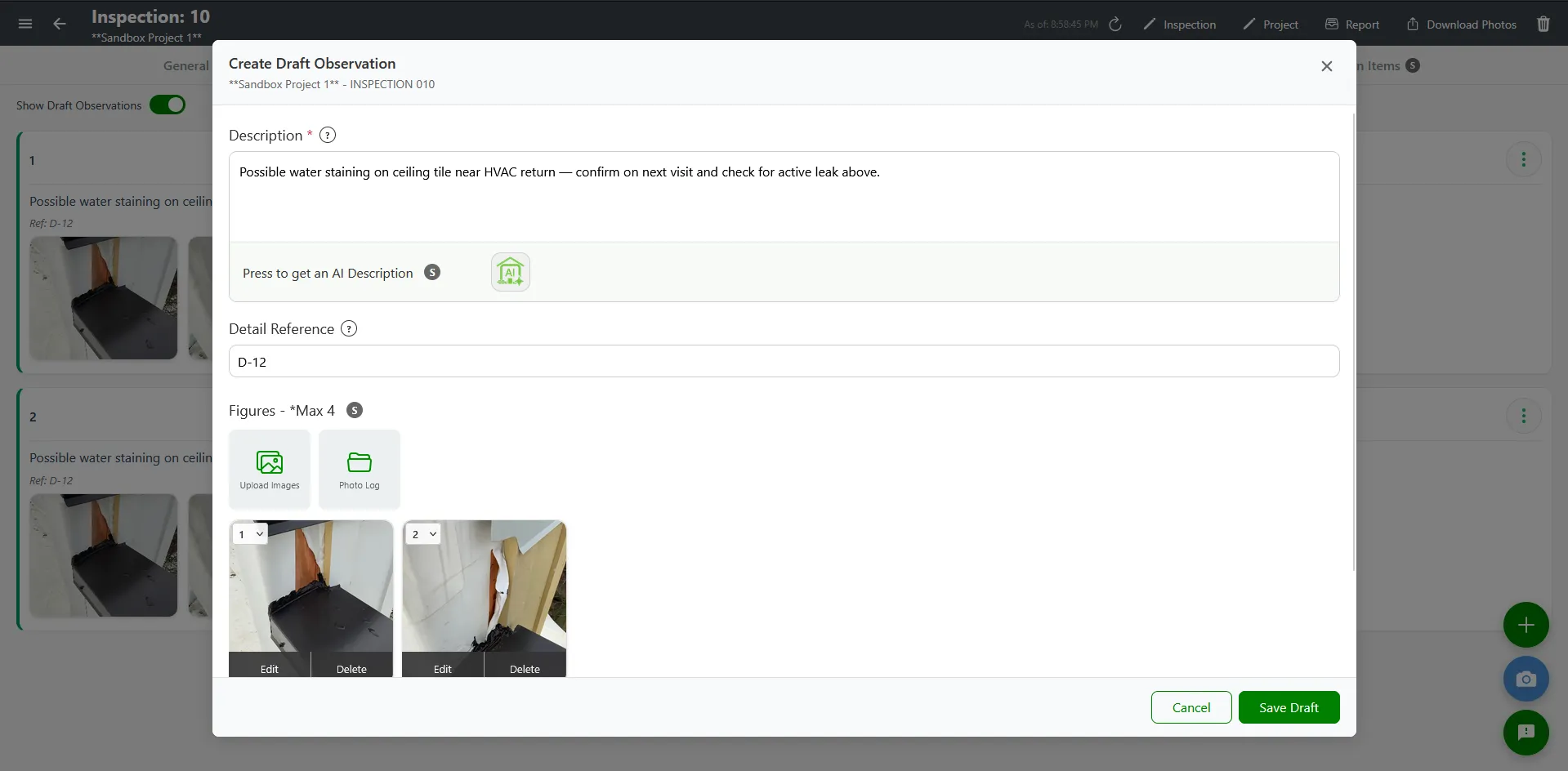
Draft observation fields
Section titled “Draft observation fields”| Field | Required | Notes |
|---|---|---|
| Text | Yes | Free-form text describing what you’re observing |
| Detail Reference | No | Optional reference to a detail drawing or specification |
| Images (up to 4) | No | Photos with optional captions |
Adding Drafts via Quick Capture
Section titled “Adding Drafts via Quick Capture”The fastest way to capture drafts in the field is via Quick Capture. Quick Capture is designed for taking a burst of photos and turning them into draft observations in a single flow — see Quick Capture and Batch Photos.
Drafts created through Quick Capture appear at the top of the drafts view immediately so you can find them on the next pass.
Editing a Draft
Section titled “Editing a Draft”- With the Show Draft Observations toggle ON, find the draft
- Click the action menu (three dots) → Edit
- Update the text, captions, or photos
- Click Save
Converting a Draft to an Observation
Section titled “Converting a Draft to an Observation”When you’ve reviewed a draft and decided it should appear in the final report, convert it to a regular observation:
- Find the draft with the Show Draft Observations toggle ON
- Click the action menu (three dots) → Convert to Observation
- The draft becomes a finalized observation. Flip the toggle OFF to see it in the regular Observations view, with all its text and photos preserved
- Open the new observation and add any structured fields (building, floor, photo tags) that the report needs
Deleting a Draft
Section titled “Deleting a Draft”- With the Show Draft Observations toggle ON, find the draft
- Click the action menu (three dots) → Delete
- Confirm in the dialog
Deletion is permanent. If a draft contains photos you want to keep, save them somewhere else first or convert the draft to an observation before deleting.
Best Practices
Section titled “Best Practices”- Capture first, polish later. Don’t try to write a perfect observation while you’re standing in the field. Create a quick draft, take a photo, and come back to it during your office cleanup.
- Use Quick Capture for high-volume capture. If you’ll be taking dozens of photos, Quick Capture is faster than the regular Add Draft flow.
- Review drafts at the end of each visit. Don’t let drafts pile up across multiple visits — they’re easier to handle while the context is fresh.
- Convert drafts to observations as soon as you’re sure. Don’t keep drafts indefinitely — they don’t appear in reports, so anything stuck as a draft never reaches the client.
- Delete drafts that turn out to be irrelevant instead of leaving them in the list — keeps the drafts view clean.
Troubleshooting
Section titled “Troubleshooting”I don’t see the Show Draft Observations toggle
Section titled “I don’t see the Show Draft Observations toggle”Solutions:
- Make sure you opened the Observations tab — the toggle lives inside it, above the observation list
Convert to Observation isn’t working
Section titled “Convert to Observation isn’t working”Solutions:
- You may not have permission to add observations on this inspection. Ask your administrator.
- Make sure the draft has at least the required text field filled in
Photos disappeared from a draft
Section titled “Photos disappeared from a draft”Solutions:
- If you were offline when you added them, check the Offline Hub to make sure they synced
- Refresh the page