
Managing Collaborators (External Users)
Collaborators are external users — usually contractors, client representatives, or other stakeholders — who need limited access to specific clients and projects in nSpec. They can view what you share with them, message your team through action items, and (if you give them the role) add their own observations. This article walks through creating, editing, and managing collaborators.
Accessing the Collaborators Screen
Section titled “Accessing the Collaborators Screen”- Sign in to nSpec at inspect-app.nspec.app
- Open the sidebar (☰ menu)
- Click Collaborators
You need the View Collaborators permission to see this screen.
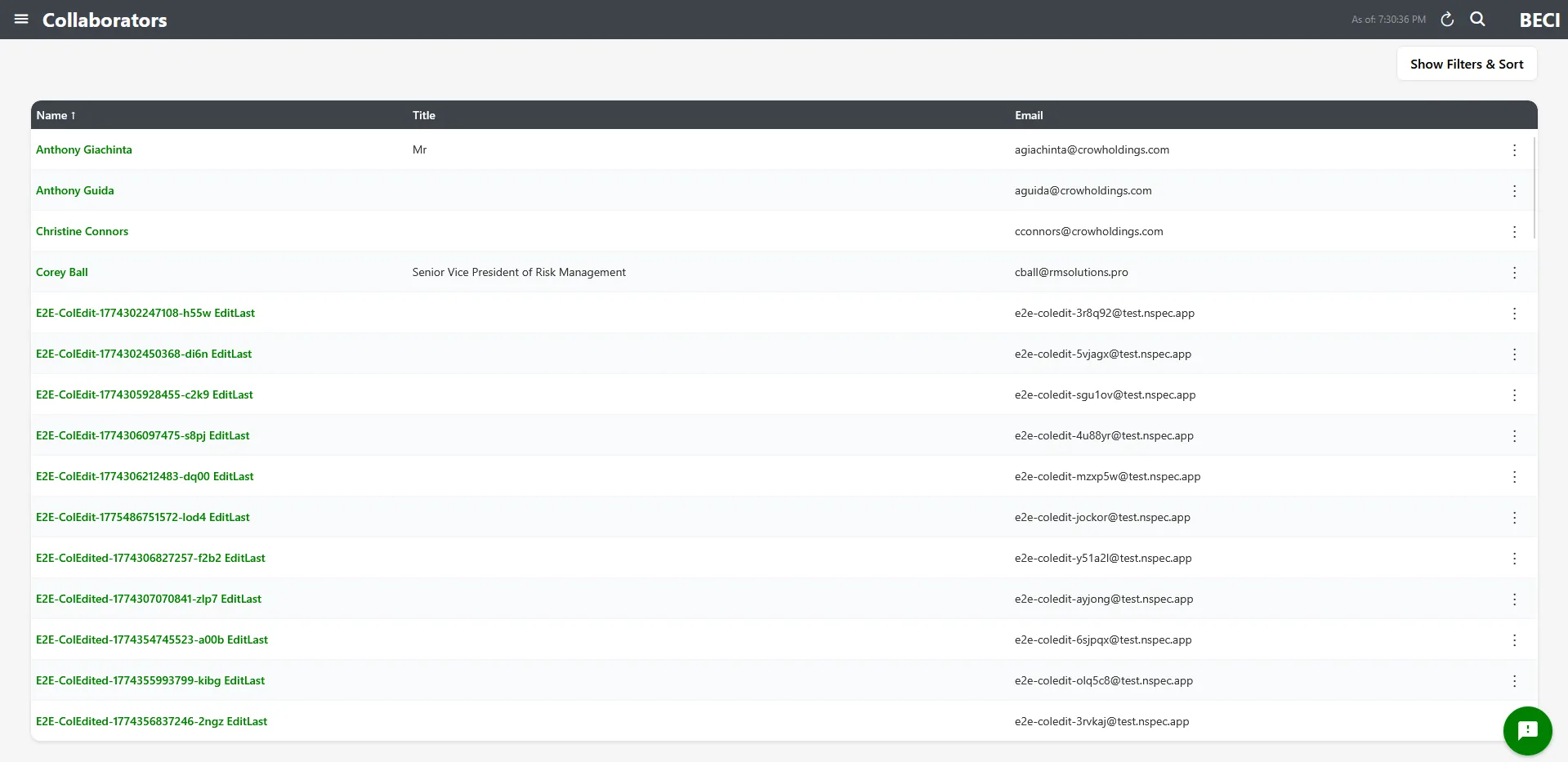
Adding a Collaborator
Section titled “Adding a Collaborator”- On the Collaborators screen, click the + floating action button in the bottom-right
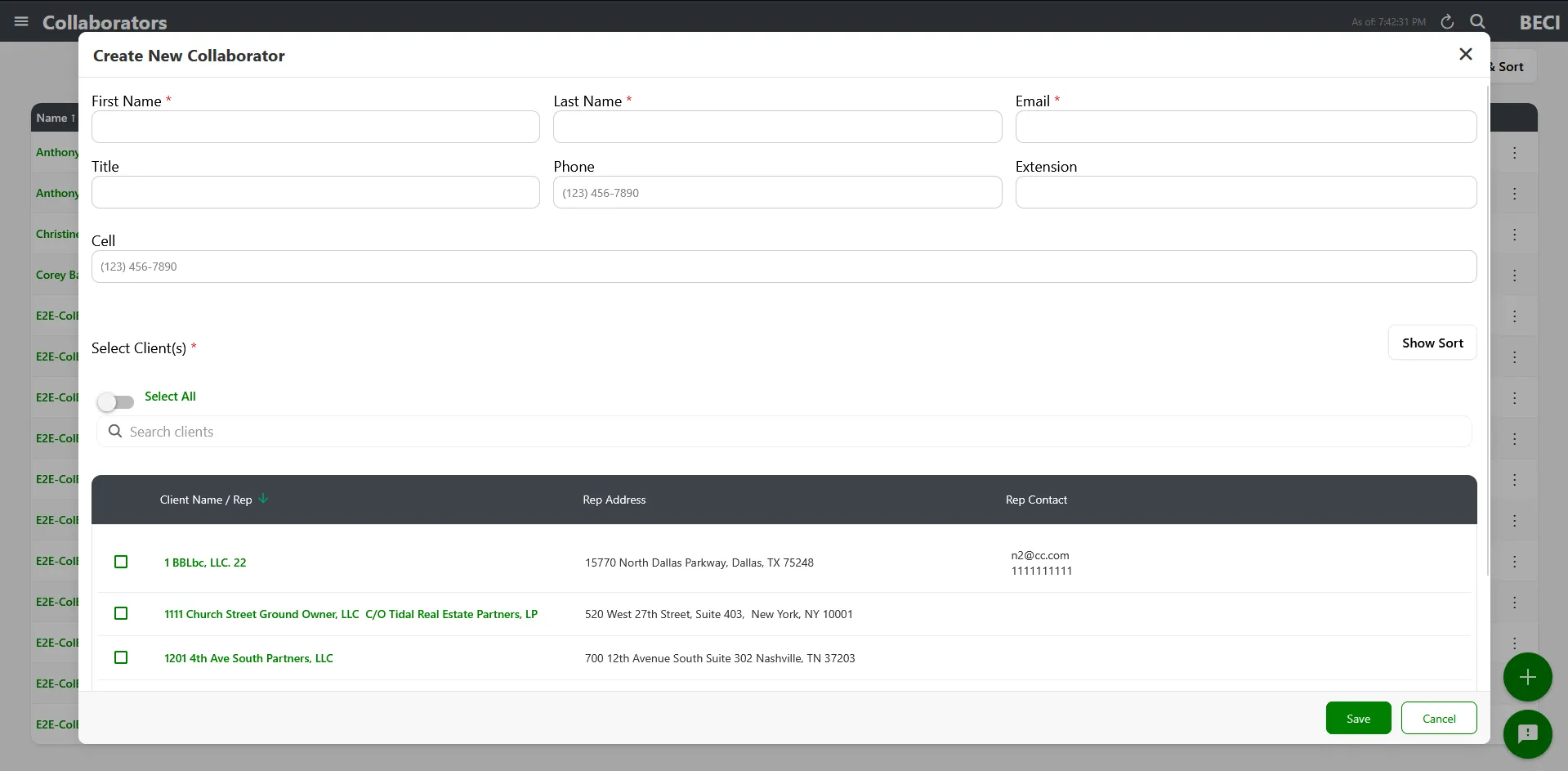
- The Create Collaborator modal opens
- Fill in the contact info, choose which clients and projects to give them access to, and click Save
- nSpec sends a confirmation email to the collaborator with sign-in instructions
Collaborator fields
Section titled “Collaborator fields”| Field | Required | Notes |
|---|---|---|
| First Name | Yes | Up to 100 characters |
| Last Name | Yes | Up to 100 characters |
| Yes | Up to 200 characters. This is what the collaborator will use to sign in. Must be a valid email format. | |
| Title | No | Up to 200 characters (for example, “Project Manager” or “Site Foreman”) |
| Phone | No | Office or main phone number |
| Extension | No | Up to 10 characters |
| Cell | No | Mobile phone number |
Selecting clients and projects
Section titled “Selecting clients and projects”Below the contact fields, the form has two scoped-access sections:
- Client Selection — A searchable list of all clients in your tenant. Check at least one client; the collaborator will be able to see anything they’re given access to under that client.
- Project Selection — A nested list of projects grouped by client. Check the specific projects you want the collaborator to access. Closed projects are filtered out automatically.
You must select at least one client. If you don’t, the form will show “Please select at least one client.” when you try to save. Project selection is optional — you can grant client-level access without scoping to specific projects.
What Happens When You Save
Section titled “What Happens When You Save”After you click Save, nSpec:
- Creates the collaborator account
- Sends a confirmation email to the address you entered, with a link to set their password
- Shows a toast: “Collaborator created. A confirmation email has been sent.”
The collaborator clicks the link in the email, sets their password, and can then sign in to nSpec at inspect-app.nspec.app using the same email and the password they just set.
Editing a Collaborator
Section titled “Editing a Collaborator”- On the Collaborators screen, find the collaborator
- Click their row (or use the action menu → Edit)
- Update fields, change client/project access, or assign roles
- Click Save
Activating and deactivating
Section titled “Activating and deactivating”The Edit Collaborator modal includes an Is Active checkbox. Uncheck it to deactivate the collaborator without deleting them — they can no longer sign in, but their record and access history are preserved. This is reversible at any time.
Assigning Roles to Collaborators
Section titled “Assigning Roles to Collaborators”Collaborators have their own role system, separate from employee roles. By default, collaborators can view what you share with them and post collaboration messages. To give them more access (like the ability to add observations to projects):
- Open the Edit Collaborator modal
- Click Edit Roles
- Move roles between assigned and available
- Save
See Roles and Permissions for how collaborator roles are created.
Collaboration Messages
Section titled “Collaboration Messages”Collaborators communicate with your team primarily through Collaboration Messages attached to action items. The flow:
- An inspector or collaborator opens an action item
- They click the message icon and post a message
- The other side gets an unread message indicator on the dashboard (“Unread Collaboration Messages” card)
- Messages create a thread on the action item so context isn’t lost
This keeps your team’s communication tied to the specific finding instead of getting lost in email.
Deleting a Collaborator
Section titled “Deleting a Collaborator”- Find the collaborator in the list
- Click the action menu (three dots)
- Click Delete
- Confirm in the dialog
You need the Delete Collaborators permission for this option to be visible.
Permissions Required
Section titled “Permissions Required”| Action | Permission |
|---|---|
| View the Collaborators screen | View Collaborators |
| Create or edit collaborators | Add/Edit Collaborators |
| Delete collaborators | Delete Collaborators |
| Manage collaborator roles | Employee Role Management |
Troubleshooting
Section titled “Troubleshooting”I don’t see Collaborators in the sidebar
Section titled “I don’t see Collaborators in the sidebar”Solutions:
- You need the View Collaborators permission. Ask your administrator.
“Please select at least one client”
Section titled ““Please select at least one client””Problem: Save fails with this error.
Solutions:
- Scroll down to the Client Selection section and check at least one client
- If the client list is empty, you need to create a client first. See Managing Clients in nSpec.
The collaborator didn’t get the confirmation email
Section titled “The collaborator didn’t get the confirmation email”Solutions:
- Ask them to check their spam folder
- Verify the email address you entered is correct
- Open the Edit Collaborator modal and use the resend invite option (if available) or contact support