
Understanding Action Item Sync States
When an inspection’s project is linked to a Procore project, every action item on the Action Items tab shows a small icon in its header that tells you at a glance whether it’s synced with Procore or needs attention. This article walks through each of the four states, what they mean, and what to do about them.
Where You See These Icons
Section titled “Where You See These Icons”Sync icons appear on action item cards in the Action Items tab of any Procore-linked inspection. They sit in the top-right corner of each card, next to the menu and collaboration buttons. Non-Procore inspections don’t show sync icons at all — the feature is Procore-specific.
The Four States
Section titled “The Four States”| Icon | State | What it means |
|---|---|---|
| Green menu icon only (no sync icon) | In sync | The local action item matches the Procore observation. Nothing to do. |
| Orange alert circle | Out of sync | nSpec found fields that differ between this action item and its Procore observation. Click the icon to open the item and re-sync. |
| Blue cloud-upload icon | Not synced yet | The action item has changes that haven’t been pushed to Procore, for example because it was created or edited offline. Click the icon to open the item; saving it syncs it. |
| Document icon (orange) | Procore changes detected | Someone edited the observation in Procore. Click to review the changes in the Procore Changes Detected modal. |
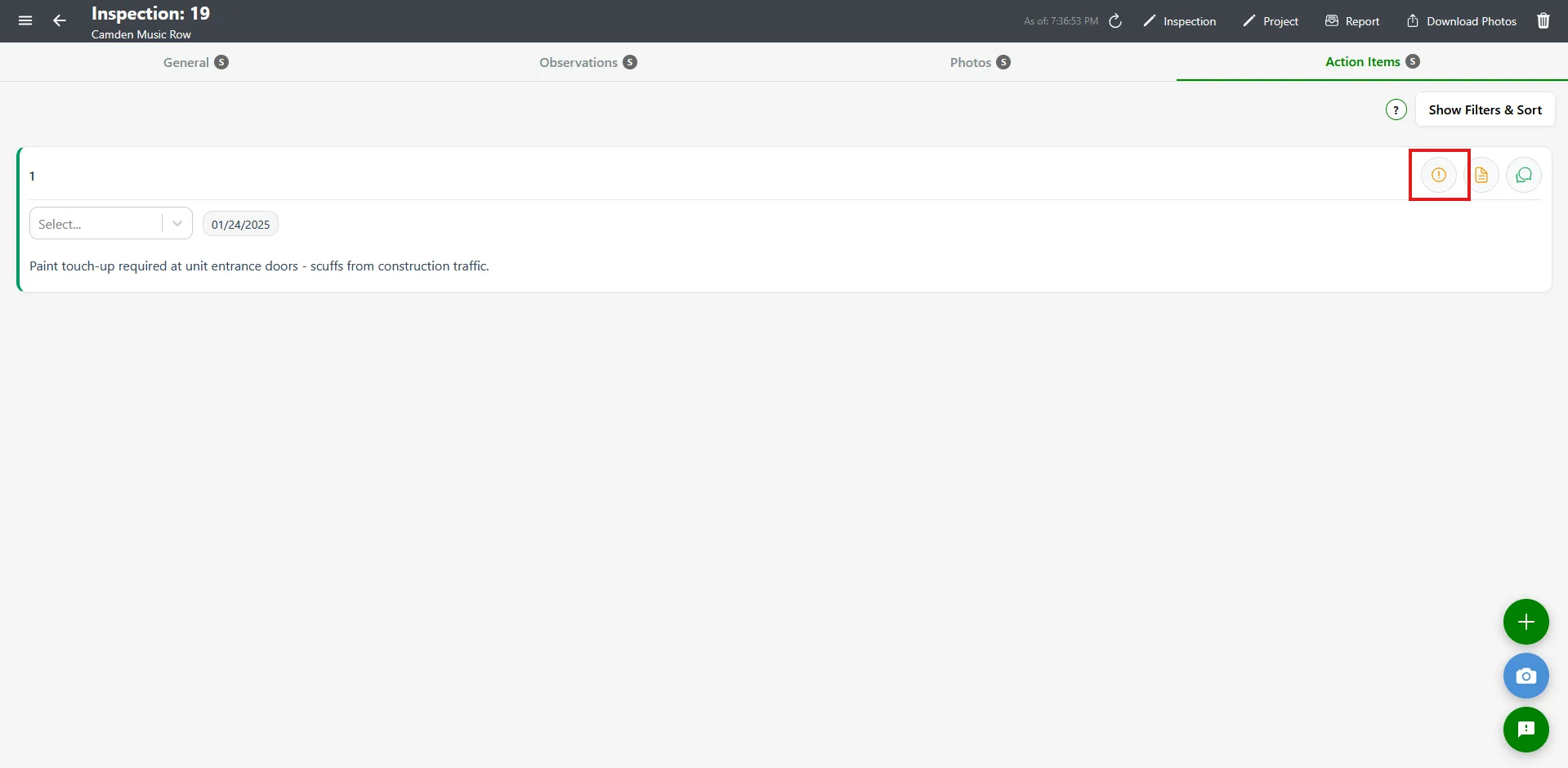
Orange Alert Circle — Out of Sync
Section titled “Orange Alert Circle — Out of Sync”The orange alert-circle icon means nSpec found fields that differ between the action item and its Procore observation. Saving the item again usually settles it.
- Click the orange alert icon
- The Edit Action Item modal opens
- Review your pending changes and click Save
- If Procore hasn’t changed in the meantime, the item syncs and the icon disappears
- If Procore has also changed, the Procore Changes Detected modal opens — see Resolving Procore Conflicts
Blue Cloud-Upload Icon — Not Synced Yet
Section titled “Blue Cloud-Upload Icon — Not Synced Yet”The blue cloud-upload icon means the action item has changes nSpec hasn’t pushed to Procore yet — typically because you created or edited it while offline. Reconnect, click the icon to open the item, and click Save; saving performs the sync and the icon disappears.
Document Icon — Procore Changes Detected
Section titled “Document Icon — Procore Changes Detected”The document icon is different from the alert circle — it means the change came from Procore, not from nSpec. Someone updated the linked observation in Procore (changed status, added a photo, reassigned it, etc.) and nSpec needs you to review that change before it continues syncing.
- Click the document icon
- The Procore Changes Detected modal opens automatically, listing every field that changed
- Pick Override Changes, Save without sync, or Cancel — see Resolving Procore Conflicts for what each choice does
While an action item is in this state, the normal menu button (three dots) is hidden. You must resolve the conflict before you can edit, delete, or take other actions on the card.
Special Case — Deleted in Procore
Section titled “Special Case — Deleted in Procore”If the observation was deleted in Procore, clicking the orange alert icon shows an alert: “This action item has been deleted in Procore. Please sync to remove it from the app.” Delete the local action item to finish reconciling.
How nSpec Detects Sync State
Section titled “How nSpec Detects Sync State”Every time you open an inspection or edit an action item, nSpec compares the local copy of each Procore-linked action item against the current Procore observation. If the two differ, the corresponding icon appears. This check requires an internet connection — in offline mode, the last-known sync state is shown, and new icons won’t appear until you reconnect.
Troubleshooting
Section titled “Troubleshooting”Sync icon won’t go away after saving
Section titled “Sync icon won’t go away after saving”Solutions:
- Refresh the Action Items tab (pull-to-refresh on mobile, reload on web)
- Make sure you’re online — sync status isn’t updated in offline mode
- If the icon is the document icon, you must resolve the Procore conflict before it clears
All my action items show the blue cloud-upload icon
Section titled “All my action items show the blue cloud-upload icon”Solutions:
- You created or edited them offline, so they haven’t reached Procore yet. Reconnect, then open and save each item to sync it.
- If saving fails, ask your client’s Procore administrator to check the NSPEC Connector is still installed and can see the project — see Installing the NSPEC Connector in Procore.