
Sending a Quote for Signature
Once a quote is priced, three steps take it to the customer: build the document, advance the stage to Ready to send, and send it, as a signing link or as a PDF. This article walks an estimator through those steps and the record the send leaves behind.
Choosing Who Signs
Section titled “Choosing Who Signs”Who signs is set in Document Settings → People, under Signers. The quickest
way there is the quote’s overview: click the Main client contact for the customer’s
signer, or the Signatures shown line under Signers for your side.
- Customer signer picks the customer’s signer from the customer’s contacts. Until
someone does, the quote reads
Customer signer: —and the setting says “Not chosen. The proposal names no one until you choose who signs for the customer.” Edit corrects the chosen contact, and Add a contact adds one. A contact that was later removed from the customer shows as “Removed from the customer” rather than silently becoming someone else. - Signatures shown lists the people whose signatures print for your organisation: by default the salesperson alone. The routed Approver is off until you switch it on, like anyone else. Click a name to switch it on or off, or + Show a signature to add someone with a signature on file.

Building the Document
Section titled “Building the Document”- On the quote’s overview, or in the header on its lines, open Proposal ▾.
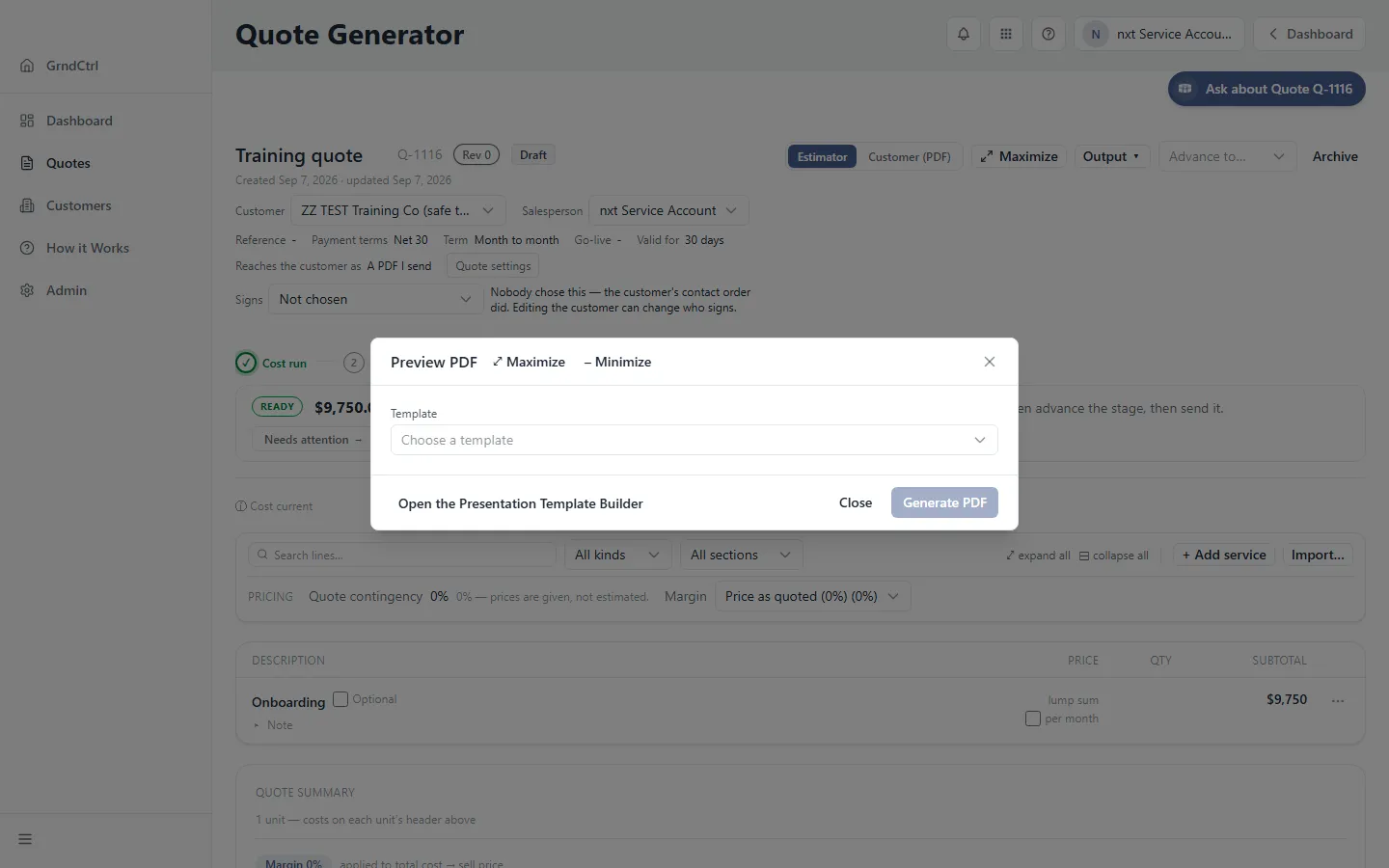
- Click Preview Proposal. In the Preview Proposal dialog, pick a template under Template (it reads “Choose a template” until you do), then click Generate PDF. The document is built from the latest cost run.
- Read the preview: the cover, the pricing table, the terms, and the signature block. It carries the “DRAFT” mark until the quote is sealed, because nothing is sealed yet.

Changing a Product’s Scope on the Pages
Section titled “Changing a Product’s Scope on the Pages”Proposal ▾ → Edit Proposal, or Edit Proposal in the Preview Proposal dialog, opens the document as pages: “Opens the generated document as pages — reword a heading, add, delete or re-order a page, paste a picture. The edits belong to this quote; prices and the template stay as they are.” On a quote that is not priced yet the entry is greyed out: “Price the quote first — the document is built from the latest cost run.” On a priced quote it builds the document first, if it needs to.
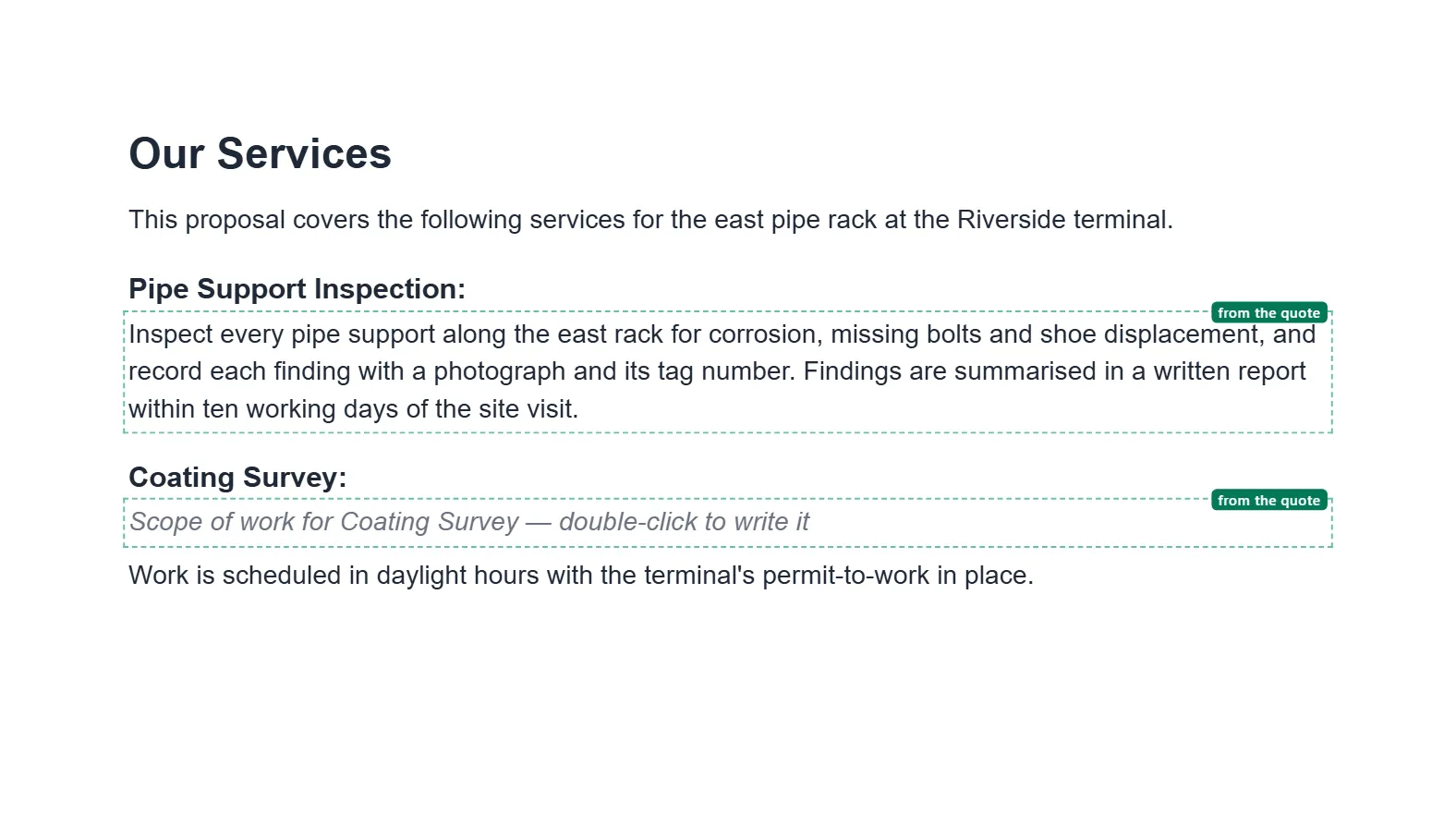
A product’s scope paragraph is different from the words around it. It is printed from the quote, so it is not typed over like a heading. On the pages it carries a small “from the quote” badge, and clicking it says “Scope from the quote” — editing it changes this product on the quote — beside Edit scope. To change it:
- Double-click the scope paragraph, or click it and then Edit scope. The dialog “Scope — {product}” opens: “This is the quote’s scope for {product}. Saving changes it on the quote, and every page that prints it follows.”
- Above the text, one word says where the words come from: Family default (the product family’s wording), Edited on this quote, or No scope yet.
- Optional: change the Heading, the heading printed over the scope: “This line’s name on the quote. Changing it renames the line everywhere it prints.” It cannot be left empty. Maximize, beside the dialog’s title, widens it, and Restore brings it back.
- Change the words and click Save to the quote. The pages are rebuilt from the quote, and the editor says “Scope for {product} changed on the quote.” It is staged like any quote edit: the quote’s save indicator offers Save to keep it and Discard to undo it.
- Click Save beside the quote’s save indicator, or wait: a quote saves by itself after 15 seconds without typing.
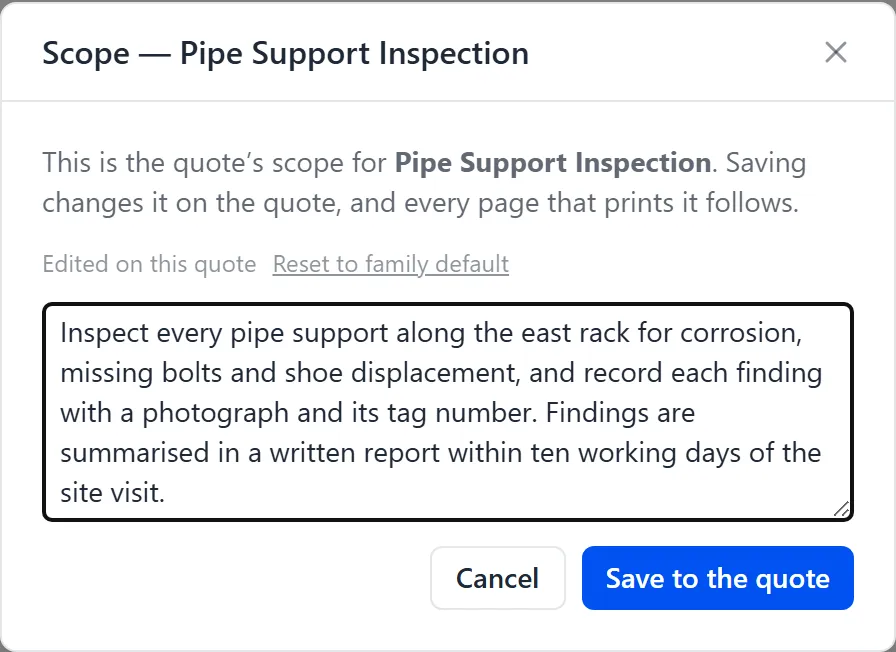
Only this quote changes; the product family keeps its wording. To go back to it, open the same dialog and click Reset to family default. The quote’s own product row says the same thing — Family default or Edited on this quote — and the AI Record notes every product whose scope was edited on the quote.
A product with no scope
Section titled “A product with no scope”When a product has no scope at all, its place on the page is not blank in the editor: it reads “Scope of work for {product} — double-click to write it”. Double-click it and the same dialog opens, reading No scope yet. The sentence is drawn only in Edit Proposal. It is never printed: the PDF and the customer’s page show nothing there until a scope is written.
Double-clicking a product’s name
Section titled “Double-clicking a product’s name”A product’s name, in the summary list or as the heading over its scope, also opens that product’s scope dialog on a double-click. Clicking it says “Product name comes from the quote line ·” beside Edit scope. The name itself is not edited on the pages: rename the product on the quote line.
When the pages show older words
Section titled “When the pages show older words”If the scope was changed on the quote after the document was built, the dialog opens with the quote’s current words and the note “The pages show older words for this product; Save rebuilds them from the quote.” Click Save to the quote without changing anything and only the pages are rebuilt — “The pages now print the quote’s scope for {product}.”
The pages never keep a typed copy of a scope or a product name. A page edit that tries is refused with “this is a service’s scope, and its words come from the quote — change them on the service line (double-click the scope on the pages), not as a page edit”, or for a name, “this is a service’s name, and its name comes from the quote line — rename the service on the quote, not as a page edit (double-click it on the pages to write its scope)”. A sent, won or lost quote’s scope cannot be changed from the pages at all.
Formatting Words and Adding Pages
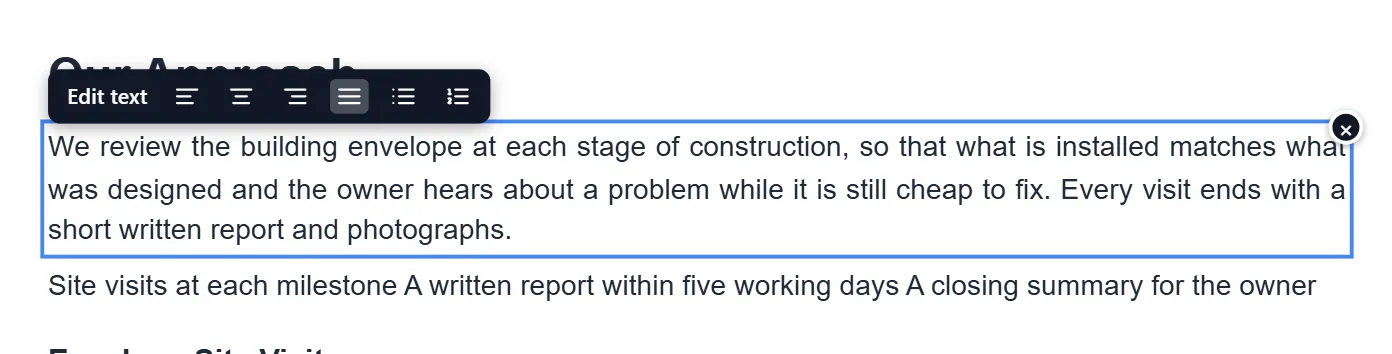
Section titled “Formatting Words and Adding Pages”Edit Proposal also formats the words on the pages and adds pages to this one proposal. Click a heading or a paragraph and a dark bar appears above it:
- Align left, Align centre, Align right and Justify set how the block lines up. On a product’s scope or name, alignment is the only choice, and it applies to that block on every product row.
- Bulleted list and Numbered list turn a paragraph into a list, one item per line. On a list that came from the template, they switch it between bullets and numbers. Double-click a list to change its items; Enter adds one.
A block takes one format at a time: a list replaces an alignment, and the other way round. Press the highlighted button again to take it off. A priced row has no format buttons, because its prices and words come from the quote: it says “Prices and line words come from the quote — change them on the quote line.” with Go to the quote line. A text box you add with + Insert text box has the four alignment buttons and no lists.
Adding a page
Section titled “Adding a page”Click a page in the list on the left first: a new page goes after the page you picked, or at the start when none is picked.
- + Add page opens a short form at the top of the list, headed with where the page
will go, such as
New page after page 7. Fill in Heading (optional) and Words for this page (optional), paste a picture if you want one, and click Add. The words can be a list or aligned, like any paragraph. An added page needs a heading, some words or a picture. - + From library adds a standard page from your section library to this proposal only. The picker, Add a page from the section library, says where the page will go. Search it with Search the library and click Add beside the page you want.
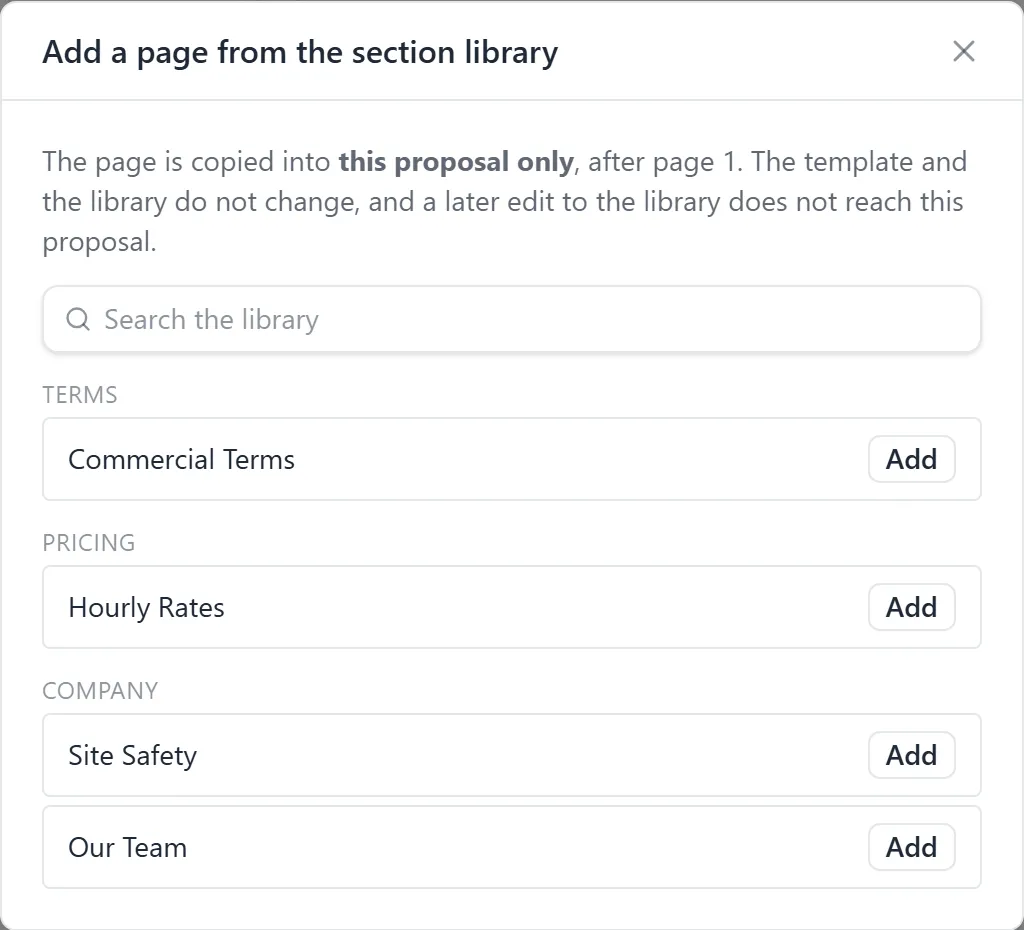
A library page is a copy for this proposal. The template and the library do not change, and a later edit to the library does not reach this proposal. Until you save, the new sheet shows the section’s title and “From the section library — it prints here exactly as the library page once you save.” On paper it prints the section’s own title in the page’s band. You can add one page at a time: save before adding the next.
Saving page edits
Section titled “Saving page edits”Nothing saves by itself. Save, or Ctrl+S, writes your edits and re-places the pages. Closing with edits not saved asks first, under Unsaved page edits: Keep editing, Discard or Save and close. The edits belong to this quote: the template is untouched and no total changes. Preview Proposal and the document you send carry them.
Advancing to Ready to Send
Section titled “Advancing to Ready to Send”- On the quote’s overview, open Advance to… beside Preview (it is also in the header on the lines). The list offers the next stages, each after an arrow: Ready to send, Won, Lost.
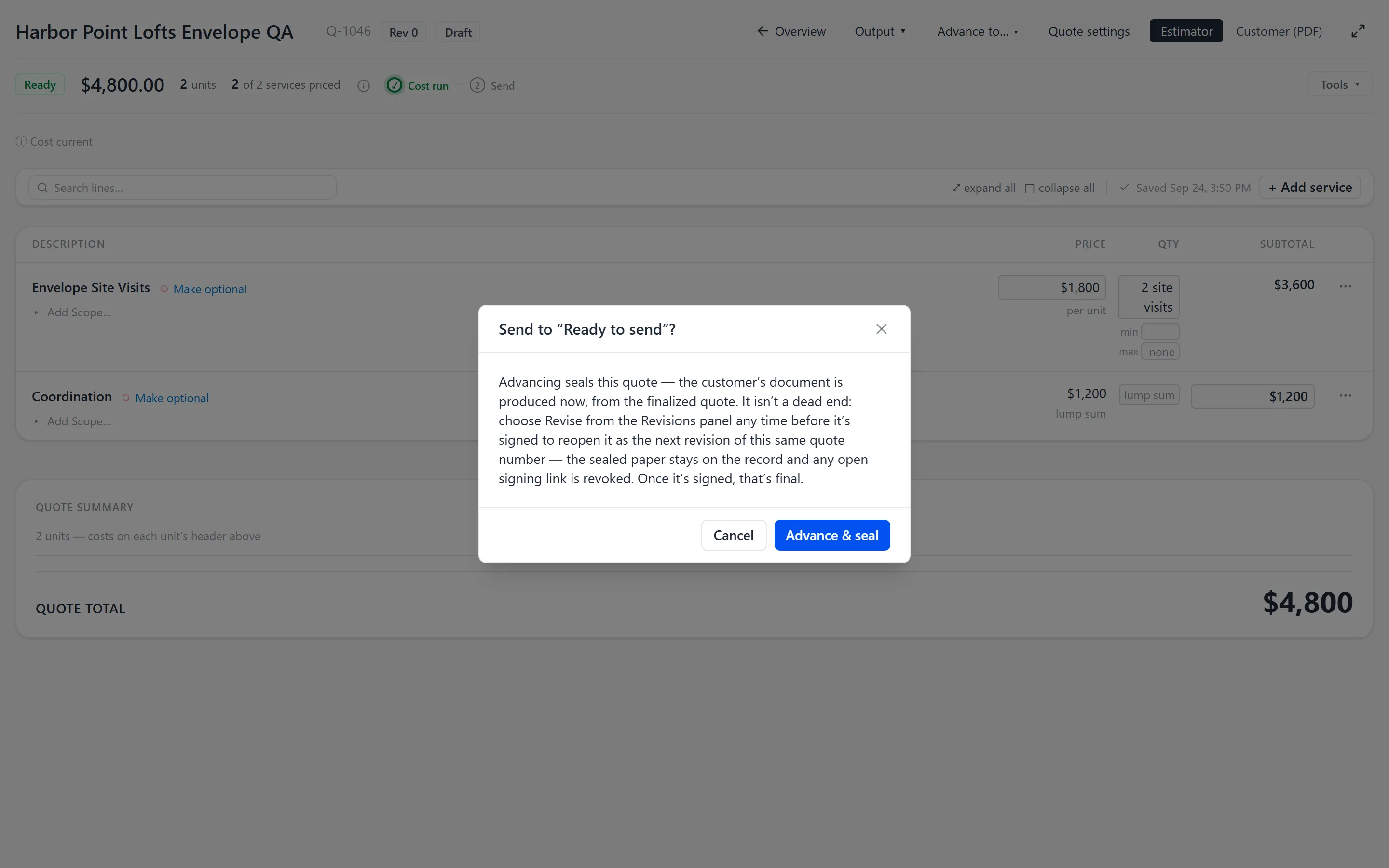
- Choose Ready to send. A dialog headed Send to “{stage}”? explains that “Advancing seals this quote — the customer’s document is produced now”, from the finalized quote. It is not a dead end: until the customer signs, Revise in the Revisions panel reopens it as the next revision of the same quote number — the sealed paper stays on the record and any open signing link is revoked. Once it is signed, that is final.
- Click Advance & seal. The quote’s document is sealed. Nothing is emailed yet.

How the Quote Reaches the Customer
Section titled “How the Quote Reaches the Customer”Each quote reaches the customer one of two ways. Set it in Document Settings → Delivery → How this quote reaches the customer, or change Delivery in the Terms card on the quote’s overview.
- A link they open: the email carries a Review and sign button. The customer opens a page, chooses any options and accepts online. The signature, the signed document and its certificate are recorded on the quote, which then moves to Won. The link is valid for 30 days.
- A PDF I send: the email carries the sealed proposal as a PDF attachment, with no link. Acceptance happens off the platform, so no signature is recorded against the quote. When the customer accepts, move the quote to Won yourself with Advance to….

A new quote starts with your organisation’s default, which an administrator sets under Admin → Presentation, on the Delivery tab. With no default set, new quotes start as A link they open. A send uses A PDF I send only where it was chosen, on the quote or as your organisation’s default, and the Send dialog says which one it will use before anything goes out.
Sending the Proposal
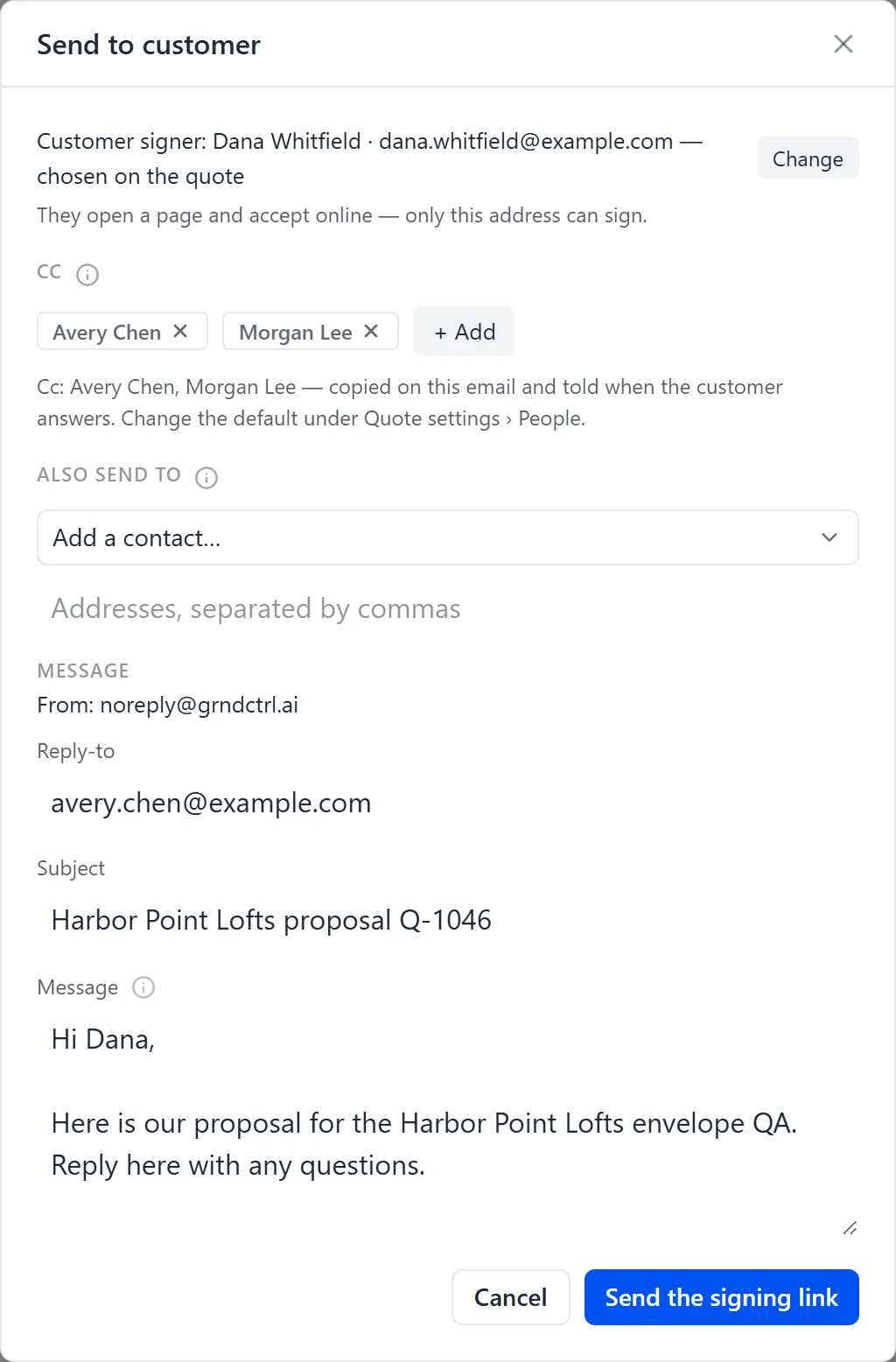
Section titled “Sending the Proposal”- On the quote’s overview, click Send to customer. The Send to customer dialog opens.
- The first line names who it goes to:
Customer signer:, their name and address, and how they were chosen. To send to another address, click Change and edit To (email) and Name. If the address differs from the proposal contact, tick the box that confirms it; the send records it as chosen by you. - The line under it says what this send carries: “They open a page and accept online — only this address can sign.” for a link, or “They receive the proposal as a PDF attachment; acceptance happens off the platform.” for a PDF. When the quote’s own setting says otherwise, a bold line explains, for example “Sends a link they open — PDF wasn’t chosen for this quote.”
- Cc lists the people copied on this email, from the quote’s Cc list. Remove anyone for this send, or + Add someone with access. If you change the list, Save as this quote’s Cc keeps the change on the quote; otherwise it applies to this email only.
- Also send to copies customer contacts (Add a contact…) or other addresses, separated by commas, on this email only. Everyone on Cc and Also send to gets the proposal PDF attached, with no signing link.
- Under Message, the
From:line names the mailbox the email leaves from. Check Reply-to, Subject and Message; the (i) beside Message lists the placeholders you can use, such as{quote_number}. - Click Send the signing link, or Send the PDF when the quote goes out as a PDF.
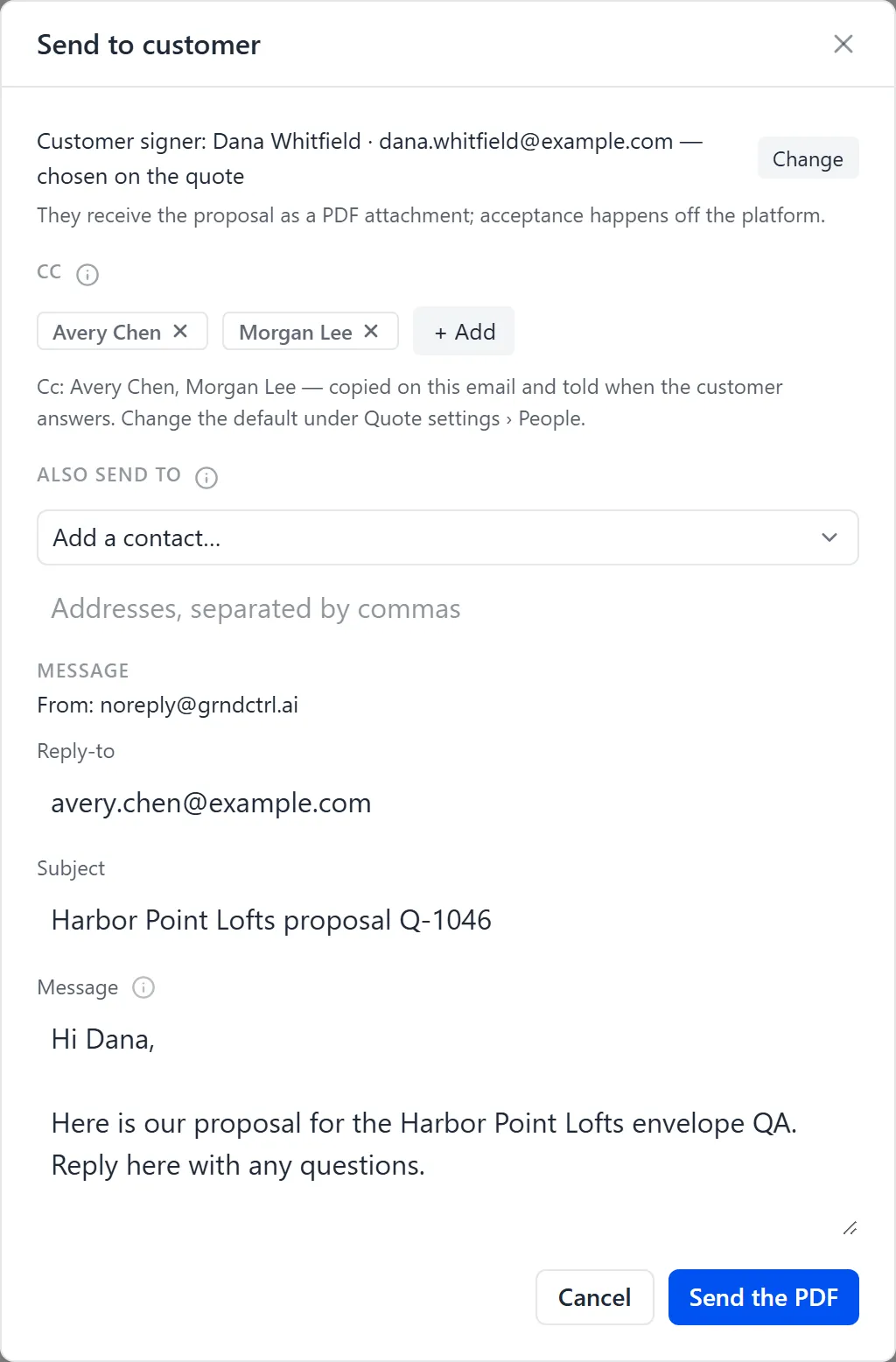
The dialog then says what went. For a link: that it is on its way, and until when it is valid. For a PDF: that it was sent with the PDF attached and no signing link, and that the delivery record holds the message and its attachment. Click Done.
Your own send message
Section titled “Your own send message”The subject and message a send starts from are your own, set once under My send message in Quote Generator’s left panel: “The subject and message your sends start from; you can still change them on each send. Clear both to use your organisation’s default.” Fill in both and click Save. Until you do, sends start from your organisation’s message, set by an administrator; see The Delivery tab.
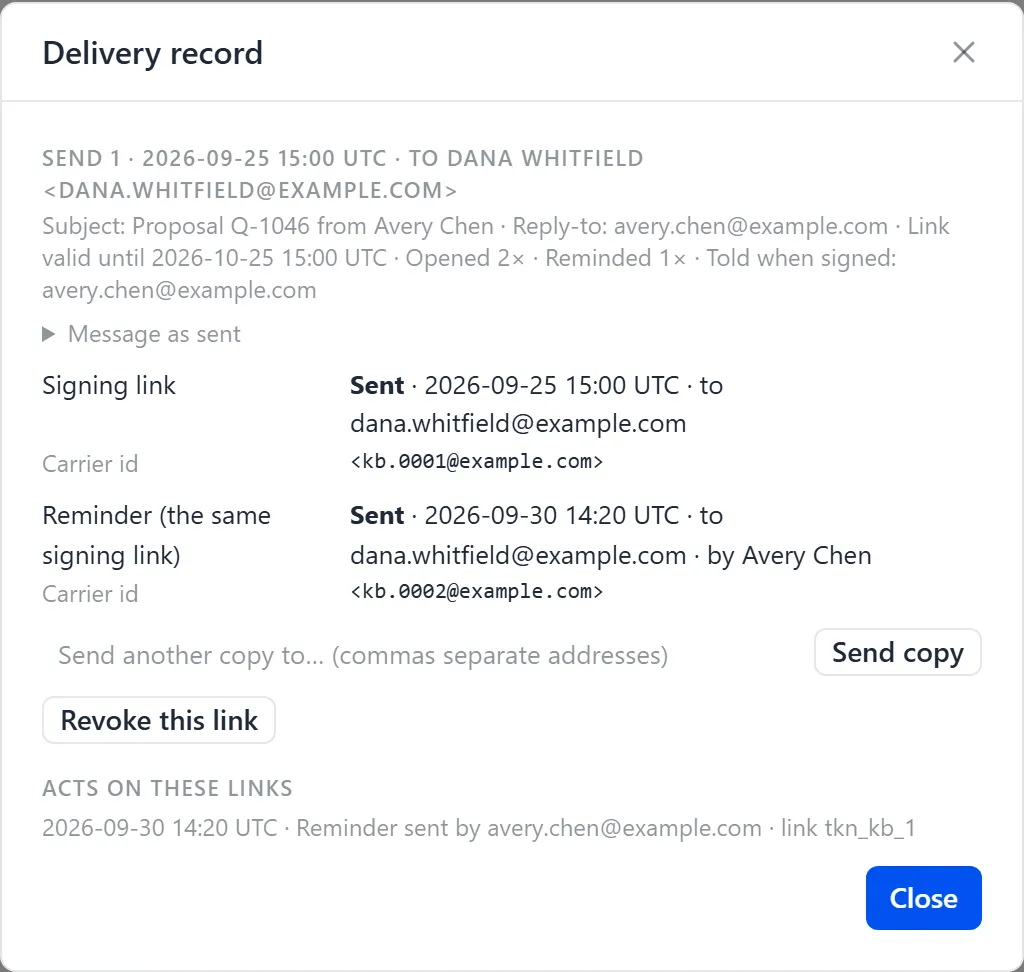
Reading the Delivery Record
Section titled “Reading the Delivery Record”After a send, click Delivery record on the quote’s overview. Each send is listed
with who it went to, the subject, the reply-to address, how long the link is valid, how
often it was opened (Opened 2×), how many reminders went with the same link (Reminded 1×), and who is told when the customer signs. Open Message as sent to read the
email exactly as it left. Beneath it, the signing link’s own line shows Sent, the
time, the address, and the Carrier id — the mail provider’s id for that message,
which is what support asks for when an email is disputed. Each reminder has its own
line, Reminder (the same signing link), with who sent it. When an address bounced,
the record says Not delivered to. When the customer has answered, the send’s line
says Signed or Declined. What your team did on the links (copies sent, a link
revoked, a reminder sent) is listed under Acts on these links.
Two actions live here: “Send another copy to… (commas separate addresses)” with Send copy mails a PDF copy after the fact, and Revoke this link ends a signing link that should no longer be answered. A send that went as a PDF says “Sent as a PDF attachment — no signing link” and has no link to revoke.
Troubleshooting
Section titled “Troubleshooting”I don’t see Send to customer
Section titled “I don’t see Send to customer”The button is on the quote’s overview, not on its lines, and appears once the quote’s stage is Ready to send. Without the Edit quotes permission it is not offered. Price the quote, then choose Ready to send under Advance to… and confirm Advance & seal: advancing produces and seals the customer’s document from the finalized quote.
The dialog says the address differs from the proposal contact
Section titled “The dialog says the address differs from the proposal contact”You changed the address away from the quote’s customer signer. Tick the box to confirm it if that is intended. To send to someone else every time, choose a different customer signer under Document Settings → People; see Choosing Who Signs.
The record shows Not delivered to
Section titled “The record shows Not delivered to”The mail provider could not deliver to that address. Correct it on the customer’s contact, then use Send again.
The send says the PDF is too large
Section titled “The send says the PDF is too large”An emailed attachment may be at most 7,340,032 bytes, about 7 MB. The send stops rather than going out as a link instead. Make the document smaller, with fewer or smaller pictures, or set the quote to A link they open.
The customer accepted a PDF, and the quote is not Won
Section titled “The customer accepted a PDF, and the quote is not Won”With A PDF I send, acceptance happens off the platform, so nothing on the quote records it. Open the quote and, on its overview, choose Won under Advance to….