
Administering the Care Fund
This article is for the people who process Care Fund elections. It covers the All Elections queue, the actions you take on a record, and the two Settings pages — notifications and the BambooHR connection. For the employee’s side, see Contributing to the Care Fund.
All Elections
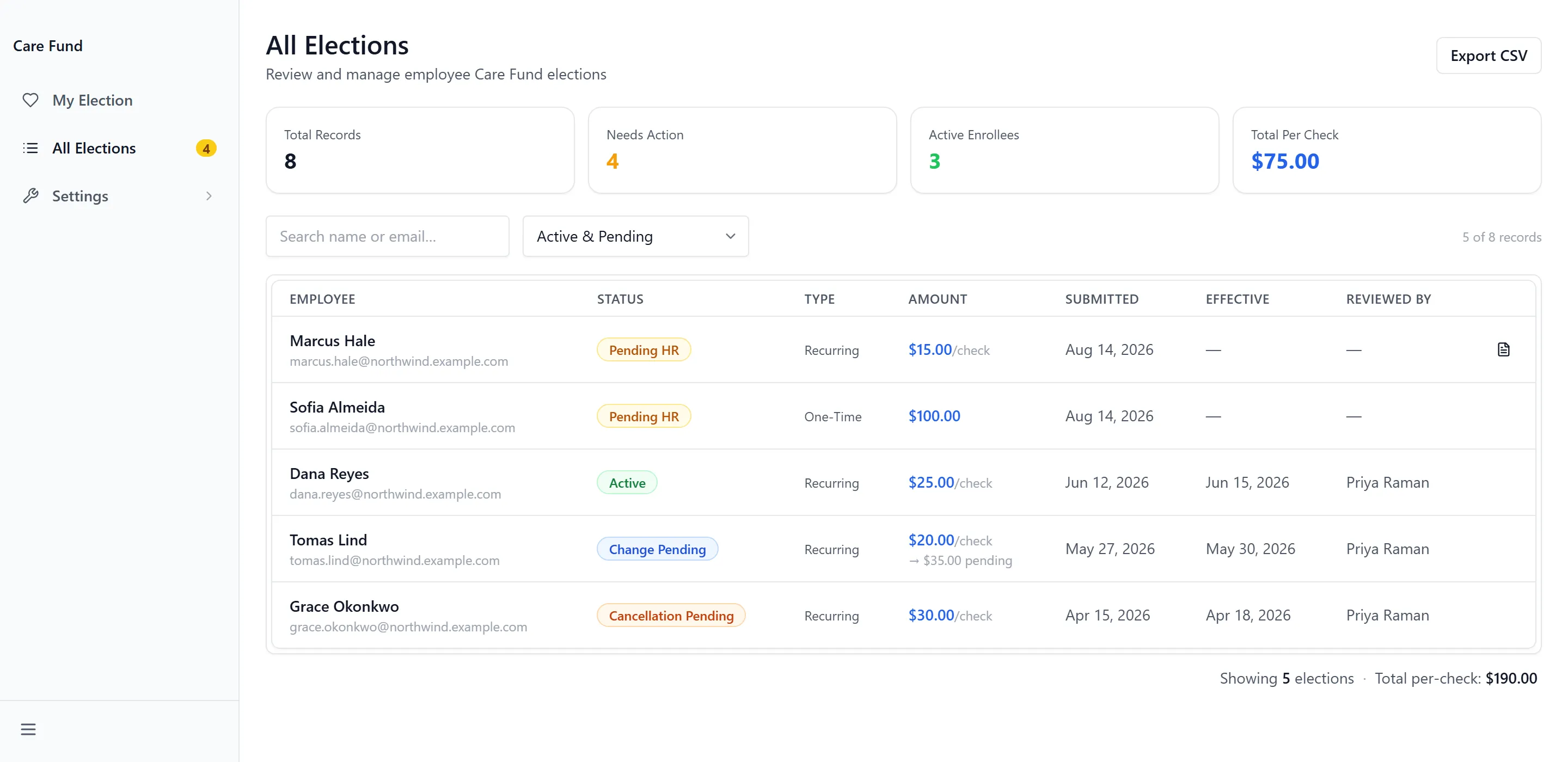
Section titled “All Elections”All Elections is the queue. Four figures sit above it — Total Records, Needs Action, Active Enrollees and Total Per Check — and the table lists Employee, Status, Type, Amount, Submitted, Effective and Reviewed By.
Search by name or email, and filter by status. Export CSV downloads the current list.
Reviewing an Election
Section titled “Reviewing an Election”Select any row to open it. The panel shows where the election is in its workflow, the employee’s details, the amount history, and every document they have signed under Signed Documents — the enrollment authorization, and any amount change or cancellation, each with View.
The buttons along the bottom depend on the status:
| Status | Actions |
|---|---|
| Pending HR | Approve or Reject |
| Change Pending | Process Change or Deny Change |
| Cancellation Pending | Confirm Cancel or Deny Cancel |
| Active, Pending HR or Change Pending | HR Cancel Enrollment |
Choosing one swaps the footer for Go Back and a confirm button, and reveals HR Notes (optional). Anything you write there is shown to the employee on their own card, so a rejection is worth explaining.
Approving and rejecting
Section titled “Approving and rejecting”Approve moves a recurring election to Active and stamps today as its effective date; the deduction starts on the first full pay period after that. A one-time donation goes straight to Completed. Reject ends the election, and the employee can enrol again.
Changes and cancellations
Section titled “Changes and cancellations”Process Change replaces the amount with the one the employee signed for and records it in the amount history. Deny Change drops the request and leaves the current amount running. Confirm Cancel stops the deduction; Deny Cancel returns the election to Active.
Cancelling on the employee’s behalf
Section titled “Cancelling on the employee’s behalf”HR Cancel Enrollment ends an enrollment without the employee signing anything — for a resignation or a termination. It requires a Reason for cancellation, and the employee is notified.
Notifications
Section titled “Notifications”Settings → Notifications holds two things: the program settings that feed the legal agreement, and who gets told what.
Program settings
Section titled “Program settings”- Legal Company Name — the name written into the payroll authorization. Left blank, the agreement says “the Company”.
- Enable Delete — described as “Intended for testing only — disable in production to prevent accidental data loss.” Leave it Disabled.
Teams notifications
Section titled “Teams notifications”Teams Webhook — HR Channel posts a card when someone needs to act. Set a Default Webhook URL and, where different stages should reach different channels, override it per event. Test sends a message so you can confirm the URL before relying on it. Three events are available: Enrollment Submitted, Amount Change Requested and Cancellation Requested.
Teams Activity Feed — Employee Notifications tells the employee directly when you act. Seven events can be switched on individually, covering enrollment received, approved and not approved; amount change approved and not approved; and cancellation processed and not processed.
BambooHR
Section titled “BambooHR”Settings → Integrations files each signed authorization as a PDF on the employee’s BambooHR record, matched by work email. The app holds no BambooHR credential of its own — the connection belongs to the BambooHR integration and is managed by a tenant administrator.
- Switch the integration on.
- Select Check Access & Load Folders. This reads the directory and confirms the connection works.
- Choose the Employee File Folder that signed agreements should land in.
- Optional: under Test Filing, enter an address and select Run Test to file a diagnostic PDF and watch each step.
- Select Save BambooHR.
Filing Receipts records every attempt — “what landed, what was refused, and why”. This is the only place a failed filing surfaces.
Troubleshooting
Section titled “Troubleshooting”I can’t see All Elections or Settings
Section titled “I can’t see All Elections or Settings”Solutions:
- Both appear only for administrators. Ask a tenant administrator to check the app’s configuration for your account.
- Sign out and back in after any change to your access.
A record I know exists isn’t in the list
Section titled “A record I know exists isn’t in the list”Solutions:
- The status filter opens on Active & Pending. Switch it to All Statuses, or select Clear.
- Clear the search box as well — it matches name and email only.
Teams cards aren’t arriving
Section titled “Teams cards aren’t arriving”Solutions:
- Check notifications are switched on globally, not only per event.
- Use Test beside the webhook URL. A test that fails reports “Test failed. Check the URL and try again.”
- Where one stage is silent but others work, check whether that event has its own override URL set.
A signed PDF didn’t reach BambooHR
Section titled “A signed PDF didn’t reach BambooHR”Solutions:
- Open Filing Receipts. Every attempt is logged there, including refusals and the reason.
- Run Check Access & Load Folders to confirm the connection still works.
- Filing matches on work email. Where an employee’s address differs between systems, nothing will match.
- The signature is always stored in Care Fund regardless, so nothing is lost — the document can be viewed and printed from the election.
The folder list is empty or shows only Uncategorized
Section titled “The folder list is empty or shows only Uncategorized”Solutions:
- Select Check Access & Load Folders to populate it.
- Where it stays empty, the BambooHR integration may not be granted the permission that lists folders. Filing to Uncategorized still works; ask a tenant administrator about the grant.
Related Articles
Section titled “Related Articles”- Contributing to the Care Fund — The employee’s side, and the status reference every election follows
- Administering the Employee Phone Program — The same notification and BambooHR machinery on the other payroll app
- Connecting Integrations — Where the BambooHR connection itself is configured