
Getting Access to Apps and Extensions
Before anyone can use an extension — Quote Generator, the Integrations Hub, Composite Tables, and the rest — three things have to be true. If a feature is missing from your launcher, or you open it and hit “Access Denied,” it is almost always one of these three. Start here.
The Three Requirements
Section titled “The Three Requirements”- The extension is enabled — Turned on for your organization from the App Store.
- Your group has been granted access — An administrator has given your group (or you specifically) permission to use it.
- You’ve signed in again since the change — Your permissions are loaded into your session, so a change may not appear until you sign in again.
Step 1: Enable the Extension (App Store)
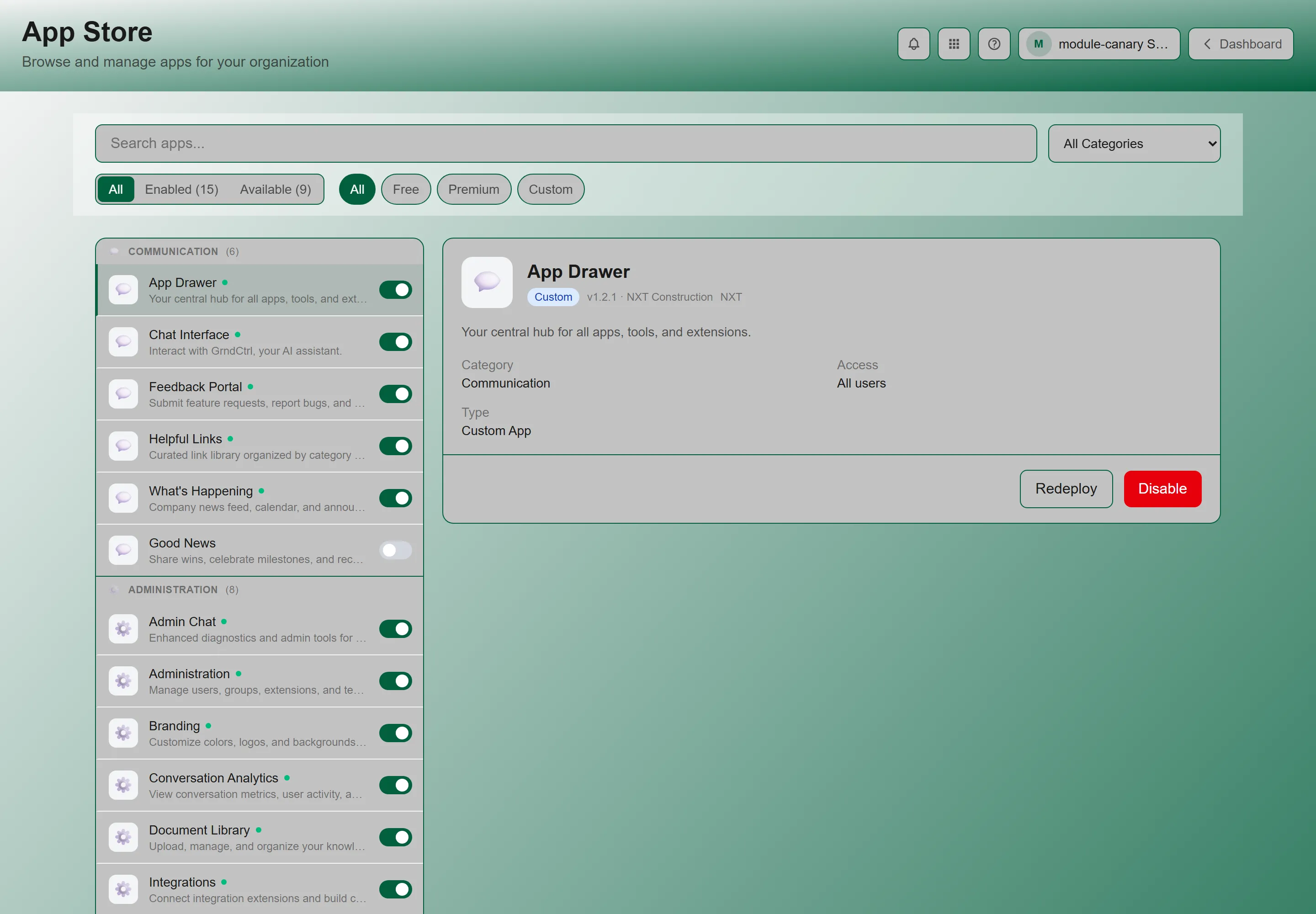
Section titled “Step 1: Enable the Extension (App Store)”Who does this: an administrator. Open the App Store from the app launcher, find the extension (for example, Quote Generator), and toggle it on. Until it is enabled, it will not appear for anyone on your tenant.
Selecting an app opens a detail panel showing its Category, Type, and current Access — so you can confirm who can reach it before you leave the page.
Step 2: Grant Your Group Access
Section titled “Step 2: Grant Your Group Access”Enabling the extension is not enough on its own. An administrator also has to grant your group (or specific users) access to it. Without this, the extension stays invisible, or you open it and get “Access Denied.”
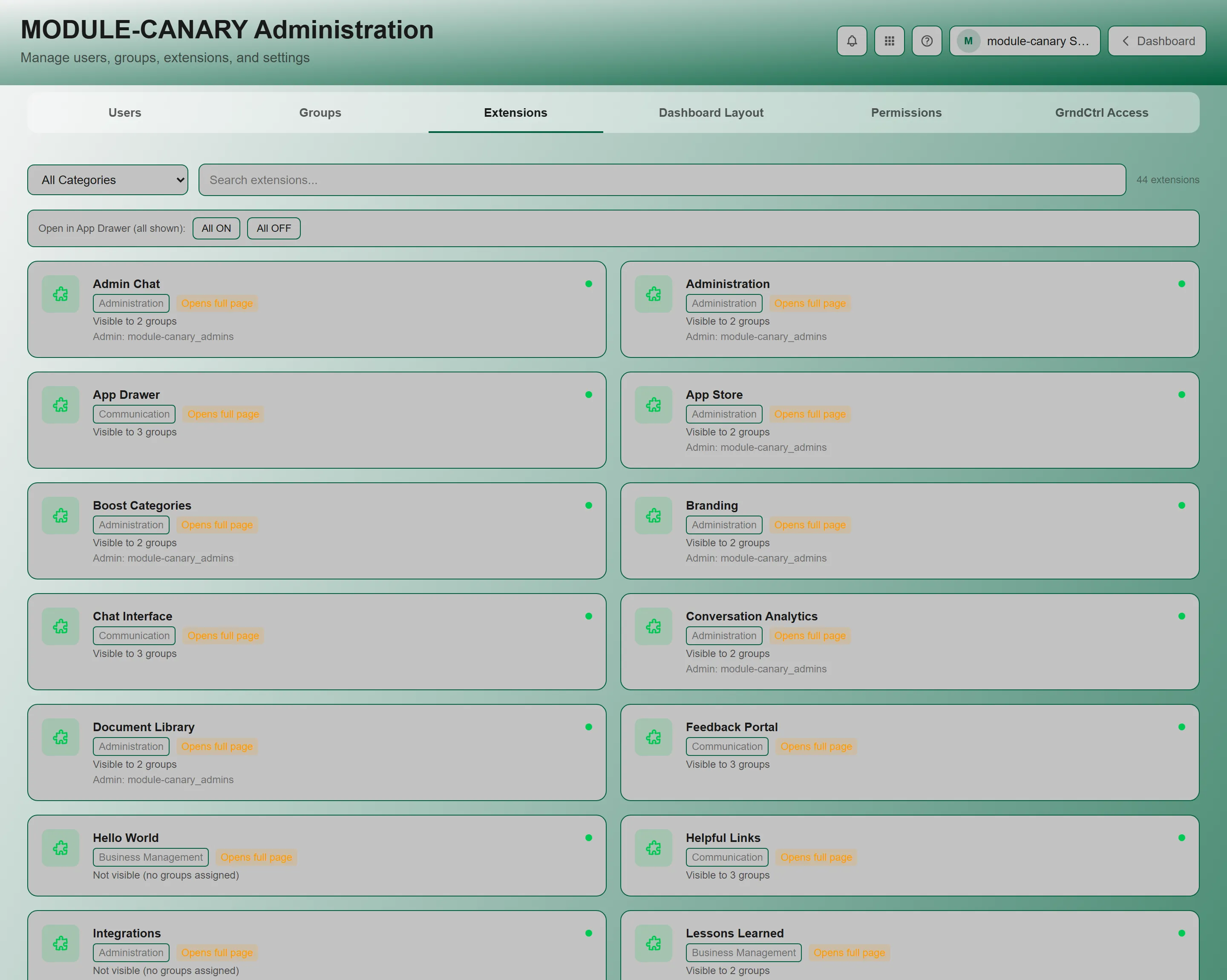
Who does this: an administrator. Open Tenant Administration and go to the Extensions tab. Each extension shows how many groups can see it — “Visible to {N} groups”, or “Not visible (no groups assigned)” if no one can reach it yet. Assign the group or groups that should have access. You can also toggle extensions on and off here, including All ON and All OFF.
Step 3: Sign In Again
Section titled “Step 3: Sign In Again”Your permissions are loaded into your session when you sign in. After an administrator changes your access, the change may not appear until you sign out and back in. Skip this and it can look like the app is broken, even though your permissions are already correct.
Troubleshooting: “Access Denied” or a Missing Extension
Section titled “Troubleshooting: “Access Denied” or a Missing Extension”The Access Denied page shows your Email, Role, and Tenant, and offers Return Home and Sign Out. It tells you to contact an administrator, but it does not say which permission you are missing — so work down this list. It is almost always one of these, in order:
- Is the extension enabled? Check the App Store (Step 1). If it is off, nobody can see it.
- Has your group been granted access? This is the most common blocker (Step 2). Enabled does not mean accessible.
- Have you signed in again since your access changed? (Step 3.).
- Still stuck? Contact your administrator, or NXT support at support@nxtconstruction.ai, with the extension name and the exact message you are seeing.
Related Articles
Section titled “Related Articles”- Creating Quotes with Quote Generator — Turn an RFQ into a priced, formatted quote
- Connecting Your Systems with Integrations — Connect GrndCtrl to the systems your team already uses
- Composite Tables: Combining Your Data — Join and roll up your synced sources
- App Store — Browsing, enabling, and removing apps