
AI Chat Tools and Smart Search
Behind every answer, the GrndCtrl assistant can reach for 23 specialized tools — searching your documents and the web, querying connected systems, generating files, running code. This article explains what they do and how to read what the assistant is doing.
How AI Tools Work
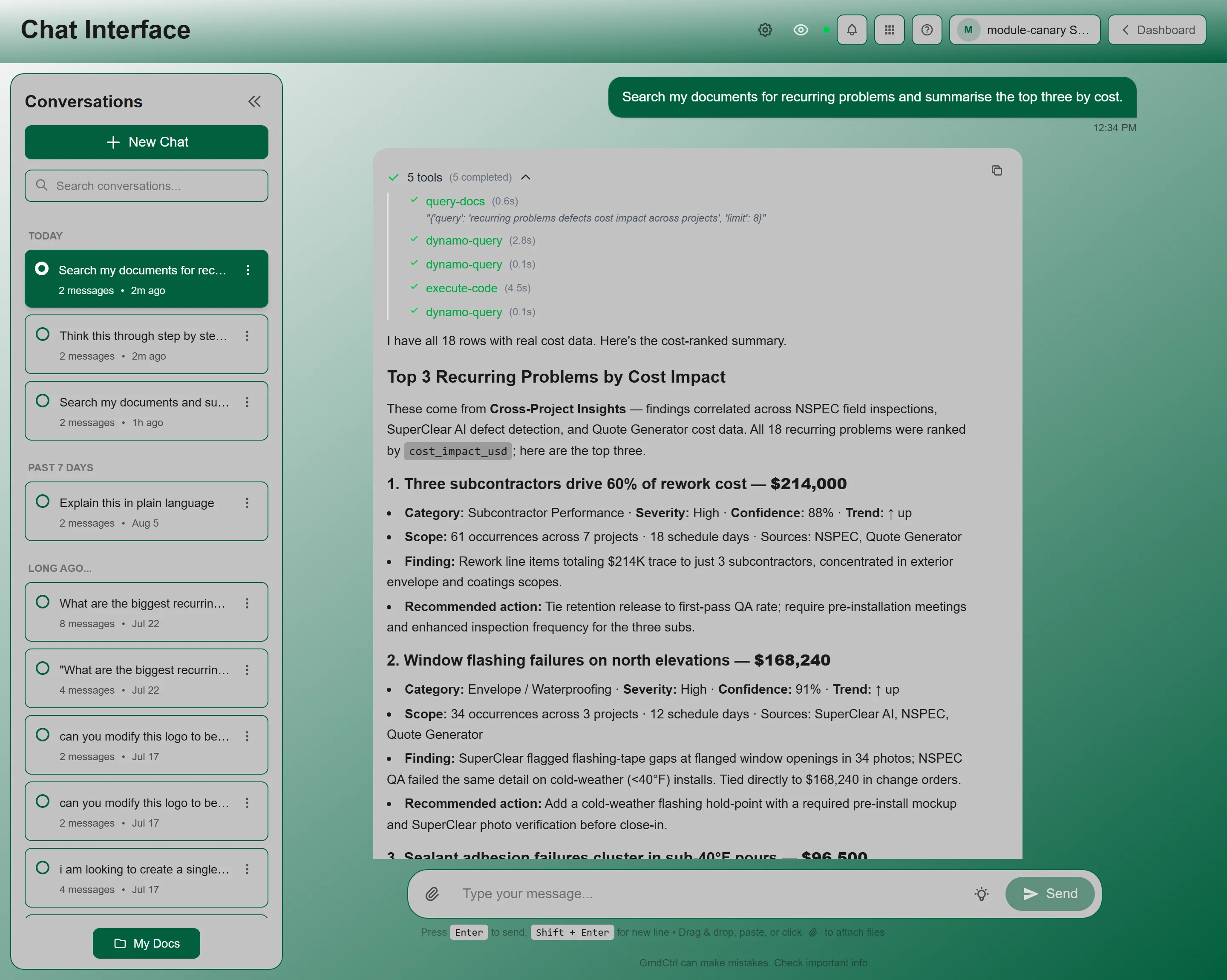
Section titled “How AI Tools Work”When you ask a question, the AI decides which tools to use automatically. You’ll see a collapsible tool indicator appear inline in the response showing what’s happening in real time:
- Blue spinner — tool is running
- Green checkmark — tool completed successfully
- Red X — tool encountered an error
The indicator header shows a count — “{N} tools” — and a breakdown of “{N} running”, “{N} completed”, and “{N} failed”. The breakdown lists only the states that apply. Click the chevron to expand and see each tool’s name, search query (if applicable), and execution time.
Smart Search
Section titled “Smart Search”Smart Search is a meta-tool that orchestrates multiple search strategies in a single request. Instead of running one search at a time, it combines results from several tools simultaneously — for example, searching your company documents AND the web in parallel — then returns the most relevant combined results to the AI.
When Smart Search runs, the tool indicator shows the parent smart-search tool with sub-tools listed beneath it (e.g., web-search + query-docs), each with their own status indicator.
Available Tools
Section titled “Available Tools”You never call these yourself — the assistant picks them based on what you asked. Knowing what exists is still useful, because it tells you what is worth asking for.
Finding Things
Section titled “Finding Things”| Tool | What it does |
|---|---|
search-tools |
Finds the other tools by capability. The assistant calls this when it needs something it does not currently have — and it is always available, even when the rest of the toolset is narrowed for your organization. |
query-docs |
Semantic search across document content by topic or meaning. This is what runs when you ask about something rather than for a specific file. |
query-project |
Semantic search scoped to one project’s documents — plans, specs, RFIs, submittals, and contracts. |
read-document |
Reads, searches within, or links to one specific file: a chat attachment, a My Docs file, a generated PDF or report, or an image. |
view-website |
Takes a screenshot of an allow-listed company web page. Available when the Google Analytics integration is enabled. |
web-search |
Searches the web for current information, choosing a search depth that matches the question. |
deep-research |
Runs an extended, multi-step research pass when a single search will not answer the question. |
smart-search |
Runs several tools at once and processes their results with code, so only the processed answer enters the conversation. See below. |
retrieve-context-details |
Pulls back the full content of an earlier tool result, attachment, or image by its ID, rather than repeating the work. |
Your Organization’s Data
Section titled “Your Organization’s Data”| Tool | What it does |
|---|---|
dynamo-query |
Reads the data your organization has connected to chat — records, metrics, and cross-system tables an administrator has opened up in GrndCtrl Access. |
nspec-query |
Queries the NSPEC inspection database for field reports, observations, action items, and project data. |
nspec-analytics |
Queries NSPEC analytics — inspections, action items, feedback, and usage. Refreshed nightly. |
nspec-admin-analytics |
The administrator view of the same NSPEC analytics. |
nspec-generate-report |
Builds a PDF QA Field Report from NSPEC inspection data, including observations, action items, site maps, and progress photos. |
beci-directory |
Queries the BECI employee directory, synced from Microsoft Azure AD. |
trainual-search |
Searches the BECI Trainual knowledge base for policies, procedures, standards, and training content. |
Producing Things
Section titled “Producing Things”| Tool | What it does |
|---|---|
PDFs (in execute-code) |
The assistant writes the document’s HTML in execute-code and renders it with codeinterpreter.render_pdf; it looks at the rendered pages before it says the PDF is done. To change a PDF it made earlier, it reads that PDF’s HTML back (codeinterpreter.pdf_source), edits it, and renders it again. |
generate-image |
Generates a new image, or edits an existing one. |
execute-code |
Runs Python or JavaScript in a sandbox. Sessions persist for the length of the conversation, so later steps can build on earlier ones. |
superclear-analyze |
Analyzes a building envelope photo for defects using SuperClear AI. |
Memory
Section titled “Memory”| Tool | What it does |
|---|---|
create-memory |
Saves something about you for future conversations — triggered when you say remember this, or when the assistant learns something worth keeping. |
read-memory |
Reads back a saved memory in full. |
retrieve-memory |
Semantic search across your conversation history. This is what answers “what did we decide about X last month?” |
File Outputs
Section titled “File Outputs”When the AI generates a file (PDF, image, spreadsheet, etc.), it appears as a file card in the chat with two buttons:
- View — opens the file in a new browser tab
- Download — saves the file to your device
The card shows the filename, file type, and size. Supported output formats include PDF, PNG, JPG, HTML, JSON, CSV, Markdown, XLSX, DOCX, and ZIP archives.
Extended Thinking
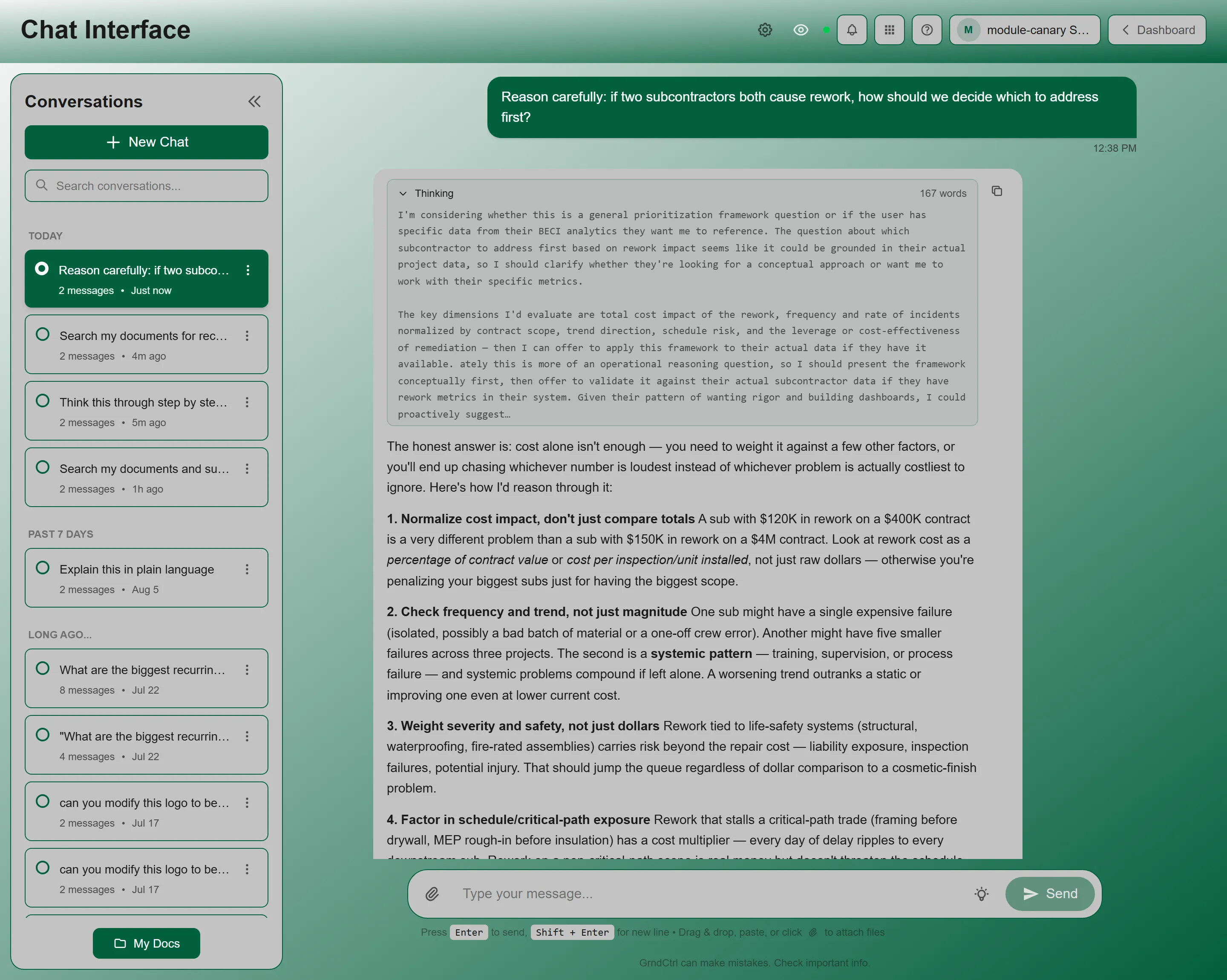
Section titled “Extended Thinking”Extended Thinking lets the AI show its reasoning process before responding. When enabled, a collapsible thinking panel appears above the AI’s response showing the step-by-step reasoning.
How to Enable
Section titled “How to Enable”- Look for the lightbulb icon in the message input area.
- Click it to toggle Extended Thinking on or off.
- When ON, the tooltip reads: “Extended Thinking ON — GrndCtrl shows its reasoning process before responding. Uses more tokens but produces deeper analysis. Click to disable.”
Conversation Search
Section titled “Conversation Search”Search across your entire conversation history to find past discussions:
- In the conversations sidebar, type in the “Search conversations…” field.
- Results appear after 2+ characters with a 400ms debounce.
- Each result shows: conversation title, a relevant snippet, relative time, and relevance score.
- Click a result to open that conversation.
Managing Conversations
Section titled “Managing Conversations”The conversations sidebar lets you organize your chat history:
- The new-conversation button — starts a fresh conversation
- Pin — pin important conversations to the top
- Rename — rename a conversation inline
- Archive — move to a collapsed Archived section
- Download — export the conversation
Conversations are grouped by time: Today, Yesterday, Past 7 Days, and Long Ago… A Pinned group sits above all of them, and Archived collapses at the bottom with a count.
Customizing Your AI
Section titled “Customizing Your AI”Click the gear icon in the chat header to open Customize Responses. Twelve settings control which model answers you, how long and how formal its answers are, what it calls you, and your timezone. Click Apply to save.
Every setting is described in Customizing AI Responses.
Citations
Section titled “Citations”When the AI uses information from your documents, it adds inline citation numbers (e.g., [1], [2]) in the response. Click a citation to see the source document, a relevant snippet, and a relevance score. You can open the full source document from the citation preview.
Sending Attachments
Section titled “Sending Attachments”You can attach files to your messages:
- Images — upload or drag-and-drop PNG, JPEG, GIF, or WebP files
- Documents — upload PDF, DOCX, XLSX, CSV, and other file types
Uploaded images show as thumbnail previews with a processing status indicator. Documents show as filename cards with upload progress.
Context Limit
Section titled “Context Limit”Very long conversations may reach the AI’s context limit. When this happens, a yellow banner appears: “Your conversation has reached its context limit. Please start a new conversation to continue.” The message input is disabled until you start a new chat.
Giving Feedback on Responses
Section titled “Giving Feedback on Responses”On each AI response, you’ll see:
- Copy message — copies the response to your clipboard
- Good response / Poor response (thumbs up / thumbs down) — rate the response quality (helps improve the AI)
A thumbs-down asks What went wrong?, and NXT reads every answer rated down. What happens next, and where our reply arrives: Chat Feedback: Rating Answers and Our Replies.
Troubleshooting
Section titled “Troubleshooting”Tools are taking a long time
Section titled “Tools are taking a long time”Solutions:
- Complex queries that use multiple tools (especially Smart Search + code execution) naturally take longer
- If a tool shows an error (red X), try rephrasing your question
- Lower the Reasoning Effort in preferences for faster responses
Smart Search returns no relevant results
Section titled “Smart Search returns no relevant results”Solutions:
- Try being more specific in your question — include keywords from the document you’re looking for
- Check that the relevant documents have been uploaded to the Document Library
- Ask the admin to verify document indexing is complete
Extended Thinking makes responses very slow
Section titled “Extended Thinking makes responses very slow”Solutions:
- This is expected — Extended Thinking uses significantly more tokens and processing time
- Turn it off for quick questions; use it only for complex analysis
Related Articles
Section titled “Related Articles”- Documents and AI Chat
- Chat Feedback: Rating Answers and Our Replies — what happens after you rate an answer down
- Prompt Management
- Managing Your Document Library — what the assistant can read, and which documents it favours
- Conversation Analytics — how the assistant is being used across your organization
- Admin Chat and Message Analysis — what the model saw and did on a single message
- Getting Started with GrndCtrl