
Connecting Your Systems with Integrations
The Integrations Hub is where a tenant administrator connects GrndCtrl to the systems your team already uses, and controls exactly what each extension is allowed to do. This article covers connecting a source and approving access.
What the Integrations Hub Is
Section titled “What the Integrations Hub Is”Open Integrations Hub from the admin navigation. Its subtitle sums it up: “Connected integration extensions and tenant-defined composite tables”.
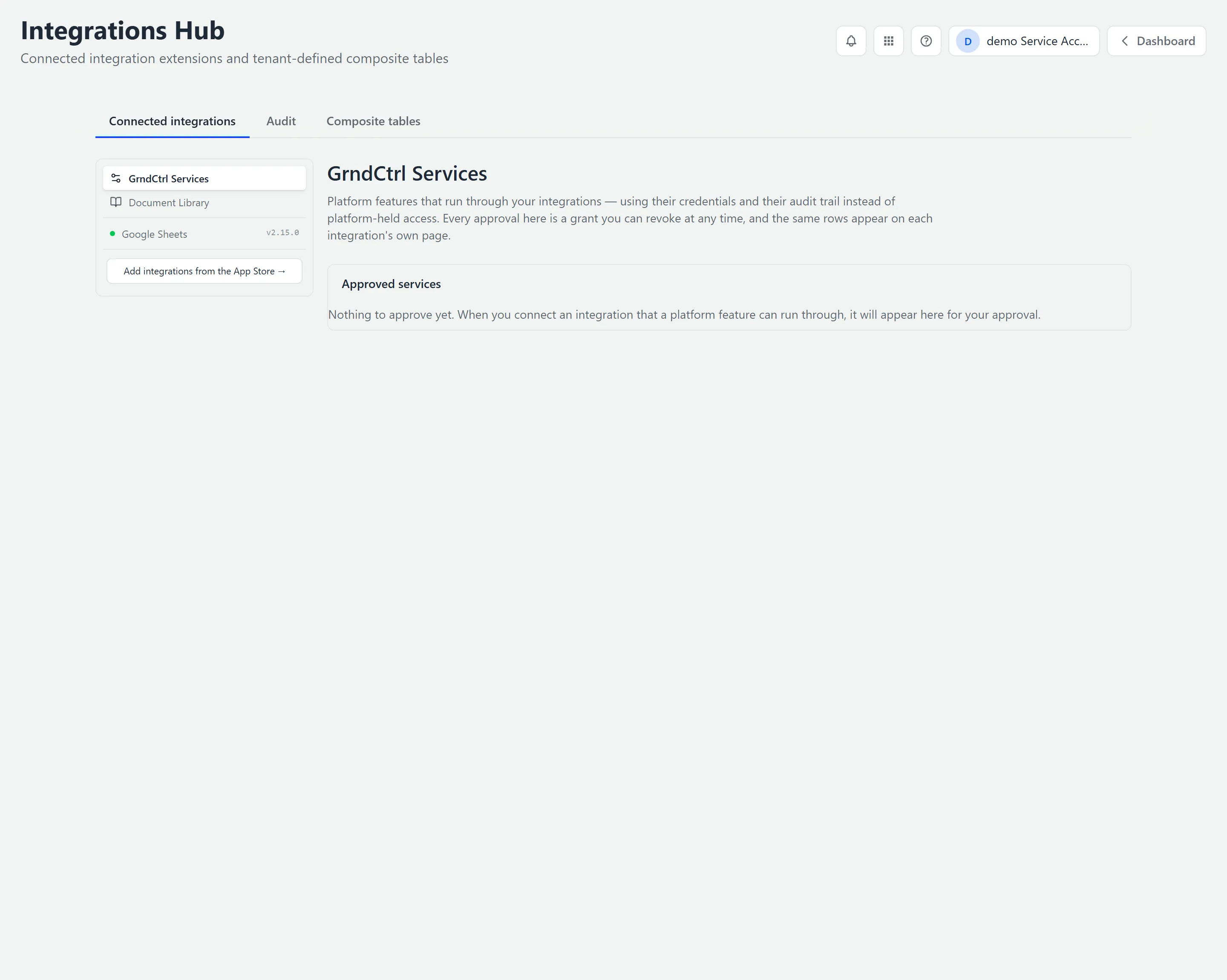
An integration is an extension that connects GrndCtrl to an outside system and publishes source tables your other extensions can use. Each integration’s display name comes from the integration itself — for example Google Sheets or Microsoft Graph. As new integrations are installed, they appear here the same way.
The Three Tabs
Section titled “The Three Tabs”| Tab | What it’s for |
|---|---|
| Connected integrations | Installed integrations, their credentials, and which extensions may use them. Developer-admin only. |
| Audit | A read-only record of what’s allowed, plus the daily conformance findings, with revoke controls. Developer-admin only. |
| Composite tables | Tenant-defined joins and aggregations over your sources. Any tenant admin — covered in its own article. |
Connecting a Source (Credentials)
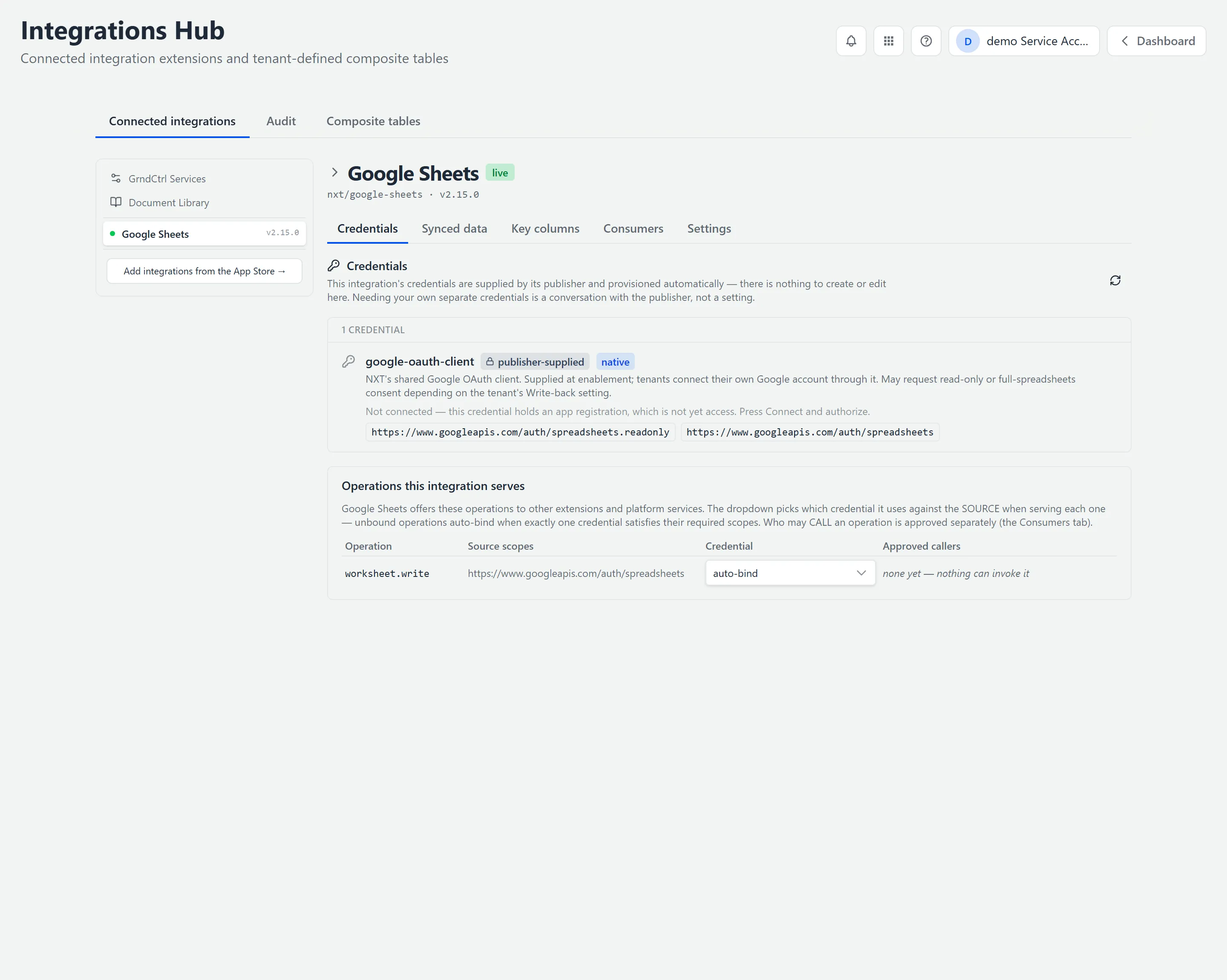
Section titled “Connecting a Source (Credentials)”Select an integration from the left rail. Its page opens on a row of tabs — Credentials, Synced data, Key columns, Consumers, and Settings. Start with Credentials. This is how the integration authenticates to the outside system, and what you see depends on the integration:
- Publisher-supplied (for example, Google Sheets). The credential is provisioned automatically, and the tab says there is nothing to create or edit here. You’ll see the credential listed with the scopes it uses, and you connect your own account through it. Needing separate credentials is a conversation with the publisher, not a setting.
- Tenant-connected. Other integrations let you add your own credential: click Add
credential, name it (for example
primary), fill in the connection fields it asks for, save, then click Verify to confirm the connection and record its real scopes.
Lower on the same tab, Operations this integration serves lists what the integration can do and which credential each operation uses. The default, Not set — resolved automatically, only resolves when exactly one of your credentials fits the operation. If two or more could, it cannot choose and the calls fail, so pick one. Who may call those operations is approved separately, on the Consumers tab below.
Synced Data and Key Columns
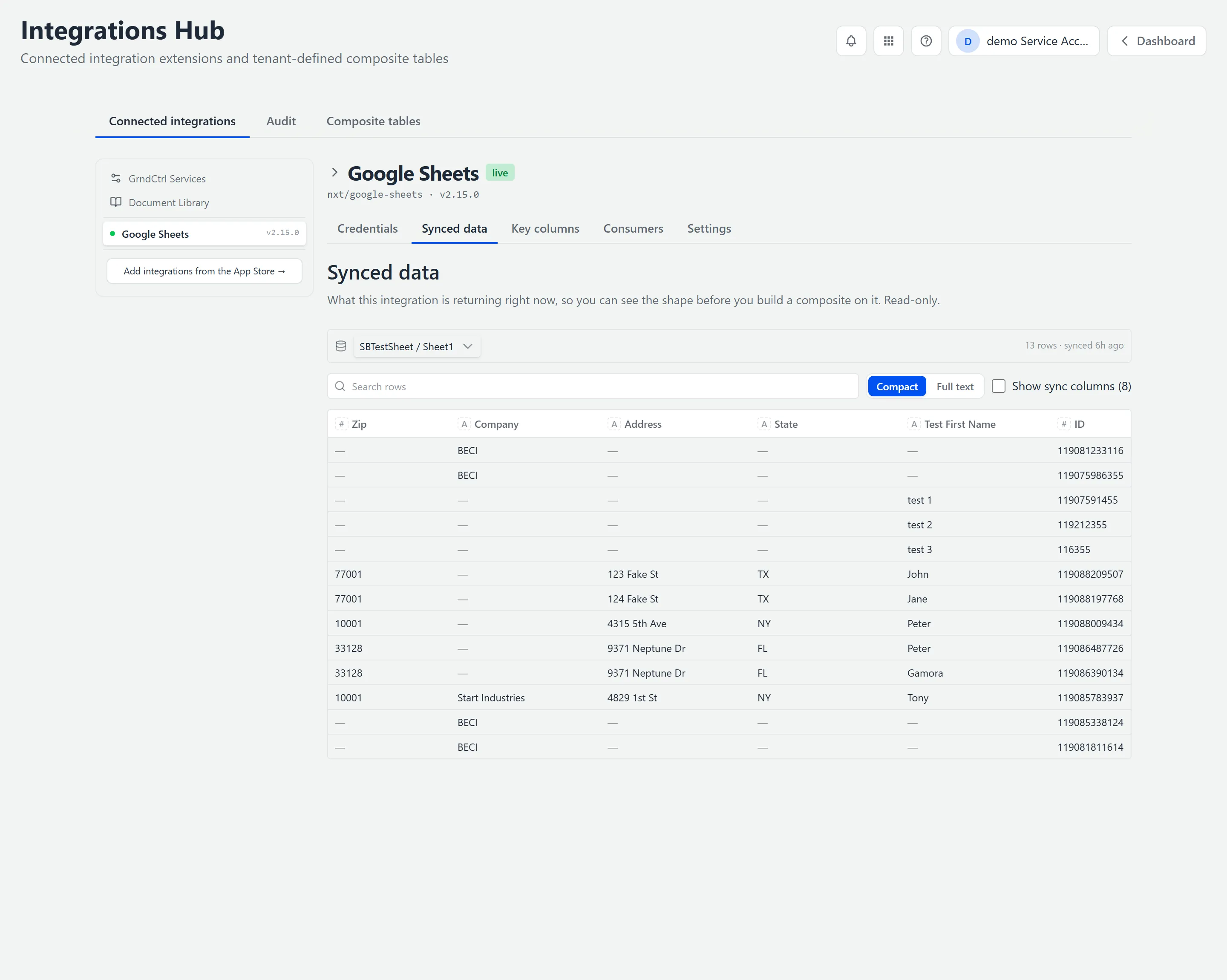
Section titled “Synced Data and Key Columns”Between Credentials and Consumers sit two tabs that help you before you build anything on an integration.
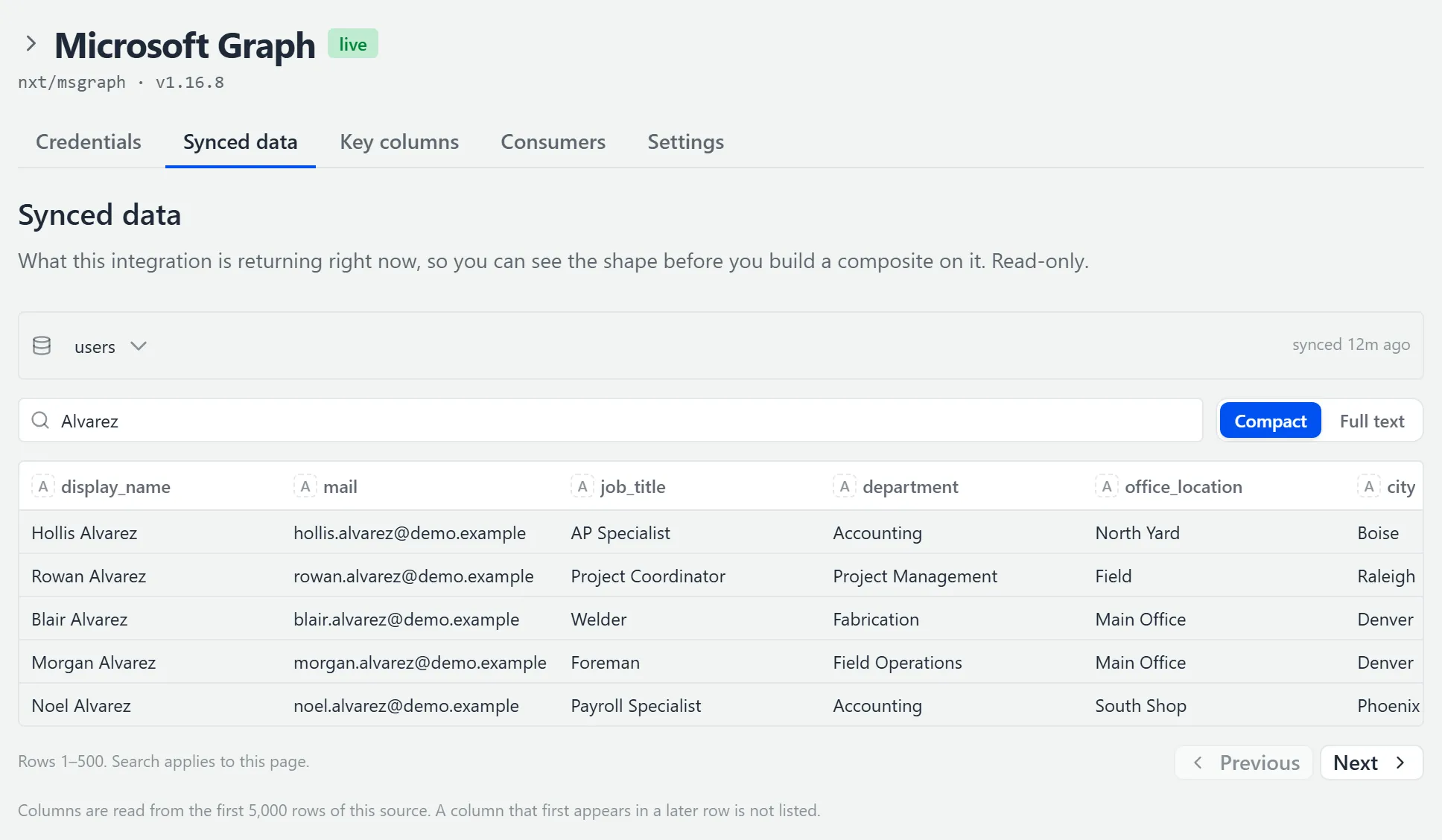
Synced data shows “What this integration is returning right now, so you can see the shape before you build a composite on it. Read-only.” It shows up to 500 rows at a time. Search the rows on screen and toggle Compact / Full text. It’s how you sanity-check the actual data first. A source too large for one page is read a page at a time; see Large Sources: Pages and Samples.
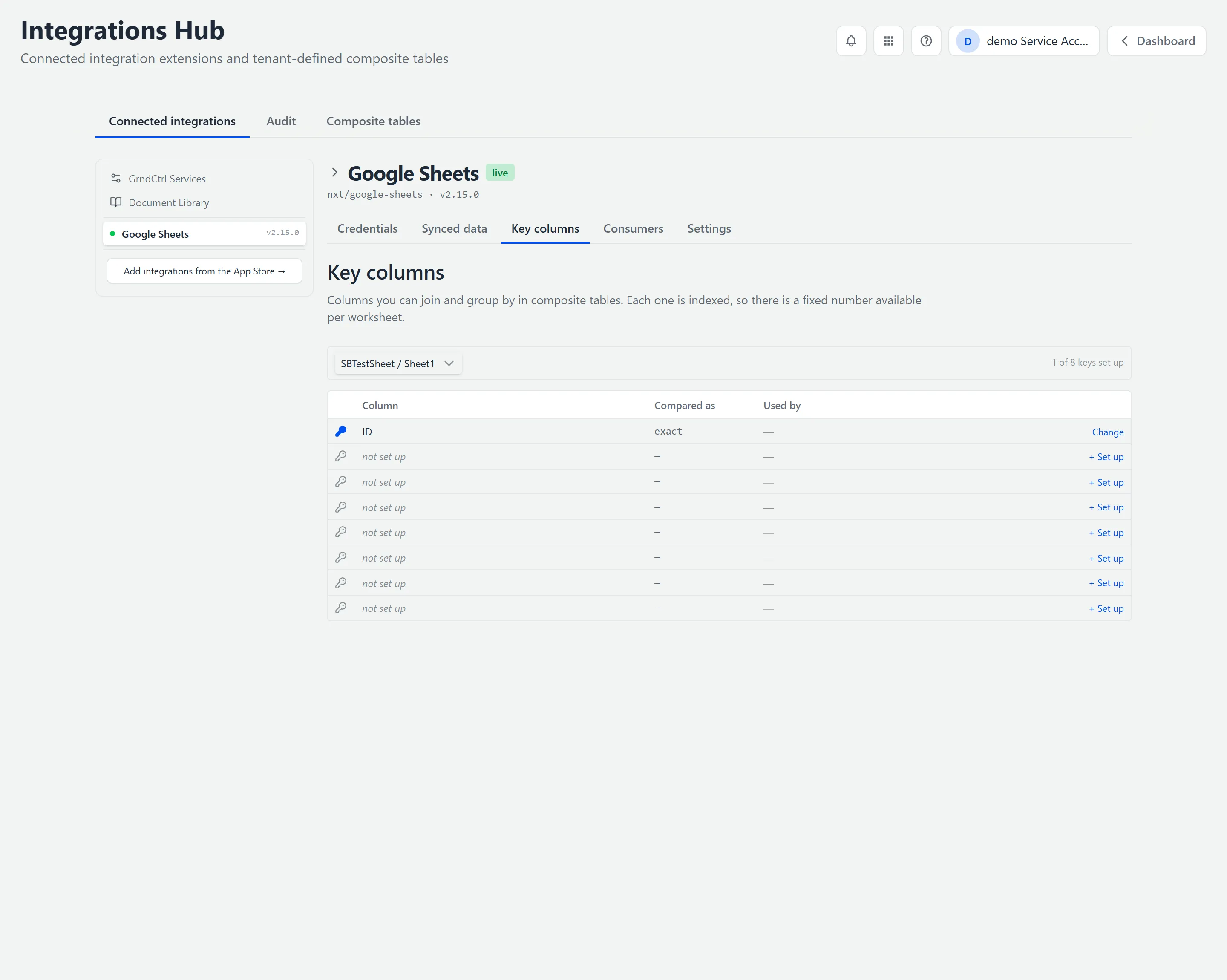
Key columns are “Columns you can join and group by in composite tables.” Each one is indexed, so there is a fixed number available per worksheet, or per object for most integrations. Pick a worksheet (or an object) and set up the keys you’ll later join or group on. The tab tracks how many are set up — for example, “2 of 8 keys set up”.
Large Sources: Pages and Samples
Section titled “Large Sources: Pages and Samples”Some sources hold far more rows than a page can show, a general ledger for example. The Hub never reads such a source in one go. It reads a page at a time, and it learns the columns from a sample. Each place that reads only part of a source says so.
- Pages. Under the table, a line says which rows you are looking at, for example “Rows 1–500. Search applies to this page.” Next reads further and Previous goes back. The last page says so: “Rows 1,001–1,003, the end of the source.” Search only looks through the page on screen. A source that fits on one page shows its row count beside the picker instead.
- Columns from a sample. On a large source the columns come from its first rows (5,000 for most sources), and the tab says so, for example “Columns are read from the first 5,000 rows of this source. A column that first appears in a later row is not listed.” If a later page carries a column the sample missed, the table shows it while that page is on screen.
- Lists of worksheets. Where a source holds several worksheets (or objects) in one table, the list in the picker can also come from part of the source: “This list of worksheets is read from the first {N} rows of the source. One that starts after them is not listed.”
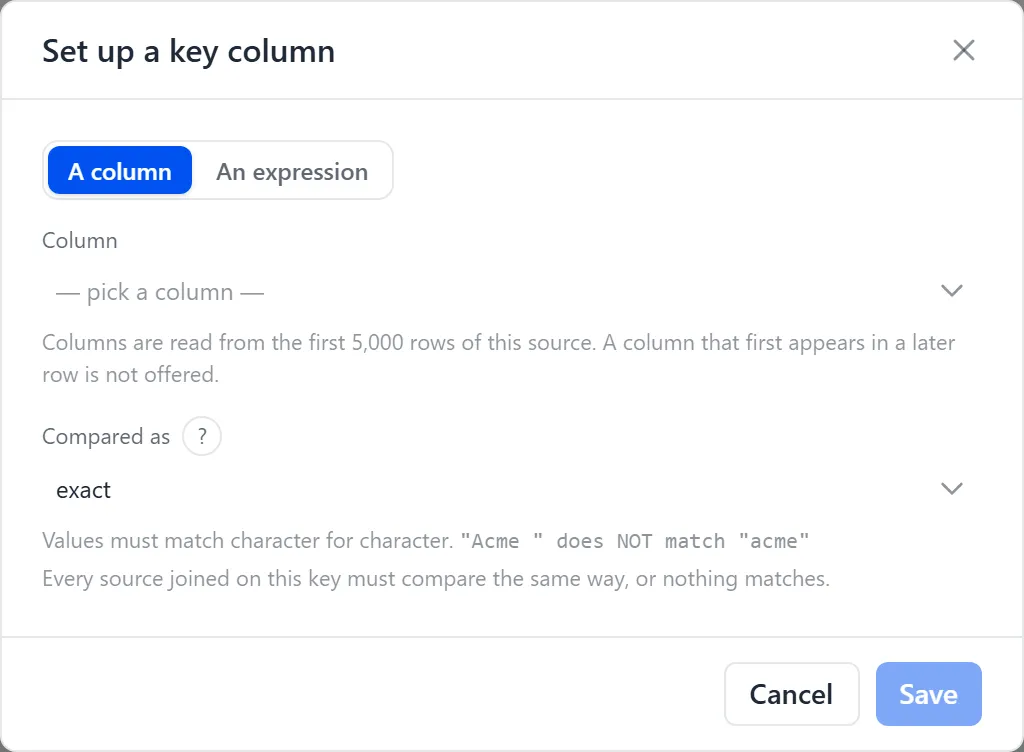
- Key columns. When you set up a key column on a sampled source, the dialog says “Columns are read from the first 5,000 rows of this source. A column that first appears in a later row is not offered.”
Composite tables built on a large source say the same in their editor; see Adding Sources and the Key.
Approving What an Extension Can Do (Consumers)
Section titled “Approving What an Extension Can Do (Consumers)”Open the integration’s Consumers tab, titled Extensions using this integration. A consumer — another extension, or a platform service — first declares that it wants to use this integration in its own manifest; it then appears here for your approval. Until one does, the tab reads “Nothing has declared it uses [this integration] yet.” When a consumer appears, this is where you approve, one by one, what it may do. Nothing it requests runs until you approve it here.
Each capability the integration offers is an operation with a direction:
- read — Reads data out of the source.
- write — Writes data back to a target.
- action — Performs an action, for example sending something.
- Find the consumer’s card and click Approve on the specific operation it needs.
- For read access you can choose Only the operations approved below or the blanket All read operations — including ones added later. Write and action operations are always approved individually, never by the blanket.
- Optionally set the Credential that serves this consumer. The default is Not set — resolved automatically, which resolves only when exactly one credential fits; if several could, pick one explicitly or the call fails.
- If an operation takes parameters, click Edit resource scope and add patterns that
say exactly what it can touch, for example
/users/*/calendar/*, with + Add. The patterns are the wall around what the operation may reach, and every call is checked against them:*matches one whole segment,**as the last segment matches everything below it, and with no patterns it reaches nothing. For a mail operation you can type a person’s email address instead, and the editor adds the pattern for that one mailbox. Changes apply at once; there is no Save. Allow everything… or Allow every user… approves the widest scope, after a warning that says what that allows. - Watch the inline summary beside the operation. It reads Resource scope followed by a
pattern count. An approved read with no patterns reads no patterns — reads nothing,
and an approved write or action with none reads “Approved · no resource scope — every
call is refused”; the consumer’s row then counts it as blocked, for example
approved · 1 op blocked.
The Audit Tab: Findings, Sync Health, and Alerts
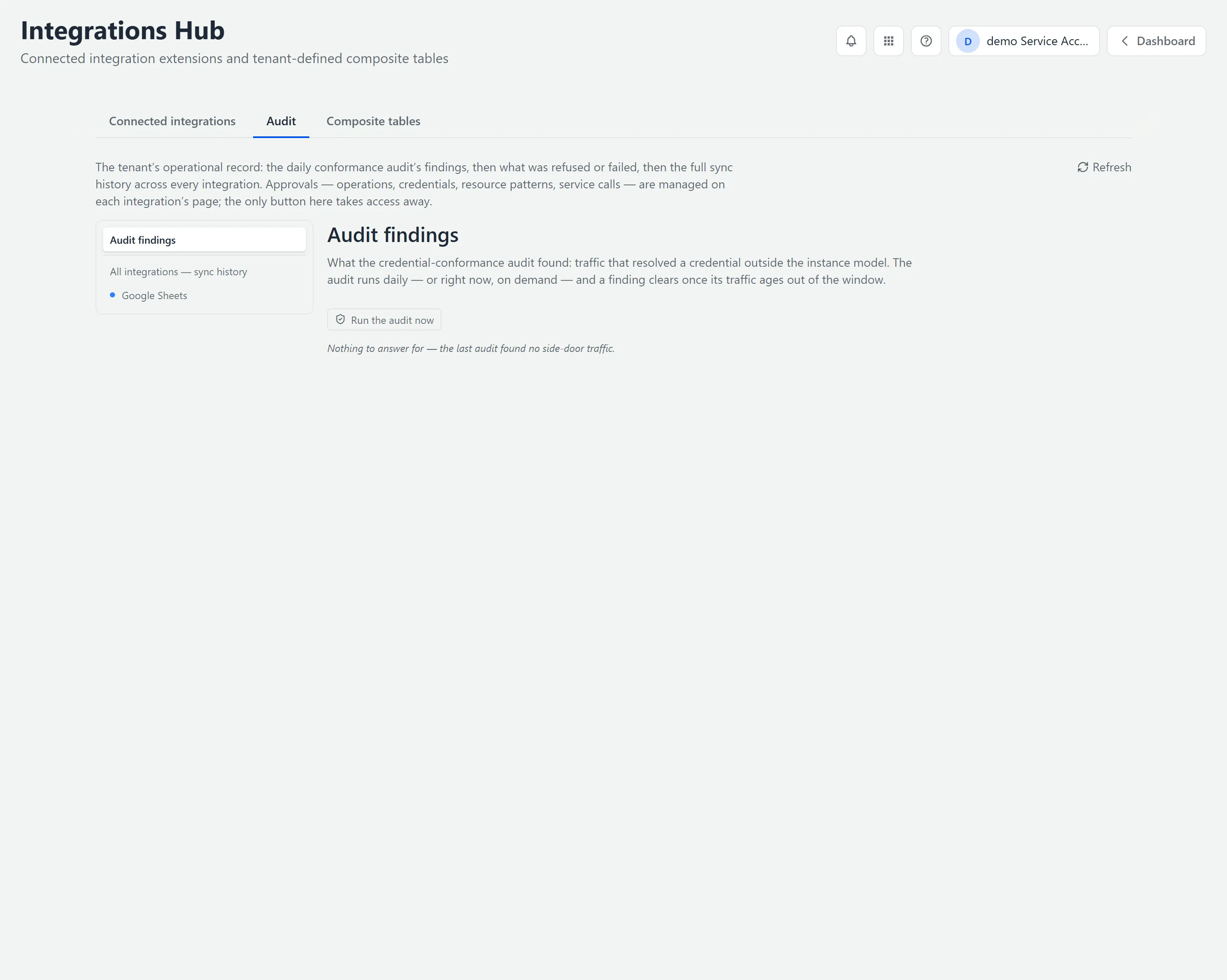
Section titled “The Audit Tab: Findings, Sync Health, and Alerts”The Audit tab is the tenant’s operational record. Approvals aren’t managed here — they live on each integration’s page — and the only action on this tab takes access away. It is a left rail (audit findings, then all-integrations sync history, then one entry per integration) with a Run the audit now button and a Refresh, and it covers four things:
- Audit findings — What the daily credential-conformance audit found: traffic that resolved a credential outside the instance model. It runs daily, or on demand, and a finding clears once its traffic ages out of the window.
- Sync history — Every sync across every integration, with a health strip. This is your main “did it run?” view, and the one place to spot an integration that quietly stopped syncing.
- What went wrong — Refused calls and failed rows, kept until you deal with them, unlike the history, which ages out.
- Alerting — Who gets emailed when a sync fails, a Teams webhook, and per-integration mute. Worth setting up so failures don’t pass silently.
Where an Integration Shows Up in Quote Generator
Section titled “Where an Integration Shows Up in Quote Generator”Two connected sources change how a quote starts. With Salesforce connected, + New Quote offers Open Opportunity under Start from: the customer, the site, and the contact come across from the opportunity, so the customer step becomes a check of the contact order rather than data entry. Under Previous proposals, Closed in Salesforce starts a quote from the proposal behind a closed deal. With Dynamics 365 connected, the catalog comes from the synced tables, and a quote started from Upload Documents binds its extracted lines against it and checks them against the customer’s approved-manufacturer list. Both flows are described in Creating Quotes with Quote Generator; the connections themselves are made here, in the Integrations Hub.
Troubleshooting
Section titled “Troubleshooting”Calls fail and the integration looks connected
Section titled “Calls fail and the integration looks connected”Solutions:
- Check for more than one credential that could serve the same operation. When two are equally valid, automatic resolution cannot choose between them and calls fail — pick one.
- Check the operation’s Resource scope. If it reads no patterns — reads nothing, or “Approved · no resource scope — every call is refused”, the operation is approved but scoped to nothing, so every call is refused. Add a pattern with Edit resource scope.
The Consumers list is empty
Section titled “The Consumers list is empty”Solutions:
- “Nothing has declared it uses [this integration] yet.” is normal for a new connection — an extension has to declare the integration before it appears here.
- If an extension should be using it, confirm the extension is enabled and that its own configuration points at this integration.
An extension is reading stale or missing data
Section titled “An extension is reading stale or missing data”Solutions:
- Look at the integration’s synced data to see what it is actually returning right now, rather than assuming the shape you expect. On a large source the first page is only the first 500 rows: use Next to read further, since search covers only the page on screen.
- Check the Audit tab for sync health and any alerts — a source system can stop returning data without the connection appearing broken.
- Only key columns can be joined and grouped on, and there is a fixed number available. If a column you need is not one, it cannot be used that way. On a source with more than 5,000 rows, a column that first appears after the first 5,000 rows is not offered as a key.
Related Articles
Section titled “Related Articles”- Composite Tables: Combining Your Data — Join and roll up your synced sources into governed tables
- Getting Access to Apps and Extensions — Start here if the Hub is missing or you see “Access Denied”
- Administration — Users, groups, extensions, and GrndCtrl Access