
Raising a Change Request
Change Management is where a proposed change is written down, reviewed by the groups it affects, and approved before it happens. This article covers raising one and taking it through review.
Finding Your Way Around
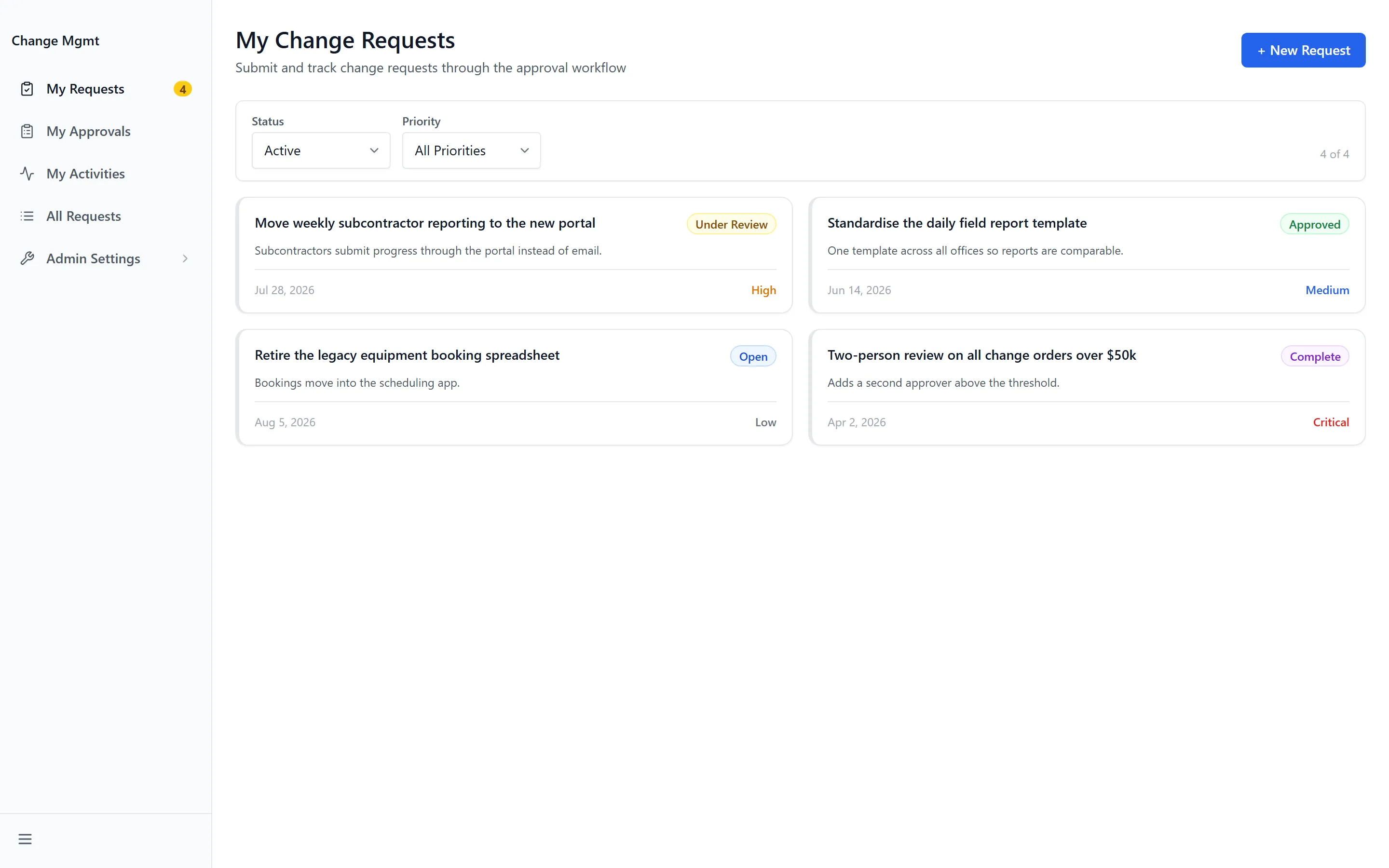
Section titled “Finding Your Way Around”Open Change Mgmt from the app launcher.
- My Requests — Changes you have raised
- My Approvals — Changes waiting on your decision
- My Activities — Work assigned to you off the back of a change
- All Requests — Everything, for those who can see it
- Admin Settings — Configuration, for administrators
My Approvals is the one to check regularly — a change sits Under Review until the groups it affects respond, so an unattended queue holds up someone else’s work.
Raising a Change
Section titled “Raising a Change”A change request is a short structured case, not free text. Four parts:
- The Change — what is happening. “What needs to happen?”
- Change & Impact — who and what it touches
- Messaging Plan — “What has leadership agreed on for this message?”
- Feedback — “How will you collect feedback and address concerns?”
- Open My Requests and start a change.
- Give it a title — “Enter the change title…”
- Describe the change. A description is required; without one you’ll see “A description is required.”
- Set the Priority, and the Start Date and End Date.
- Mark the areas affected on the change matrix.
- Complete the Messaging Plan and Feedback sections.
- Submit it. If submission fails you’ll see “Failed to submit. Please try again.”
The Change Matrix
Section titled “The Change Matrix”The matrix is where you record who a change lands on. Areas include Leadership, Human Resources, Information Technology, Accounting, Sales Managers, Branch or Dept Managers, PMA - Sr. PMs, Specialized Services, Client / Market, Process, People / Skills / Resources and Admin.
An impact can be marked Positive as well as disruptive — the matrix is a description of effect, not a list of problems. Each area can carry an Owner email naming who is accountable for it.
The Review Cycle
Section titled “The Review Cycle”A submitted change moves through Open, then In Review and Under Review, ending at Approved, Rejected or Complete.
Reviewers have three responses, on Review / Update:
- ✓ Approve — accepted as written
- ✎ Approve w/ Mod — accepted, with a change they are recording
- ✕ Reject — not accepted
✎ Approve w/ Mod is the useful middle option: it keeps the change moving while putting the condition on the record, rather than rejecting a proposal that is nearly right.
A requester can use Return to Draft to pull a change back and rework it. Start begins an approved change, and Delete Request removes one entirely.
Discussion and Attachments
Section titled “Discussion and Attachments”Each change carries Activity — its history and the discussion around it. “Leave a comment…” adds to the thread and “Add a note…” records a note against the change.
Attachments holds supporting documents. Filters on the list — Status, Priority, Requester and Change type — narrow a long list, and changes can be sorted by Created or Last updated.
Troubleshooting
Section titled “Troubleshooting”Change Mgmt is missing, or I get “Access Denied”
Section titled “Change Mgmt is missing, or I get “Access Denied””Solutions: three things have to be true. Check them in order.
- An administrator has enabled Change Management in the App Store.
- Your group has been granted access to it.
- You have signed out and back in since that change. See Getting Access to Apps and Extensions.
My change has been Under Review for a long time
Section titled “My change has been Under Review for a long time”Solutions:
- Check which areas you marked on the matrix. Each one brings in a review group, and the change waits for all of them.
- Use Activity to see who has responded and who has not, then chase the outstanding group directly.
- If an area was marked in error, Return to Draft lets you correct the matrix and resubmit.
A change I should be reviewing isn’t in My Approvals
Section titled “A change I should be reviewing isn’t in My Approvals”Solutions:
- Approvals follow review group membership, which an administrator maintains under Review Groups. If you are not in the group for a marked area, it will not reach you.
- Check the requester marked the area at all — an unmarked area is never routed.
I can’t edit my change after submitting it
Section titled “I can’t edit my change after submitting it”Solutions:
- Use Return to Draft. A change under review is deliberately frozen so reviewers are not approving something that moves underneath them.
- For a small correction, add it to Activity instead — that keeps approvals already given intact.
Related Articles
Section titled “Related Articles”- Administering Change Management — Review groups, app users and notifications
- Getting Access to Apps and Extensions — Start here if the app is missing or you see “Access Denied”
- What’s Happening — Announcing a change once it is approved