
Submit a Support Ticket
If you encounter a problem or need assistance, you can submit a support ticket directly from within GrndCtrl. Your ticket is sent to the NXT support team via Zendesk, and you’ll receive a confirmation with a ticket ID and a direct link to track your request.
Accessing the Support Form
Section titled “Accessing the Support Form”- Navigate to the Submit Support Ticket page from the dashboard or menu.
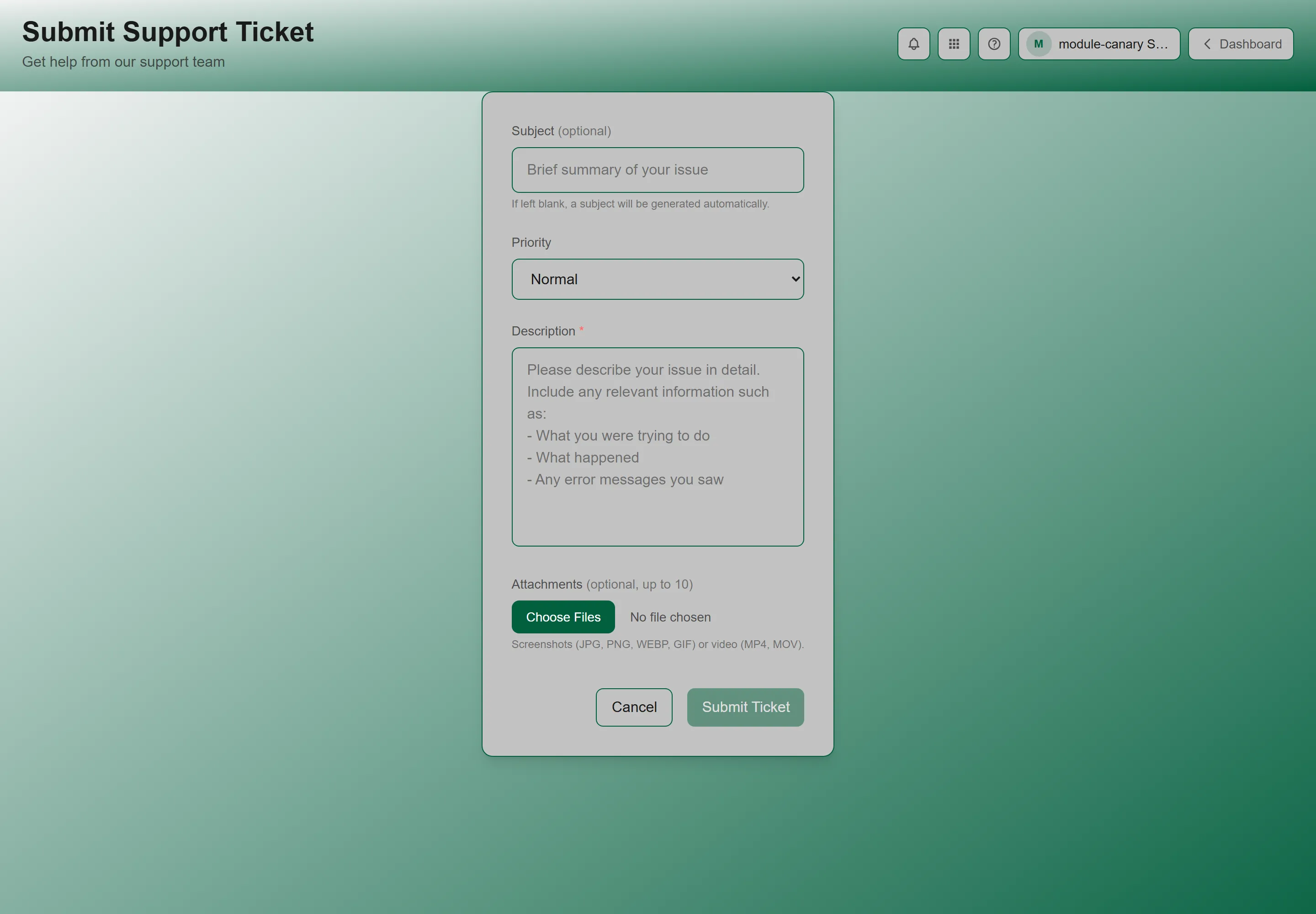
- The form appears with three fields: Subject, Description, and Priority.
Submitting a Ticket
Section titled “Submitting a Ticket”- Fill in the form. Only Description is required — Subject is generated for you if you leave it blank.
- Click Submit Ticket.
- Wait for the confirmation — the button shows “Submitting…” while processing.
The form has these fields:
| Field | Required | Notes |
|---|---|---|
| Subject | No | Brief summary of your issue. If left blank, a subject will be generated automatically. |
| Description | Yes | Describe your issue in detail. Include: what you were trying to do, what happened, and any error messages you saw. |
| Priority | No | Low, Normal, High, or Urgent. |
After Submitting
Section titled “After Submitting”On success, a green confirmation box appears showing:
- “Ticket Submitted Successfully!” — your ticket has been created
- Ticket ID — a reference number for your request
- View ticket in Zendesk — a link to track your ticket in the Zendesk portal
From here you can:
- Submit Another Ticket — clears the form for a new submission
- Return to Dashboard — goes back to the Home screen
Tracking Your Tickets
Section titled “Tracking Your Tickets”You do not have to come back to this form to find out what happened to a ticket. If your organization has placed the My Support Tickets widget on your Home screen, your ticket statuses appear there.
If you cannot see it, ask your administrator to add it — which widgets appear is set per organization in the Dashboard Layout editor, so it is a change they can make for everyone at once.
Tips for Effective Tickets
Section titled “Tips for Effective Tickets”- Be specific — “The PDF download button doesn’t work on the report page” is better than “Something is broken”
- Include steps to reproduce — what did you click? what page were you on?
- Mention error messages — copy and paste the exact text of any error you saw
- Note your browser — Chrome, Firefox, Safari, and which version if you know it
Troubleshooting
Section titled “Troubleshooting”Ticket submission fails
Section titled “Ticket submission fails”Solutions:
- Make sure the Description field is not empty — it’s required
- Check your internet connection
- If the error persists, email support@nxtconstruction.ai directly