
Good News
Good News is the employee recognition feature in GrndCtrl. It brings team members together in small groups to share positive updates, personal wins, and celebrations. Whether it’s a project milestone, a great weekend, or a team accomplishment, Good News gives everyone a space to connect on a personal level.
How Good News Works
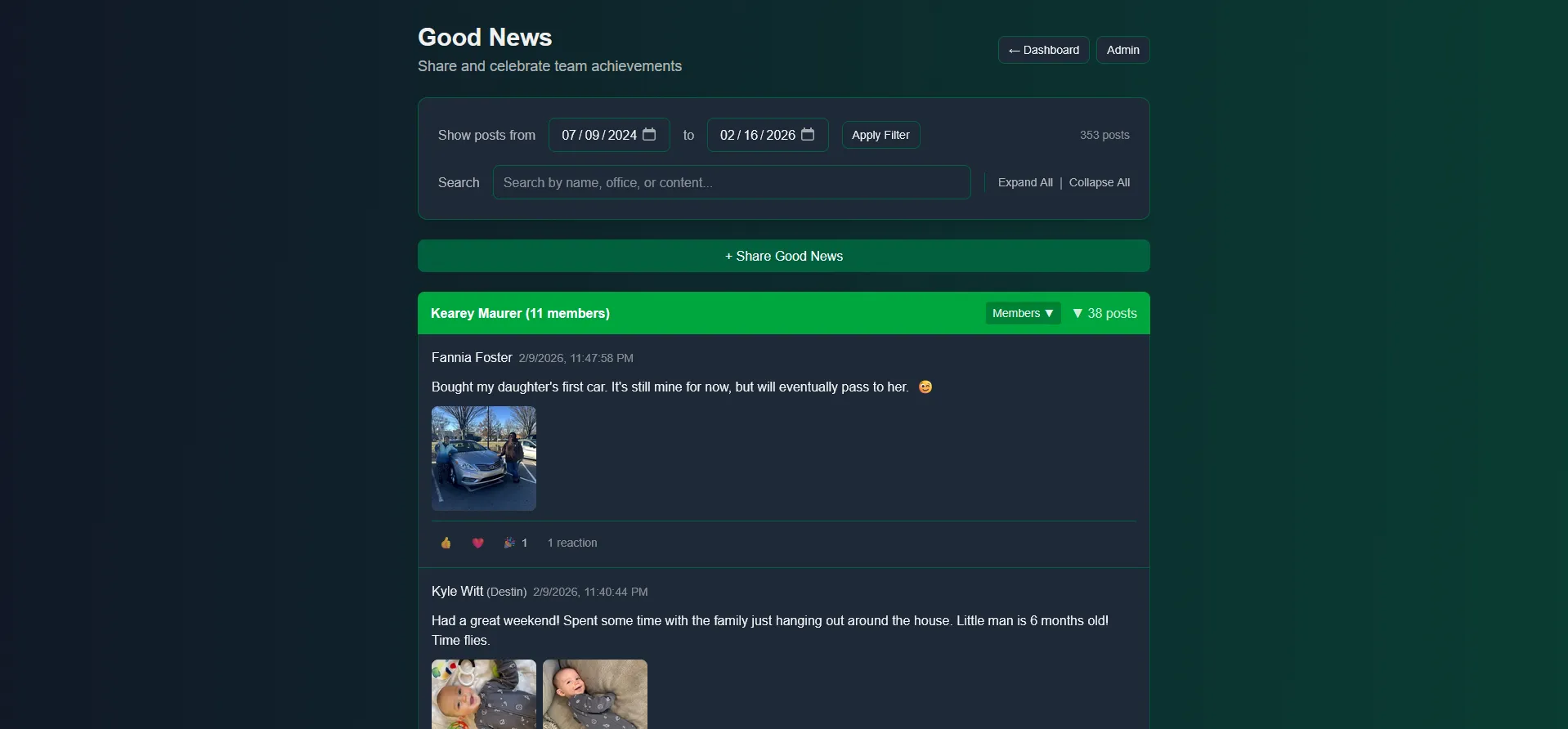
Section titled “How Good News Works”Every employee who participates is assigned to a group of approximately 10 members. Each group is named after its group owner — for example, “Dana Whitfield (10 members).” You share positive updates, photos, and celebrations within your group.
Viewing Your Group
Section titled “Viewing Your Group”-
Open Good News — from the Apps button in the header, or from its widget on your Home screen.
-
You’ll see your current group with:
- Group name — The group owner’s name and member count.
- Members — Click Members to expand and see all group members with their names and office locations.
- Posts — Shared updates from group members with photos and reactions.
- Posting progress — the Members list is headed “{X} of {Y} posted”, with a check mark beside each member who has posted this period.
Sharing Good News
Section titled “Sharing Good News”Creating a Post
Section titled “Creating a Post”- Navigate to Good News.
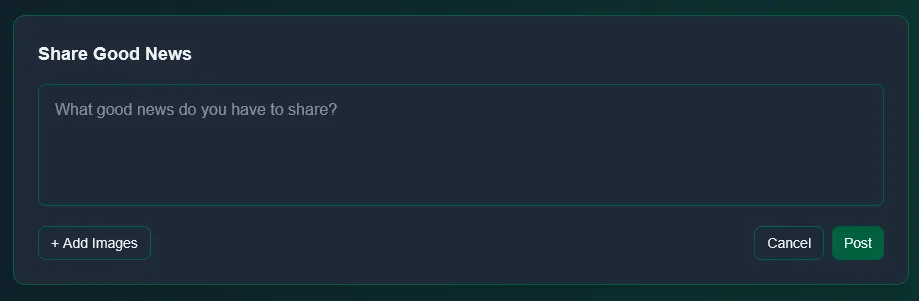
- Click Share Good News.
- Write your update in the text field — it asks “What good news do you have to share?”
- Optionally attach photos — click the image button to select them from your device.
- Click Post to share with your group.
What to Share
Section titled “What to Share”Good News is about celebrating the positive. Here are some ideas:
- Work wins — Project completions, successful inspections, client compliments
- Personal milestones — Birthdays, anniversaries, new hobbies, family events
- Team celebrations — Office events, team lunches, group outings
- Learning moments — Certifications, training completions, conferences attended
- Weekend highlights — Travel, outdoor activities, cooking, sports
Adding Photos
Section titled “Adding Photos”Photos make your posts more engaging. You can attach multiple images to a single post:
- Click the image button on the post form and select one or more files from your device.
- Before posting, each thumbnail offers Rotate 90° and Remove image.
Images are automatically processed and optimized for display.
Interacting with Posts
Section titled “Interacting with Posts”Reacting to Posts
Section titled “Reacting to Posts”Each post has emoji reaction buttons below it. You can react with:
- Like (thumbs up) — show appreciation
- Love (heart) — show strong support
- Celebrate (party) — celebrate a major win
Reactions are a quick way to show support without writing a full comment. The reaction count is displayed next to each emoji. Click a reaction again to remove it.
Commenting on Posts
Section titled “Commenting on Posts”Show your support by commenting on your group members’ posts:
- Find the post you want to respond to.
- Click the comment box below the post — it reads “Write a comment…”.
- Type your comment and press Enter to submit.
Editing or Deleting Your Posts
Section titled “Editing or Deleting Your Posts”You can edit or delete your own posts:
- Find your post in the feed.
- Your own posts carry Edit and Delete buttons in their header.
- Click Edit to modify, or Delete to remove after confirming “Are you sure you want to delete this post?”
Edited posts are marked as edited so your group knows the content was updated.
Good News Admin (Administrators)
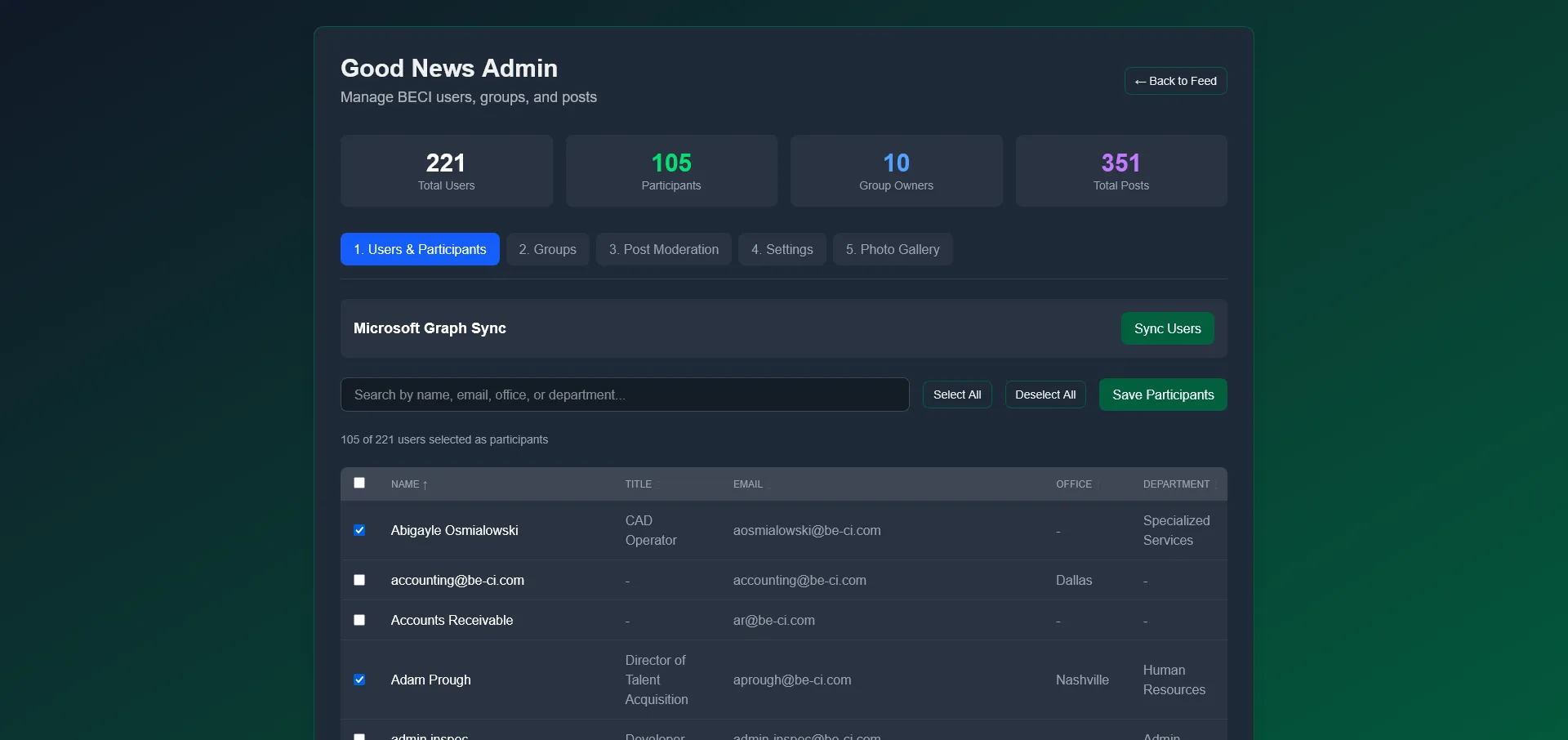
Section titled “Good News Admin (Administrators)”Administrators can manage Good News by clicking the Admin button that floats at the bottom of the Good News page. The admin panel shows a dashboard with key stats:
- Total Users — All users in the system
- Participants — Users currently selected to participate in Good News groups
- Group Owners — Number of group leaders
- Total Posts — Posts across all groups
The admin panel has five tabs:
| Tab | Description |
|---|---|
| 1. Users & Participants | Select which users participate in Good News. Search by name, email, office, or department. Shows each user’s name, title, email, office, and department. |
| 2. Groups | View and manage Good News groups and group owners |
| 3. Post Moderation | Review and moderate posts across all groups |
| 4. Settings | Configure Good News group settings |
| 5. Photo Gallery | Browse all photos shared across all groups |
Keeping the User List Current
Section titled “Keeping the User List Current”The user list comes from your organization’s Microsoft directory, so new joiners appear without anyone adding them by hand. Click Refresh, beside the filters on 1. Users & Participants, to re-read it — useful right after someone has been added to the directory.
Managing Participants
Section titled “Managing Participants”Not all users are automatically included in Good News. Administrators select participants using the checkbox list:
- Go to Good News Admin and stay on 1. Users & Participants.
- Use the search bar or the office, department, and role filters to find people.
- Use the Active toggle on a row to include or exclude that person.
For several people at once, tick the checkboxes in the left-hand column — the header checkbox selects everyone currently visible after filtering. A bulk action bar appears with Add to Participants, Remove from Participants, and Clear selection.
Best Practices
Section titled “Best Practices”- Post regularly — Even a short update keeps your group connected
- Add photos — Visual posts are more engaging and personal
- Comment on others’ posts — Show your teammates you’re reading and appreciate their updates
- Keep it positive — Good News is a space for celebrating wins, big and small
- Engage with your group — The more you participate, the more connected your group becomes
Troubleshooting
Section titled “Troubleshooting”I cannot comment on a post
Section titled “I cannot comment on a post”Solutions:
- Comments are an organization-wide setting an administrator controls. If they are switched off, no one can comment and the section does not appear.
- Ask your administrator whether comments are enabled.
I am not in a group
Section titled “I am not in a group”Solutions:
- Being in the directory is not the same as taking part. An administrator has to add you as a participant before you are assigned to a group.
- Groups are assigned in a batch, so you may be a participant but not yet placed. Ask your administrator to check.
A colleague is missing from the members list
Section titled “A colleague is missing from the members list”Solutions:
- New starters arrive with the directory sync. If someone joined recently, an administrator may need to run Sync directory from Tenant Administration.
- They may be in a different group. The list shows your group, named after its owner, not everyone in the organization.
Related Articles
Section titled “Related Articles”- Getting Started with GrndCtrl — Learn the basics of navigating the portal
- What’s Happening — Company news and announcements
- Good News Admin — For administrators: groups, participants, and settings