
Getting Started with GrndCtrl
Welcome to GrndCtrl! This guide will walk you through signing in for the first time, navigating the interface, personalizing your settings, and installing the app on your device so you can stay connected wherever you are.
Signing In
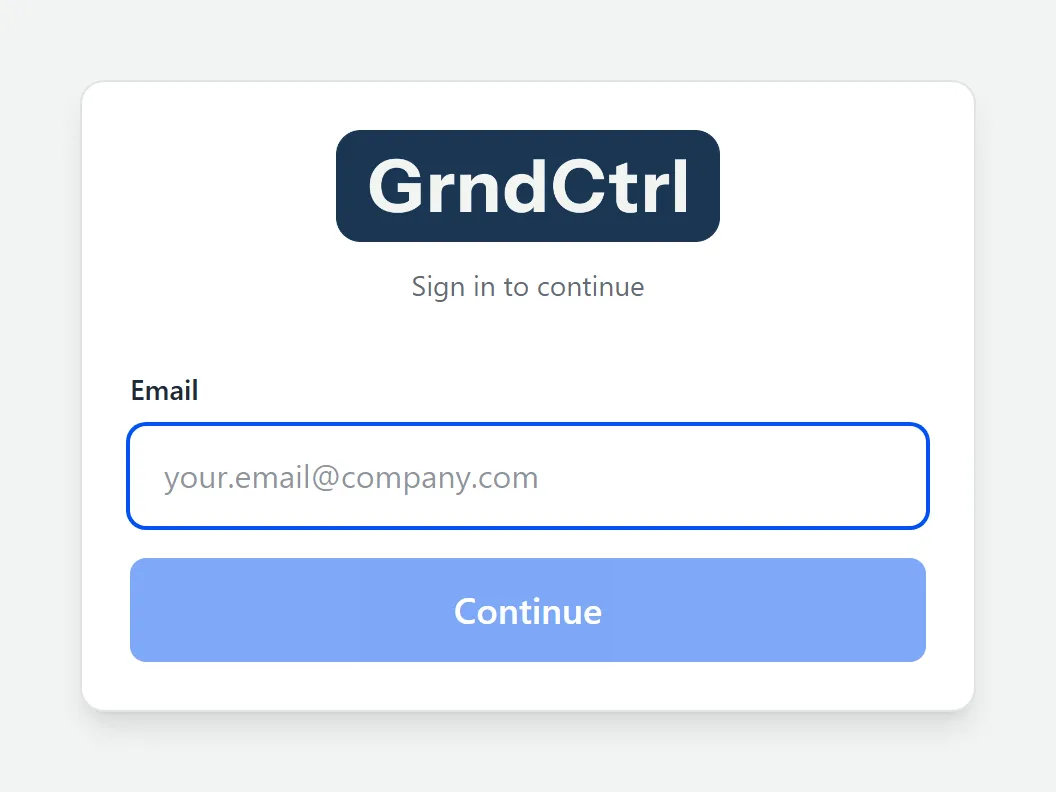
Section titled “Signing In”Sign-in is email first. You type your address, GrndCtrl works out how your organization signs in, and only then does it show you the right next step. There is no row of provider buttons on arrival — the page opens with a single Email field.
- Go to app.grndctrl.ai.
- Type your work address in the Email field and click Continue. The button reads Looking up… while GrndCtrl checks your email’s domain.
- What happens next depends on your organization — see the two paths below.
If Your Organization Uses Single Sign-On
Section titled “If Your Organization Uses Single Sign-On”You land on a short confirmation screen showing Signing in as and your address, with three choices:
| Choice | When to use it |
|---|---|
| Continue with {provider} | The normal path. The button names your organization’s provider — for example, Continue with Microsoft (BECI). Click it and you will see Redirecting to … sign-in before your provider takes over. |
| Sign in with a password instead | For an account that lives in GrndCtrl directly rather than in your company directory. Uncommon, but this is the door for it. |
| Use a different email | Takes you back to the first step. |
If Your Organization Does Not Use Single Sign-On
Section titled “If Your Organization Does Not Use Single Sign-On”You go straight to a password form. Your address is already filled into its Email field, with a Use a different email link beside it if you mistyped. Enter your Password — the eye icon (Show password) reveals it if you want to check what you typed — and click Sign In.
Your First Sign-In with a Temporary Password
Section titled “Your First Sign-In with a Temporary Password”If an administrator created your account, your first sign-in asks you to replace the temporary password before you can continue. You will see “Welcome! Set a permanent password for {your email} to finish signing in.”
Enter a New password and Confirm password, then click Set password & sign in. The hint under the field reads “At least 12 characters, with upper & lower case, a number, and a symbol.”
Using GrndCtrl in Microsoft Teams
Section titled “Using GrndCtrl in Microsoft Teams”GrndCtrl also runs inside Microsoft Teams. The sign-in steps are the same, with one difference: authentication opens in a popup window rather than redirecting the whole tab, and your Teams identity is used automatically.
If You Cannot Get In
Section titled “If You Cannot Get In”- Access Denied after signing in — you are signed in but not authorized for the page you landed on. See Why Can’t I See This Page?
- You expected single sign-on but got the password form — GrndCtrl found no sign-on provider for your email’s domain, so the domain is not yet mapped to your organization. Contact your administrator, or support@nxtconstruction.ai.
- “Passwords do not match.” or “Password must be at least 12 characters.” — the form is checking your new password before it submits it.
Finding Your Way Around
Section titled “Finding Your Way Around”Once you are in, there are two ways to get anywhere — and knowing both saves a lot of hunting.
- Your Home screen — a dashboard your organization arranges, holding the things they decided most people need.
- The App Drawer — the Apps button, a grid icon in the header of every page. It lists everything you have access to, whether or not it is on your Home screen.
The Home Screen
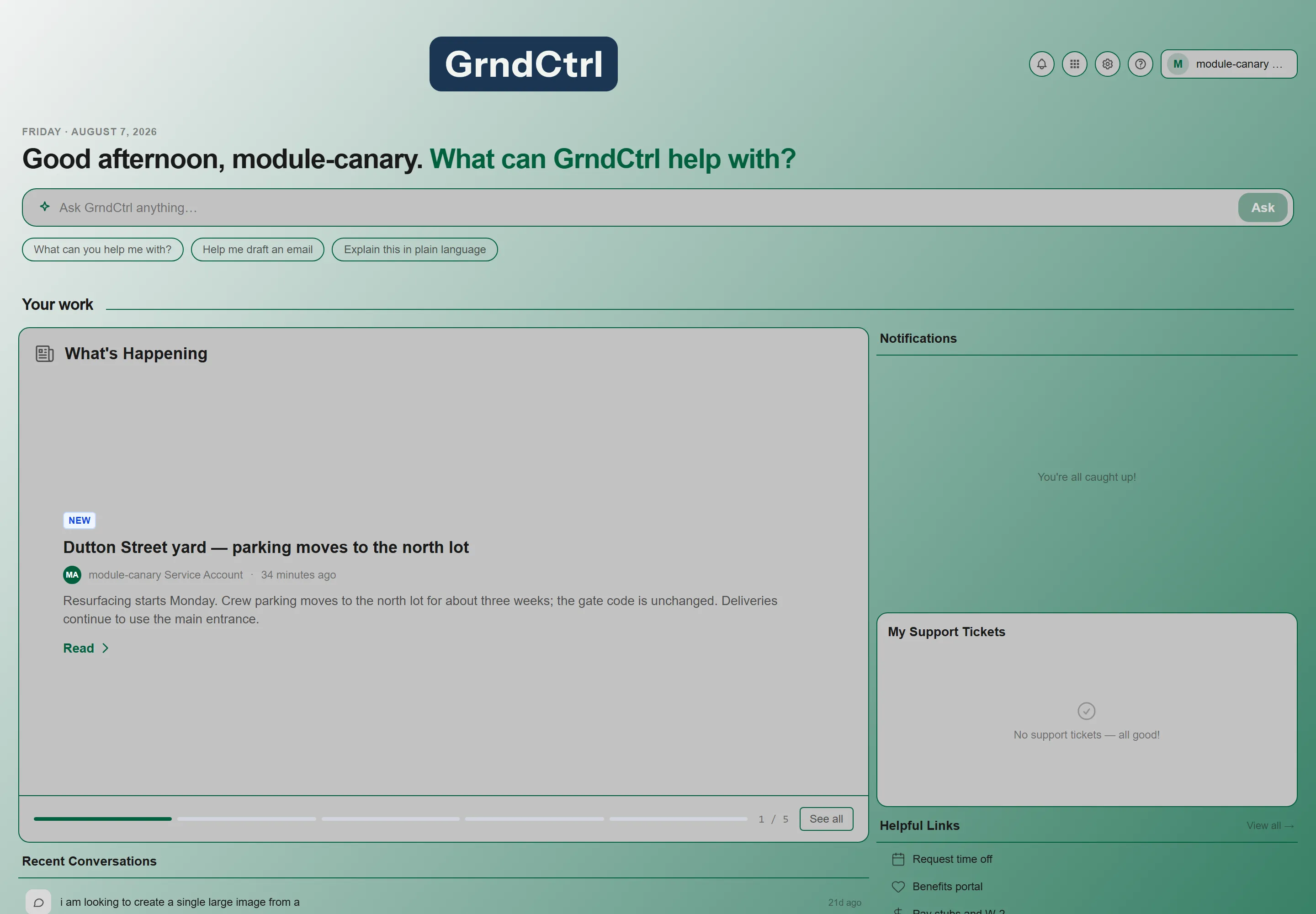
Section titled “The Home Screen”Your Home screen is built from widgets — self-contained cards, each doing one job. A tenant administrator chooses which widgets appear, how large they are, and how they are grouped, using the Dashboard Layout editor in Tenant Administration.
Widgets Your Administrator Can Place
Section titled “Widgets Your Administrator Can Place”This is the catalogue of what is available, not a description of your screen:
| Widget | What it shows |
|---|---|
| Hero Greeting | Personal greeting with a built-in Quick Ask input. |
| Quick Ask | Ask GrndCtrl a quick question; continue in chat. |
| Recent Conversations | Your latest chats, one click to resume. |
| Quick Access | Your most recently visited pages. |
| Notifications | Job updates and feedback activity at a glance. |
| What’s Happening | Company updates, announcements, and news feed. |
| Calendar | The company calendar as a compact tile. |
| Good News | Recent wins from the team. |
| Helpful Links | Important resources at a glance. |
| Feedback Highlights | Top product feedback requests. |
| Servant Leader Care Fund | Requests awaiting review and the open review cycle, for board members — or where to donate and request help for everyone else. |
| Recent Documents | Newest documents in My Docs or the tenant library. |
| My Support Tickets | Your support ticket statuses. |
| Quote Generator | Where your quotes stand — open, awaiting customer, won, and pipeline — with links into Quote Generator. |
| Usage Metrics | This week’s tenant activity (best placed admin-only). |
| Service Hub Queue | Filtered ticket queue from Service Hub — agents only. |
| Service Hub Chat | Describe what you need — get matched to a service or open a request. |
| Pipeline | Inspections sent (NSPEC), proposals sent (quote-gen) and projects started (NetSuite), year to date — click to ask chat. |
The Header
Section titled “The Header”Above your dashboard, the same header follows you across the product:
- Notifications (bell icon) — job updates and activity.
- Apps (grid icon) — the App Drawer.
- ? — Knowledge Base, Feedback Portal, and Submit a Ticket. Knowledge Base is how you get from the app to this Help Center.
- Account — your profile chip, with sign-out.
- Gear icon — a shortcut straight to Tenant Administration. Administrators only, on the Home screen.
If You Are an Administrator
Section titled “If You Are an Administrator”Administrators can reach these from the Apps button:
- Tenant Administration — users, groups, extensions, dashboard layout, and GrndCtrl Access
- App Store — turn apps on and off for your organization
- Document Library — everything your assistant can read
- Integrations Hub — connected systems and composite tables
- Conversation Analytics — how the assistant is being used
- Message Analysis and Admin Chat — decision tracking and diagnostics
- Prompt Management — the AI system prompt and tenant policies
- Tenant Branding — logos, colors, and theme
Chat Page Navigation
Section titled “Chat Page Navigation”The chat pages put their own controls into the platform header rather than carrying a separate toolbar of their own. The one you will use most is the gear icon, which opens Customize Responses — covered next.
Using the AI Chat
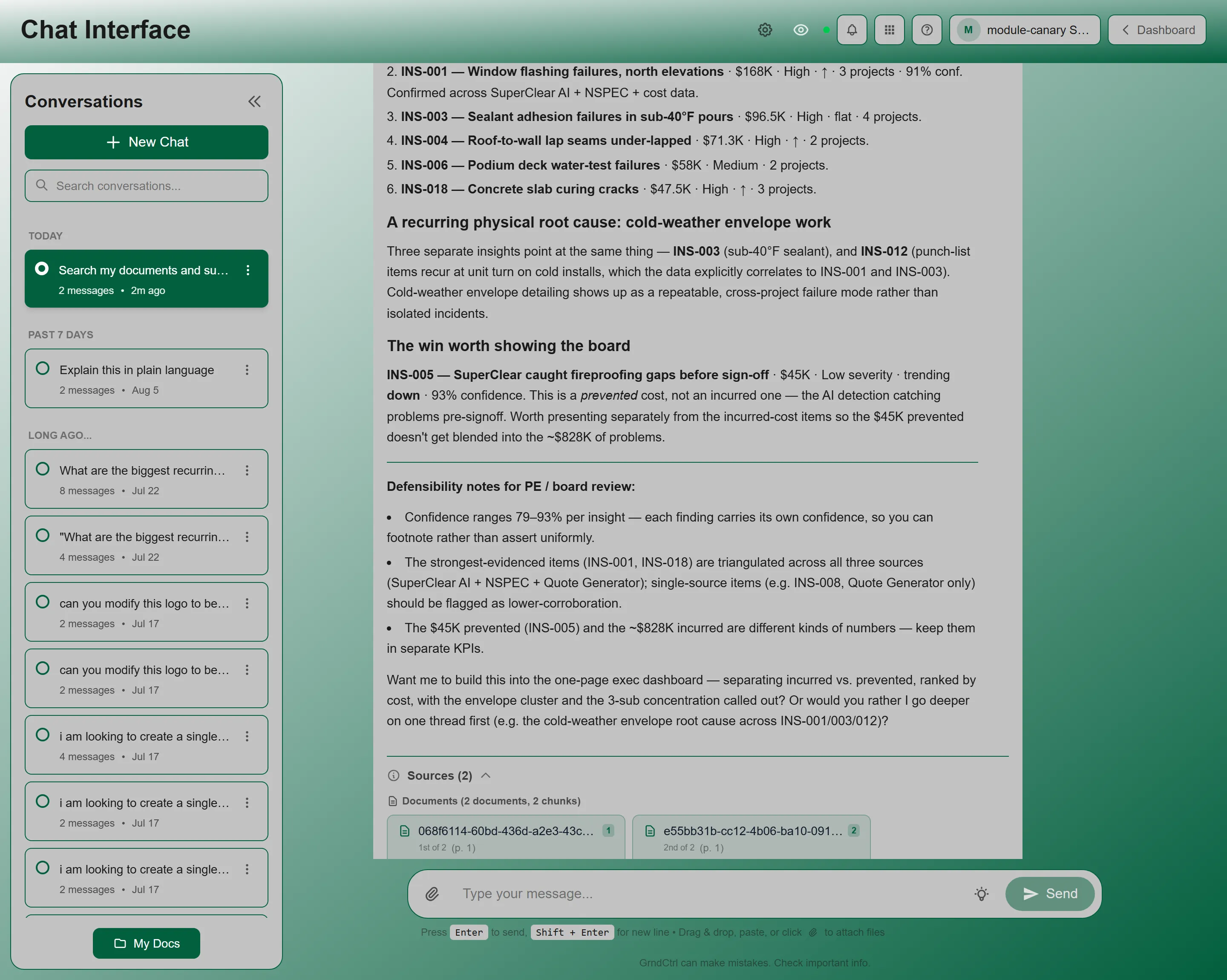
Section titled “Using the AI Chat”One of the first things you’ll notice is the Chat Interface. This is your AI-powered assistant that can answer questions using your company’s documents as a knowledge base.
Asking a Question
Section titled “Asking a Question”- Navigate to the Chat Interface from the Home screen.
- Type your question in the chat input field (e.g., “What is our PTO policy?” or “Where do I find the expense report form?”).
- Press Enter or click the send button.
- The AI will search your company’s documents and provide a relevant answer.
The AI uses semantic search, which means it understands the meaning behind your question — you don’t need to use exact keywords. Ask questions naturally, the same way you would ask a colleague.
Personalizing Your Settings
Section titled “Personalizing Your Settings”You can change how the AI assistant writes, how hard it thinks, and what it knows about you.
AI Chat Preferences
Section titled “AI Chat Preferences”- Open a chat page.
- Click the gear icon in the header to open Customize Responses.
- Adjust what you want, then click Apply to save. Cancel discards your edits.
There are twelve settings, covering the model, how long and how formal answers are, what the assistant calls you, and your timezone. Each one is described in full in Customizing AI Responses.
Exploring Key Features
Section titled “Exploring Key Features”Here’s a quick walkthrough of the features you’ll use most often:
Check What’s Happening
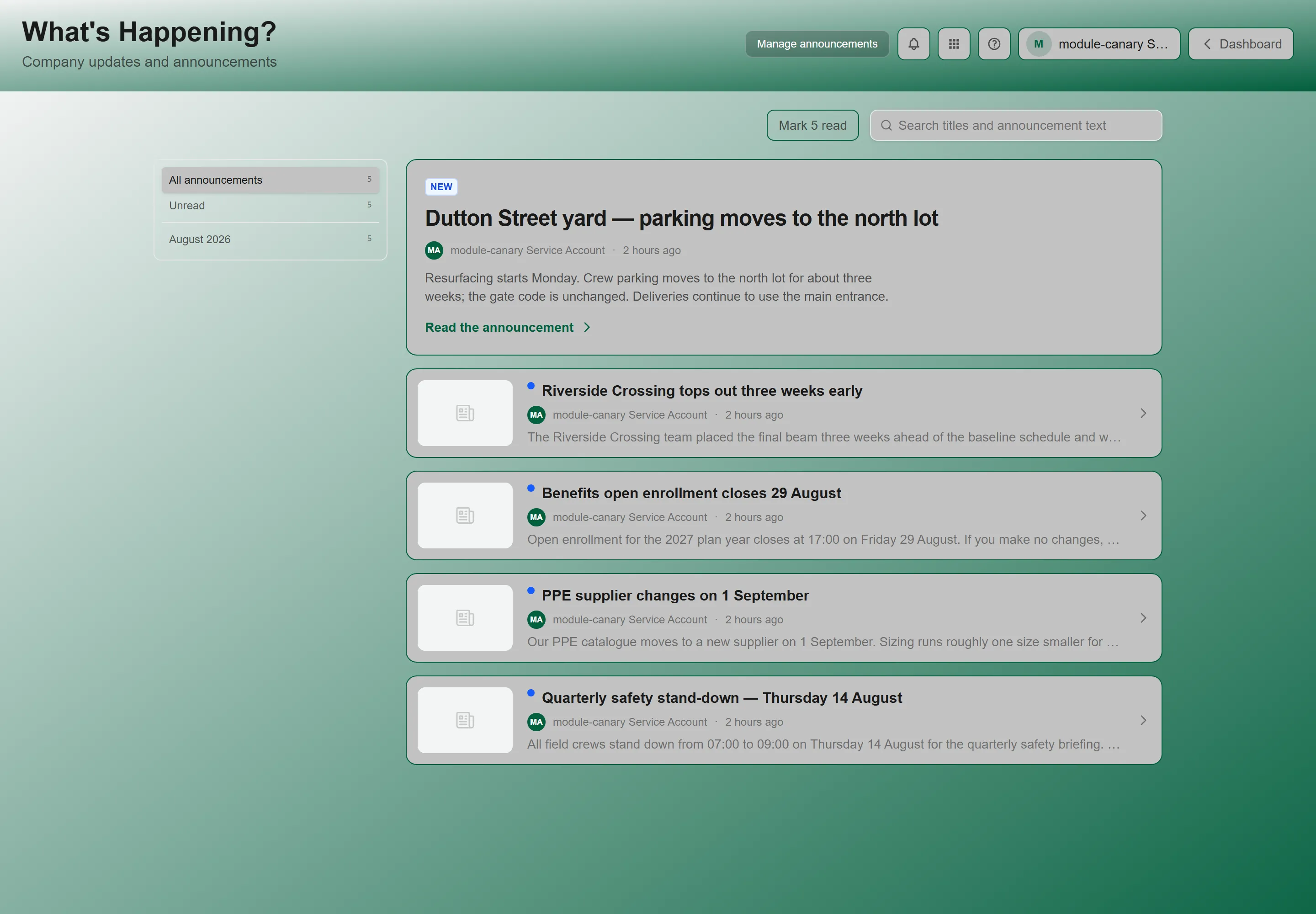
Section titled “Check What’s Happening”- Open What’s Happening — from the Apps button in the header, or from its widget on your Home screen.
- Browse the latest company news and announcements.
- Posts include rich text, images, and links from your administrators.
- For company events, holidays, and pay dates, open Company Calendar — it is its own page, not a tab of What’s Happening.
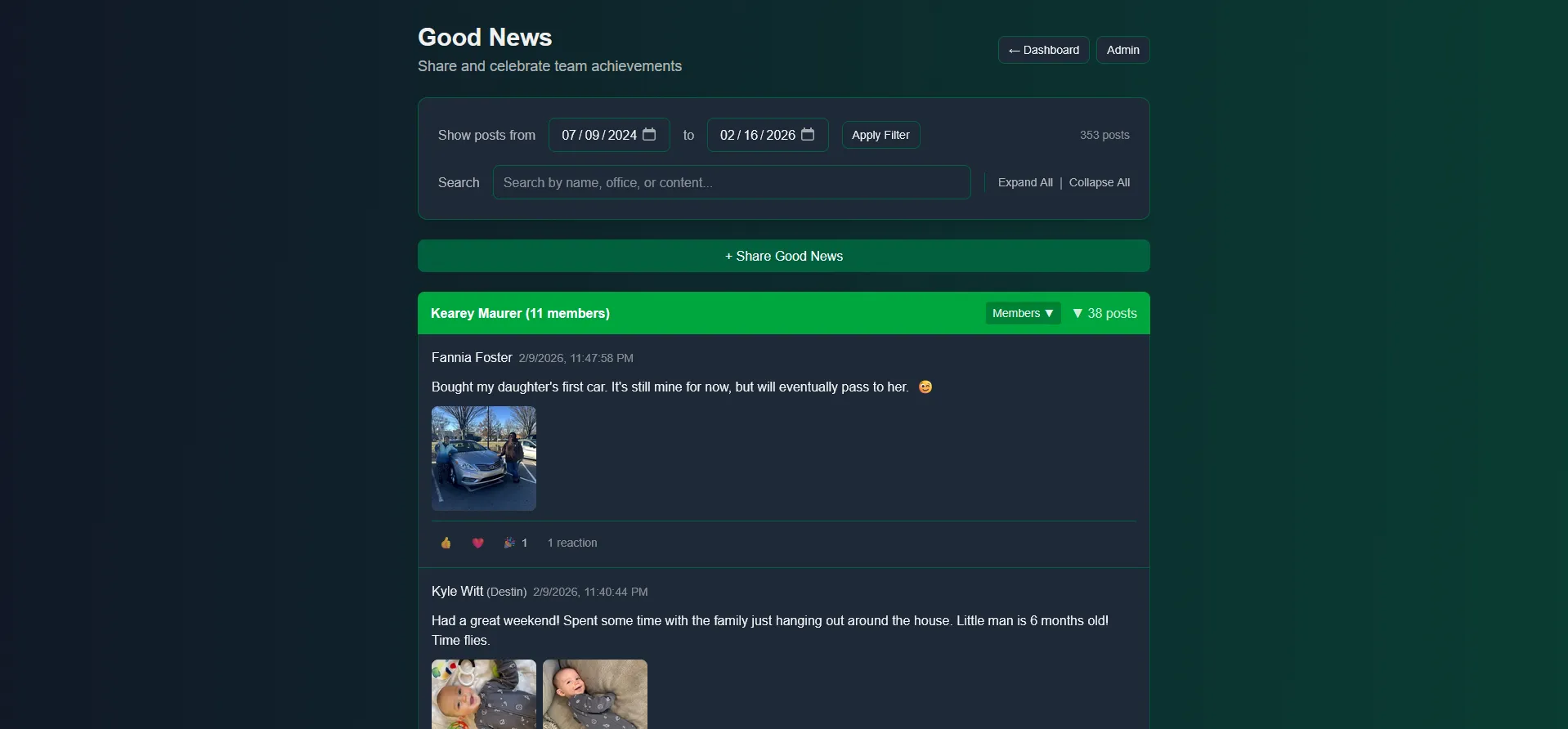
Share Good News
Section titled “Share Good News”- Open Good News — from the Apps button in the header, or from its widget on your Home screen.
- You’ll see your assigned group (named after the group owner) with approximately 10 members.
- Click Share Good News to open the post form.
- Add text, optionally attach photos, and click Post.
- Your post will be visible to everyone in your group.
Tip: Good News is a great way to connect with colleagues you don’t normally work with day-to-day.
Find Helpful Links
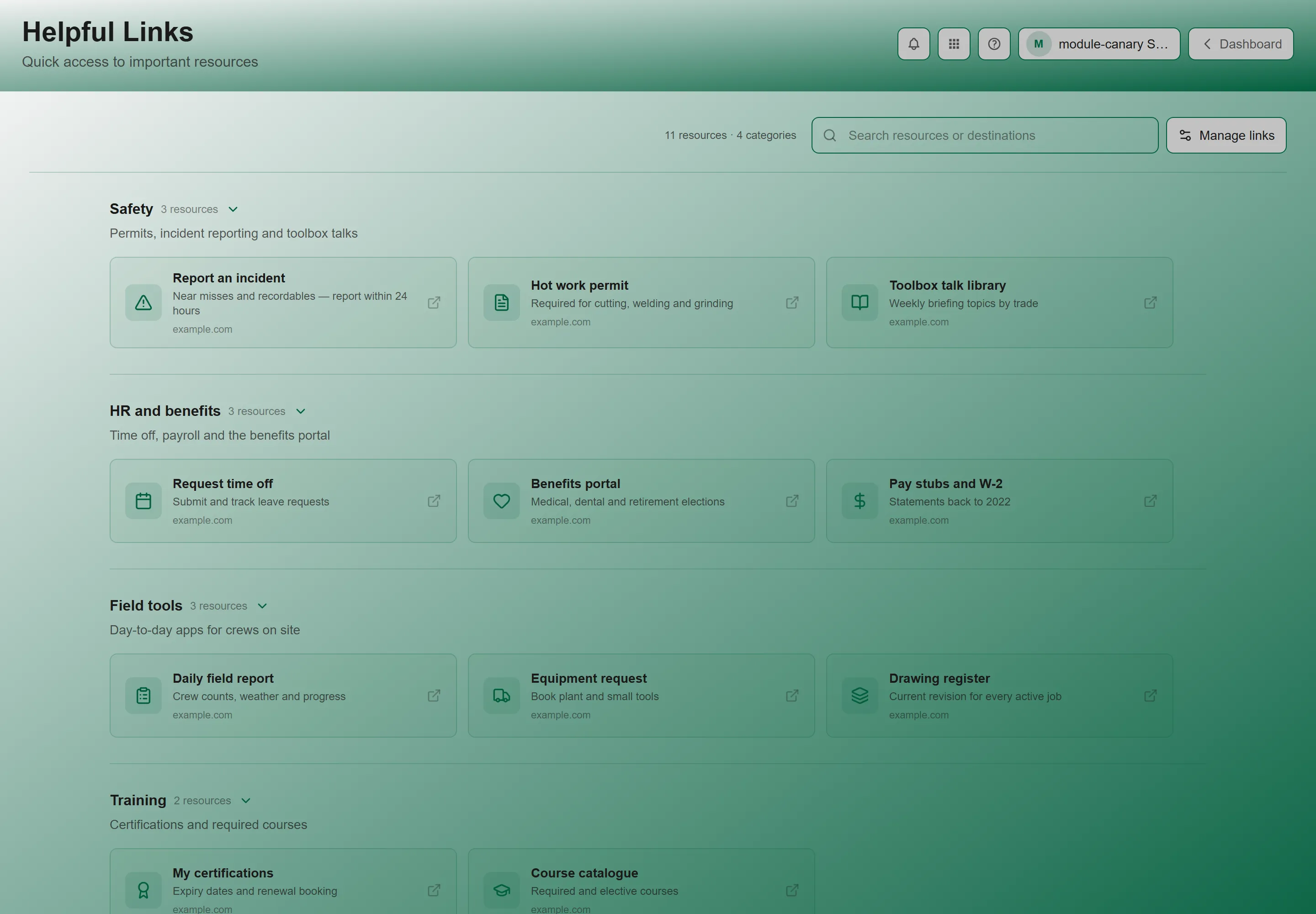
Section titled “Find Helpful Links”- Open Helpful Links — from the Apps button in the header, or from its widget on your Home screen.
- Browse links organized by category (e.g., Human Resources, Finance, Production, Sales).
- Click any link to open the resource in a new tab.
Common resources include BambooHR, NetSuite, Salesforce, employee store, benefits portals, and more — all in one place instead of bookmarking dozens of URLs.
Submit Feedback
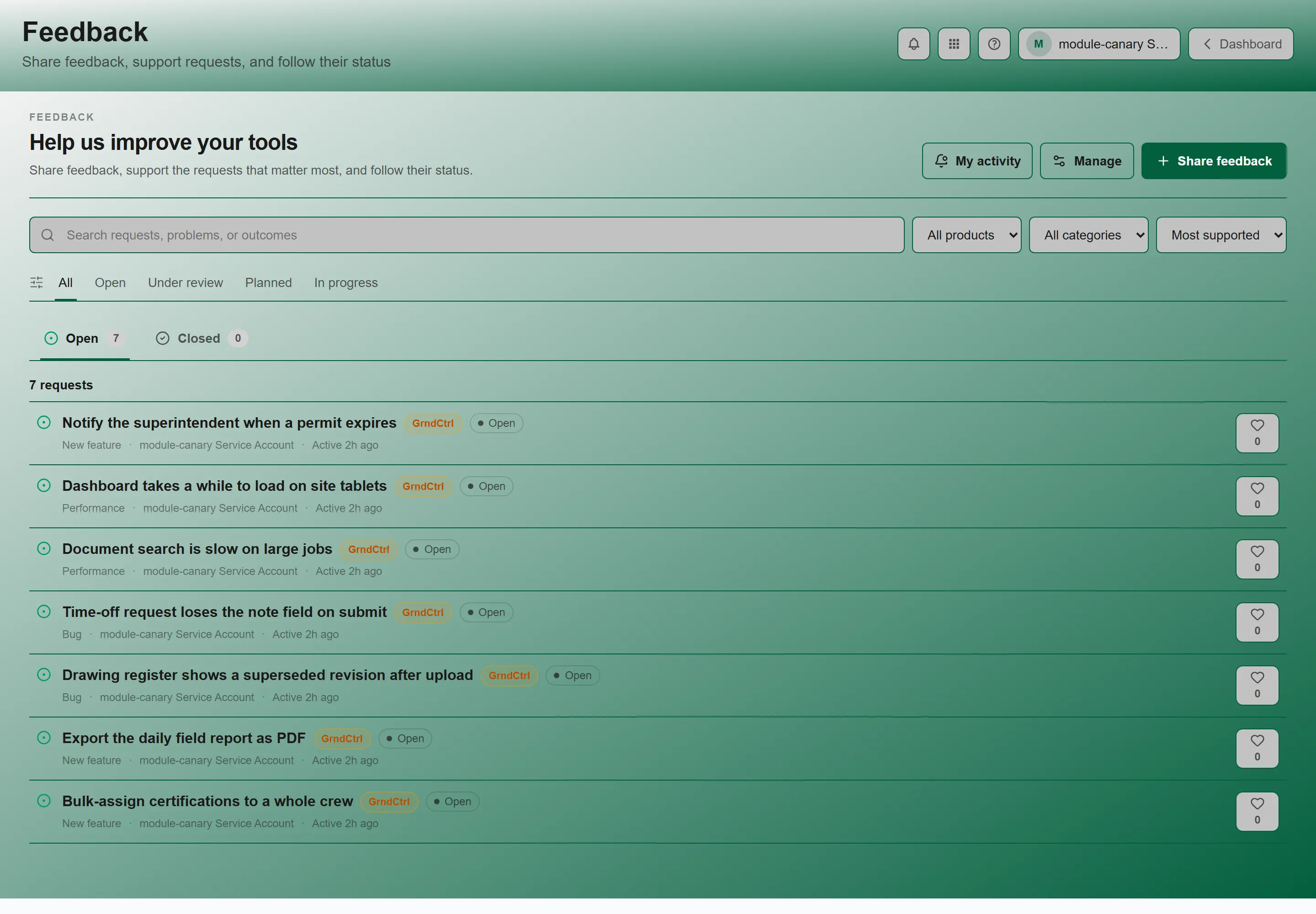
Section titled “Submit Feedback”- Open Feedback — from the Apps button in the header, or from its widget on your Home screen.
- Select a product: NSPEC, SuperClear AI, or GrndCtrl.
- Browse existing suggestions and vote on ones you support.
- Click Share feedback to add a new idea.
- Choose a category — New feature, Bug, or Performance — and describe your idea.
Installing on Your Device
Section titled “Installing on Your Device”GrndCtrl is a Progressive Web App (PWA), which means you can install it on your phone, tablet, or desktop for quick access — the same as a native app.
To add the assistant on its own, as GrndCtrl Chat, see GrndCtrl Chat: The Assistant in Its Own Window.
iPhone / iPad (Safari)
Section titled “iPhone / iPad (Safari)”- Open app.grndctrl.ai in Safari.
- Tap the Share button (square with upward arrow).
- Scroll down and tap Add to Home Screen.
- Tap Add to confirm.
Android (Chrome)
Section titled “Android (Chrome)”- Open app.grndctrl.ai in Chrome.
- Tap the menu (three dots in the top-right corner).
- Tap Install App or Add to Home Screen.
- Tap Install to confirm.
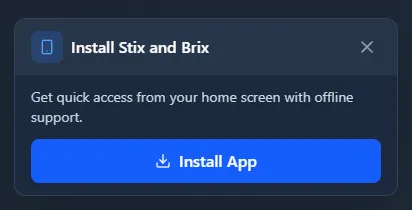
You may also see an Install App banner at the bottom of the screen when you first visit. Tap it for a quick install.
Desktop (Chrome / Edge)
Section titled “Desktop (Chrome / Edge)”- Open app.grndctrl.ai in Chrome or Edge.
- Look for the Install icon in the address bar (a monitor with a download arrow).
- Click Install.
- GrndCtrl will open as a standalone window and appear in your taskbar or dock.
Dark Mode
Section titled “Dark Mode”GrndCtrl supports dark mode. The app automatically follows your device’s system theme setting:
- Light mode — When your device is set to light theme
- Dark mode — When your device is set to dark theme
To switch themes, change your operating system’s display settings (e.g., Settings > Display > Dark mode on Android, or Settings > Display & Brightness on iOS).
Quick Start Checklist
Section titled “Quick Start Checklist”- Signed in (Microsoft SSO, Google, or email/password)
- Explored the widgets on your Home screen
- Read the latest What’s Happening announcements
- Viewed your Good News group
- Browsed Helpful Links
- Asked the AI Chat a question
- Reviewed your AI preferences in Customize Responses
- Installed GrndCtrl on your device (optional)
Troubleshooting First Login
Section titled “Troubleshooting First Login”I see a “No Access” page after signing in
Section titled “I see a “No Access” page after signing in”Problem: You signed in successfully but cannot access the portal.
Solutions:
- Your email domain may not be mapped to your organization’s tenant — contact your administrator
- Verify you are signing in with your company email, not a personal Microsoft or Google account
- If you signed in with Google, your account may be awaiting approval — an
administrator approves it in Tenant Administration → Users, where your row carries
the
google_pendingbadge - Try clearing your browser cache and signing in again
Microsoft SSO login fails
Section titled “Microsoft SSO login fails”Problem: Error during the Microsoft sign-in process.
Solutions:
- Ensure you are using a supported browser (Chrome, Safari, Firefox, or Edge)
- Check that pop-ups are not blocked for the sign-in page
- Try signing in from an incognito/private window to rule out extension conflicts
- Contact your IT department if the issue persists — they may need to authorize the application in your organization’s Azure AD
Page loads but shows a blank screen
Section titled “Page loads but shows a blank screen”Problem: The app loads but nothing appears.
Solutions:
- Hard-refresh the page (
Ctrl+Shift+Ron Windows orCmd+Shift+Ron Mac) - Clear your browser cache and cookies for app.grndctrl.ai
- Try a different browser
- If using the installed PWA, uninstall and reinstall it
Getting Help
Section titled “Getting Help”If you continue to experience issues:
- Contact your organization’s GrndCtrl administrator.
- Email support at support@nxtconstruction.ai.
Next Steps
Section titled “Next Steps”Now that you’re set up, explore these features in more detail:
- What’s Happening — Learn about announcements, the calendar, and how content is managed
- Good News — Share positive updates and connect with your group
- Helpful Links — Find all your company resources in one place
- Feedback Portal — Submit ideas and support feature requests
- Documents and AI Chat — Search documents and use the AI assistant
Related Articles
Section titled “Related Articles”- What is GrndCtrl? — What the platform is for, before you start using it
- Finding and Opening Your Apps — Where everything lives, and how to reach it
- Getting Access to Apps and Extensions — Why a feature might be missing, and the three things that have to be true
- GrndCtrl Frequently Asked Questions — Short answers about signing in, mobile, security, and settings
- Why Can’t I See This Page? — “Access Denied”, missing pages, and what to ask your administrator
- Submit a Support Ticket — Raising a support request and tracking its status
Need more help? Contact our support team at support@nxtconstruction.ai or check out our FAQ section.