
Optional Units and Lines
An optional row is one the customer may decline. It prints on the proposal with its price, and it is left out of the Total until the customer takes it. This article shows an estimator how to mark a row optional, how to decide which options go out already ticked, and what the customer sees.
What Optional Means
Section titled “What Optional Means”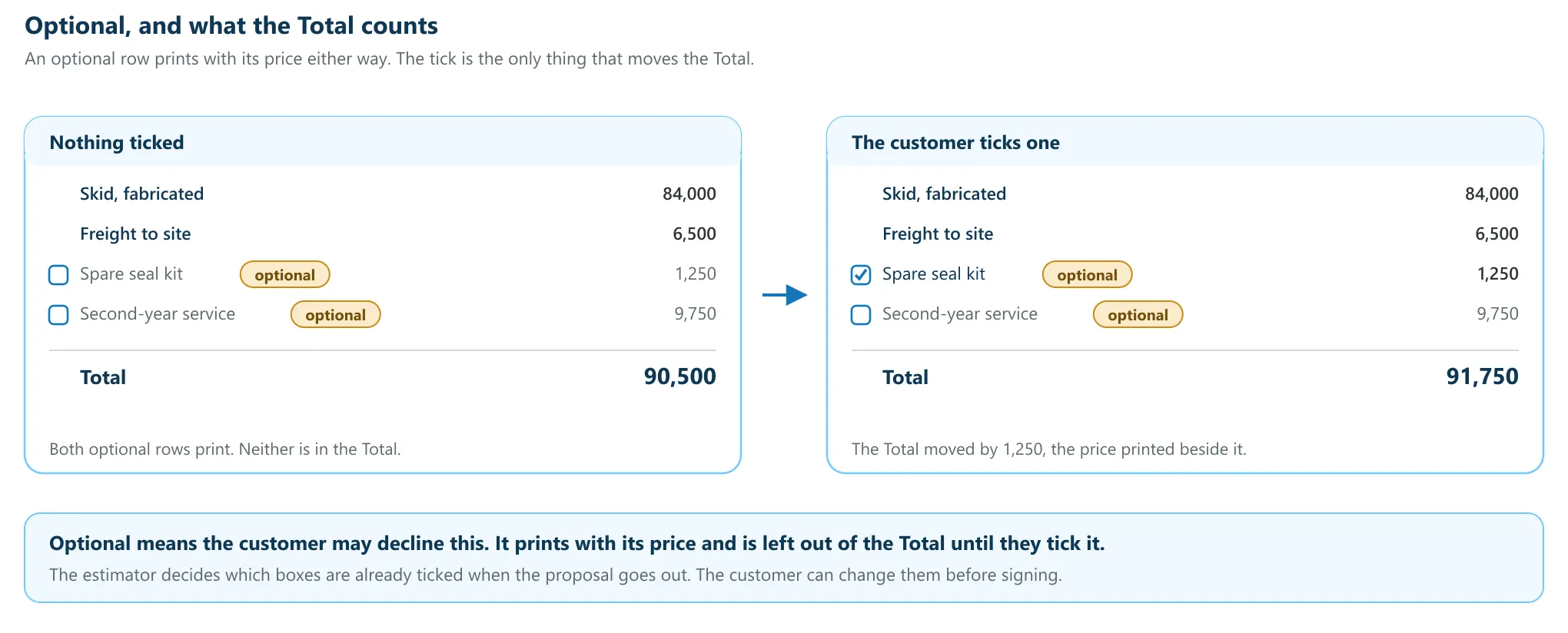
Optional means the customer may decline this. It prints with its price and is left out of the Total until they tick it.
That is the whole rule, and two consequences follow from it. The price printed beside an option is exactly what the Total moves by when it is taken, so a customer can read the cost of a choice without asking. And the rows on screen can add up to more than the Total. The quote says as much in its own legend: “an optional row prints with its price and is left out of the Total until it is taken, so the rows on screen can sum to more than the Total and still be right”.
Marking a Row Optional
Section titled “Marking a Row Optional”There are two grains, and they do the same thing at different sizes. Both work on every kind of quote: a fabricated unit, a product from a fee menu and a distance-rated move all carry the same control.
- Open the quote, click Edit Quote, and find the unit or the line you want to offer.
- Tick Optional. On a unit the control sits beside the unit’s name; on a line it sits on the line’s own row.
- A tick box appears at the start of the row. That second box is the choice itself: whether this option is taken.
The two boxes answer different questions and it is worth keeping them apart. Optional decides whether the customer gets a choice at all, and its own label spells that out: “Customer may decline” this row. The box at the start of the row is the choice itself, and reads “Include” this row “in this quote”.
Clearing Optional takes the row back into the quote. A row that is not optional cannot be declined, so the product will not leave you with a row that is neither offered nor included: offered-and-untaken is a state, and not-offered-and-untaken is refused, and the refusal names the control that fixes it.
Nothing already on a quote changes when this ships. A row is not optional unless somebody marks it, and a row that is marked optional is taken unless somebody unticks it, so a quote built before you started using options prints exactly as it did.
Deciding What Goes Out Already Ticked
Section titled “Deciding What Goes Out Already Ticked”The tick has a value before the customer ever sees it, and the estimator sets it. A row that goes out ticked is in the Total on the proposal the customer opens, and they can untick it. A row that goes out unticked prints with its price and is not in the Total, and they can tick it.
Use the difference deliberately:
- Ticked for what you expect them to take, and what your price assumes. A spare kit you would normally include, a commissioning visit.
- Unticked for a genuine upsell, an alternate, or anything you want them to have to choose.
What the Customer Sees
Section titled “What the Customer Sees”On the proposal, an option prints as a box beside its description, filled or empty to match the tick state you sent, with its price beside it either way. The Total counts the filled boxes.
On the canvas the rule is printed under the Total, so a Total that looks low explains itself: “offered and not taken, excluded”, with the count. A row that is not taken stays as easy to read as any other: its box is unticked, its subtotal is not bold, and “not taken” sits under the subtotal.
On the signing page the customer can change any of them before they accept, and the total they sign to follows their choices. An offered line is listed under its unit’s name, so two identically worded rows on one quote stay tellable apart. What they chose is recorded with the acceptance, and a row they declined is named on the certificate with the amount it removed, so the executed document says which options were taken and what each one was worth. See Reviewing and Signing a Proposal.
Unit or Line?
Section titled “Unit or Line?”| Offer | Mark | Why |
|---|---|---|
| A whole second skid the customer may or may not want | The unit | Declining it takes its entire parts list out of the Total in one move. |
| An upgrade inside a unit they are definitely buying | The line | The unit stays in the quote; only the upgrade is in question. |
| A spare parts package | Either, and pick for the paper | Mark the unit where you want one line on the proposal; mark the lines where you want the customer to pick among them. |
Troubleshooting
Section titled “Troubleshooting”The rows add up to more than the Total
Section titled “The rows add up to more than the Total”That is what an untaken option looks like, and it is correct. An optional row prints with its price and is left out of the Total until it is taken.
I cannot find the Optional control
Section titled “I cannot find the Optional control”It is on the lines, not on the quote’s overview: click Edit Quote. It is not drawn on the customer view, and it is not drawn on a quote you cannot edit, because the stage no longer allows edits or you do not hold the Edit quotes permission.
A row will not untick
Section titled “A row will not untick”Only an optional row can be declined. Tick Optional on the row first; the choice box appears with it.
A unit has the Optional control but its lines do not
Section titled “A unit has the Optional control but its lines do not”That quote prices each product whole, so an individual line inside it has no price to remove. Offer the unit, or split what you want to make optional into its own unit.
The proposal went out with the wrong options ticked
Section titled “The proposal went out with the wrong options ticked”A sent proposal is sealed. Correct the ticks on the quote and send again; the customer gets a new document, and the delivery record shows both.