
Prompt Management
Prompt Management lets administrators view and customize the AI prompts and policies that control how the GrndCtrl chatbot responds for your organization. You can review the base system prompt (read-only), edit tenant-specific policies, and monitor token usage. Edits reach new conversations within about five minutes.
Accessing Prompt Management
Section titled “Accessing Prompt Management”Click the Apps button — the grid icon in the header, available on every page — and choose Prompt Management. See Finding and Opening Your Apps if it is not listed there.
The page loads with three collapsible sections: Prompt Statistics, System Prompt, and Tenant Policies.
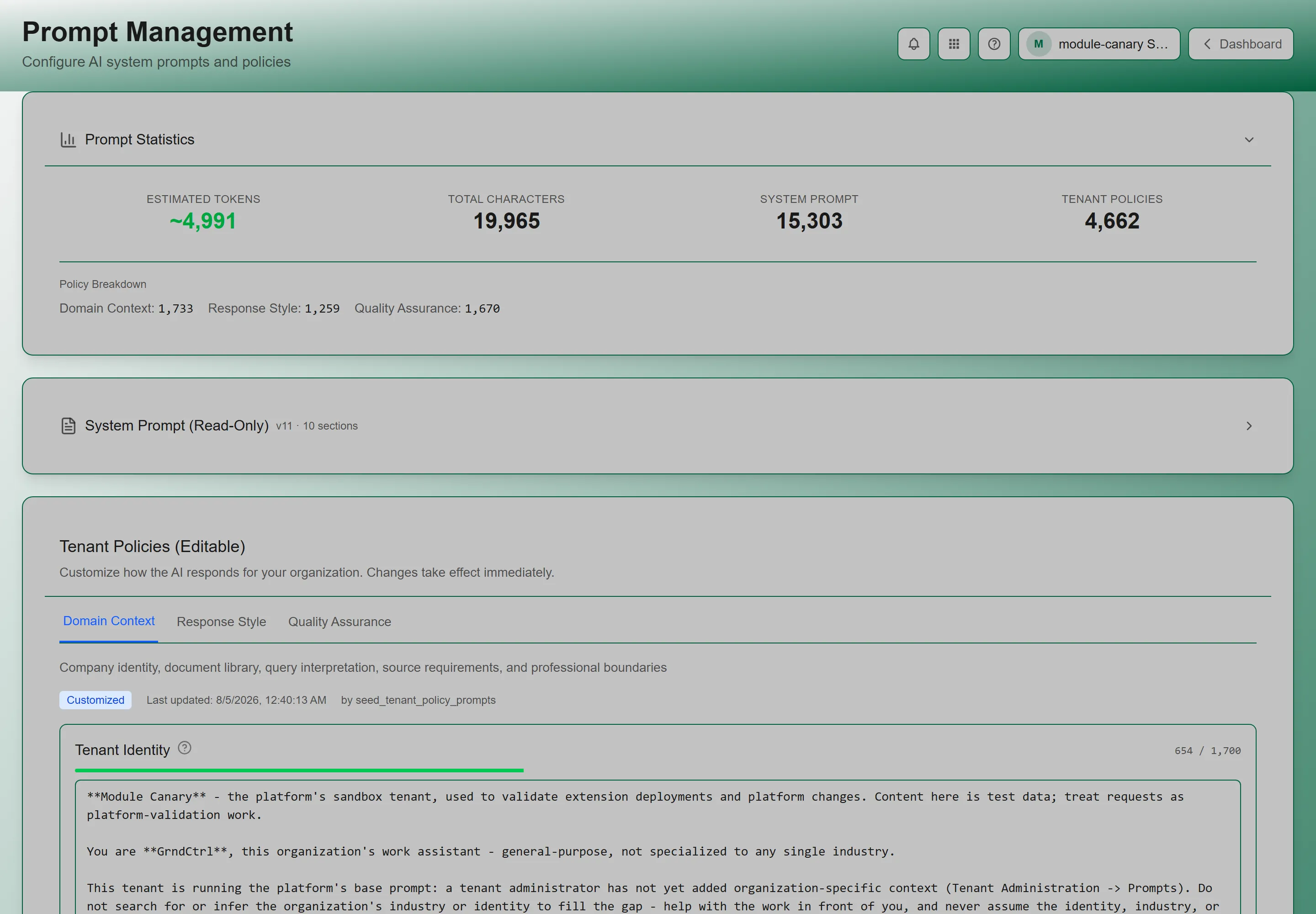
Prompt Statistics
Section titled “Prompt Statistics”Click the Prompt Statistics section header to expand it. This panel shows token and character usage at a glance:
| Metric | Description | Color Coding |
|---|---|---|
| Estimated Tokens | Approximate token count for the full prompt | Green (<50k), Amber (<75k), Red (≥75k) |
| Total Characters | Combined character count across system prompt and policies | - |
| System Prompt | Character count of the base system prompt | - |
| Tenant Policies | Character count of all tenant policy text | - |
Below the cards, a Policy Breakdown shows the character count for each of the three policies: Domain Context, Response Style, and Quality Assurance.
System Prompt (Read-Only)
Section titled “System Prompt (Read-Only)”The System Prompt section shows the base prompt that drives the AI. This prompt is managed by NXT and cannot be edited by tenant admins.
- The header shows the prompt version and the number of sections
- Each section is listed with its name and content
- The
{client_policies}placeholder in the system prompt is where your tenant policies get injected
Tenant Policies (Editable)
Section titled “Tenant Policies (Editable)”This is where you customize how the AI responds for your organization. There are three policy sections, each containing editable text elements:
Each policy holds a fixed set of named elements — eleven in total. Every element is a block of free text with its own character limit, and the limit is shown as you type.
Domain Context
Section titled “Domain Context”Who your organization is, and how the assistant should read your questions.
| Element | What it sets |
|---|---|
| Tenant Identity | Your organization’s identity, expertise, and core services — this shapes how the assistant introduces itself. |
| Document Library | Your repository structure and key folders, so the assistant can navigate your knowledge base. |
| Query Interpretation | How to read ambiguous or industry-specific questions — common patterns and your interpretation rules. |
| Source Requirements | When citations are required and what format they take. |
| Professional Boundaries | When the assistant should recommend consulting a licensed professional instead of answering. |
Response Style
Section titled “Response Style”| Element | What it sets |
|---|---|
| Tone & Language | Communication style, formality, and the domain terminology to use naturally. |
| Response Structure | How different kinds of answer are organized — diagnostics, technical questions, general enquiries. |
| Brand Voice | Your preferred phrases and communication personality, with examples of on-brand language. |
Quality Assurance
Section titled “Quality Assurance”| Element | What it sets |
|---|---|
| Ethical Standards | What must be true before the assistant delivers sensitive recommendations. |
| High-Stakes Topics | Subjects that require elevated validation — safety-critical, legally sensitive, or liability-affecting. This is the list to edit if you want the assistant to be more careful about a particular subject. |
| Disclaimer Template | The standard disclaimer for safety-critical recommendations, and when it is applied. |
Editing a Policy
Section titled “Editing a Policy”- Expand the Tenant Policies section.
- Click on the policy element you want to edit (e.g., Tenant Identity).
- Modify the text in the textarea — a character counter shows
{current}/{max}. - Click Save Changes to apply (the button appears when changes are detected).
- Changes reach new conversations within about five minutes — policies are cached per organization, so an edit is not instant. Existing conversations are unaffected either way.
Troubleshooting
Section titled “Troubleshooting”I can’t find Prompt Management
Section titled “I can’t find Prompt Management”Solutions:
- You need tenant administrator or developer administrator permissions. Contact your administrator.
- Your Home screen may not have a card for it. Use the Apps button — the grid icon in the header — which lists everything you can reach.
Token count is in the red zone
Section titled “Token count is in the red zone”Solutions:
- Your combined policies are very large (≥75k tokens). This can slow down AI responses and increase costs.
- Review each policy section and trim unnecessary text — focus on the most important guidelines
- Remove duplicated instructions across policies
My policy changes don’t seem to affect responses
Section titled “My policy changes don’t seem to affect responses”Solutions:
- Policy changes apply to new conversations only — they don’t retroactively change existing chat threads
- Start a new chat to test your updated policies
- Make sure you clicked Save Changes — if the button is still visible, the change hasn’t been saved yet