
Administering Key Management
This article is for administrators of Key Management. It covers assigning roles, connecting integrations to stored credentials, and reading the audit trail. For storing and rotating secrets day to day, see Storing Secrets with Key Management.
The Four Roles
Section titled “The Four Roles”Everything an account can do in Key Management comes from one of four roles, assigned in Settings:
| Role | What it is for |
|---|---|
| Secrets Administrator | Full control — reveal, rotate and edit any secret, manage connections and assign roles |
| Secret Owner | Full control of the secrets they are named on, and creation of new ones |
| Secret User | The base level — see the list and its metadata, without revealing values |
| Auditor | Read the audit trail without the ability to change anything |
Assigning a Role
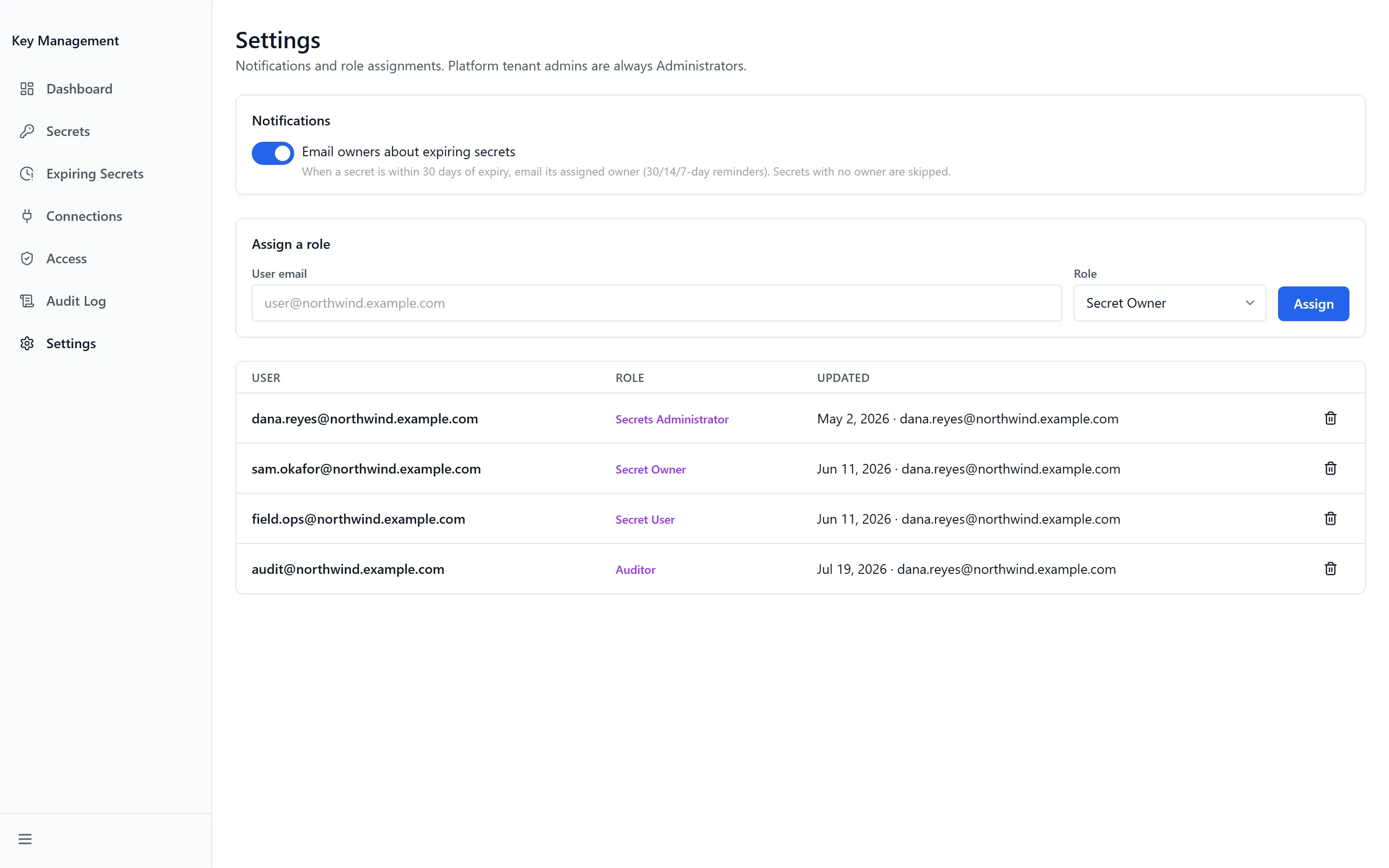
Section titled “Assigning a Role”- Open Settings in the sidebar.
- Under Assign a role, enter the person’s address in User email.
- Choose a Role.
- Click Assign. A confirmation reads “Role assigned” and the table below updates.
The table lists every assignment with User, Role and Updated, showing who made the change. Before any assignment exists it reads “No role assignments yet”. Leaving the email blank returns “An email is required.”
Remove an assignment with the delete button on its row. The confirmation “Remove role assignment?” explains the consequence — “{email} will revert to the base Secret User access.” Removal does not remove the person from the app; it drops them to the base level.
Expiry Notifications
Section titled “Expiry Notifications”Settings opens with a Notifications panel holding a single switch — Email owners about expiring secrets. Its help text is the whole behaviour: “When a secret is within 30 days of expiry, email its assigned owner (30/14/7-day reminders). Secrets with no owner are skipped.”
Turning it on saves immediately and confirms with “Settings saved”. If the save fails the switch returns to its previous position and reports “Could not save settings”, so what you see always reflects what is stored.
Connections
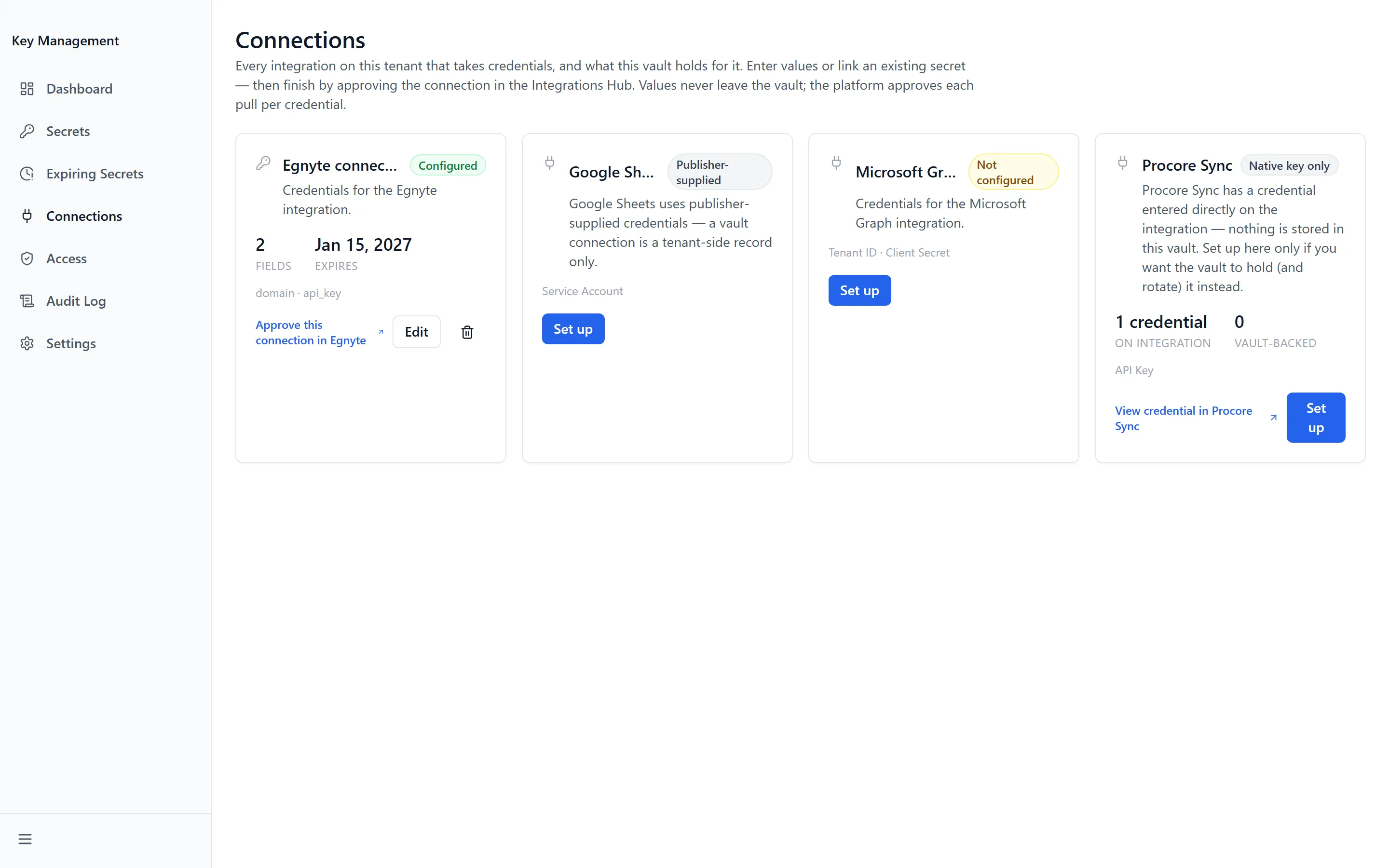
Section titled “Connections”Connections is the directory of every integration on the tenant that takes credentials, described as “Every integration on this tenant that takes credentials, and what this vault holds for it.” One card per integration, whether or not anything is stored for it yet.
Each card carries a status:
- Configured — this vault holds credentials for it
- Linked to secret — pointed at an existing secret rather than its own values
- Not configured — nothing stored, nothing linked
- Native key only — the credential was entered on the integration itself, not here
- Publisher-supplied — the integration brings its own credentials
- Disabled, or an expiry badge, where one applies
Setting up a connection
Section titled “Setting up a connection”- Click Set up on the integration’s card. A dialog opens, titled with the integration’s name.
- Leave Credential source on Enter values.
- Enter a Display Name, choose an Environment, and optionally set an Expiration Date.
- Fill in every field under Credentials. The integration declares which ones it needs.
- Click Save Connection. A confirmation reads “Connection saved”.
- Click Approve this connection in {integration} on the card to finish in the Integrations Hub.
Linking an existing secret
Section titled “Linking an existing secret”Rather than re-entering a credential you already store, point the integration at it. Set Credential source to Use an existing secret and pick from Secret. As the hint says, “Enter new values, or point this integration at a secret already stored in the vault (no copy is made).” Click Link Secret to record it.
The dialog lists what the integration expects, and warns before you commit if the chosen secret does not carry those fields — “This secret’s fields ({fields}) don’t cover what {integration} expects — it likely won’t work.” A secret holding one opaque value cannot be checked at all, and says so. Either way, the dialog is explicit that “Verify in the Integrations Hub is the real test.”
Editing and unassigning
Section titled “Editing and unassigning”Edit reopens a configured card. Credential values are never read back — “Credential values are never shown. Leave blank to keep the current credentials, or re-enter them all to replace.” Changing the name or expiry alone is fine; replacing credentials means filling in every field.
Assigned credentials at the top of the dialog lists everything currently satisfying the card. Unassign removes one entry; Unassign all returns the card to Not configured. A credential already live on the integration shows Manage in hub instead, because revoking a serving credential happens on the integration’s own page.
Access
Section titled “Access”There is no longer a single page listing every integration that has resolved a credential across the whole vault (retired 2026-08-13). That record now lives on each secret’s own detail page, under Used by — the same section the companion article Storing Secrets with Key Management describes for a secret owner. Before anything has resolved a given secret, its Used by section reads “No integration has resolved this secret yet. Access is approved per credential in the platform’s Integrations hub, not here.”
Audit Log
Section titled “Audit Log”Audit Log is the tenant-wide trail — “Every reveal, rotation, and access event. Secret values are never recorded.” Five columns: When, Event, Actor, Secret and Detail. An action taken by the platform rather than a person shows system as the actor.
Search audit events… covers event type, actor and secret id, and the log pages at 20 rows. Before anything is recorded it reads “No audit events yet”.
A single secret’s history is also on its own page, under Audit history — use that when investigating one credential, and this page when investigating a person or a period.
Troubleshooting
Section titled “Troubleshooting”Someone with the Secret Owner role still can’t reveal a secret
Section titled “Someone with the Secret Owner role still can’t reveal a secret”Solutions:
- Check that secret’s Owner field. The role permits acting on secrets they own, and ownership is recorded per secret.
- Open the secret, click Edit Metadata and set Owner to their address. Only an administrator sees that field.
Expiry emails aren’t going out
Section titled “Expiry emails aren’t going out”Solutions:
- Confirm Email owners about expiring secrets is on in Settings.
- Check the secret has an Owner. Secrets with none are skipped entirely — the Missing Owner card counts them.
- Check the secret has an Expiration Date. Without one it never becomes due, so no reminder is ever scheduled.
An integration still isn’t picking up its credential
Section titled “An integration still isn’t picking up its credential”Solutions:
- Storing a credential does not authorize it. Follow Approve this connection in {integration} from the card to finish in the Integrations Hub.
- If you linked an existing secret, check the field warning in the dialog. A secret whose fields don’t cover what the integration expects will save but not work.
- Check the secret’s own Used by section. If the integration has never appeared there, it has never successfully resolved anything.
An integration has no card on Connections
Section titled “An integration has no card on Connections”Solutions:
- Cards are built from the integrations enabled on this tenant. If it isn’t enabled, it won’t appear — “Integrations that take credentials appear here automatically once they’re enabled on this tenant.”
- Integrations that take no credentials never appear here at all, which is expected.
Related Articles
Section titled “Related Articles”- Storing Secrets with Key Management — The day-to-day work of adding, revealing and rotating secrets
- Connecting Your Systems with Integrations — Where a stored credential is approved and used
- Getting Access to Apps and Extensions — Enabling the app and granting groups access to it