
Helpful Links
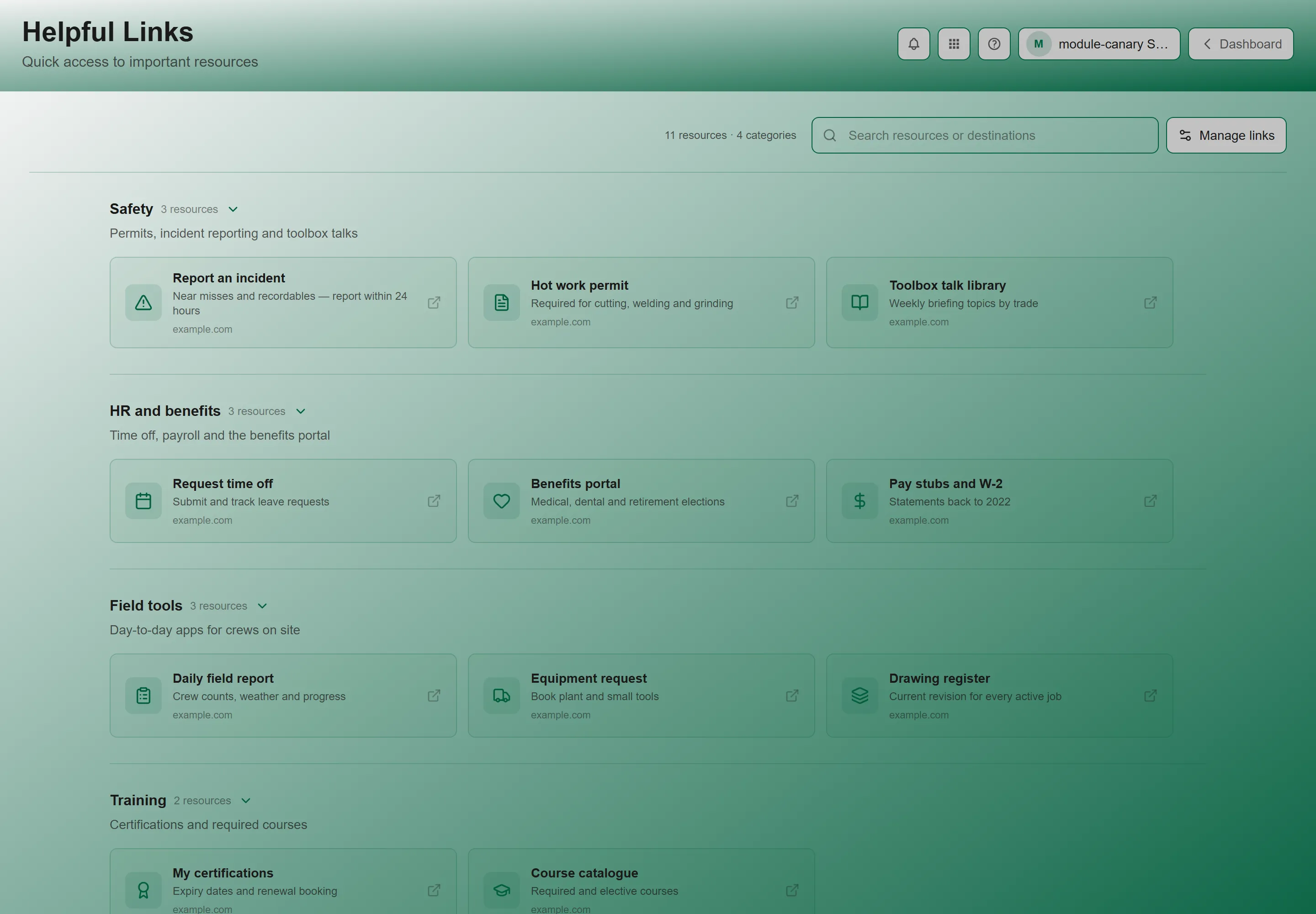
Helpful Links is the centralized resource directory in GrndCtrl. Instead of bookmarking dozens of URLs or searching through emails for that one link, Helpful Links puts all your company tools and resources in a single, organized location.
Accessing Helpful Links
Section titled “Accessing Helpful Links”- Open Helpful Links — from the Apps button in the header, or from its widget on your Home screen.
- Browse links organized by category.
- Click any link to open it in a new tab.
Link Categories
Section titled “Link Categories”Links are organized into categories that your administrators define. Common categories include:
| Category | Typical Resources |
|---|---|
| Human Resources | BambooHR, benefits portals (Bennie), retirement plans (Voya), culture tools |
| Finance Links | NetSuite, expense management (Ramp Card), employee store |
| Sales | Salesforce, proposal tools (Proposify), lead generation (Revvnue) |
| Production | NSPEC, standards documentation, training platforms (NTRAIN), cloud storage (Egnyte) |
| Approved Hardware | Recommended monitors, docking stations, keyboards, and other equipment |
| General | Anonymous suggestion box, general company resources |
Note: The specific categories and links you see depend on how your organization has configured GrndCtrl. Your administrators can add, remove, and reorder categories at any time.
Link Details
Section titled “Link Details”Each link displays:
- Icon — A visual indicator for quick recognition (e.g., a globe icon for web tools, a credit card for finance)
- Title — The name of the resource
- Description — Optional details about what the resource is for
Clicking a link opens the resource in a new browser tab, keeping GrndCtrl open in the background.
Managing Helpful Links (Administrators)
Section titled “Managing Helpful Links (Administrators)”Administrators can manage the entire Helpful Links directory from Helpful Links Admin — click Manage links on the Helpful Links page to open it.
Managing Categories
Section titled “Managing Categories”- Navigate to Helpful Links Admin.
- Click Categories to manage category groups.
- Click Add category; the New category dialog takes a Name and an optional Description. Click Save category.
- Reorder categories with the up and down arrows on each row.
- Edit or Delete existing categories.
Adding a Link
Section titled “Adding a Link”- Navigate to Helpful Links Admin.
- Click Links, then click Add resource. The dialog that opens is titled New resource.
- Fill in the fields:
| Field | Description | Required |
|---|---|---|
| Title | Display name for the link | Yes |
| URL | The web address to open when clicked | Yes |
| Category | Which category group the link belongs to | Yes |
| Icon | Visual icon to display (e.g., globe, credit-card, users, heart) | No |
| Description | Optional text explaining what the link is for | No |
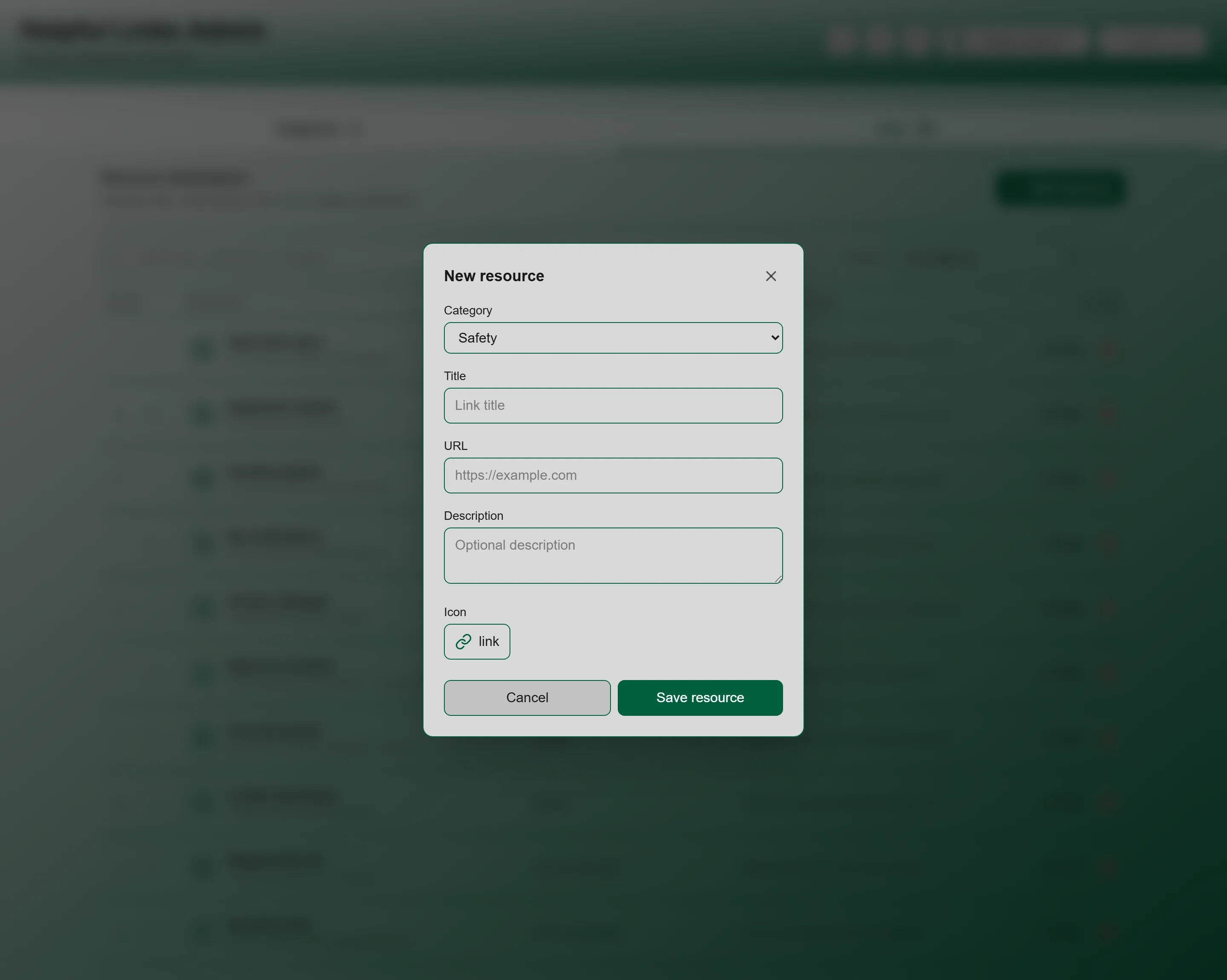
- Click Save resource to add the link.
Reordering Links
Section titled “Reordering Links”Within each category, links can be reordered with the up and down arrows on each row of the admin view. Place the most-used links at the top so employees can find them first.
Editing or Deleting Links
Section titled “Editing or Deleting Links”- Navigate to Helpful Links Admin and open Links.
- Find the link you want to modify.
- Click Edit to update or Delete to remove.
Best Practices
Section titled “Best Practices”- Keep links current — Review links periodically and remove outdated resources
- Use clear titles — “BambooHR” is better than “HR System Login Page”
- Choose meaningful icons — Icons help employees scan and find links at a glance
- Organize logically — Group related tools together so employees know where to look
- Put popular links first — Reorder categories and links so the most-used ones are at the top
Troubleshooting
Section titled “Troubleshooting”The page says there are no helpful links
Section titled “The page says there are no helpful links”Solutions:
- “No helpful links yet” with “Resources will appear here after an administrator publishes them.” means nothing has been added yet rather than that something is broken.
- Ask your administrator to add the resources your team needs.
Search is not finding a link I know exists
Section titled “Search is not finding a link I know exists”Solutions:
- Search matches the resource name, its category, and its website — the hint says “Try a resource name, category, or website.” A word from the description may not match.
- Clear the search box to see everything again.
A link goes somewhere wrong or out of date
Section titled “A link goes somewhere wrong or out of date”Solutions:
- You cannot edit links yourself — the list is curated. Tell your administrator which link is wrong and where it should point.
- If the category carries an “Available to all tenants” badge, it is published centrally rather than by your organization, so your administrator cannot change it either and will need to raise it with NXT.
Related Articles
Section titled “Related Articles”- Getting Started with GrndCtrl — Learn the basics of navigating the portal
- Documents and AI Chat — Search company documents and ask the AI assistant
- Helpful Links Admin — For administrators: managing categories and resources