
Documents and AI Chat
Documents and AI Chat work together to create an intelligent knowledge base for your organization. Upload company documents, and the AI assistant can instantly search and answer questions using those documents as its source of truth. No more digging through folders or emailing colleagues to find information.
How It Works
Section titled “How It Works”The system has two main components:
- Documents — Your company’s uploaded files (PDFs, Word docs, and more) that serve as the knowledge base.
- Chat Interface — An AI-powered assistant that reads those documents and answers your questions in natural language.
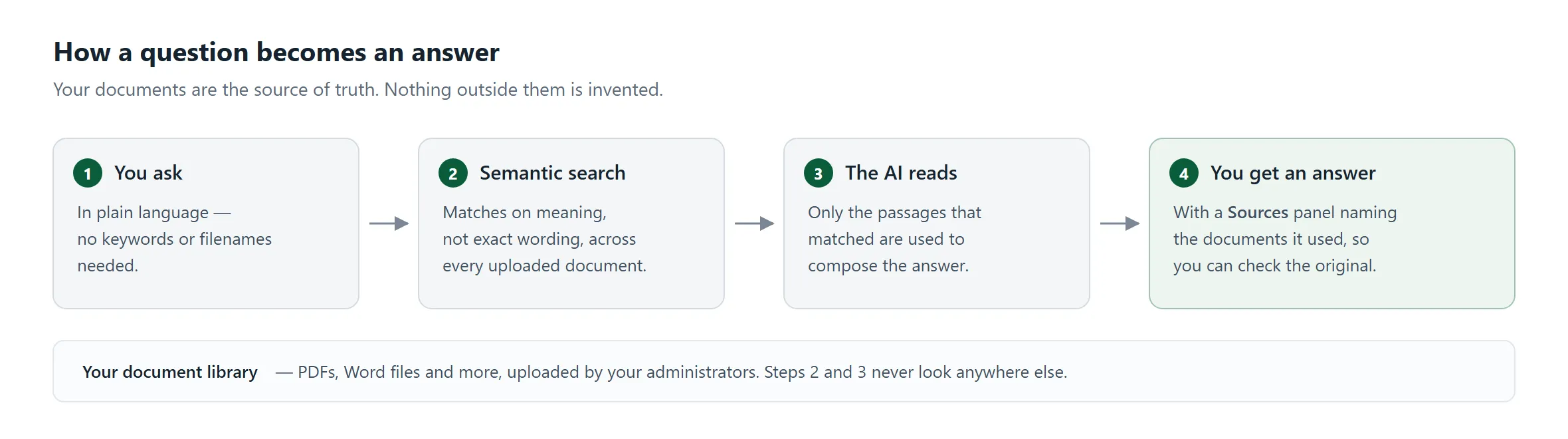
When you ask a question, the AI uses semantic search to find the most relevant information across all uploaded documents. Unlike keyword search, semantic search understands the meaning behind your question, so you can ask naturally and still get accurate results. For advanced features like tool calling, Extended Thinking, Smart Search, and file generation, see AI Chat Tools and Smart Search.
Using the AI Chat
Section titled “Using the AI Chat”Starting a Conversation
Section titled “Starting a Conversation”- Navigate to the Home screen or the chat interface.
- Type your question in the chat input (e.g., “What is our expense reimbursement policy?”).
- Press Enter or click the send button.
- The AI will search your company’s documents and provide an answer.
Citations and Sources
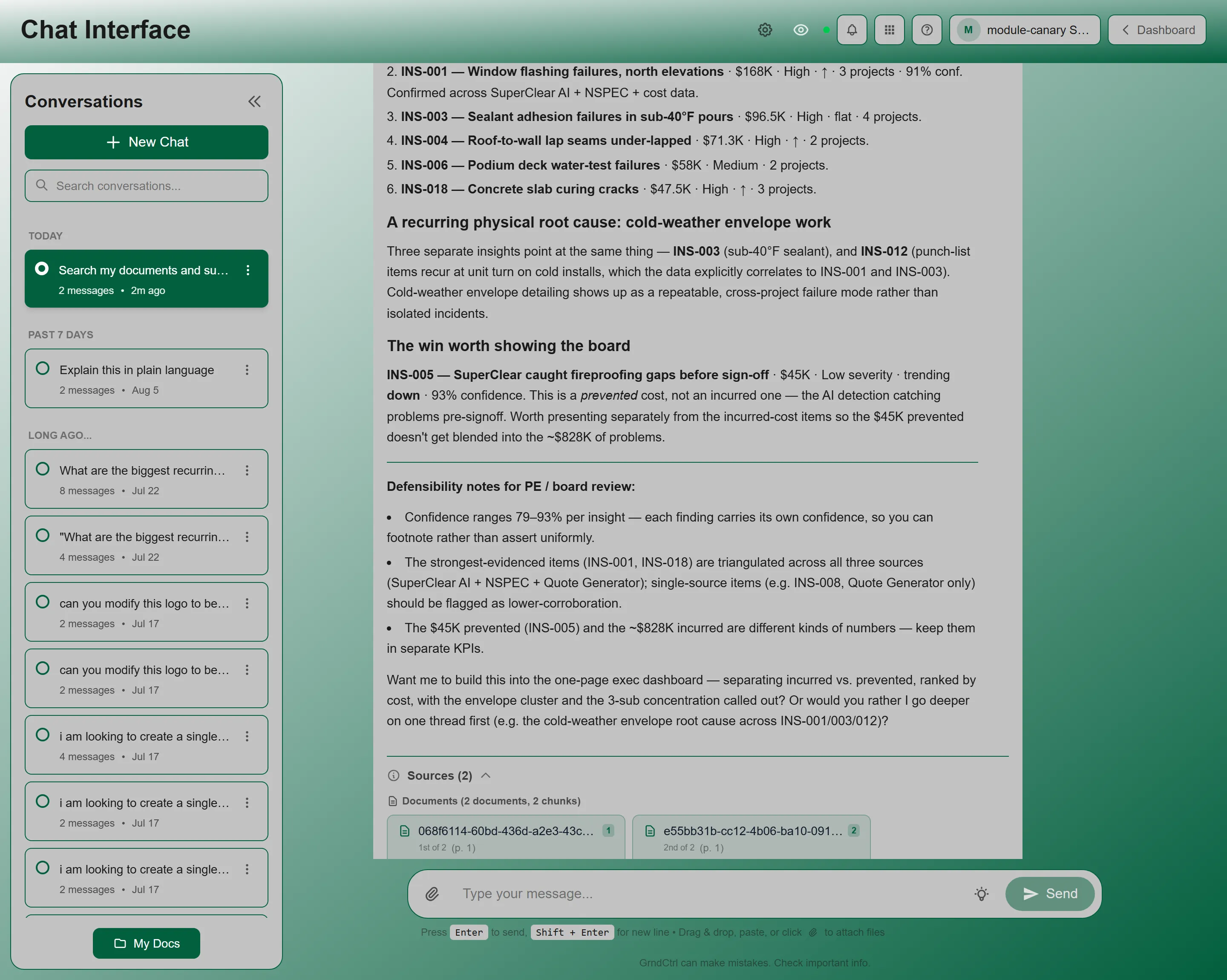
Section titled “Citations and Sources”When the AI answers a question, it includes citations that link back to the source documents. This lets you:
- Verify the answer against the original document
- Read more context around the specific section referenced
- Open the source document directly
Conversation History
Section titled “Conversation History”The AI remembers context within a conversation, so you can ask follow-up questions without repeating yourself:
Example:
You: "What is our PTO policy?"AI: "According to the Employee Handbook, full-time employees receive..."
You: "How do I request time off?"AI: "To request PTO, follow these steps from the handbook..."
Start a new conversation when you want to ask about a completely different topic.
Searching Conversations
Section titled “Searching Conversations”Use the search bar at the top of the conversation list to find past conversations. Type a keyword or phrase and results appear instantly, showing matching conversations with relevant snippets and timestamps. Click a result to jump to that conversation.
Tips for Asking Good Questions
Section titled “Tips for Asking Good Questions”- Be specific — “What is the reimbursement limit for travel meals?” is better than “Tell me about travel”
- Use natural language — Ask questions the way you’d ask a colleague
- Ask follow-ups — Build on the AI’s answer to dig deeper
- Reference specifics — Mention document names or topics if you know them
Customizing AI Behavior
Section titled “Customizing AI Behavior”You can personalize how the AI responds through Customize Responses — click the gear icon in the chat page top navigation bar. All twelve settings, including model, tone, response length, and AI role, are described in Customizing AI Responses.
Admin Chat (Administrators)
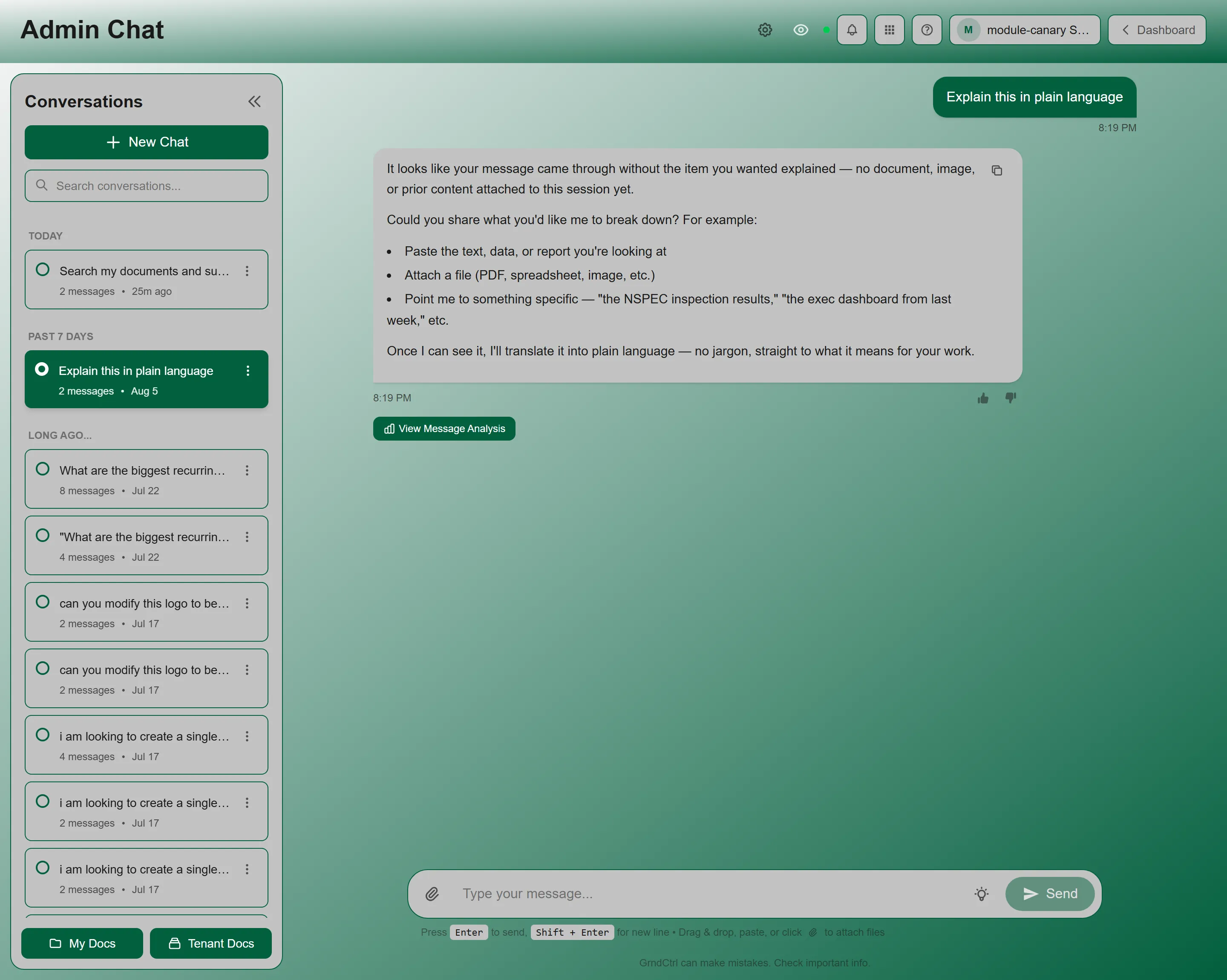
Section titled “Admin Chat (Administrators)”Tenant administrators have access to Admin Chat — an enhanced version of the AI Chat available from the Home screen. Admin Chat provides the same conversational AI experience with additional diagnostic capabilities:
- Enhanced diagnostics — View detailed information about how the AI processes each query, including which documents were searched and how results were ranked
- Message analysis — Analyze individual AI responses to understand how the AI arrived at its answer
- Troubleshooting — Identify why certain questions may not return expected results, helping administrators improve the document library
To open Admin Chat, click the Apps button in the header and choose Admin Chat. Admin Chat is only visible to users with the tenant administrator role.
Company Documents
Section titled “Company Documents”The AI assistant is only as good as the documents it has access to. Administrators upload and manage the company document library that powers the AI’s knowledge base.
Supported Document Types
Section titled “Supported Document Types”The system supports common document formats including:
- PDF — Policy documents, handbooks, manuals, reports
- Office documents — Word (DOCX), Excel (XLS, XLSX), and PowerPoint (PPT, PPTX)
- Text and data files — plain text, Markdown, CSV, HTML, JSON, XML, and YAML
- Images and drawings — PNG, JPEG, GIF, WebP, TIFF, HEIC, and SVG; DWG, DXF, and IFC drawings
Documents are automatically processed and indexed for semantic search after upload. Large documents are split into searchable chunks so the AI can find and cite specific sections.
How Search Works
Section titled “How Search Works”When you ask a question, the system:
- Analyzes the meaning of your question using semantic understanding.
- Searches all document chunks for the most relevant content.
- Applies boost tags so documents an administrator marked as authoritative rank ahead of ones that merely mention the same words (admin-tagged documents rank higher).
- Generates a natural language answer with citations.
Where These Documents Come From (Administrators)
Section titled “Where These Documents Come From (Administrators)”If you administer GrndCtrl, the documents this chat searches are managed in the Document Library — its own surface, with four tabs:
- Documents — browse, search, organize, and fix individual documents
- Sync — mirror folders from a connected system, and approve what arrives
- Activity — indexing health, and the record of how documents arrived
- Tags — boost tags deciding which documents the assistant favours
Full walkthrough: Managing Your Document Library.
Personal Documents (My Docs)
Section titled “Personal Documents (My Docs)”In addition to the shared company library, you may have access to My Docs — a personal document space where you can upload files for your own reference. Personal documents are only searchable by you.
Best Practices
Section titled “Best Practices”For All Users
Section titled “For All Users”- Ask before searching — Try the AI chat first before manually searching through folders
- Check citations — Always verify important answers against the source document
- Use follow-ups — Ask the AI to clarify or elaborate instead of starting over
For Administrators
Section titled “For Administrators”Keeping the library healthy is what makes the answers good. The practices that matter — tagging folders rather than documents, writing descriptions for the question rather than the file, and clearing Needs attention before assuming retrieval is at fault — are covered in Managing Your Document Library.
Troubleshooting
Section titled “Troubleshooting”AI says it can’t find an answer
Section titled “AI says it can’t find an answer”Problem: The AI responds that it doesn’t have information on your topic.
Solutions:
- The relevant document may not be uploaded yet — contact your administrator
- Try rephrasing your question with different terms
- Be more specific — narrow your question to a particular topic
AI gives an incorrect or outdated answer
Section titled “AI gives an incorrect or outdated answer”Problem: The AI provides information that seems wrong.
Solutions:
- Check the citation — the source document may be outdated
- Report the issue to your administrator so the document can be updated
- Always verify critical information (e.g., policy decisions, financial data) with the appropriate department
Related Articles
Section titled “Related Articles”- Getting Started with GrndCtrl — Set up your AI preferences
- Helpful Links — Quick access to company tools and resources