
Managing Your Document Library
The Document Library is where you decide what the AI assistant knows. Its subtitle says it exactly: “Everything your assistant can read”. Documents you upload or sync here become the material the assistant answers from, and the tags you set here decide which of them it favours.
Accessing the Document Library
Section titled “Accessing the Document Library”Click the Apps button — the grid icon in the header, available on every page — and choose Document Library. See Finding and Opening Your Apps if it is not listed.
The Four Tabs
Section titled “The Four Tabs”| Tab | What it is for |
|---|---|
| Documents | The working list — browse, search, organize, fix, and tag individual documents. |
| Sync | Folders pulled in automatically from a connected system, and anything waiting on your approval. |
| Activity | Health at a glance — what needs attention — and the record of how documents arrived. |
| Tags | Boost tags: which documents and folders the assistant should favour, and by how much. |
Documents
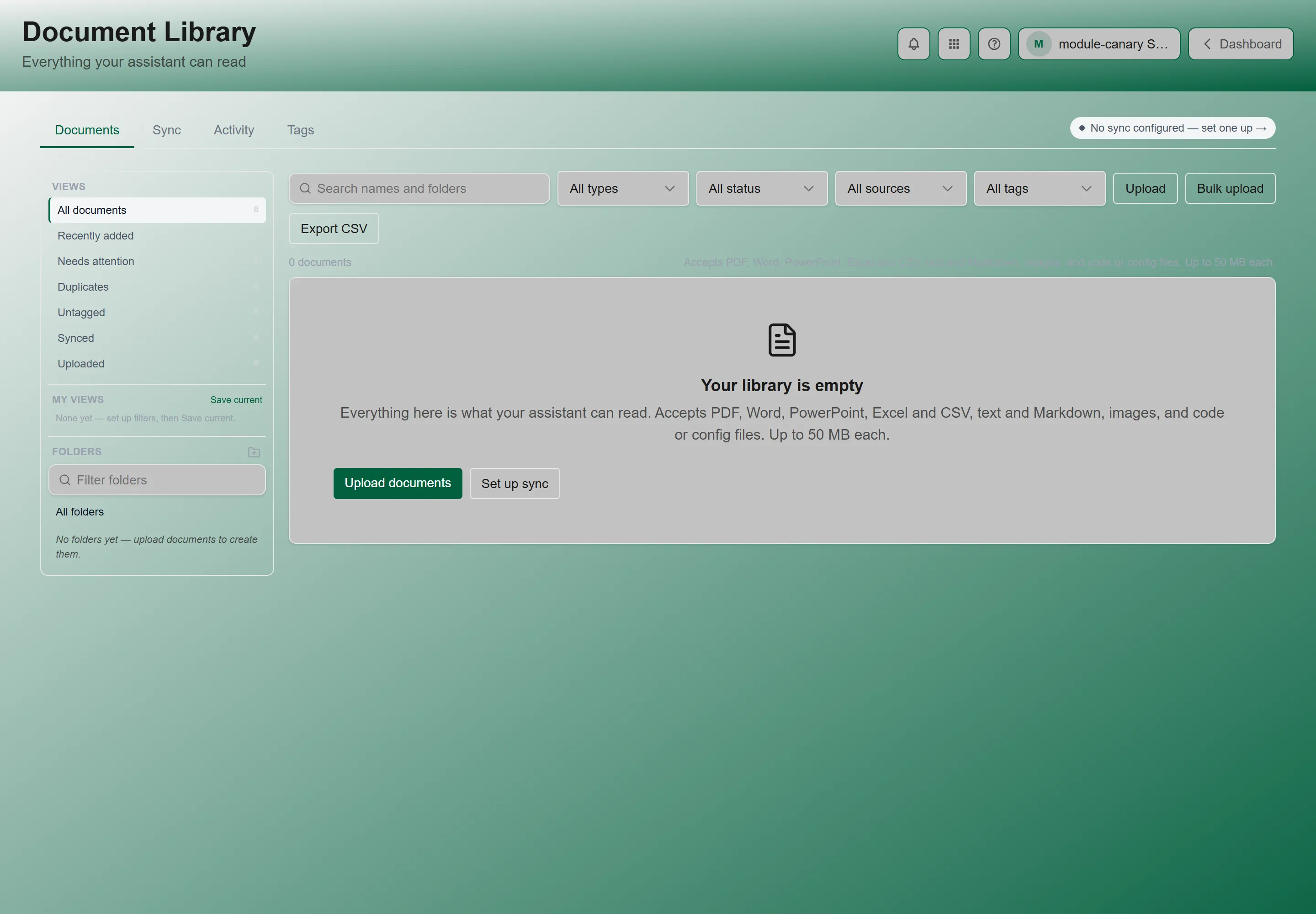
Section titled “Documents”On the left is a Views and folders rail; on the right, the documents themselves.
Views are questions about your library rather than places in it:
| View | What it answers |
|---|---|
| All documents | Everything in the library. |
| Recently added | What arrived lately. This is a time window, not a count — so an empty Recently added means nothing new arrived, which is a real answer rather than a fault. |
| Needs attention | Documents that failed, got stuck while processing, or finished processing but never indexed. Start here when the assistant cannot find something you know you uploaded. |
| Duplicates | Documents whose content is identical to another’s. |
| Untagged | Documents the assistant favours for no reason — they carry neither a document tag nor an inherited folder tag. |
| Synced | Documents that arrived from a connected system. |
| Uploaded | Documents someone added by hand. |
My Views
Section titled “My Views”You can save a filter combination you use often. Saved views appear under My views and are marked Saved on this device — they are yours, not your organization’s, so a colleague will not see them.
Folders
Section titled “Folders”Below the views is your folder tree, with New folder to add one and Filter folders to find one in a large tree.
Searching and Filtering
Section titled “Searching and Filtering”Above the list, Search documents matches names and folders, and three filters narrow it further: File type, Status, and Source.
Acting on Documents
Section titled “Acting on Documents”Select one or more documents and the action bar offers:
- Move — file them into a different folder
- Retry processing — re-run extraction and indexing. This is the fix for most things in Needs attention
- Export CSV — take the current list out as a spreadsheet
- Delete
- Add folder tag — see Tags below
A brand-new library shows “Your library is empty” with a Set up sync button, which is usually the faster way to fill it than uploading by hand.
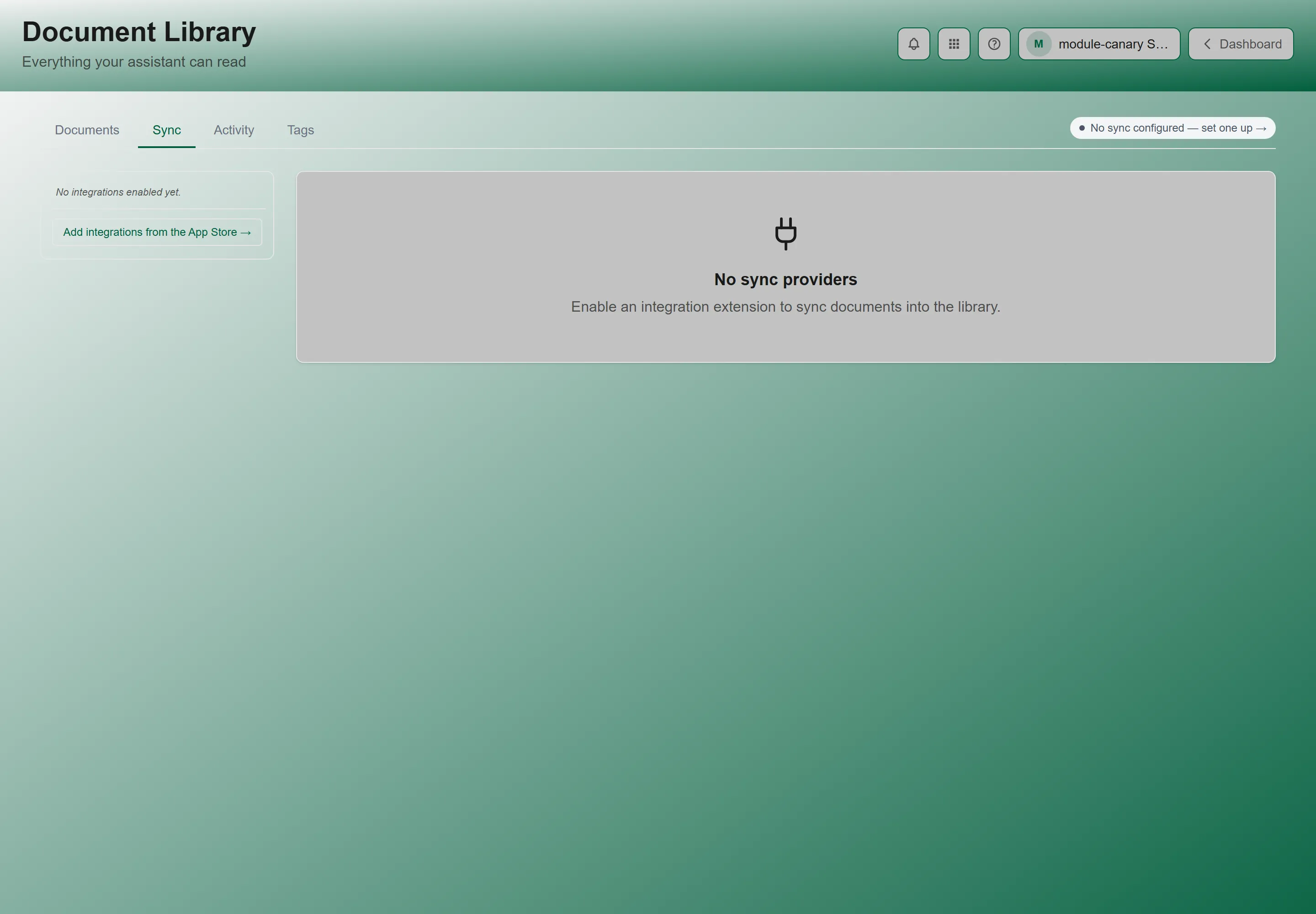
Sync keeps a folder in a system you already use — a document management platform, a cloud drive — mirrored into the library, so you do not have to re-upload anything when it changes.
Each provider’s panel is organized into four sections:
| Section | What it covers |
|---|---|
| Folders | Which folders are mirrored. Add one, re-point an existing one at a different source folder, or set the safety limit that pauses a sync if a single scan finds more changes than expected. |
| Pending changes | Newly arrived files held back for review. They are not in the library until you approve them, so nothing reaches the assistant unreviewed. |
| Reconcile | Two kinds of mismatch between the library and the source: files whose content matches something already present, and documents whose location in the library no longer matches the source. When there is nothing to settle it says “Everything is where it should be.” |
| Usage | API budget today — every scan and download spends calls against the source system’s daily allowance — plus the Sync queue and Pause history. |
Activity
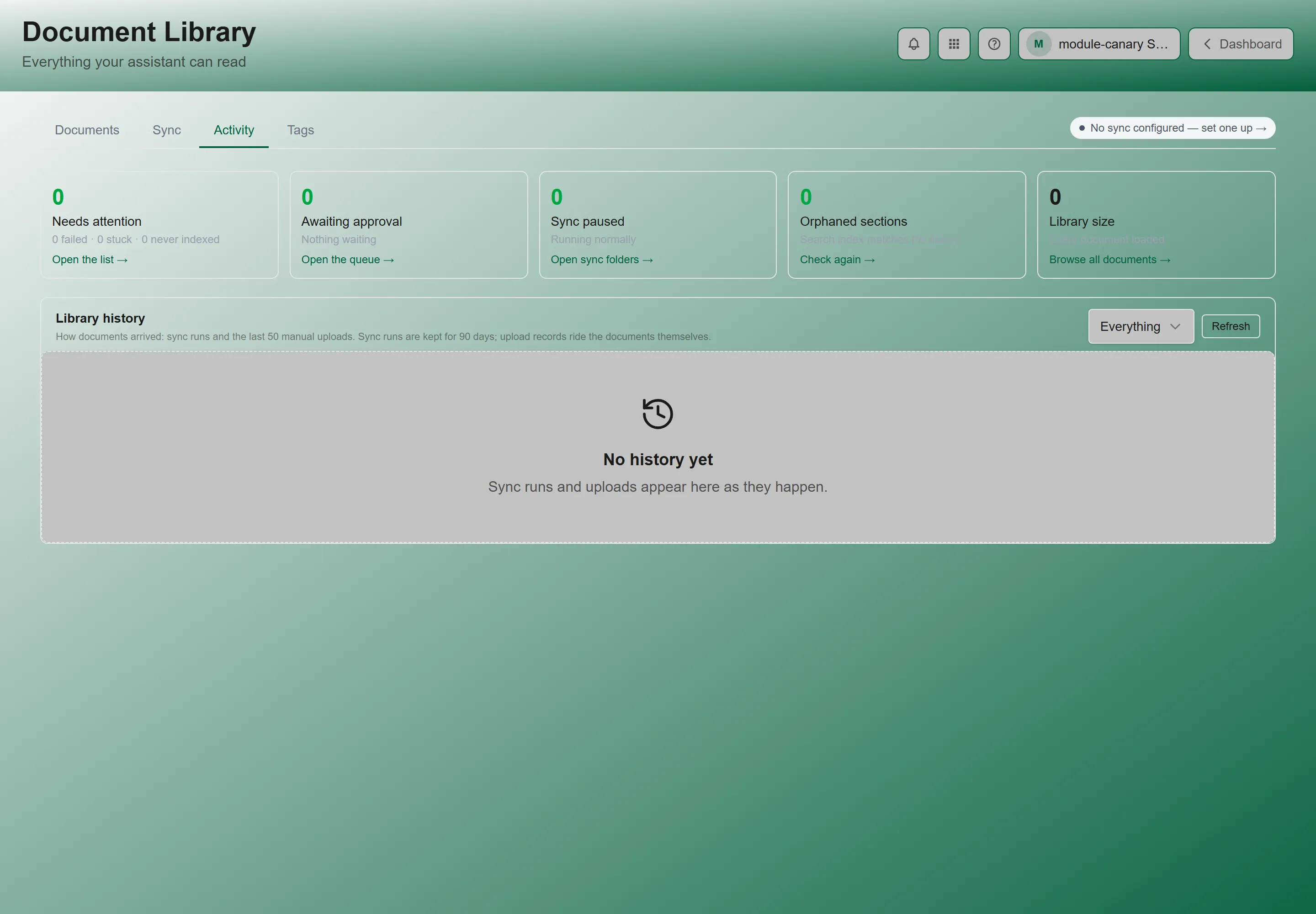
Section titled “Activity”Activity leads with findings — five cards answering “is anything wrong?” — and follows with the record.
| Card | What it means, and what to do |
|---|---|
| Needs attention | Broken down as failed · stuck · never indexed. Click Review them to open the matching document list. |
| Awaiting approval | New files not in the library until approved. Click Approve or reject to clear the queue. This is the Activity tab’s view of the Sync tab’s Pending changes queue. |
| Sync paused | A scan exceeded its safety limit. Click Review and resume. |
| Orphaned sections | Searchable content whose document is gone — and it is still returned by search. Click Clean them up. |
| Library size | How many documents are loaded. The list streams the newest 5,000; beyond that it says so rather than quietly truncating. |
Library History
Section titled “Library History”Below the findings, Library history records how documents arrived: sync runs and the last 50 manual uploads. Sync runs are kept for 90 days; upload records travel with the documents themselves, so they last as long as the document does.
A boost tag tells the assistant a document is authoritative, so retrieval favours it. This is how you make sure the current policy wins over a three-year-old draft that happens to use the same words.
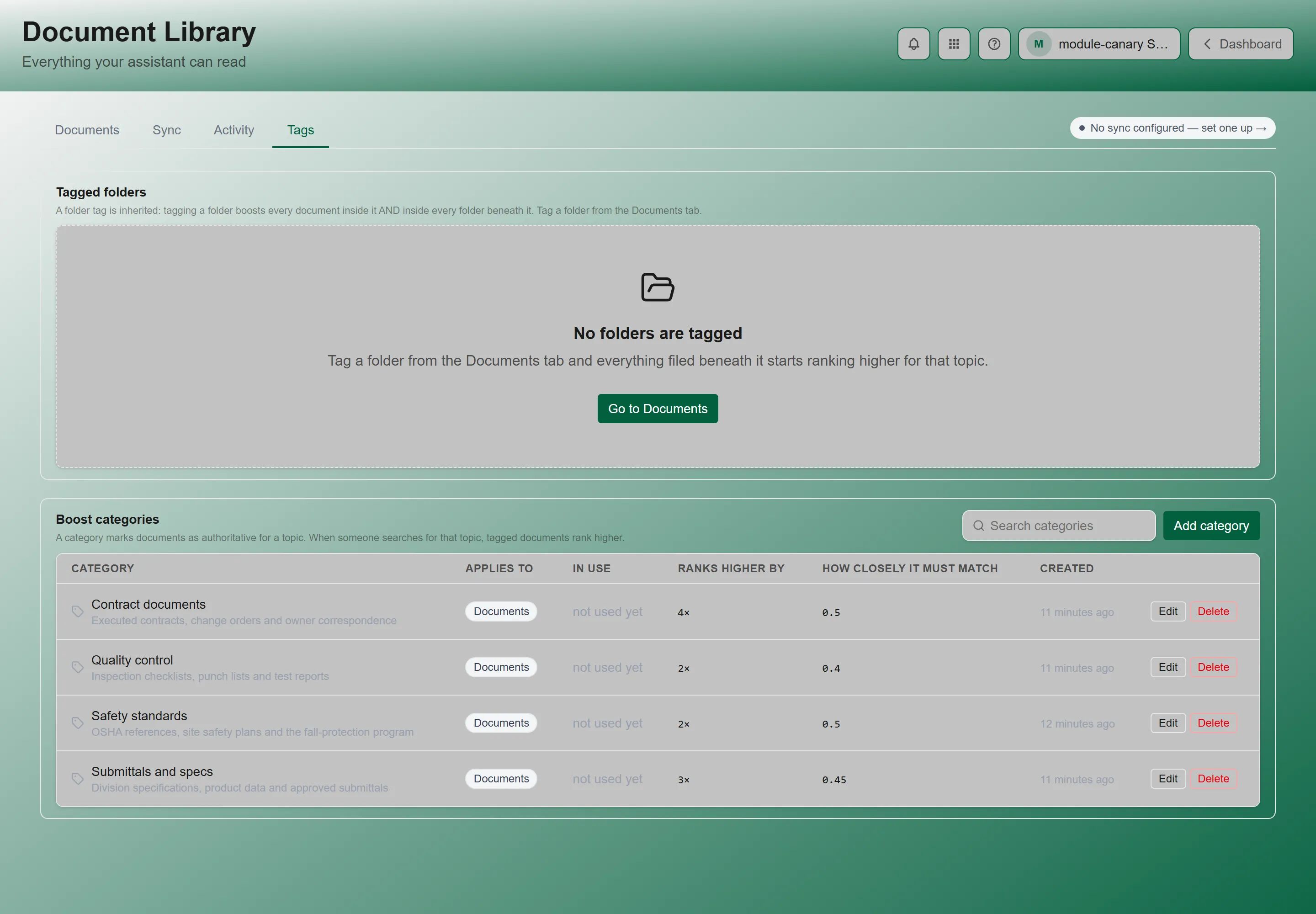
The tab has two sections, in the order the questions usually get asked:
- Tagged folders — which folders carry a tag. Read from the folders themselves, so it is the authoritative answer.
- Categories — the tag definitions, with what each one costs and how selective it is.
Two Kinds of Tag
Section titled “Two Kinds of Tag”| Type | Multiplier range | Use it for |
|---|---|---|
| Document Tag | 2x to 20x, default 10x | A specific critical document you want surfaced whenever it is even slightly relevant. |
| Folder Tag | 0.25x to 2x, default 0.5x | A whole collection. The gentler range is deliberate — it nudges ranking rather than dominating it, because it applies to many documents at once. |
Creating a Category
Section titled “Creating a Category”-
Add a category and give it a clear Name.
-
Choose the Tag Type — document or folder.
-
Write a Category Description. This is how the assistant knows which questions the tag should apply to, so be specific and include synonyms and example phrasings.
- Folder tags require at least 100 characters — the form counts down until you reach it.
- For document tags it is optional. Left empty, the category’s name is used for matching instead.
- Maximum 2,000 characters either way.
-
Set the Boost Multiplier within the range for that type.
-
Set the Similarity Threshold — 0.15 to 0.90, default 0.50. This applies to both tag types.
Tagging a Folder
Section titled “Tagging a Folder”On the Documents tab, use Add folder tag. Because the tag is inherited, one tag on the right folder does the work of hundreds of document tags.
Best Practices
Section titled “Best Practices”- Tag folders before documents. Inheritance means one well-placed folder tag beats a long tagging session.
- Write descriptions for the question, not the document. You are describing what someone would ask, not what the file is called.
- Check Untagged periodically. Documents there get no preference at all, which may be exactly right — or may mean an important collection was missed.
- Clear Needs attention before blaming the assistant. “The AI can’t find our safety manual” is usually a never-indexed document, not a retrieval problem.
- Do not over-boost. If everything is authoritative, nothing is. Reserve high multipliers for documents that genuinely should win.
- Keep the approval queue short. Files waiting there are invisible to the assistant, so a neglected queue looks like missing knowledge.
Troubleshooting
Section titled “Troubleshooting”A document is in the library but the assistant never uses it
Section titled “A document is in the library but the assistant never uses it”Solutions:
- Open Needs attention. The likely cause is never indexed — the document processed, but no searchable content came out of it.
- Select it and click Retry processing.
- Scanned PDFs with no text layer are the common culprit. If retrying does not help, replace the file with a text-bearing version.
I tagged a document but answers have not changed
Section titled “I tagged a document but answers have not changed”Solutions: check these in order.
- Is the Similarity Threshold too high for the questions being asked? Lower it and try again.
- Is the Category Description specific enough to match the question?
- Is the document actually indexed? A boost cannot promote content that was never indexed.
Almost everything shows as Untagged
Section titled “Almost everything shows as Untagged”Solutions:
- Check Tagged folders on the Tags tab. If your folders carry no tags, then Untagged is accurate rather than a fault.
- Tag the folder that holds your authoritative material. The count drops sharply, because the tag is inherited by everything inside it.
Sync stopped pulling in new files
Section titled “Sync stopped pulling in new files”Solutions:
- Look at the Sync paused card on Activity. A scan that found more changes than its safety limit pauses deliberately — review what changed, then resume.
- Check API budget today. A source system’s daily allowance can be used up, which stops the sync until it resets.
Search returns a document I deleted
Section titled “Search returns a document I deleted”Solutions:
- That is Orphaned sections on the Activity tab — the searchable content outlived its document.
- Click Clean them up to remove it.
Related Articles
Section titled “Related Articles”- Documents and AI Chat — The end-user side: asking questions of these documents
- Tenant Administration — Including GrndCtrl Access, which governs the assistant’s access to data tables
- Connecting Your Systems with Integrations — Connecting the systems that sync documents in
- AI Chat Tools and Smart Search — How the assistant searches what you put here