
Previewing and Publishing a Template
A template is not available to a quote until you publish it. This article covers checking a document with Preview PDF, clearing the overflow refusal that blocks a save, and freezing a version that quotes can build documents from.
Previewing the Real Render
Section titled “Previewing the Real Render”Click Preview PDF in the editor header. A PDF preview window opens with the document rendered exactly as it will print, and it carries Re-render to build it again and Open file to open the PDF itself.
The preview renders the draft you are editing, so you do not have to save or publish first.
Where your organization has quotes to draw on, Which quote to preview against lets you choose one, so the preview shows real values rather than stand-ins.
When a Box Holds Too Much
Section titled “When a Box Holds Too Much”If content does not fit inside a box, the Save button counts the boxes — it reads Save · {number} over — and the save is refused rather than performed.
Hovering the button explains it, in the form “{N text boxes} hold more than fits — trim or resize before saving”. The refusal itself names each box, suggests what to do — make the box taller, or move it up the page — and says what the alternative would cost.
To clear it, do any of the following to the box the refusal names:
- Trim the content it holds
- Make the box taller, or move it up the page
- For a picture, choose a Fit in the inspector — Crop to fill keeps the picture’s shape and cuts what does not fit, and Fit inside shows all of it
Publishing a Version
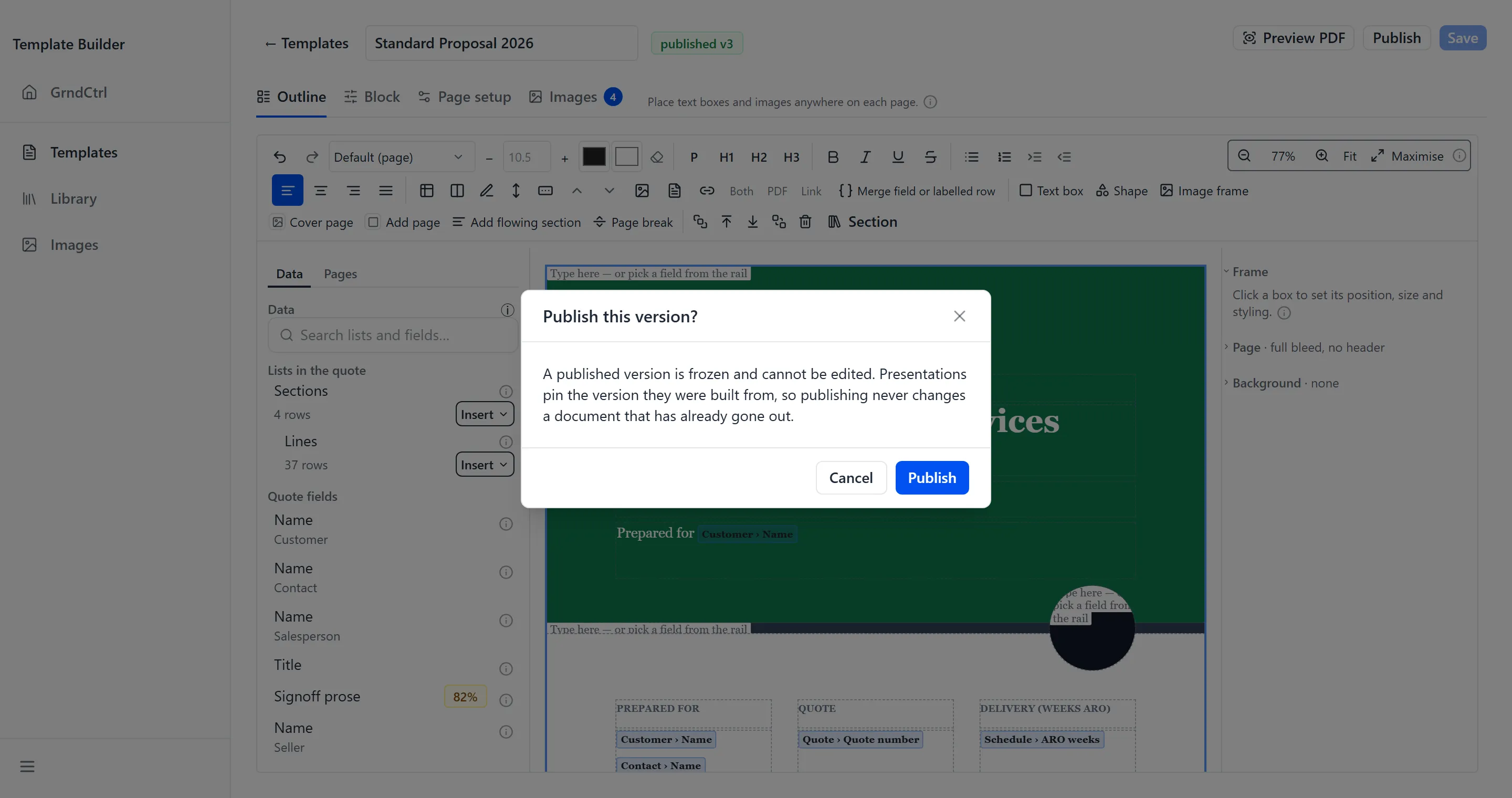
Section titled “Publishing a Version”Publishing takes a snapshot of the template and makes it available to quotes.
- Click Publish in the editor header.
- If the draft has unsaved changes, they are saved first — so the version you freeze is the one on screen.
- Confirm at “Publish this version?” The dialog explains what you are committing to: “A published version is frozen and cannot be edited. Presentations pin the version they were built from, so publishing never changes a document that has already gone out.”
- Click Publish. The badge in the header becomes published v{number}.
What a Quote Does With It
Section titled “What a Quote Does With It”Once a template has a published version, an estimator can pick it when generating a document from a quote in Quote Generator. The document pins the version it was built from, which is what makes a sent proposal stable.
A template that has never been published shows draft only on the templates list and cannot be chosen.
Troubleshooting
Section titled “Troubleshooting”Publish is refused
Section titled “Publish is refused”Solutions:
- An archived template cannot be published. Restore it from the templates list first — see Getting Started with Template Builder.
- If a save failed on the way — because a box holds more than fits — clear that first. Publishing saves the draft before it freezes it.
Save says a number of boxes are over
Section titled “Save says a number of boxes are over”Solutions:
- Hover Save to see how much is spilling, then open the box the refusal names and trim it, make it taller, or move it up the page.
- Use Render with overflow visible to see exactly what is spilling if the box is hard to identify on screen.
The PDF doesn’t look like the canvas
Section titled “The PDF doesn’t look like the canvas”Solutions:
- The PDF is the accurate one. Pagination in particular cannot be shown exactly on screen, because where a page ends depends on the renderer.
- If a typeface differs, check Body font on Page setup — only faces the renderer has installed are offered, so a face chosen elsewhere would substitute silently.
The render failed
Section titled “The render failed”Solutions:
- The preview names why it failed rather than only reporting that it did. Read the message before changing anything.
- If the document carries a lot of pictures, check the image budget — past its cap a render is expected to fail. See Adding Images and Managing Assets.
Related Articles
Section titled “Related Articles”- Quote Generator Help
- Designing a Template — Building the document you are previewing
- Getting Started with Template Builder — Draft and published states on the templates list
- Creating Quotes with Quote Generator — Generating a document from a published template
- Sending a Quote for Signature — What happens to a finished document after it is generated