
Feedback Admin
Feedback administration is where you moderate incoming requests, move them through their lifecycle, reply officially, and decide which products can receive feedback at all. Its own subtitle sums it up: “Moderate, respond, and move your organization’s feedback through its lifecycle.”
Opening Feedback Administration
Section titled “Opening Feedback Administration”- Open Feedback — click the Apps button, the grid icon in the header, and choose it.
- Click Manage, the gear button in the page header. It appears only for feedback administrators.
A Feedback link in the header takes you back to the portal at any time.
The Four Sections
Section titled “The Four Sections”A rail on the left, labelled Feedback administration sections, switches between four surfaces:
| Section | What it is for |
|---|---|
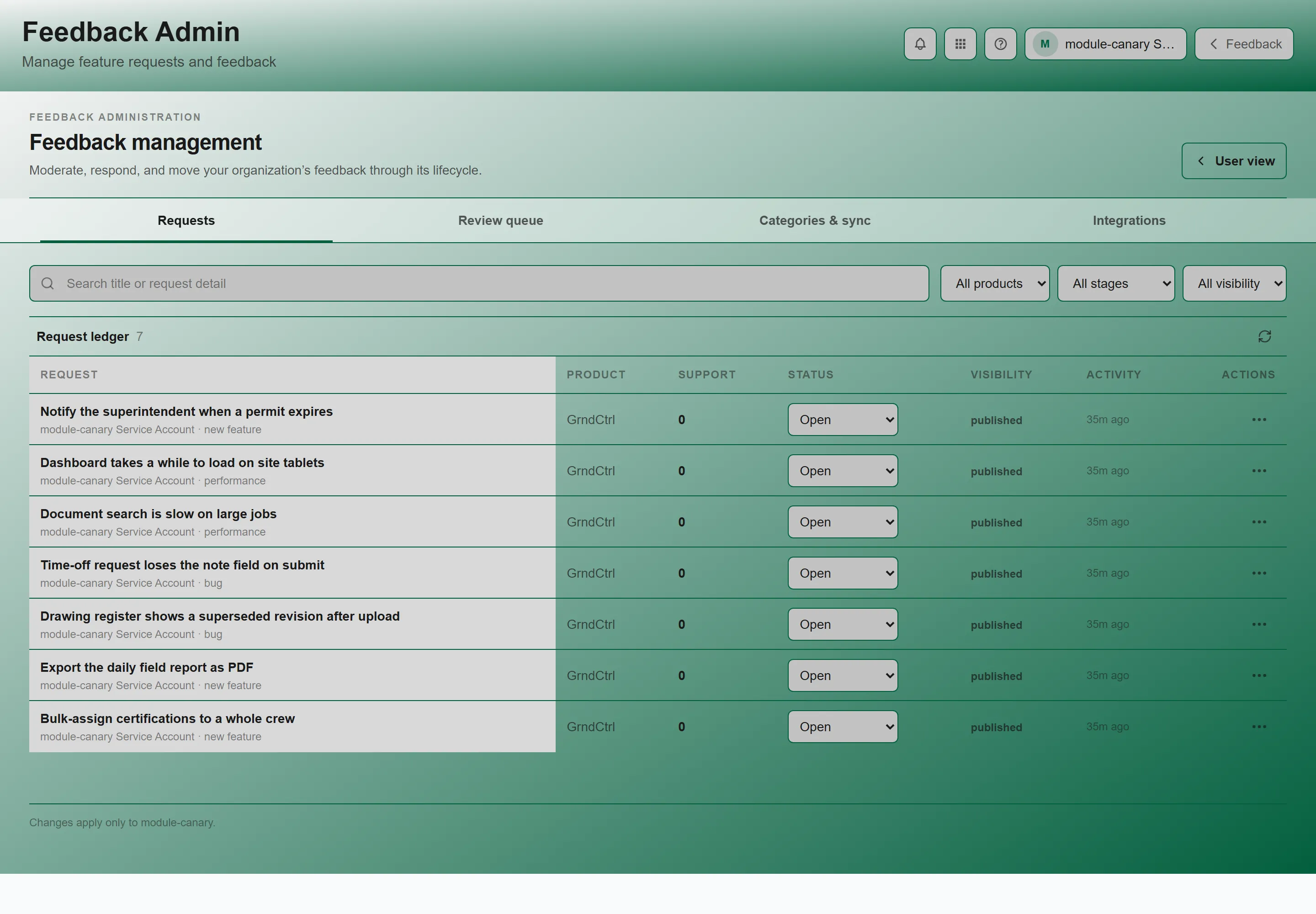
| Requests | The full request ledger — every request, whatever its visibility. This is where day-to-day moderation happens. |
| Review queue | Only requests awaiting publication. Imported and externally submitted feedback lands here first. |
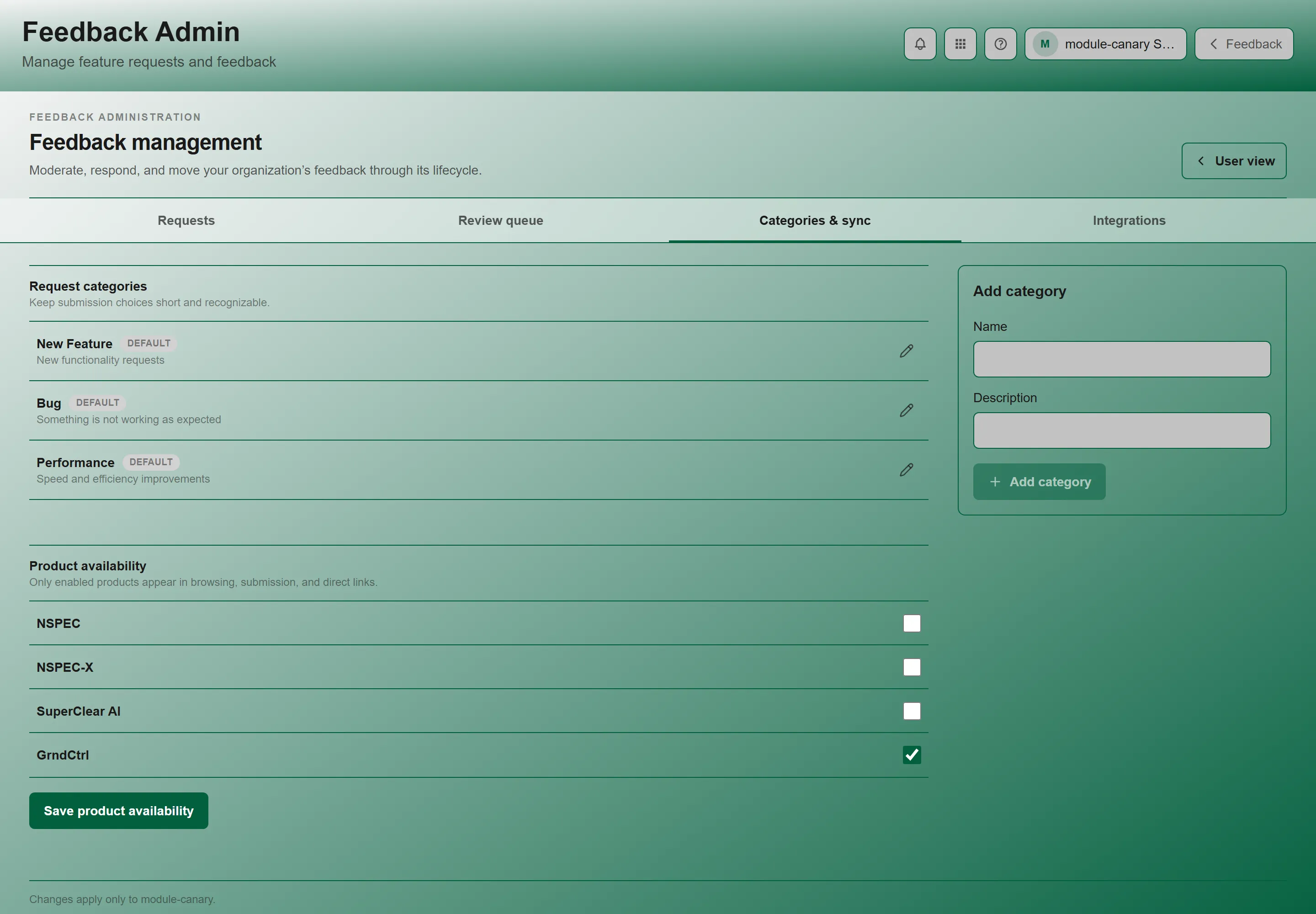
| Categories & sync | Your request categories, which products may receive feedback, and the NSPEC import. |
| Integrations | Submit-only credentials that let an external product post feedback into your queue. |
Requests — the Ledger
Section titled “Requests — the Ledger”The ledger loads a page at a time; Load more requests fetches the next batch, and Refresh request ledger re-reads it. There is no automatic refresh — if a colleague has just changed something, click refresh.
Filtering and Searching
Section titled “Filtering and Searching”Three dropdowns and a search box narrow the list. Each dropdown starts on its “all” option, so nothing is hidden until you choose:
- Filter by product — defaults to All products
- Filter by status — defaults to All stages
- Filter by visibility — defaults to All visibility
- Search requests — the box is hinted “Search title or request detail”, so it looks inside the body text, not just titles
When nothing matches you see “No requests match these filters”; in the Review queue the same empty state reads “Review queue is clear”.
Visibility States
Section titled “Visibility States”Visibility is separate from status. A request is in exactly one visibility state:
| State | Meaning |
|---|---|
| Published | Visible to everyone in the portal. |
| Pending review | Not yet public. Imported and external submissions start here — imports never publish automatically. |
| Hidden | Withdrawn from the portal but kept. Use Restore request to bring it back. |
| Deleted | Removed from the portal. Also restorable. |
Acting on a Request
Section titled “Acting on a Request”Select a request to open it, then use the actions in its detail pane:
| Action | What it does |
|---|---|
| Update | Saves a new status. See the six stages below. |
| Publish request | Moves a pending request into the portal. |
| Hide request / Restore request | Takes a request out of the portal, or puts it back. |
| Delete request | Asks “Delete feedback request?” first. Restorable afterwards. |
| Post official update | Adds an administrator’s reply, marked as official rather than as an ordinary comment. |
| Merge duplicate request | Folds this request into another. See below. |
| Create support ticket | Raises a support ticket from the request, after a “Create support ticket?” confirmation. |
| User view | Opens the request as an ordinary user sees it, so you can check what you are about to publish. |
The Six Stages
Section titled “The Six Stages”Status is the lifecycle a requester follows. There are six:
- Open — received, not yet triaged
- Under review — being considered
- Planned — accepted and scheduled
- In progress — being built
- Shipped — delivered
- Declined — not going ahead
Merging Duplicates
Section titled “Merging Duplicates”- Open the duplicate and choose Merge duplicate request.
- Under Merge into…, use Find a target request to search for the request that should survive.
- Pick the Target request and click Merge request.
Only eligible requests appear as targets. If the search comes back empty you see “No eligible target requests match this search. Try another title or phrase.” — try different wording before assuming there is nothing to merge into. Load more targets extends the list.
Categories & Sync
Section titled “Categories & Sync”Request Categories
Section titled “Request Categories”Under Request categories, each category has a Name and a Description. Use Add category to create one, and Delete category to remove one — deletion asks “Delete category?” first. Cancel category edit abandons an in-progress change.
The form’s own guidance is worth following: “Keep submission choices short and recognizable.” If none have been set up yet the panel reads “No categories have been configured.”
Product Availability
Section titled “Product Availability”Product availability controls which products can receive feedback. The panel states the consequence plainly: “Only enabled products appear in browsing, submission, and direct links.” Click Save product availability to apply.
The products are NSPEC, SuperClear AI, and GrndCtrl.
NSPEC Import
Section titled “NSPEC Import”NSPEC import pulls feedback raised in NSPEC into your review queue. Click Sync now — it reads Starting… while it runs, then confirms “NSPEC sync started.”
The panel is explicit that “Imports never publish automatically.” Everything imported waits in Review queue until you publish it.
Integrations — Submit-Only Credentials
Section titled “Integrations — Submit-Only Credentials”Submit-only credentials let an external product post feedback into your queue without a user signing in. They can submit and nothing else.
When none exist the panel reads No external credentials — “Create one when an external product is ready to submit feedback.”
Creating a Credential
Section titled “Creating a Credential”- Click Create credential.
- Give it a Name and a Source identifier. The identifier is constrained: “Use 2–41 lowercase letters, numbers, hyphens, or underscores. Other characters are removed.”.
- Choose the product with Select product.
- Confirm with Create credential.
Rotating and Revoking
Section titled “Rotating and Revoking”- Rotate credential — issues a new token and invalidates the old one. Confirms with “Rotate credential?”. Use this when a token may have leaked, or when it has been lost
- Revoke credential — stops the integration entirely. Confirms with “Revoke credential?”, warning that external submissions using it will stop immediately
Each credential shows as Active or Revoked. A revoked credential stays listed as a record; it does not disappear.
Troubleshooting
Section titled “Troubleshooting”I don’t see the Manage button
Section titled “I don’t see the Manage button”Solutions:
- You need to be in the Feedback admin group. Ask your administrator to add you
- The button is in the Feedback page header, not in the Apps button or on a request’s page
No target requests when merging
Section titled “No target requests when merging”Solutions:
- The target list is filtered to eligible requests — search by a different word from the surviving request’s title
- Click Load more targets; the list is paged
- A deleted request cannot be a target. Restore it first
Imported feedback isn’t showing in the portal
Section titled “Imported feedback isn’t showing in the portal”Solutions:
- This is by design — imports land in Review queue and never publish themselves. Open each one and click Publish request
- Check Product availability: if the product is disabled, its requests are unreachable even once published
The list looks out of date
Section titled “The list looks out of date”Solutions:
- Click Refresh request ledger. The page does not poll for changes, so another administrator’s edit will not appear on its own
I lost a credential’s token
Section titled “I lost a credential’s token”Solutions:
- It cannot be recovered. Use Rotate credential to issue a replacement, then update the external product with the new token
Related Articles
Section titled “Related Articles”- Feedback Portal — what your users see and submit
- Tenant Administration — granting the permission that unlocks this page
- Getting Started with GrndCtrl