
Creating Quotes with Quote Generator
Quote Generator turns an RFQ into a priced, formatted quote. This article walks an estimator through the whole flow — from starting a quote to sending it — using the screens you’ll see in the app.
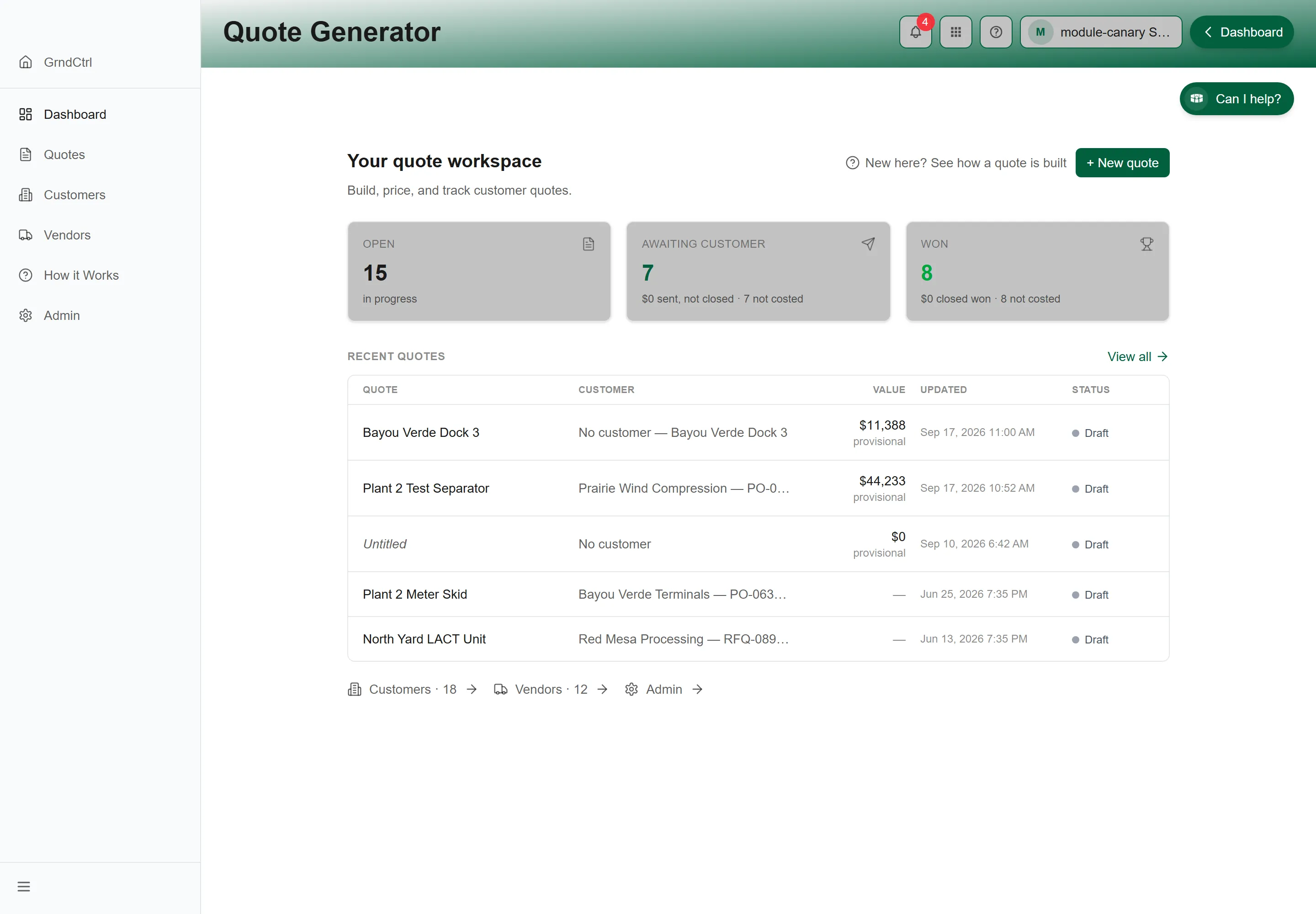
Finding Your Way Around
Section titled “Finding Your Way Around”Open Quote Generator from the app launcher. You’ll land on your Dashboard — “Your quote workspace.” The sidebar on the left is your map:
- Dashboard: your KPIs and recent quotes
- Quotes: every quote, grouped by workflow stage
- Customers and Vendors: the companies on your quotes
- How it Works: an example quote on the real quote screens, and the training walks
- Admin: configuration (administrators only)
From Quote to Signed Proposal
Section titled “From Quote to Signed Proposal”A quote is what you build. The proposal is the customer-facing document a template renders from it. The signing link is what the customer receives, and Ready to send is the stage that seals and locks the quote — it never sends anything by itself. The whole arc is: create the customer and its contacts, start the quote, add the products or lines and price them, choose who signs, build the document, advance to Ready to send, send the signing link, then read the delivery record and wait for the signature. Each part has its own article:
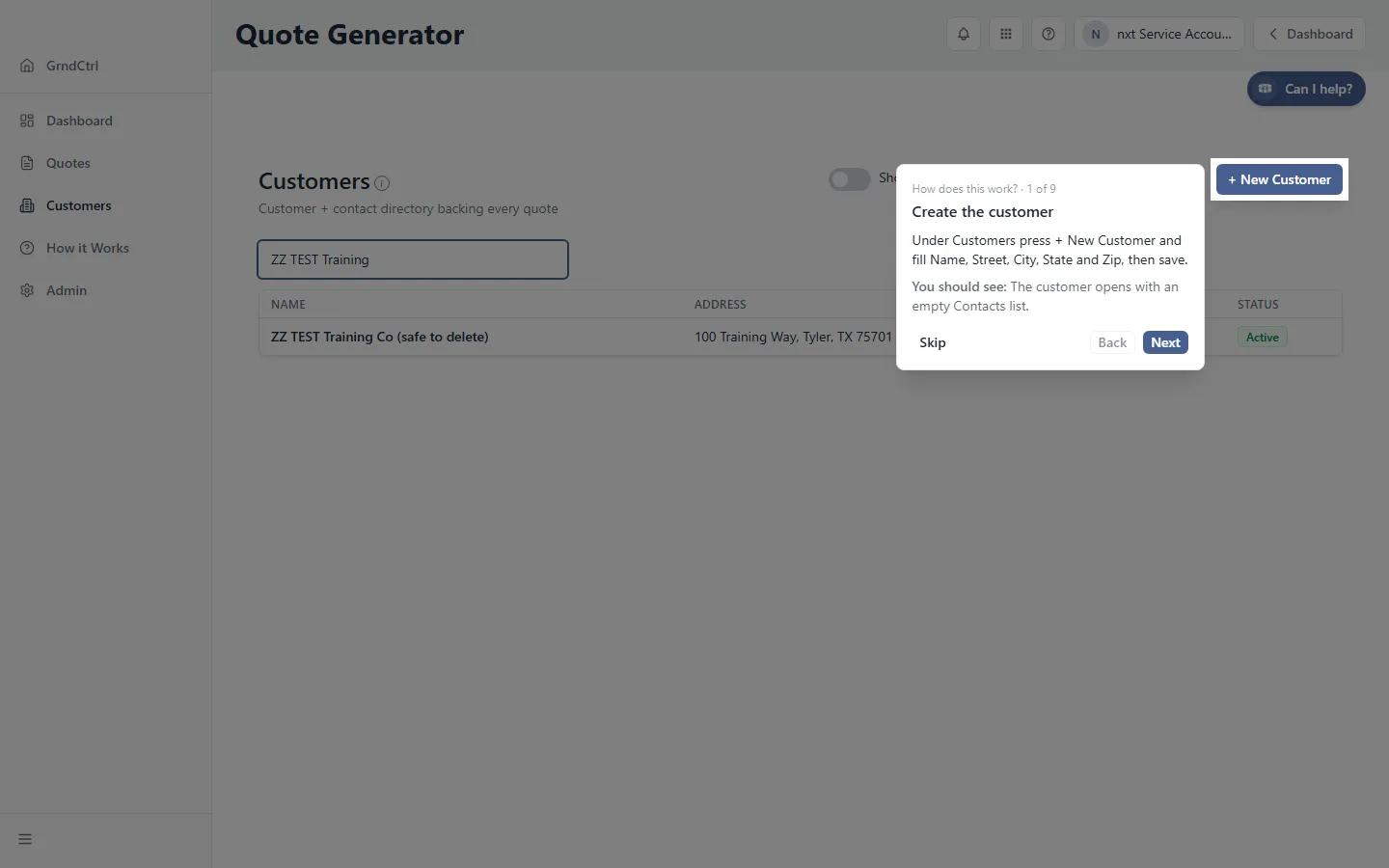
- Adding Customers and Contacts — the customer, its contacts, and why their order matters
- Sending a Quote for Signature — who signs, the document, Ready to send, the signing link, the delivery record
- Reviewing and Signing a Proposal — what the customer sees
- After the Customer Signs — the executed document, the certificate, the record
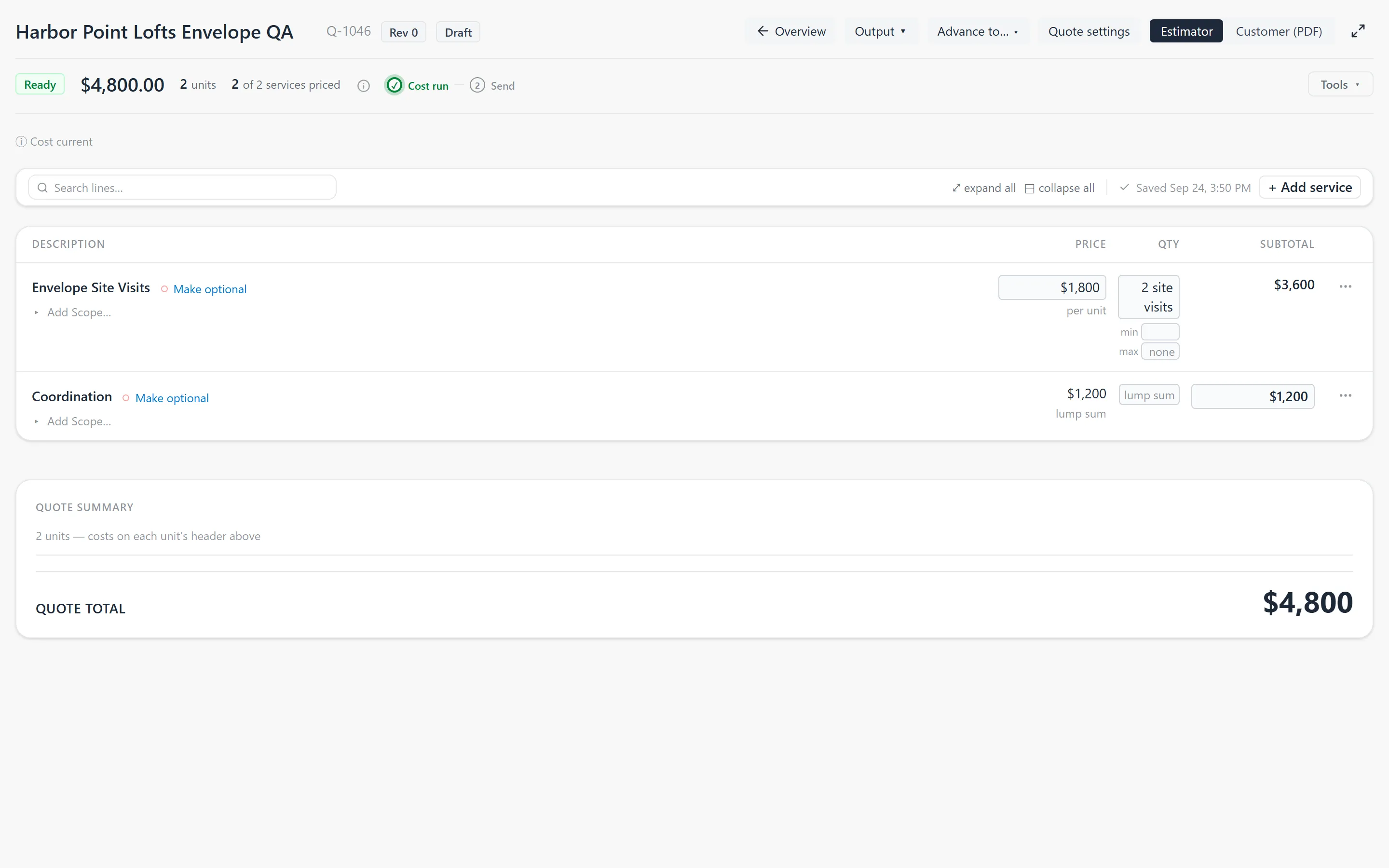
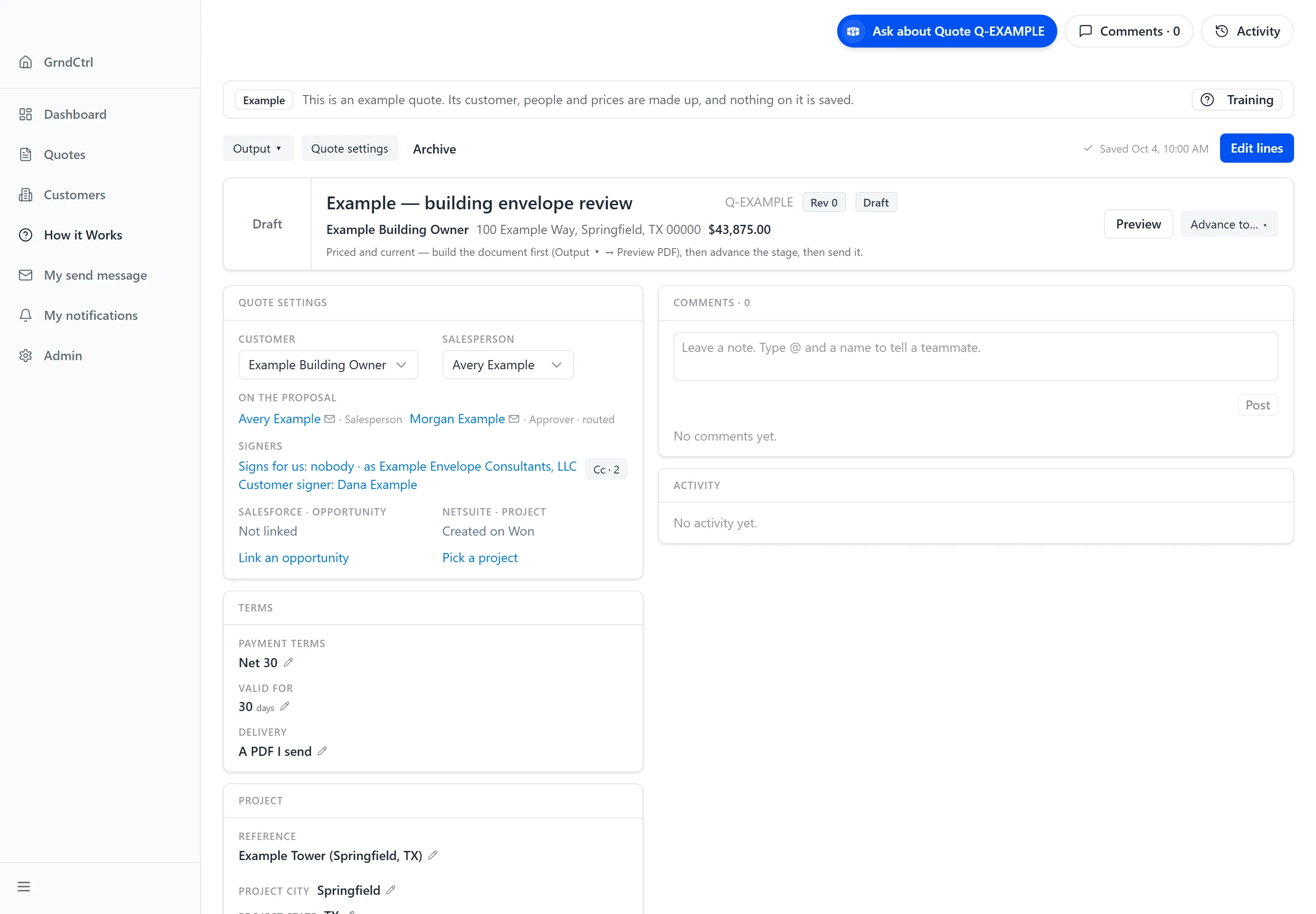
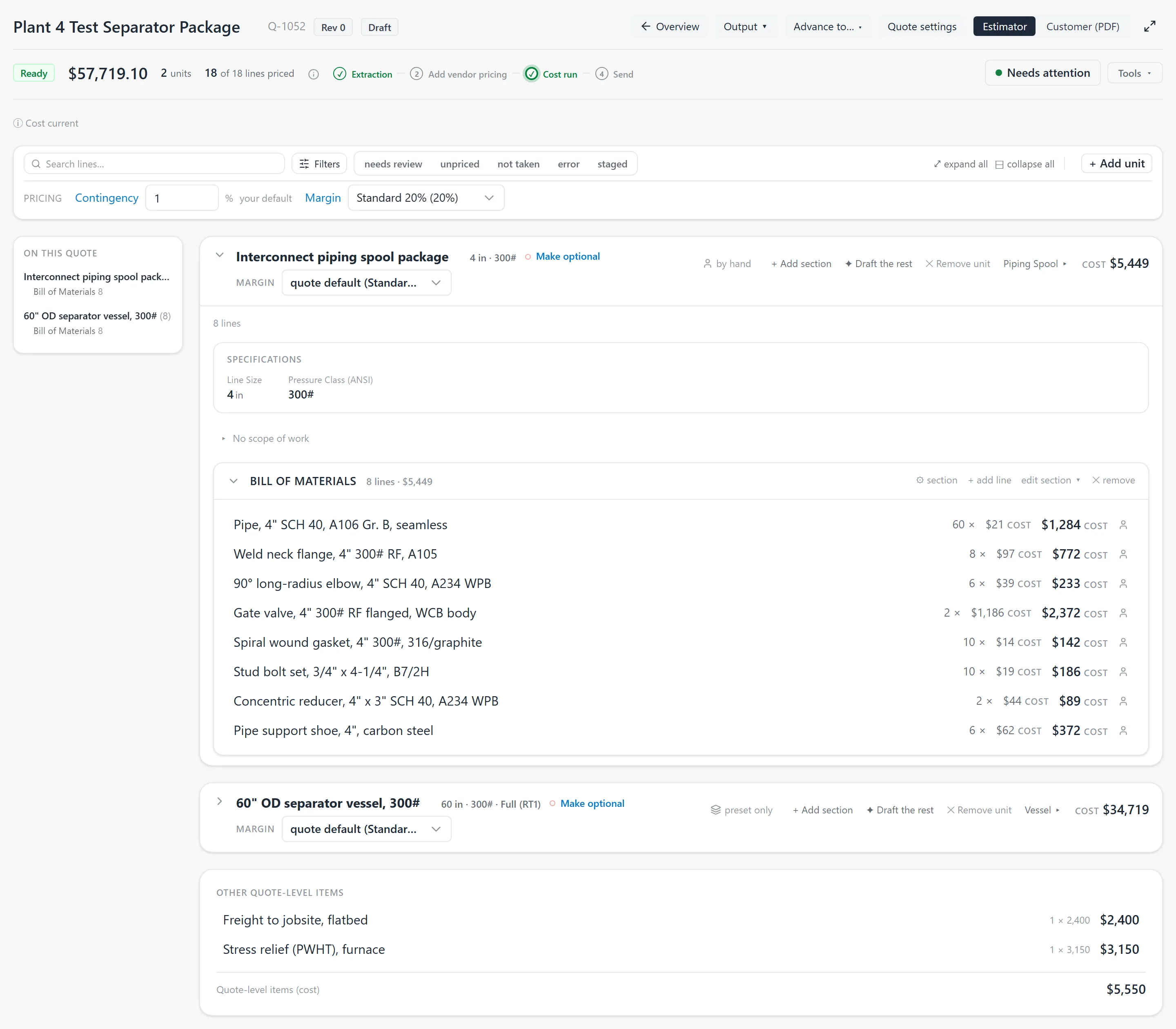
A quote opens on its overview: the quote at a glance, its settings and terms, and its Activity. Its products and prices, shown above, are behind Edit Quote. See The Quote Overview: Where a Quote Opens.
Creating a Quote
Section titled “Creating a Quote”-
Open Quotes and click + New Quote (on the Dashboard, + New quote). The New Quote dialog opens. If every start is dimmed and the dialog says “Starting a quote needs the Edit quotes permission”, you can open quotes but not start or change them; see Who Can Do What on a Quote.
-
Under Start from, click one of the choices in the row. Which ones you see depends on how your organisation works, and the line under the row says what the one you picked does. How each start works, beside the row, lists every start you have with its full name.
- Upload (Upload Documents): read an RFQ, a spec or a P&ID and build the quote
from it. Drop up to 12 files: an RFQ email (
.msg/.eml), a spec sheet, a quote PDF or a workbook. Under Start from a base (optional) you can also pick a saved standard design. A base only adds; what your documents never mention waits under Needs attention. - Open Opportunity (Select an open Salesforce opportunity): where Salesforce is connected, start from an opportunity that is still open. The client, the site and the contact come with it. See Finding a Salesforce Opportunity.
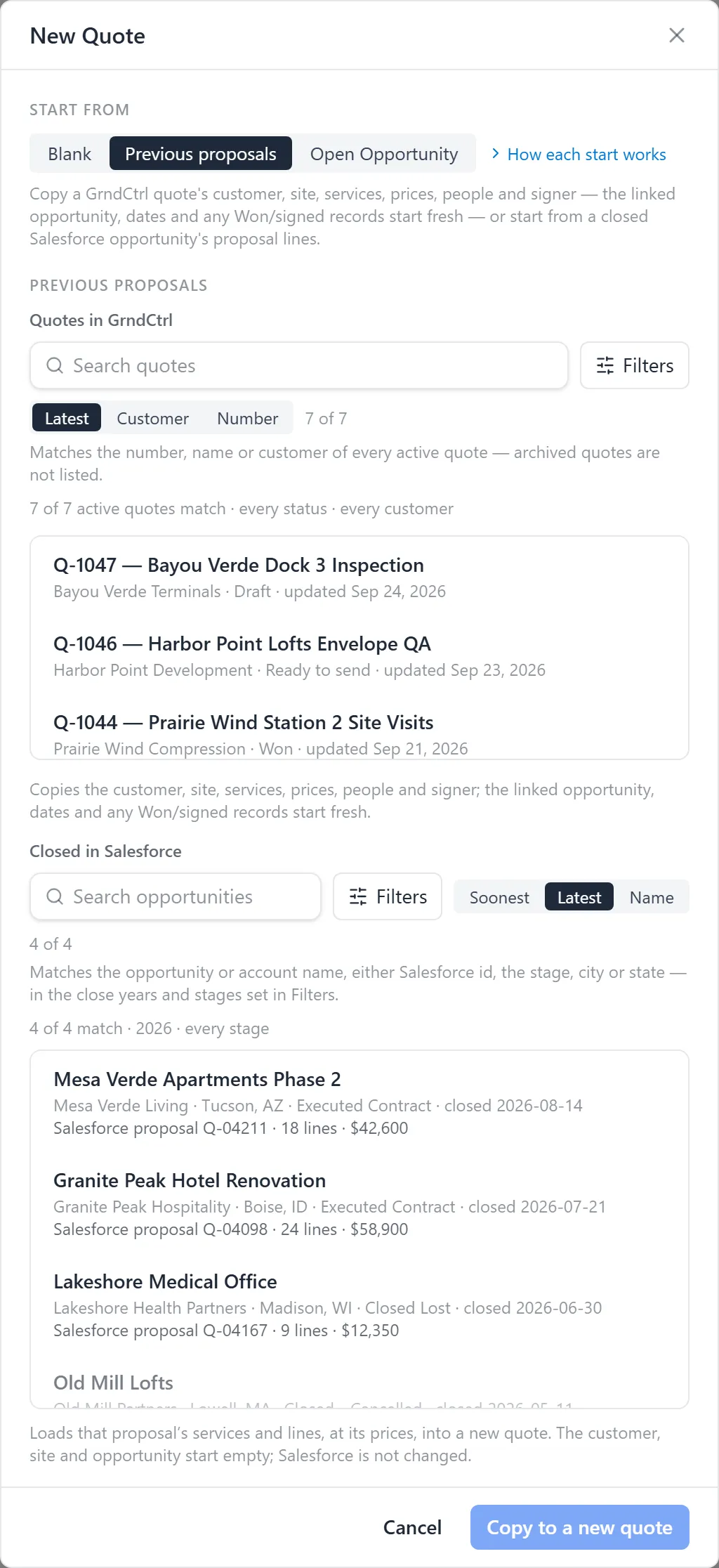
- Previous proposals (From a previous proposal): copy one of your quotes, or start from the proposal behind a closed Salesforce opportunity. See Starting from a Previous Proposal.
- Past job (From a past job): build from a past job’s units and BOM, priced from today’s sheet and never at that job’s price. Until your organisation imports past jobs, this choice is greyed out.
- Preset (From Preset): start from a saved standard design.
- Current job (Link to a current job): where a Monday board is connected, pick the open deal. The quote starts linked to that row.
- Blank: build a quote from scratch. The new quote opens on its overview; Edit Quote opens its empty lines.
- Upload (Upload Documents): read an RFQ, a spec or a P&ID and build the quote
from it. Drop up to 12 files: an RFQ email (
-
Click the button at the foot of the dialog. It says what it will do: Upload & extract for documents, Copy to a new quote or Start from this proposal for a previous proposal, Build from this job for a past job, Start from this deal for a current job, and Create quote for the rest. Set the Customer on the quote’s overview once it opens, if the start did not bring one. A quote built from documents suggests one from the paperwork, and you confirm it with a click.
Watching the Build
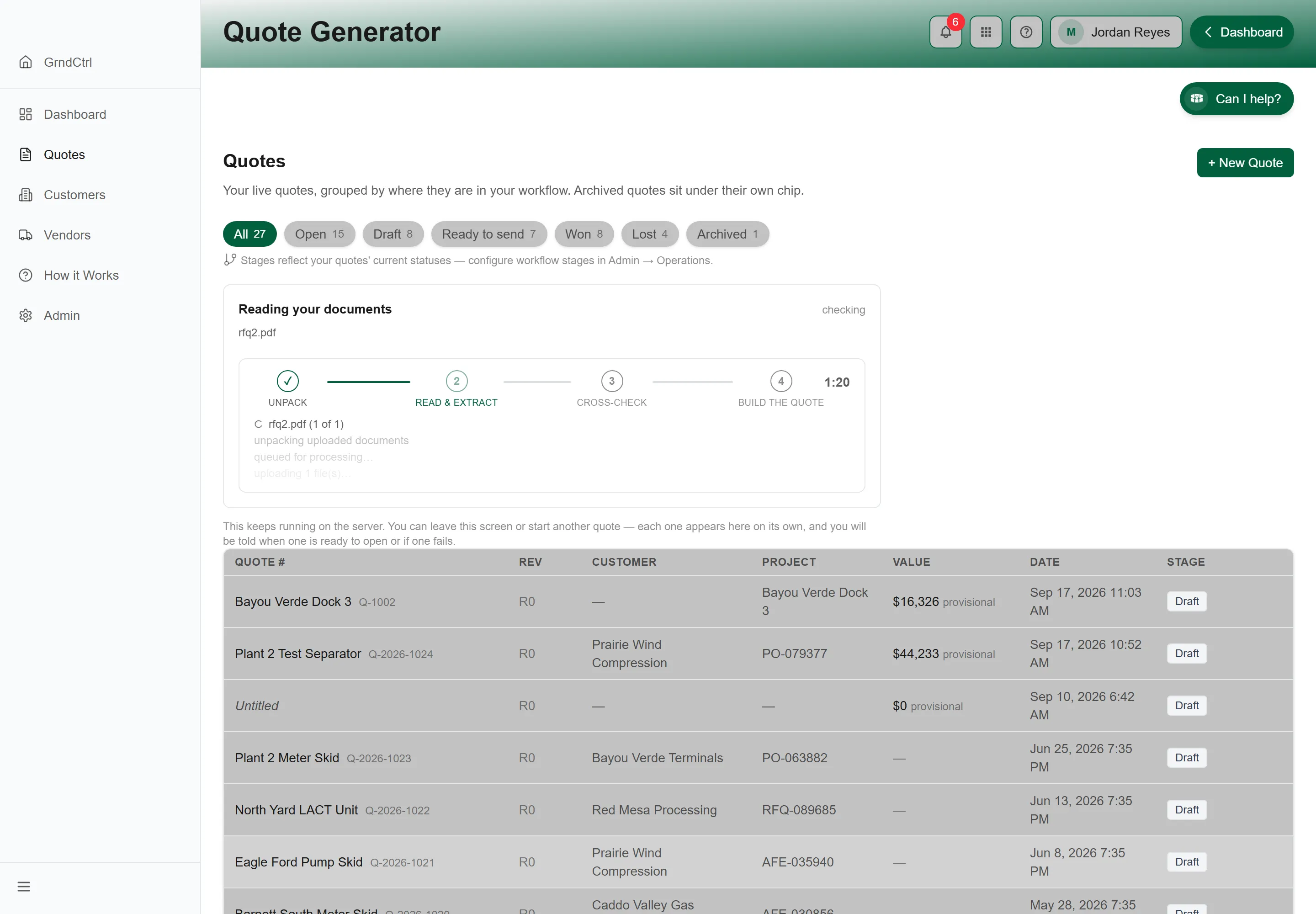
Section titled “Watching the Build”When you start a quote from uploaded documents, the build runs on the server. The Quotes list shows a Reading your documents card while it does — Unpack, Read & extract, Cross-check, Build the quote — and says so: “This keeps running on the server. You can leave this screen or start another quote — each one appears here on its own, and you will be told when one is ready to open or if one fails.”
The quote opens as soon as its units are placed, and the model’s work — reviewing each extracted line against your catalog and drafting the parts each unit still needs — carries on behind it. While that runs the quote’s page is the build record (“Your quote opens once the whole process has finished — extraction, the model’s review and every unit’s parts list.”), with the stages, the units and lines counters, and Preview draft PDF. That page is explained in Watching a Quote Build; what each stage decides is in How a Quote Gets Built.
There is no separate review screen. When the build is done the quote is priced and committed from the extraction, and everything the build could not settle by itself is waiting in one place: Needs attention.
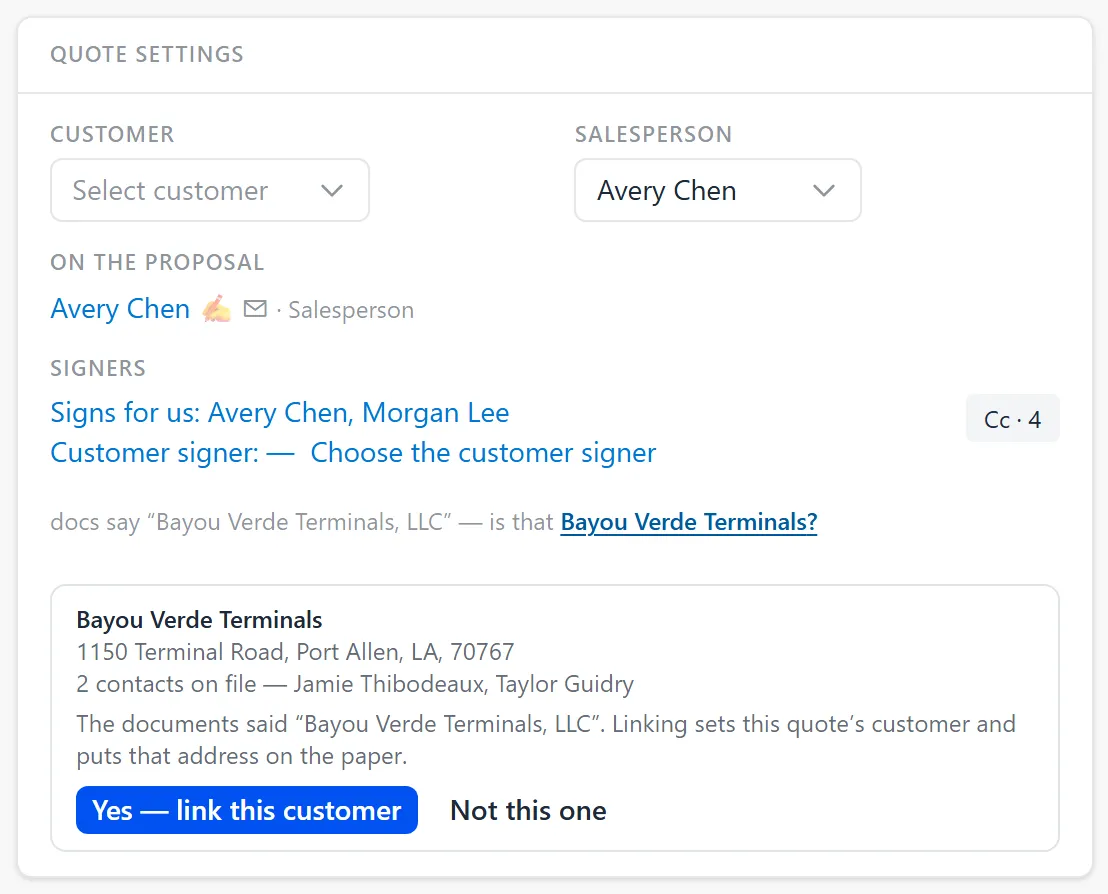
When the documents name a customer, the quote’s overview offers it in the Document Settings card: “docs say “{name}” — is that {customer}?” Click the customer’s name to see its address and contacts, then Yes — link this customer, or Not this one. On the lines, a Needs a customer chip says the quote has none yet.
Needs Attention: What the Quote Still Needs
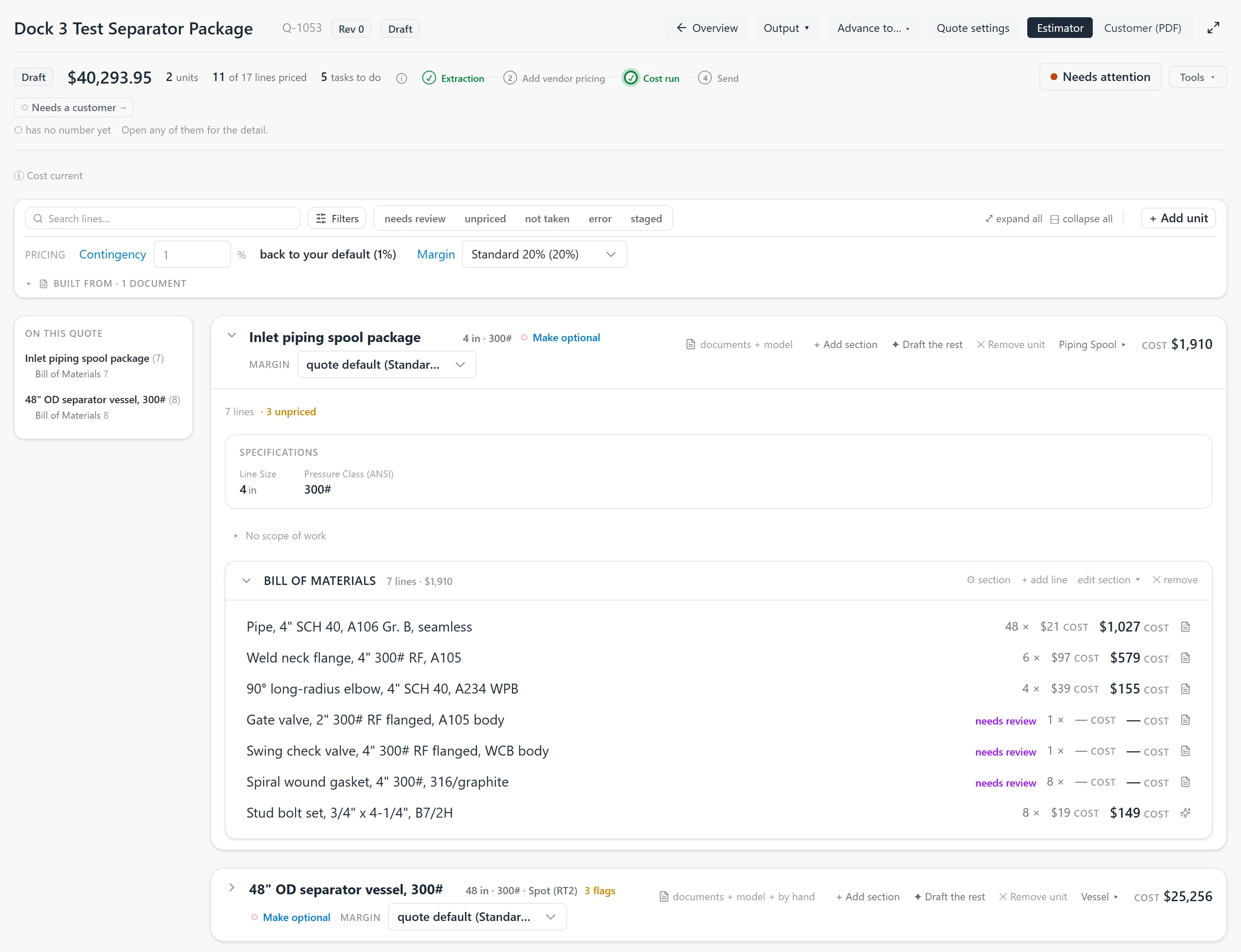
Section titled “Needs Attention: What the Quote Still Needs”The status area at the top of every quote’s lines (Edit Quote) reads the state word (for example Draft or Ready), the total, the units and the hero: N of M lines priced, with N tasks to do while work is open. Beside them is the progress rail. At the right end are Needs attention and Tools ▾. Needs attention carries a dot in the quote’s readiness colour — red with most of the work still open, through orange and yellow, to green when nearly everything you can do is done — and pointing at it says which, for example “Needs attention — a good deal is still open”. It stays there with a green dot when nothing is waiting.
Click it and the What this quote needs panel opens: the priced-of-total bar across the top, and four buckets down the left rail, each with its count.
| Bucket | What is in it |
|---|---|
| The AI Record | What the extraction and the model did to this quote — read-only, grouped Extraction → Vendor pricing → Costing. View Full Decision Log opens the whole record. See Reading the AI Record. |
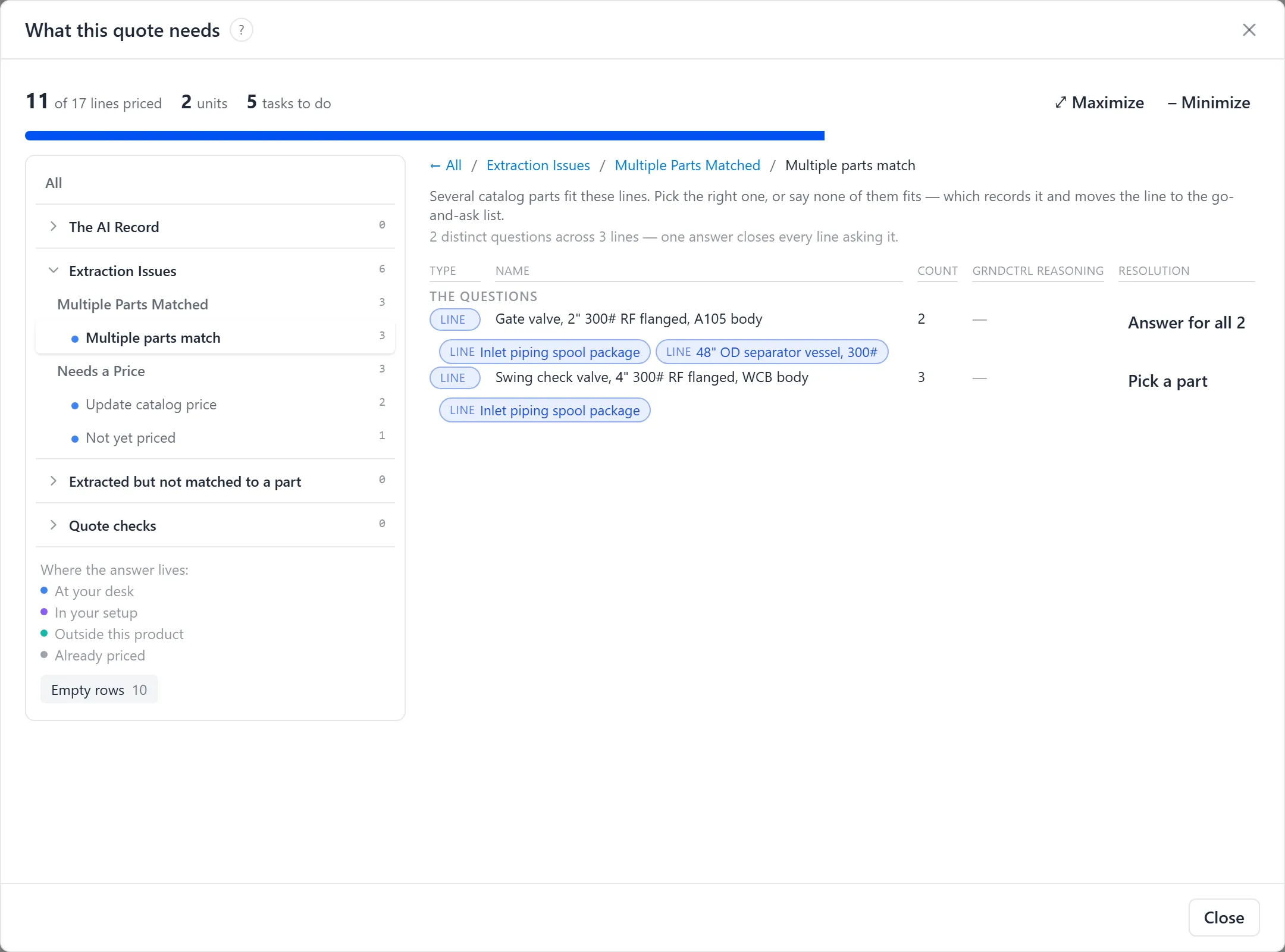
| Extraction Issues | Multiple Parts Matched (candidates are staged — pick one, or say none fits); Needs a Price (Update catalog price, Not yet priced, labour without hours or a rate, allowances, and lines waiting on a vendor price); and Could not be finished (document values that differ from the preset, documents that couldn’t be read, and specs left unresolved). |
| Extracted but not matched to a part | Lines that are not a catalog part yet: Named model not in catalog and Not in your catalog, and on a quote built from documents, extracted lines not on the quote yet and units with no parts list yet. |
| Quote checks | Whole-quote checks rather than lines — the customer’s approved-manufacturer list, standards, the price-book allowance plan, catalog re-matches, vendor quotes waiting for a price review, and the lines your chosen base filled in that need a closer look. |
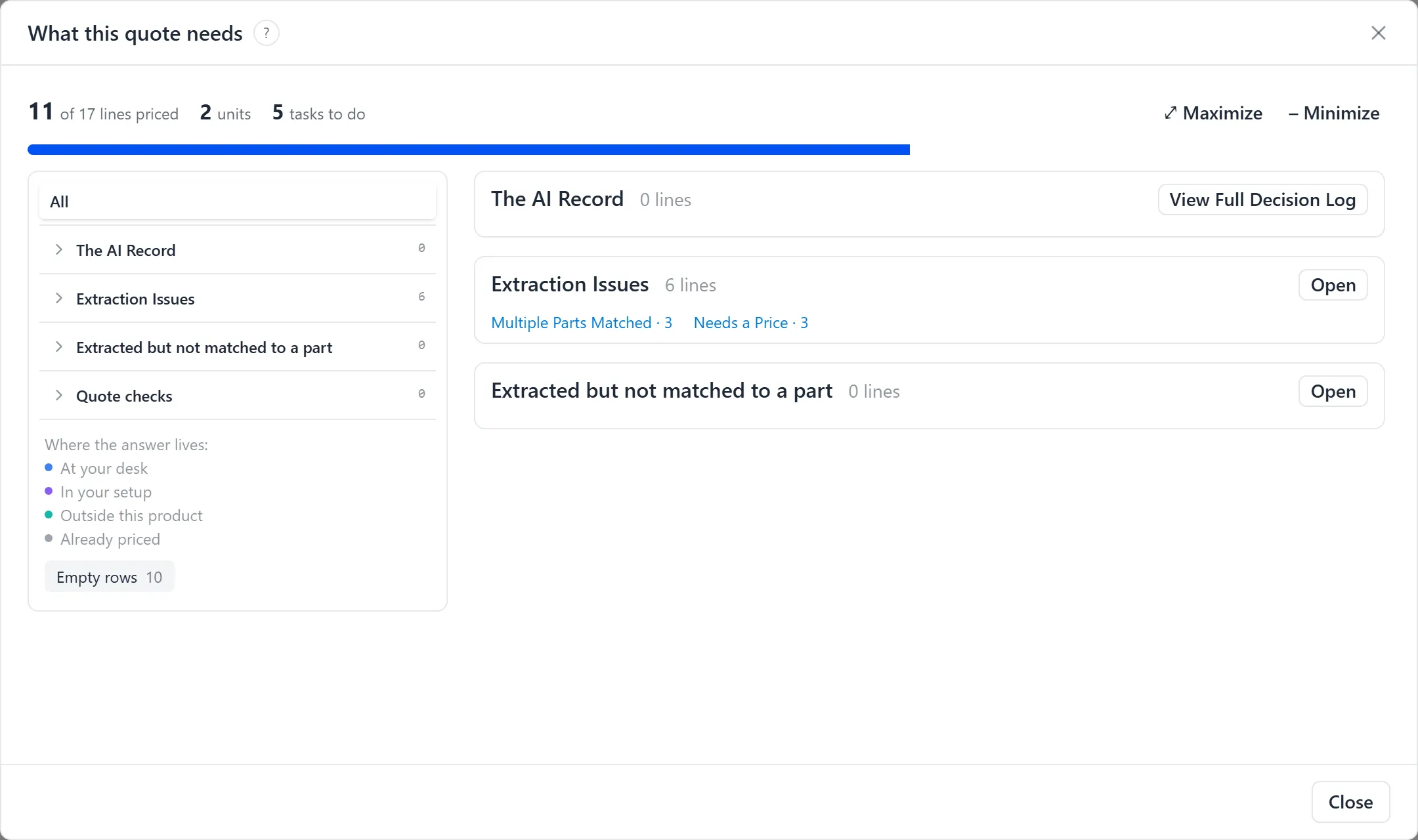
Every group opens with a sentence saying what it holds and what closes it, and every row carries one action — pick the part, add it unpriced, reject it, use the document’s value, keep the preset’s, draft a parts list, change the base, confirm. One answer covers every line asking the same question, each decision commits itself, and the quote re-prices behind it. A category with nothing in it is left out of the rail; the Empty rows chip under the rail counts them and lists them again, dimmed, so you can see the list is complete.
The legend under the rail, “Where the answer lives”, is the order to work in. Point at a label to read what it means:
- At your desk — “You can close these now, on this quote.”
- In your setup — “A value set once in Admin, which then prices every line using it.”
- Outside this product — “Nothing here prices these. Somebody has to get a number.” A vendor who has not quoted yet is not an error, and these never colour the button.
- Already priced — “These lines carry a price. This is a question about the number, not a missing one.”
Building the Quote on the Canvas
Section titled “Building the Quote on the Canvas”The Canvas is the quote’s lines, where it is built and priced. Open a quote and click Edit Quote; Overview, first in the header row, takes you back. A small icon on each line shows where it came from — uploaded from your documents, added by hand, or prefilled from the preset (and, on quotes that use them, expanded from a kit). Hover an icon for the details. To show just one kind, open Filters in the toolbar: its Origin group lists the origins this quote has, such as From uploads, Added by hand, From the preset and From kits, beside Kind, Section and Kit.
- Add and organize line items. Add parts, labor, freight, or other lines, and group them into sections and kits so the quote reads cleanly.
- Add a product. If your organisation quotes products from a fee menu, each at its own price, the Canvas has + Add product (top right). It opens Add a product, on the opportunity’s category when the quote came from one, with Show all one press away; tick one or several and add them. Each product lands as its own row, and Configure Product on the row opens its Product Configuration. See Adding a product by hand.
- Print the groups. A quote’s groups print on its proposal only when Print groups on the proposal is on. It sits beside + Add group once the quote has a group. When it is on, each group prints as a heading over its products with a subtotal under them. The subtotal counts only the products the customer takes, and a group with a product still unpriced prints no subtotal rather than a short one. Products in no group print after the groups, with no heading, and a group made optional prints last, under its own heading; the Canvas shows the products in that same order. A new quote starts with it off, and a copy of another quote (Copy to a new quote or Clone to revise) starts as that quote was. A proposal already sent never changes. The headings and subtotals need a proposal template that prints group rows.
- Add a whole unit. If your organisation builds quotes from parts and labor, use + Add unit (top right) to add another unit or skid, including one that wasn’t in your uploaded documents. Each unit gets its own sections and lines.
- Swap a part. Use Pick a different part to open the catalog and rebind a line. Specifications appear as plain labels (Line Size, Pressure Class), never raw keys.
- Set your pricing. In the PRICING row, type the Contingency percentage (your organisation’s default until you change it) and pick a Margin tier (for example, Standard 20%). These drive the quote’s totals.
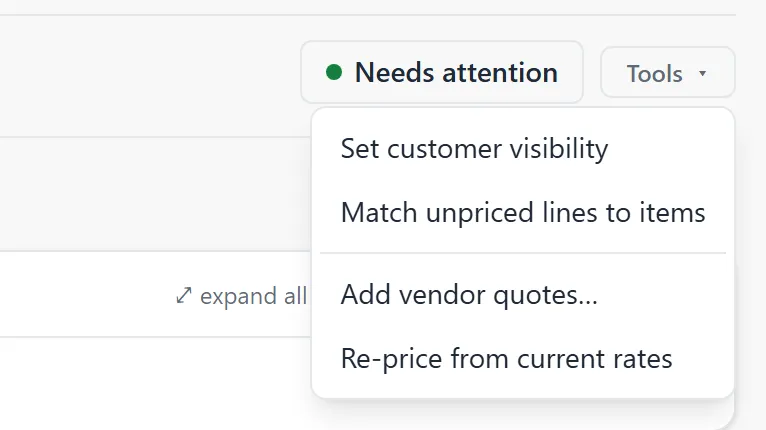
- Pull in vendor pricing. Open Tools in the status area and choose Add vendor quotes… — see Pricing from Vendor Quotes below.
- Recompute after edits. Edits stage rather than re-pricing instantly. When you see “Costs are stale — N staged changes,” click Recompute prices, or discard staged edits to back them out. A quote that has never been priced says so — “Not priced yet — derived numbers (extended, subtotals, totals) appear after the first pricing run.” — with Price the quote beside it.
- Use the filter chips. The chips in the toolbar are clickable — click one to show only those lines. This is invaluable when you have, say, 21 unpriced lines to work through. Clear them before you move on. For everything that still needs a decision, though, Needs attention is the place: it ranks the work and carries the action on each row.
- Check the Customer view and Preview Proposal. Toggle Customer view to see exactly what the customer will see, with internal costs hidden, and click Preview Proposal to see the finished, customer-facing quote before you send it.
What each attention flag filters to:
| Flag | Lines it shows |
|---|---|
| needs review | Lines read off an uploaded document and added unpriced (“decide later”) — give each a part or a price, or remove it. |
| unpriced | Lines with no price yet — pick a part or set a price. |
| not taken | Lines this unit carries at quantity 0 — options its template offers that this configuration did not take. They keep a cost on file and add nothing to the total. |
| error | Lines with a calculation or data error. |
| staged | Lines with edits staged but not yet recomputed. |
Pricing from Vendor Quotes
Section titled “Pricing from Vendor Quotes”A vendor’s returned quote carries prices, not structure, so it goes onto a quote that already exists. Open Tools in the status area and choose Add vendor quotes….
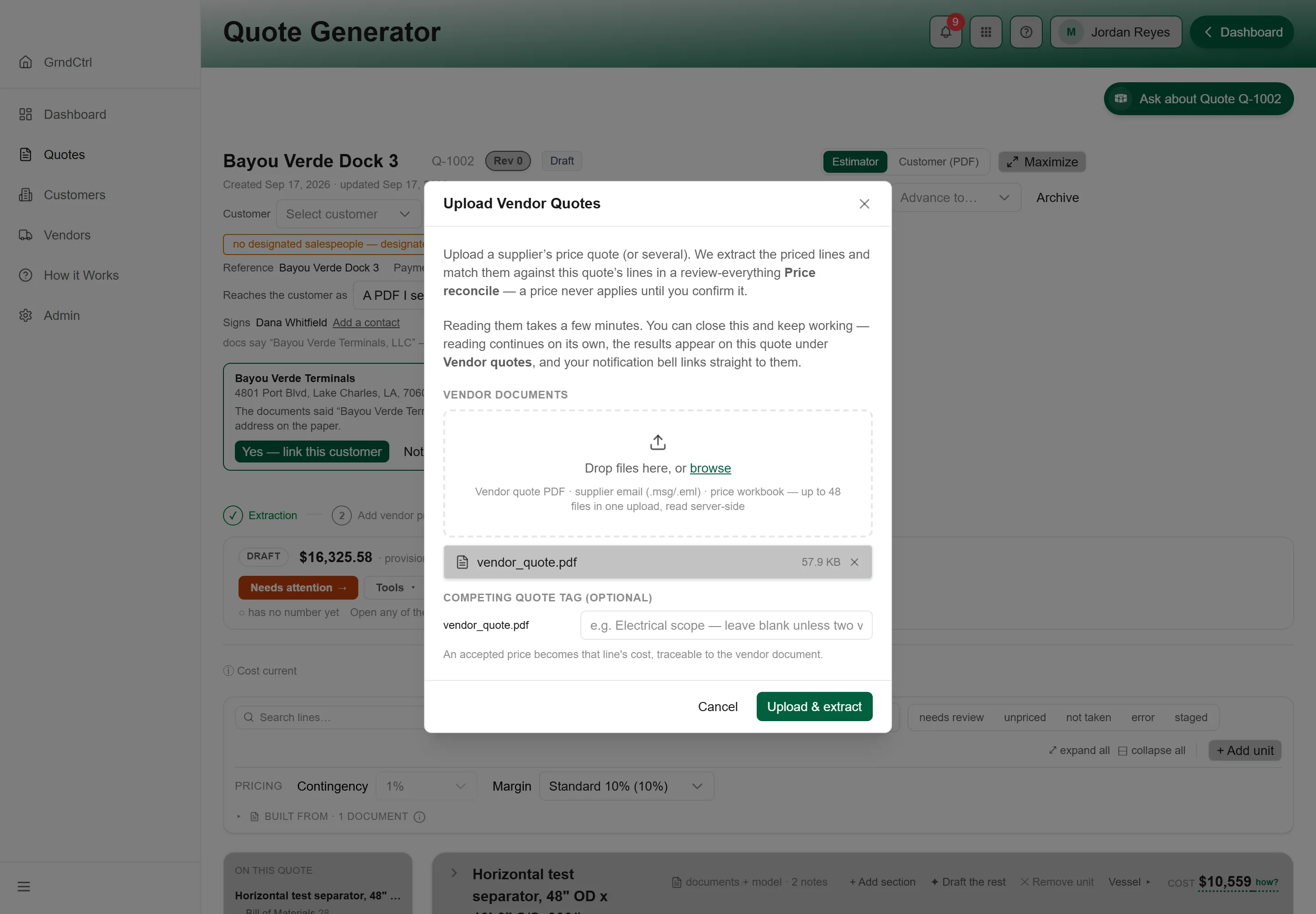
- In the Upload Vendor Quotes dialog, drop the supplier’s documents under Vendor documents — “Vendor quote PDF · supplier email (.msg/.eml) · price workbook — up to 48 files in one upload, read server-side” — and click Upload & extract. The dialog says what happens next: “a price never applies until you confirm it”, and “Reading them takes a few minutes. You can close this and keep working” — the results land on the quote under Vendor quotes and your notification bell links straight to them. If two suppliers quoted the same scope, the optional Competing quote tag keeps them apart.
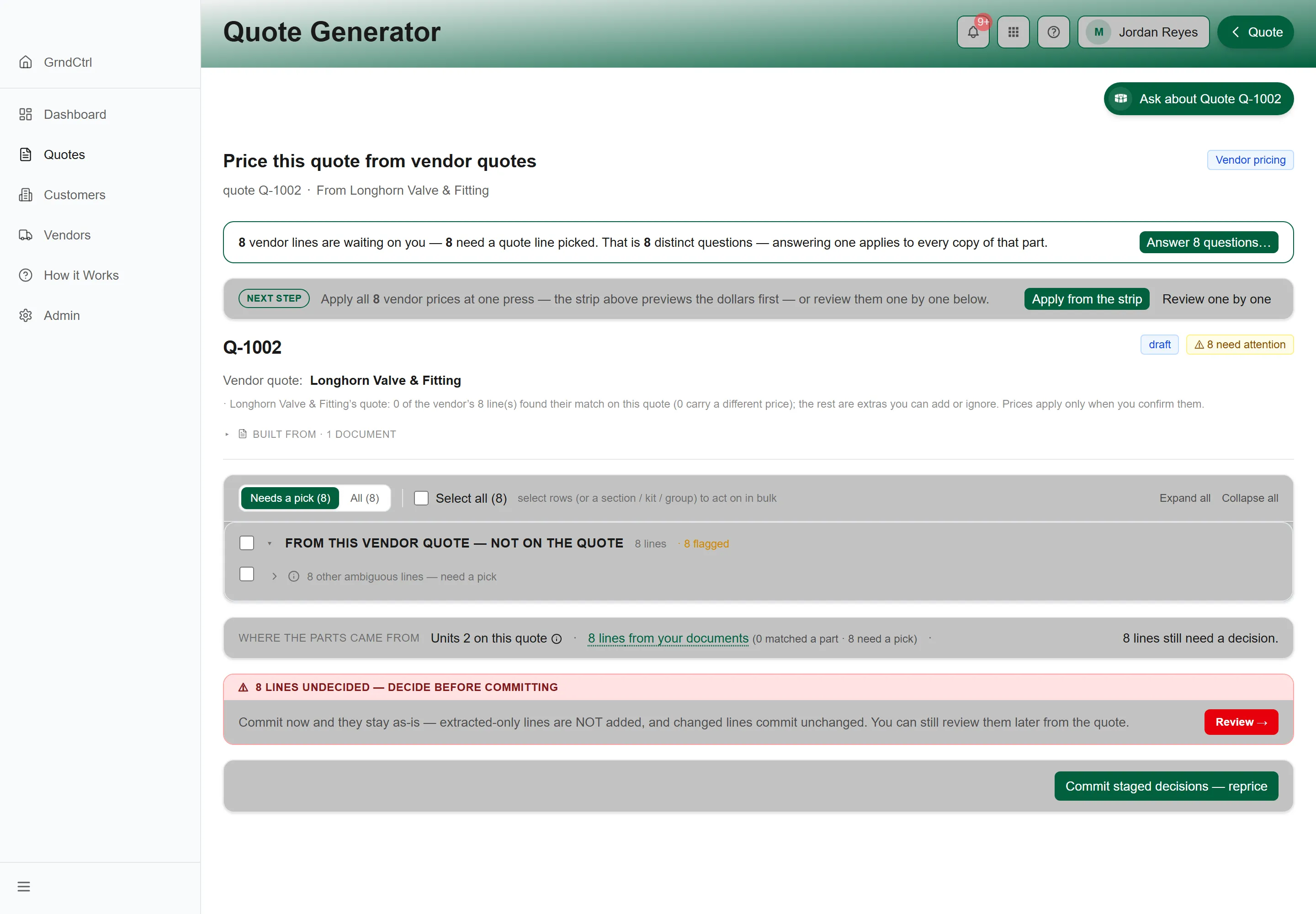
- When the extraction finishes the quote opens Price this quote from vendor quotes. The strip at the top counts what is waiting — “N vendor lines are waiting on you” — and offers the two ways through: Apply from the strip to take every vendor price at one press (the strip previews the dollars first), or Review one by one. Below, the vendor’s lines sit in groups by what they need: a price that differs from the cost the line carries now, a line that could price several of your lines (Needs a pick — you say which), and lines the vendor quoted that are not on the quote (From this vendor quote — not on the quote), which you add or ignore. A quote line the vendor never quoted is left alone.
- Press Commit staged decisions — reprice. Anything still undecided is said out loud first — “N lines undecided — decide before committing” — and stays as it is if you commit anyway. Accepted prices land as each line’s cost, traceable to the vendor document, and the quote re-prices. The round’s record sits under Needs attention → The AI Record.
Moving a Quote Through Its Workflow
Section titled “Moving a Quote Through Its Workflow”Every quote is in one stage. The names are your organisation’s (configured under Admin → Operations → Lifecycle); every NXTC tenant today uses Draft, Ready to send, Won, and Lost, with Archived for quotes set aside. Under Advance to… on the quote’s overview (it is also in the header on the lines) you pick the next stage; Ready to send seals and locks the quote and is where the signing link goes out — see Sending a Quote for Signature.
A quote advances through the workflow stages your organization has configured. An administrator sets these under Admin → Operations → Lifecycle, so the exact names can differ between organizations. Every quote starts in Draft; from there you move it forward with the Advance to… menu on the quote. Every NXTC tenant today runs Draft → Ready to send → Won, Lost, or Archived.
- Advance the stage. Open the quote and use Advance to…, beside Preview, to move it forward, for example to Ready to send before it goes to the customer; that step seals the document and asks you to confirm with Advance & seal.
- Terminal stages. Won and Lost close a quote out, and Archived sets it aside. Closed quotes drop out of the Open quick-filter but stay fully searchable.
- Revisions. Each revision bumps the Rev number (R0 → R1 → and so on), so the history stays intact.
- Locking. If your workflow marks a stage as locking, advancing to it freezes edits so the record matches exactly what the customer received. After that, make changes by creating a new revision.
Starting from a Previous Proposal
Section titled “Starting from a Previous Proposal”Under Start from, Previous proposals shows the quotes you can copy. Where Salesforce is connected it shows two lists: Quotes in GrndCtrl, your own quotes, and Closed in Salesforce, opportunities whose deal is already closed. Picking from one list clears your pick in the other.
Quotes in GrndCtrl
Section titled “Quotes in GrndCtrl”Every active quote, newest first. Archived quotes are not listed. Each row shows the quote’s number and name, then its customer, its stage and when it was last updated. No total is shown: the old quote’s amount is not where the new one starts.
- Type in Search quotes to match the number, the name or the customer. Every word you type has to match.
- Filters opens two groups: Status, one chip per stage with its count (all on until you turn one off), and Customer, the customers with the most quotes. Clear filters puts both back.
- Sort with Latest, Customer or Number.
Pick a quote and click Copy to a new quote. You can also copy a locked quote (with the default stages, a won or lost one): open it and click Clone to revise on its overview. The new draft opens with “Cloned to a new draft.” The list says what a copy carries: “Copies the customer, site, products, prices, people and signer; the linked opportunity, dates and any Won/signed records start fresh.”
Closed in Salesforce
Section titled “Closed in Salesforce”Opportunities whose stage is Executed Contract, Closed Lost, Closed - Cancelled or Closed Won, newest first. Each row names the opportunity, its account, city, stage and close date, and below that the Salesforce proposal behind it: its number, how many lines it has and its amount. An opportunity with no proposal on file is greyed out and says why. The list has the same search, filters and sorts as the opportunity list; see Finding a Salesforce Opportunity.
Pick one and click Start from this proposal. The list says what happens: “Loads that proposal’s products and lines, at its prices, into a new quote. The customer, site and opportunity start empty; Salesforce is not changed.” The new quote is not linked to the closed opportunity, so a Won on the new quote never writes onto a deal that is already closed. Set the customer and link an open opportunity on the quote’s overview.
What a Copy Carries
Section titled “What a Copy Carries”A copy carries your choices: the customer and site, the products, lines and prices, the people and the signer, the terms and the template. It does not carry anything that records what happened to the original, because none of that happened to the copy:
- no Salesforce close-out, CPQ quote or NetSuite project record, and no NetSuite project picked for it;
- no signed or sealed amount, no sent or accepted date, no loss reason, PO number or change orders;
- no proposal document and no history — its record starts empty;
- no Salesforce opportunity. The copy shows Not linked until you link one. Its Approver follows the quote it was copied from until then.
So a copy that is won later writes to Salesforce and NetSuite as itself, never on top of the original’s records. To link its own opportunity or pick its own project, see The Quote Header.
Asking About a Quote
Section titled “Asking About a Quote”Every quote has a button at the bottom right, Ask about Quote {number}, that opens a chat about that quote. Ask in plain words — “Ask about this bid — a line, a price, or a document behind it”. The assistant reads the quote’s own record before anything else, including who is on it: the signer and whether anyone chose them, the entity you sign as, the salesperson, the Approver the quote routes to and why, anyone added to the quote, and the Reference. It also says when the quote’s customer differs from the linked opportunity’s account. Answers cite the record they came from. The conversation is kept, one per quote, with your other chats.
Customers and Vendors
Section titled “Customers and Vendors”Customers are who you quote to; Vendors are who you buy from. You don’t have to set either up before you start — a quote works fine without them — but they’re where reusable detail lives, so it’s worth knowing they’re there.
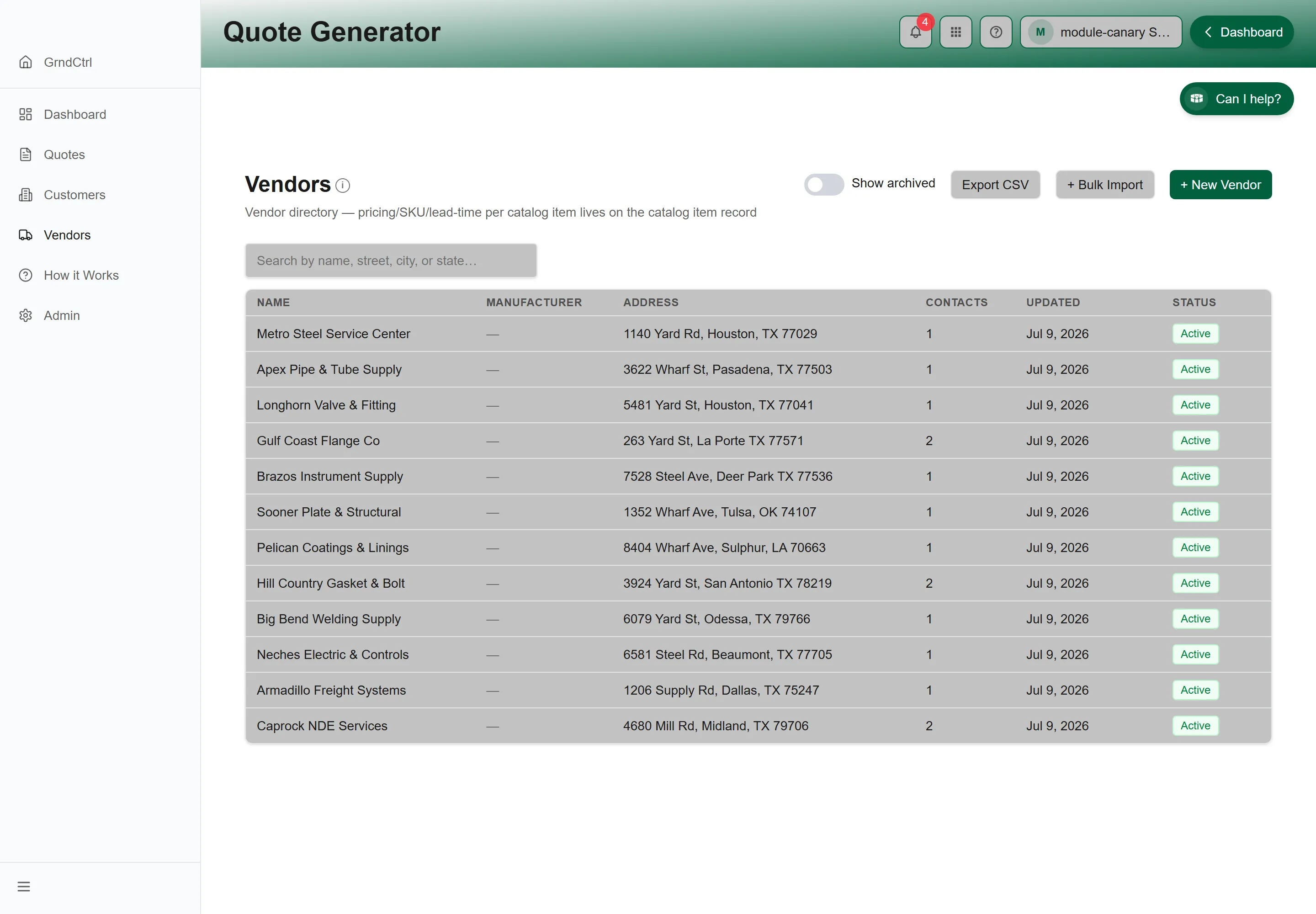
The Vendors page, from the left sidebar, is a directory of your suppliers: add one with + New Vendor, load many at once with + Bulk Import, or Export CSV. A vendor’s actual pricing, SKU, and lead time live on the catalog item records they supply — and on the Canvas, Upload Vendor Quotes pulls vendor pricing straight into a quote’s lines.
Your Dashboard at a Glance
Section titled “Your Dashboard at a Glance”The Dashboard leads with four KPI cards. Each is clickable and opens the Quotes list filtered to match:
| KPI | What it shows |
|---|---|
| Open | Quotes in progress — your active workload. |
| Awaiting customer | Sent but not yet closed — decisions pending. |
| Won | Closed-won in the last 90 days. |
| Pipeline | Total value sitting in sent proposals. |
On the Quotes list, use the stage tabs — plus the Open quick-filter, which hides Won and Lost — and the columns Quote #, Rev, Customer, Project, Date, and Stage to find any quote fast. There’s no dollar-value column on the list; open a quote to see its total.
Troubleshooting
Section titled “Troubleshooting”Quote Generator is missing, or I get “Access Denied”
Section titled “Quote Generator is missing, or I get “Access Denied””Solutions: three things have to be true. Check them in order.
- An administrator has enabled Quote Generator in the App Store.
- Your group has been granted access to it.
- You have signed out and back in since that change. See Getting Access to Apps and Extensions.
I can open quotes but not change them
Section titled “I can open quotes but not change them”Solutions: your organisation gives Edit quotes to a role, and you do not hold one. The quote says so on its overview, and every start in New Quote is dimmed for you. Ask a Quote Generator admin for a role with Edit quotes; see Without Edit Quotes.
The quote total looks too low
Section titled “The quote total looks too low”Solutions:
- Read the status area. A total marked provisional says why beside it — a spec still unresolved, a slot that did not compute — and the hero (N of M lines priced) tells you how much of the quote the number actually covers.
- Open Needs attention and work the buckets from the top: Extraction Issues and Extracted but not matched to a part are the lines the total is missing. Each row’s action prices it.
The quote opened but its units say “no lines yet”
Section titled “The quote opened but its units say “no lines yet””Solutions:
- The build is still running. The status area reads “Built from documents — placing the extracted lines on the quote — waiting for the build to finish before applying your decisions - nothing has been lost” and each unit says “The model hasn’t looked at this unit yet.” Leave it; the quote fills in and prices itself when the model finishes.
- To watch it, open the quote from the list while it builds — the build page shows the stages, the units and lines counters and how long a package this size usually takes. See Watching a Quote Build.
Costs are marked stale
Section titled “Costs are marked stale”Solutions:
- Staged cost changes have not been applied yet. Apply them so the quote prices against current costs.
- Until you do, the figures on screen are priced against the older costs, which is why the banner flags it rather than silently repricing.
A unit arrived bare, or on the wrong design
Section titled “A unit arrived bare, or on the wrong design”Solutions:
- Open Needs attention → Units with no parts list yet. Its rows offer to draft a parts list from the unit’s specs, change the base preset, or compare presets first.
- A unit lands bare when no saved design matched it well enough to load — the Preset seeding floor in Tuning Quote Generator sets how close a match has to be.
Related Articles
Section titled “Related Articles”- Quote Generator Help
- The Quote Overview: Where a Quote Opens
- The Quote Header and Document Settings: Reference, People and Linked Records
- Finding a Salesforce Opportunity
- Which Approver Is Told About a Quote
- Adding Customers and Contacts in Quote Generator
- Sending a Quote for Signature
- Getting Started with Template Builder — Build the document a quote renders into
- After the Customer Signs
- Getting Access to Apps and Extensions — Start here if Quote Generator is missing or you see “Access Denied”
- Connecting Your Systems with Integrations — Connect GrndCtrl to the systems your team already uses
- Composite Tables: Combining Your Data — Join and roll up your synced sources