
Booking Meetings with Scheduling
Scheduling shows when your colleagues are free and lets you book a meeting without leaving GrndCtrl. It also answers a harder question — who is free — by searching for available people across offices and departments.
Finding Your Way Around
Section titled “Finding Your Way Around”Open Scheduling from the app launcher. You’ll land on Schedule — the availability grid.
- Schedule — Everyone’s availability, side by side
- Meeting Finder — Find a time that suits a chosen group
- Find Help — Find people with capacity, across offices
- Admin, Settings and Logs — Administrators only
Reading the Availability Grid
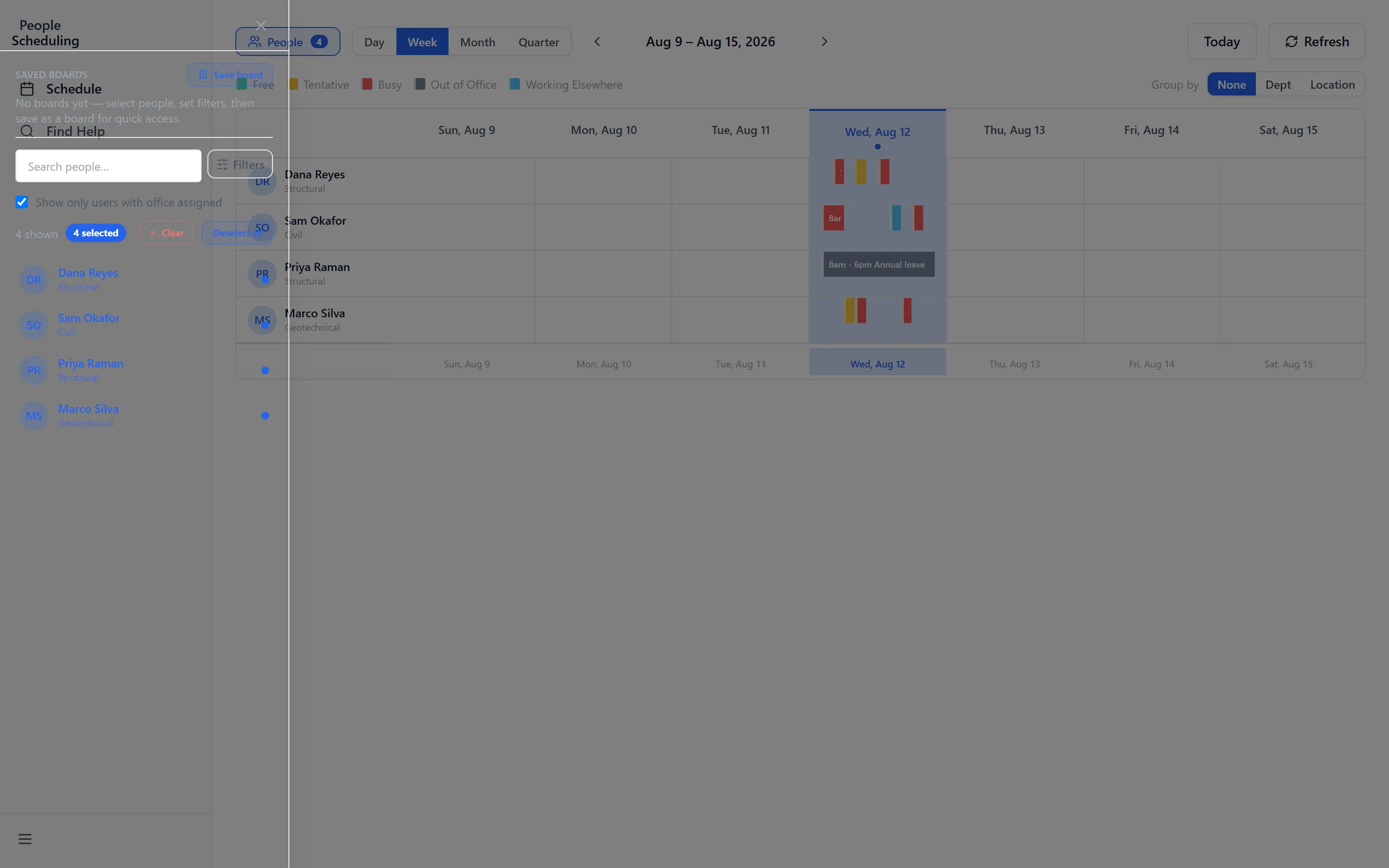
Section titled “Reading the Availability Grid”Schedule lays people down the side and time across the top. Each block is coloured by status, and the legend names five:
- Free — nothing booked
- Busy — committed
- Tentative — accepted provisionally
- Out of Office — away
- Working Elsewhere — working, but not at their usual place
Tentative and Working Elsewhere are the two worth reading carefully. Neither means unavailable, and both are easy to misread as Busy at a glance.
People chooses who appears. Filters & grouping narrows and organises them, and Jump to Today returns the view to the current day after scrolling.
Clicking a booked block opens its detail, with Edit meeting and Cancel meeting where you have the right to use them. A meeting with no join URL shows No online link.
Booking a Meeting
Section titled “Booking a Meeting”- Select the people you want on the Schedule grid.
- Choose a free slot. The Schedule Meeting dialog opens.
- Enter a Subject. This is required — leaving it blank returns “Subject is required”.
- Check the Date, Start time and Duration.
- Optional: add a Location (optional) — “Room name or address”.
- Optional: add an Agenda (optional).
- Click Schedule Meeting.
If it cannot be created you’ll see “Failed to create meeting. Please try again.” — the meeting is not booked, so nothing is half-created.
Changing or Cancelling a Meeting
Section titled “Changing or Cancelling a Meeting”Edit meeting opens the booking with Title, Date, End, Location, Attendees and Description — so adding a person or moving a room does not mean rebooking.
Cancel meeting asks “Cancel meeting?” and offers to “Add a message to attendees (optional)”.
Meeting Finder
Section titled “Meeting Finder”Meeting Finder answers “when can this group meet?” Set From, To and Duration, and it returns the times that work for everyone chosen — rather than you reading across several calendars yourself.
Find Help
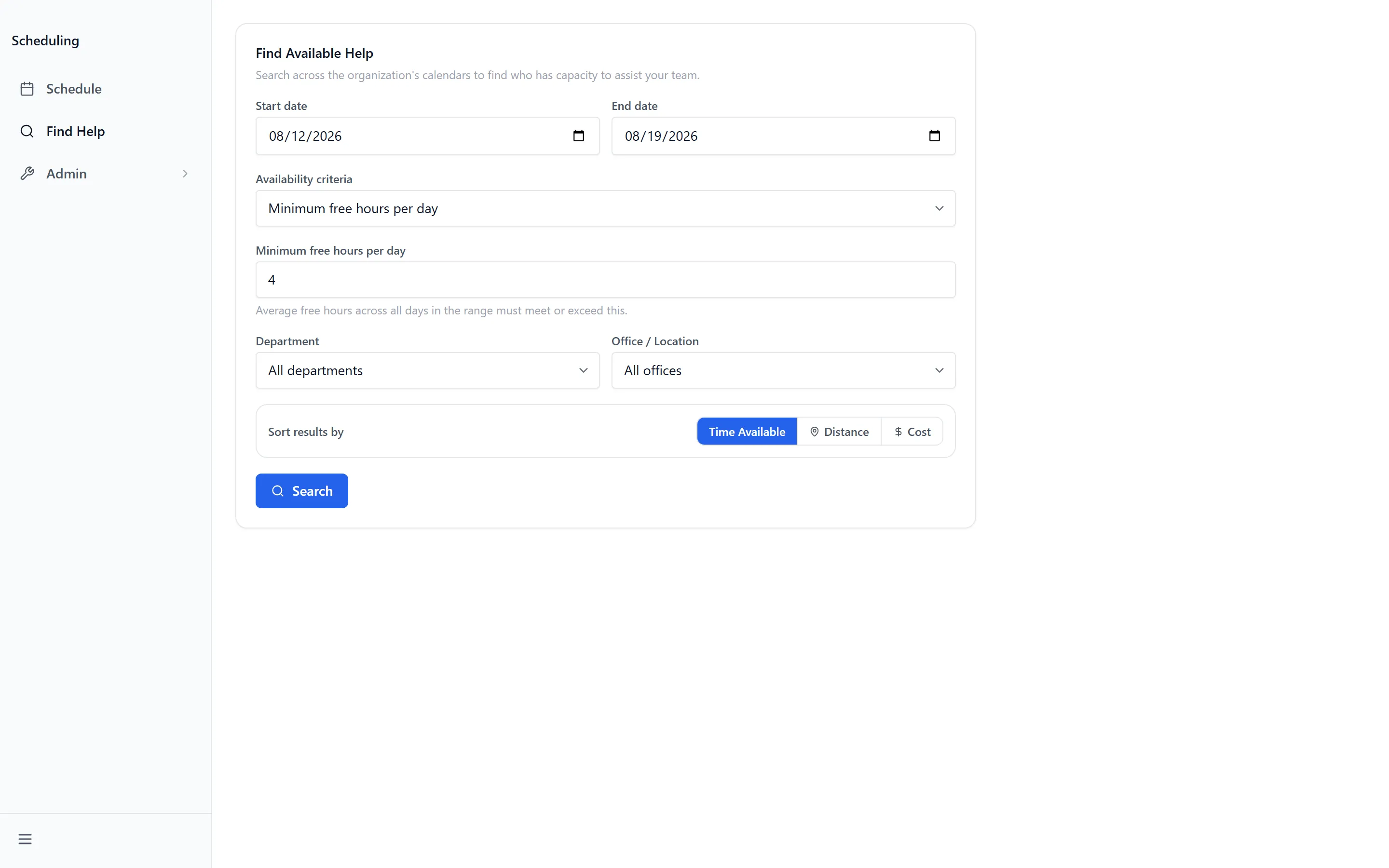
Section titled “Find Help”Find Help is the opposite question: not when a known group is free, but who has capacity. It is built for pulling someone onto work that needs cover.
Set the search up with:
- Start date and End date — the window to look in
- Office / Location and Department — who to consider
- Your office (search origin) — where the work is, which is what distance is measured from
Availability criteria sets how free is free enough — Minimum free hours per day, Minimum free hours on those days, and Minimum % of working hours free. Click Search to run it.
Results can be Sorted by availability, Sorted by distance or Sorted by cost. Someone with no fixed office shows as Remote.
Administrator Settings
Section titled “Administrator Settings”Administrators get three more entries. Settings holds the defaults everyone else inherits:
- Default duration (min) and Default timezone
- Default department and Default department filter
- Drive vs. flight threshold (miles) — where Find Help switches from driving to flying
- Cache TTL (minutes), with Flush Cache to clear it now
Offices are maintained here too — Office name, Latitude and Longitude. Those coordinates are what Sorted by distance uses, so an office without them cannot be ranked properly. Working hours come from End time and the day settings.
Logs records what the app has done, for when a sync or a booking needs explaining.
Troubleshooting
Section titled “Troubleshooting”Scheduling is missing, or I get “Access Denied”
Section titled “Scheduling is missing, or I get “Access Denied””Solutions: three things have to be true. Check them in order.
- An administrator has enabled Scheduling in the App Store.
- Your group has been granted access to it.
- You have signed out and back in since that change. See Getting Access to Apps and Extensions.
Someone’s availability looks wrong
Section titled “Someone’s availability looks wrong”Solutions:
- Availability is cached. Ask an administrator to use Flush Cache, or wait for Cache TTL (minutes) to pass.
- Check what the colour actually means. Tentative and Working Elsewhere are not Busy.
- If availability fails to load entirely you’ll see “Failed to fetch availability” — that is a connection problem, not an empty calendar.
Find Help returns nobody
Section titled “Find Help returns nobody”Solutions:
- Relax Availability criteria. Minimum % of working hours free is the setting that most often excludes everyone.
- Widen Office / Location and Department, or extend the window between Start date and End date.
Sorted by distance puts the wrong people first
Section titled “Sorted by distance puts the wrong people first”Solutions:
- Check Your office (search origin). Distance is measured from there, not from where you happen to be.
- An office with no Latitude and Longitude in Settings cannot be placed. Ask an administrator to add them.
I can’t edit or cancel a meeting
Section titled “I can’t edit or cancel a meeting”Solutions:
- Edit meeting and Cancel meeting appear only on meetings you have the right to change — usually ones you organised.
- For someone else’s meeting, contact the organiser. Scheduling reflects the underlying calendar’s permissions rather than overriding them.
Related Articles
Section titled “Related Articles”- Getting Access to Apps and Extensions — Start here if Scheduling is missing or you see “Access Denied”
- Company Calendar — Company-wide dates, which are separate from meetings
- Connecting Your Systems with Integrations — How GrndCtrl reads the calendars behind this app