
Reusing Sections with the Library
Some parts of a proposal are the same in every template — commercial terms, a warranty, a page about your team. The Library is where you build those once and insert them wherever they are needed. This article covers creating a section, keeping the collection honest, and dropping a section into a template.
What a Section Is
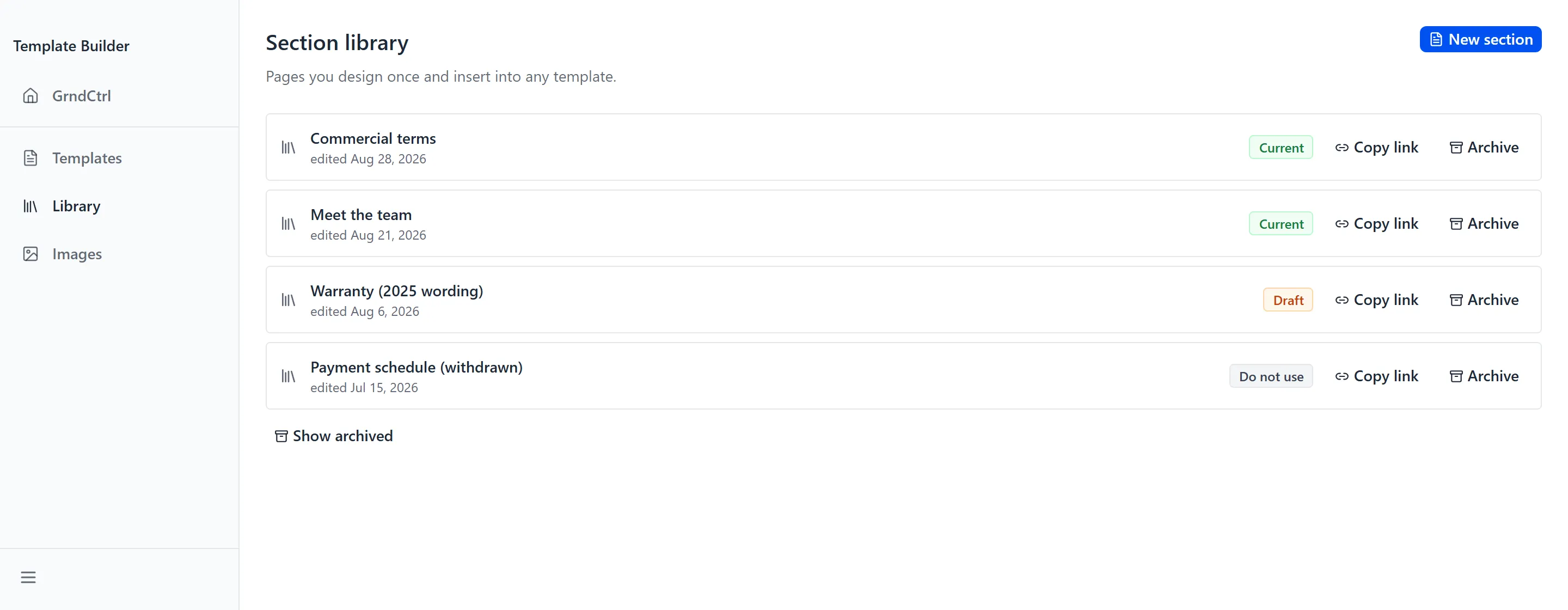
Section titled “What a Section Is”Click Library in the sidebar. The page is Section library, and its subtitle says what a section is for: “Pages you design once and insert into any template.”
A section holds content — the blocks you would otherwise build again in every template. It does not carry page setup, headers or footers, because those belong to the document it lands in rather than to the section.
Creating a Section
Section titled “Creating a Section”- Open Library.
- Click New section. With nothing in the library yet the page says “No sections yet” and points at the same control: “Press “New section” to begin.”
- Give the section a title and build its content.
- Save it. It appears on the list, ready to insert.
Status and Folders
Section titled “Status and Folders”A library that only grows becomes a library nobody trusts, so each section carries a status, shown as a badge on its row:
| Badge | What it means |
|---|---|
| Current | In use, and safe to insert into a new template. |
| Draft | Still being worked on. It can be inserted, but someone should check it before it goes into a proposal. |
| Do not use | Withdrawn. Leave it out of new templates — the wording is no longer one your organization stands behind. |
| archived | Filed away, exactly as an archived template is. It is out of the list until you show archived sections, and Restore brings it back. |
Sections can also carry a folder and tags, so a library of thirty is still navigable.
Inserting a Section into a Template
Section titled “Inserting a Section into a Template”Sections are created in the Library and inserted from the editor.
- Open the template and go to the Outline tab.
- Select the page or section you want the new content to follow.
- Click Section in the toolbar to open Insert a section.
- Choose the section. Its content is copied into the document.
Archiving and Restoring a Section
Section titled “Archiving and Restoring a Section”Click Archive on a row to file a section away, and show archived sections to find it again — the list says “Nothing is archived.” when there is nothing to show. Restore brings a section back into use.
Templates that already contain the section are unaffected, because inserting copied the content in.
Troubleshooting
Section titled “Troubleshooting”A section isn’t offered when I try to insert one
Section titled “A section isn’t offered when I try to insert one”Solutions:
- Check whether it is archived. An archived section is out of the picker until it is restored.
- Check its status. A section marked Do not use is refused outright; change its status in the Library if the marking is wrong.
I updated a section but my templates still show the old wording
Section titled “I updated a section but my templates still show the old wording”Solutions:
- That is expected — inserting copies the content rather than linking to it. Open each template and insert the section again to take the new wording.
- Mark the old section Do not use so nobody inserts it into something new while you work through the templates.
My inserted section lost its margins and header
Section titled “My inserted section lost its margins and header”Solutions:
- A section carries content only. Paper, margins, headers and footers belong to the template it lands in — set those on Page setup. See Setting Up Pages, Headers and Footers.
Related Articles
Section titled “Related Articles”- Quote Generator Help
- Designing a Template — The editor you insert a section into
- Getting Started with Template Builder — Opening the app and working with templates
- Setting Up Pages, Headers and Footers — The document furniture a section deliberately does not carry