
What's Happening
What’s Happening is the company news and announcements feed in GrndCtrl. It’s where your organization shares important updates, events, policy changes, and company-wide communications. This guide covers how to read announcements, use the calendar, and — for administrators — how to create and manage posts.
Accessing What’s Happening
Section titled “Accessing What’s Happening”- Open What’s Happening — from the Apps button in the header, or from its widget on your Home screen.
- The news feed displays all current announcements in chronological order.
Reading Announcements
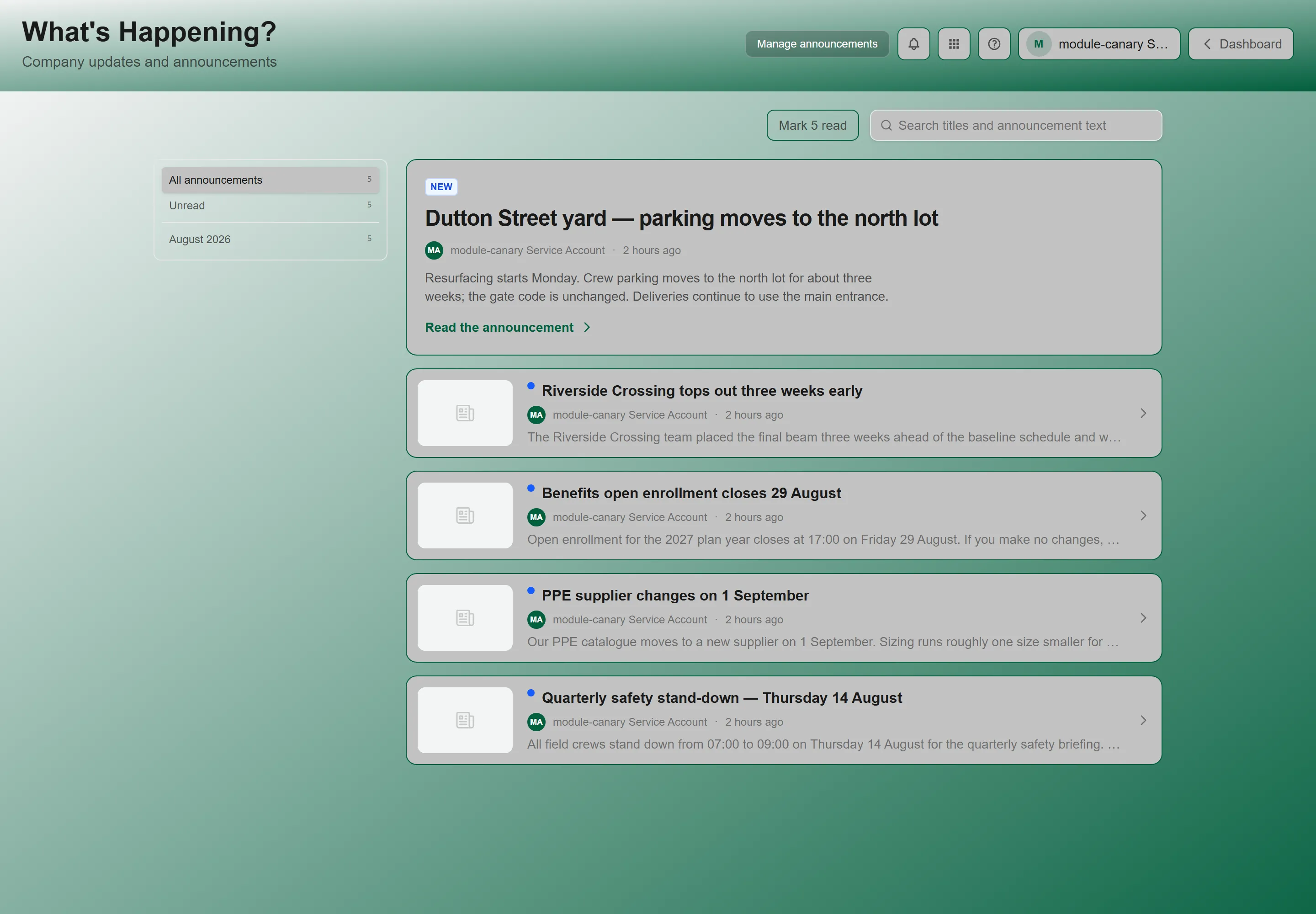
Section titled “Reading Announcements”The feed is newest first, and it is arranged as a lead story plus a list:
- The most recent announcement renders in full at the top.
- Everything older appears as a row that expands in place when you click it — you stay on the same page rather than navigating away.
- A rail down the side groups announcements by month — and, when your organization files announcements into categories, by category too — so you can jump back to the one you half-remember instead of scrolling for it. An Unread entry appears there only while something is unread.
- There is also a search box, hinted “Search titles and announcement text”, for finding an announcement by its words.
- An urgent announcement is banded at the top of the feed, whatever month or search you have chosen, until you dismiss it. Dismissing hides only that announcement; a newer urgent post bands again.
Each announcement in the feed displays:
| Element | Description |
|---|---|
| Title | The headline of the announcement |
| Author | The name of the person who published the post |
| Date | When the announcement was published |
| Content | Rich text body with formatting, links, and embedded images |
| Images | Attached photos or graphics (if any) |
Announcements support rich text formatting including bold, italic, links, lists, and embedded images — so they can communicate anything from a quick reminder to a detailed policy update.
Examples of Announcements
Section titled “Examples of Announcements”Your organization can file announcements into categories of its own — an administrator sets them up under Categories in What’s Happening Admin, and when any are in use the rail offers them as filters. Whatever the categories, these are the kinds of subject organizations tend to post about:
- Benefits and HR — Open enrollment reminders, W-2 availability, PTO policy updates
- Company events — Team outings, tech talks, training sessions, holiday schedules
- Product updates — New features, tool changes, process improvements
- Programs — Employee referral programs, photo contests, recognition initiatives
- Operations — Process changes, standards updates, new tool availability
Company Calendar
Section titled “Company Calendar”The confusion is understandable: the calendar is delivered by the What’s Happening app, which is why the two are enabled and disabled together. But they are separate surfaces.
Opening the Calendar
Section titled “Opening the Calendar”On your Home screen, use the Calendar widget — it shows a compact view of the same calendar, and its Open → link takes you to the full page. If the What’s Happening widget is on your Home screen, its Calendar button goes to the same place. See Company Calendar for detail.
What’s on the Calendar
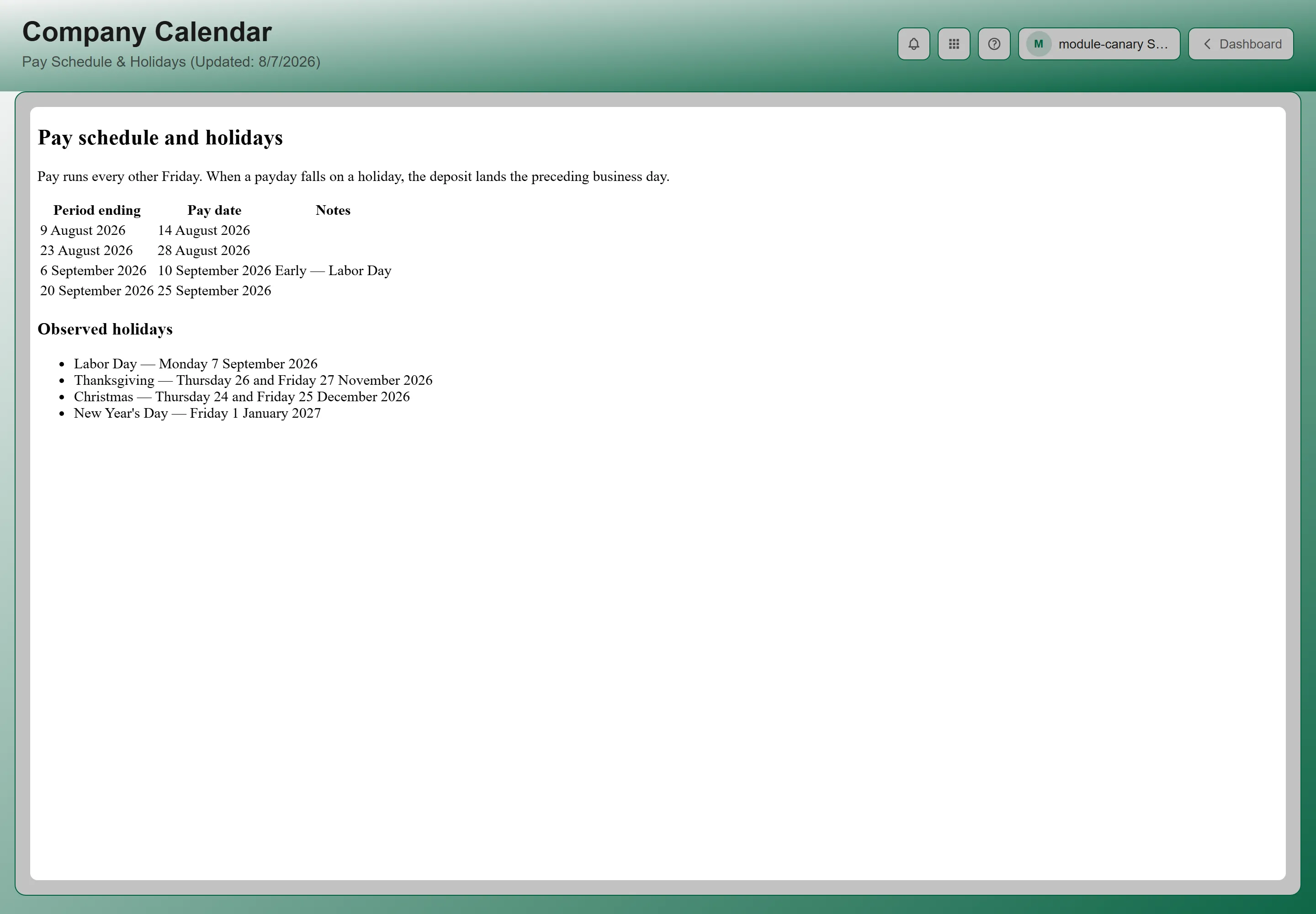
Section titled “What’s on the Calendar”- Pay schedule — pay period end dates and paydays
- Company holidays — office closures and observed holidays
- Company events — meetings, training days, and team events
Administrators maintain it from the Company calendar section of What’s Happening Admin, so it stays current for everyone at once.
How Announcements Expire
Section titled “How Announcements Expire”Announcements can have an expiration date. When a post expires, it is automatically removed from the feed so the news stays current and relevant. This means:
- You’ll only see announcements that are still active
- Time-sensitive posts (like open enrollment deadlines) disappear after their relevant date
- Administrators can also manually archive posts at any time
Managing Announcements (Administrators)
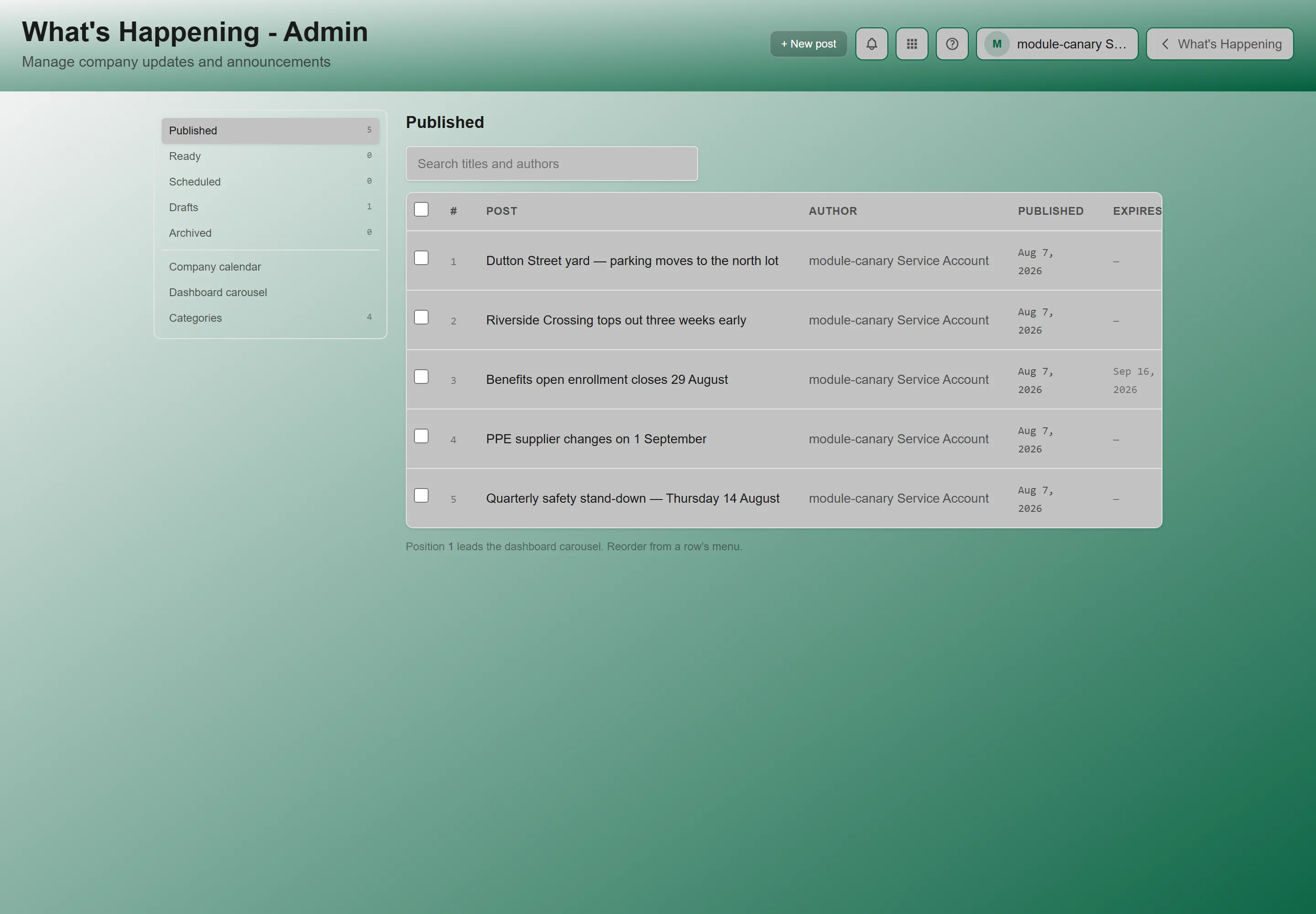
Section titled “Managing Announcements (Administrators)”The admin panel is organized into eight sections: Published, Ready, Scheduled, Drafts, and Archived — each carrying a count — plus Company calendar, Dashboard carousel, and Categories. Full detail in Managing What’s Happening.
If you have administrator access, you can create, edit, reorder, and archive announcements.
Creating an Announcement
Section titled “Creating an Announcement”- Navigate to What’s Happening.
- Click Manage announcements in the page header. There is no Admin tab — the action sits in the platform header bar, and only administrators see it.
- Click + New post in the page header. The New announcement drawer opens.
- Fill in the following fields:
| Field | Description | Required |
|---|---|---|
| Title | Headline for the announcement | Yes |
| Body | The announcement text | Yes |
| Add images | Attach photos or graphics | No |
| Visibility | Draft, Ready to publish, Scheduled, Published, or Archived — each option spells out who sees it | Yes |
| Expires (optional) | Date when the post will automatically leave the feed | No |
| Category (optional) | One of your organization’s categories, or No category | No |
| Urgency | Whether publishing alerts everyone — see Managing What’s Happening | No |
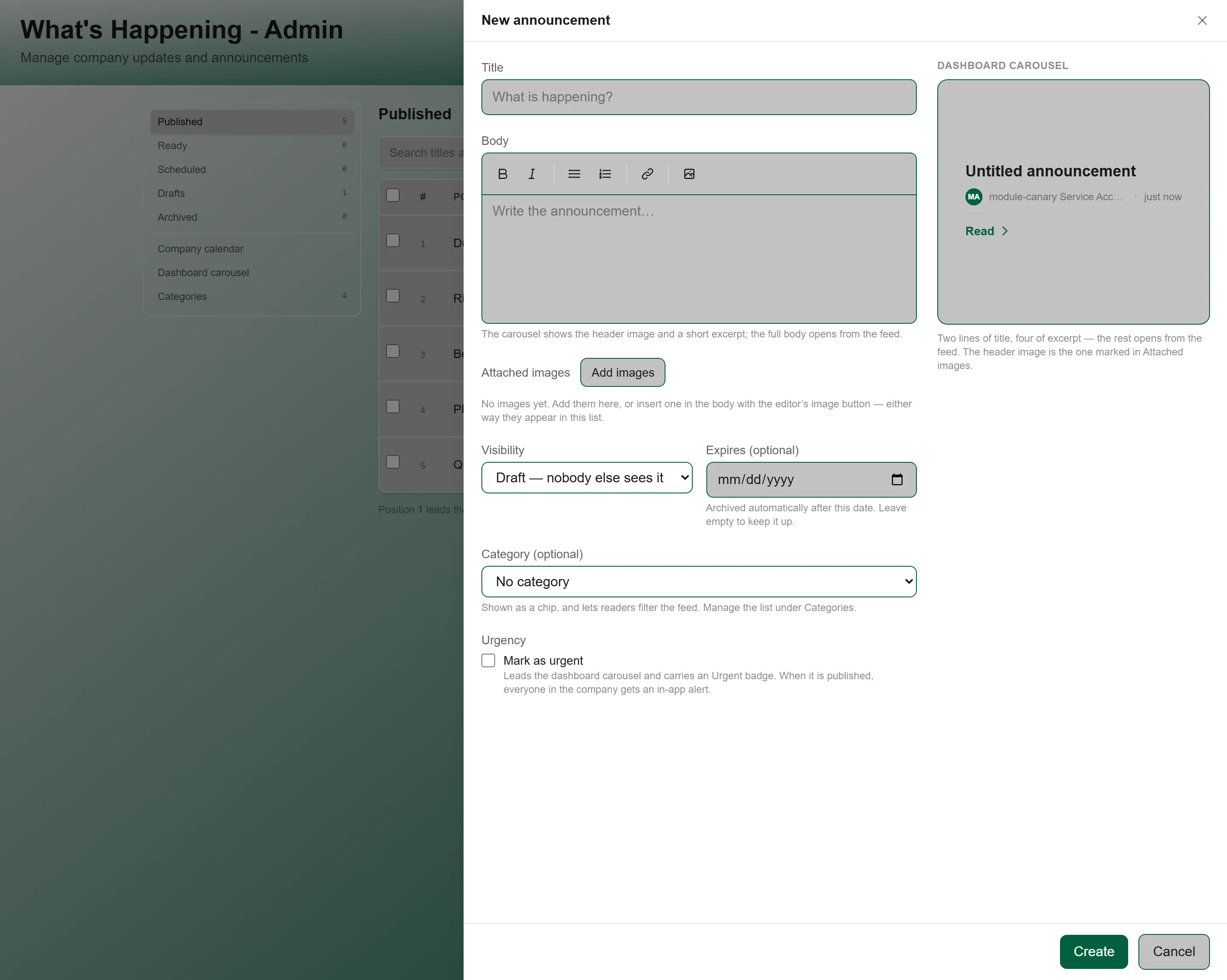
- Set Visibility to “Published — visible to everyone” and click Create. Leave it on “Draft — nobody else sees it” to keep working on it first.
Editing an Announcement
Section titled “Editing an Announcement”- Go to What’s Happening Admin.
- Find the announcement you want to edit.
- Click on the post or the edit button.
- Make your changes and click Save changes.
Reordering Posts
Section titled “Reordering Posts”Administrators can change the order of the Published list with Move up and Move down in a row’s menu. That order drives the Home screen carousel — position 1 leads it — and leaves this feed alone, which stays newest first.
Archiving an Announcement
Section titled “Archiving an Announcement”To remove a post from the feed without deleting it:
- Go to What’s Happening Admin.
- Find the announcement.
- Click Archive.
Archived posts are hidden from employees but preserved for reference.
Managing the Calendar
Section titled “Managing the Calendar”Administrators publish the calendar from the Company calendar section of What’s Happening Admin. It is an uploaded HTML file — Upload calendar, or Replace calendar once one is live — and a new upload is immediately visible to all employees. See Company Calendar.
Best Practices
Section titled “Best Practices”- Use clear, descriptive titles — Employees scan titles first, so make them informative
- Set expiration dates — Keep the feed clean by expiring time-sensitive posts
- Include images — Visual posts get more attention
- Flag urgent news — Use Urgency for announcements that cannot wait; an urgent post is banded at the top of the feed until each reader dismisses it
- Keep it concise — Respect your team’s time with focused, scannable content
Troubleshooting
Section titled “Troubleshooting”The feed is empty
Section titled “The feed is empty”Solutions:
- “No announcements yet” or “Nothing published yet” means your organization has not published any — “Company news, announcements, and events show up here for everyone in your organization.”
- “Nothing matches that” means your search or month filter is too narrow. “Try a different month, or clear the search.”
The Home widget shows something different from the page
Section titled “The Home widget shows something different from the page”Solutions:
- Both are correct. The widget rotates through announcements in the order administrators curated; the page is strictly chronological, newest first.
- The widget also shows at most 10 announcements, so a recent one can be on the page but not in the rotation.
An announcement I saw yesterday has disappeared
Section titled “An announcement I saw yesterday has disappeared”Solutions:
- Announcements can carry an expiration date, after which they are archived automatically and leave the feed.
- An administrator may have archived it deliberately. Ask them — archived posts are kept and can be republished.
Related Articles
Section titled “Related Articles”- Getting Started with GrndCtrl — Learn the basics of navigating the portal
- Good News — Share positive updates with your group
- Managing What’s Happening (Admin) — Detailed admin guide for content management