
Getting Help with Service Hub
Service Hub is where you ask your internal teams for help — IT, HR, facilities or whoever else your organization runs a queue for. This article covers raising a request and following it to resolution.
Finding Your Way Around
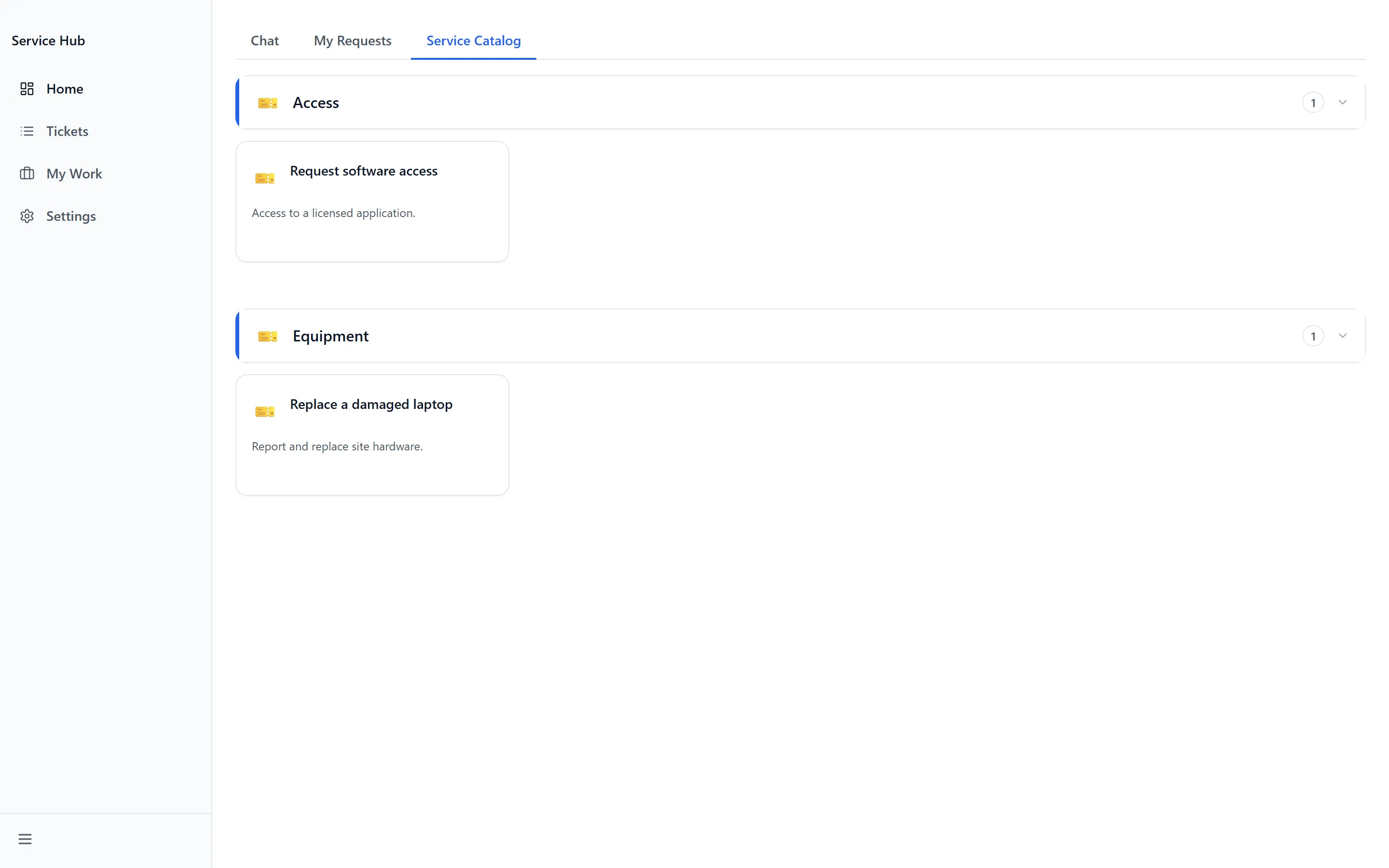
Section titled “Finding Your Way Around”Open Service Hub from the app launcher. You’ll land on Home, which has two halves:
- Service Catalog — the things you can ask for
- My Requests — what you have already asked for
Tickets, My Work and Settings appear only for people who work the queue or administer it.
Raising a Request
Section titled “Raising a Request”Start from the Service Catalog and pick the thing closest to what you need. Choosing from the catalog rather than starting blank matters: it routes the request to the right team and asks the questions that team needs answered.
- Open Service Catalog and choose a service. Clear resets a search.
- Enter a Request Title. This is required — without it you’ll see “Title is required”.
- Fill in the Description — “Additional details, context, or urgency…”
- Answer any questions specific to that service.
- Click Submit Request.
Where your organization has enabled it, a chat assistant can raise the request for you instead — “What do you need help with?” and “Describe what you need…” — and routes it for you. If it cannot submit you will see “Failed to submit request. Please try again.”
Tracking Your Requests
Section titled “Tracking Your Requests”My Requests lists everything you have raised, in a Card layout or a List layout. With nothing raised it reads “No requests yet”. A reply you have not read is marked New reply.
Each request carries a status, and each says something different:
| Status | What it means |
|---|---|
| New | Received, not yet picked up |
| Open | Accepted by a team |
| In Progress | “Work in progress” |
| Pending | Waiting — often on you |
| On Hold | “Your request is temporarily on hold.” |
| Resolved | Done, pending your confirmation |
| Closed | “This request is closed.” |
Opening a request shows Submitted, Team, Assigned to and Resolved where it applies. A request nobody has picked up yet shows Unassigned.
Adding Detail and Files
Section titled “Adding Detail and Files”Every request has a comment thread — “Add a comment or provide more details…”. Use it rather than raising a second request for the same problem; a duplicate splits the history and slows both.
Files attach to the request: “Attach screenshots, documents, or supporting files”. A screenshot of an error is usually worth more than a paragraph describing it.
When Your Request Is Resolved
Section titled “When Your Request Is Resolved”A request marked Resolved is the team saying they believe it is done. You are asked how it went, on a scale from Poor through Fair, Good and Great to Excellent, with room for “Any additional comments? (optional)”.
If it is not actually resolved, say so in the comments rather than raising a new request — the history and everything attached to it stays in one place.
Troubleshooting
Section titled “Troubleshooting”Service Hub is missing, or I get “Access Denied”
Section titled “Service Hub is missing, or I get “Access Denied””Solutions: three things have to be true. Check them in order.
- An administrator has enabled Service Hub in the App Store.
- Your group has been granted access to it.
- You have signed out and back in since that change. See Getting Access to Apps and Extensions.
The Service Catalog is empty
Section titled “The Service Catalog is empty”Solutions:
- Nothing has been published to it yet. The catalog is built by administrators, and an empty one means the app is enabled but not yet set up.
- Contact whoever runs Service Hub for your organization. There is nothing you can do from this side.
My request hasn’t moved
Section titled “My request hasn’t moved”Solutions:
- Check the status. Pending and On Hold both mean work has deliberately paused — often waiting on an answer from you.
- Check for a New reply marker, and read the latest comment.
- A request showing Unassigned has not been picked up yet. Add a comment rather than raising a duplicate.
My attachment won’t upload
Section titled “My attachment won’t upload”Solutions:
- Try a smaller file, or a different format. Large uploads are the usual cause.
- If it keeps failing, put the detail in a comment so the request is not held up, and mention that the attachment failed.
My request was resolved but the problem is back
Section titled “My request was resolved but the problem is back”Solutions:
- Add a comment on the original request. That keeps the history and the attachments with the problem.
- Where it has already moved to Closed, raise a new request and refer to the old one so the team can find it.
Related Articles
Section titled “Related Articles”- Working the Queue in Service Hub — For the people who pick these requests up
- Administering Service Hub — Building the catalog, groups and forms
- Submit a Support Ticket — For problems with GrndCtrl itself, rather than your own teams