
Administering Credential Hub
This article is for Credential Hub administrators. It covers the Settings hub — the credential types everyone chooses from, the state rules that drive compliance, notifications, the employee directory connection, and the audit trail.
The Settings Hub
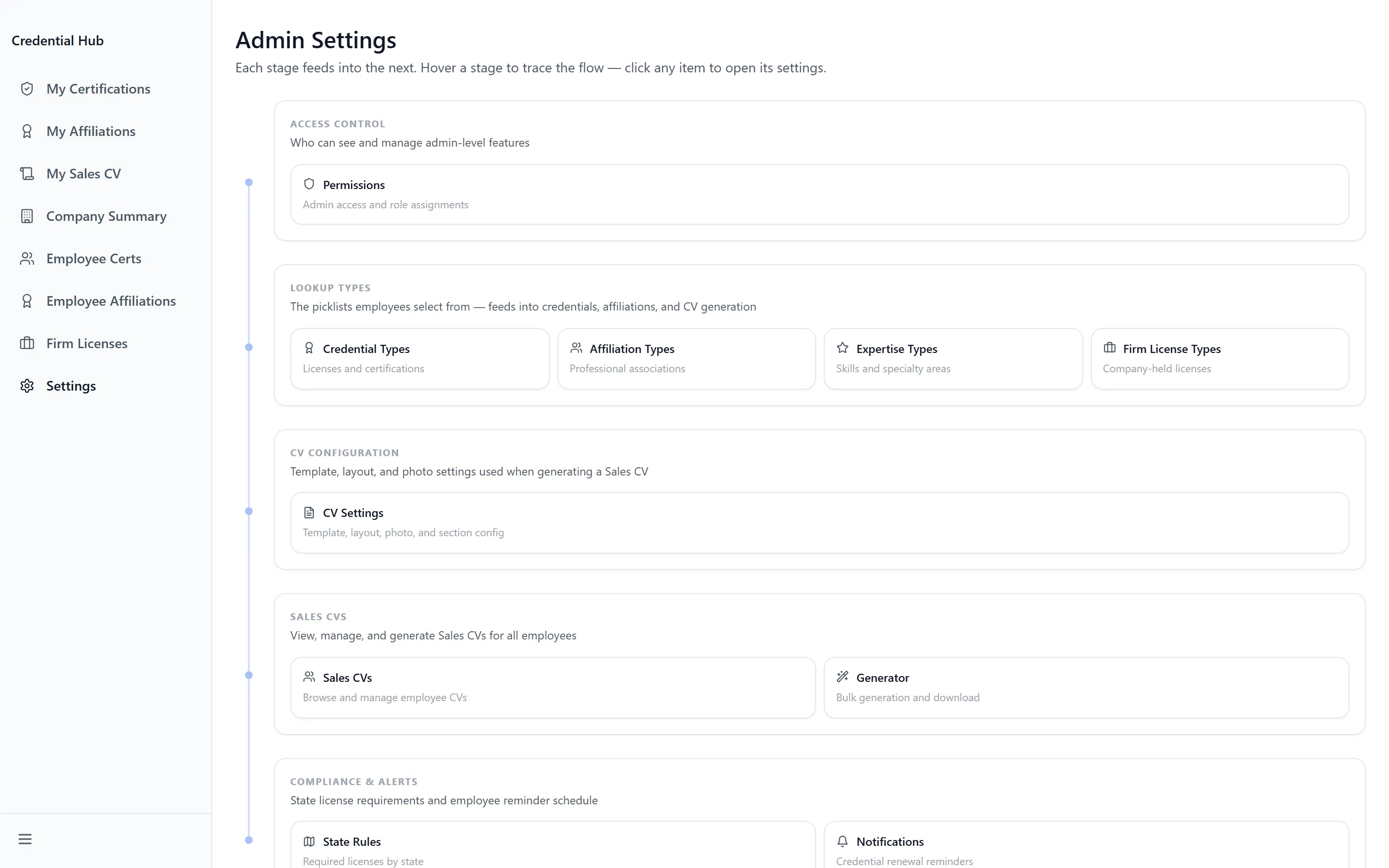
Section titled “The Settings Hub”Settings collects twelve pages into groups. What each group is for:
| Page | What it controls |
|---|---|
| Credential Types | The certificate and licence types employees can record |
| Affiliation Types | The professional bodies they can record a membership in |
| Expertise Types | The skills selectable on a Sales CV |
| Firm License Types | The licence types the firm itself holds |
| State Rules | What each state requires, and what counts as compliant |
| Notifications | Who is told what, and on what schedule |
| Sales CVs, Generator, CV Settings | The CV library, the builder, and the output template |
| Permissions | Who is a cert manager, and at which level |
| Integrations | The employee directory this app reads from |
| Audit Log | Every change made in the app |
Credential Types
Section titled “Credential Types”Credential Types is the list employees pick from when recording a certification. Nothing can be recorded that is not on it, which is deliberate — it is what keeps expiry tracking and firm-wide reporting comparable.
Each type carries:
- Name — for example “e.g. Professional Engineer”
- Abbreviation — “Short form displayed after the employee’s name (e.g. PE)”
- Category — grouping for reporting
The Abbreviation is what appears After Name on a Sales CV, so it is worth getting right — it is the post-nominal your firm publishes. Specialties are added per type with “Specialty name…” (press Enter to add it), and a new grouping with “New category name…”.
Import and Export handle the list in bulk, and Download Template gives the shape to fill in. A finished import reports Imported counts and lists any Errors: rather than failing silently.
Affiliation Types, Expertise Types and Firm License Types work the same way. Add Affiliation Type additionally takes a Description and a Website — “Default website URL for this organization” — so employees do not each type their own.
Handling requests for a new type
Section titled “Handling requests for a new type”When an employee hits a credential that isn’t listed, they submit a request and it arrives here. Approve adds the type and makes it available to everyone immediately. Declining requires a Reason for rejection — “Explain why this request is being rejected…” — and “A reason is required” if you leave it blank.
State Rules
Section titled “State Rules”State Rules defines what each state requires. It is what produces States Out of Compliance on Company Summary, and it is the page most worth getting right.
Per state, the rule records:
- Firm license required in this state
- Supervising PE required
- # PEs Required — “Minimum active employee certs required for compliance”
- Renewal Frequency and Renewal Lead Time (days) — “Days before expiry to flag as Expiring Soon”
- Rule is active (used in compliance checks), plus Notes
Each state then shows as Compliant, Non-Compliant, or Not Configured. Filter by Compliance or by Active and Inactive; Clear filters resets. Bulk Edit applies a change across states, which is how a common Renewal Lead Time (days) gets set once rather than fifty times.
Clear Config removes a state’s rule entirely, confirmed with Clear Configuration. That returns the state to Not Configured — use it when the firm genuinely stops operating there, not to silence a failing check.
Notifications
Section titled “Notifications”Notifications has four panels — Global Settings, Notification Events, Notification Schedule and Webhook Configuration.
Global Settings holds Require Approval on Cert Submittal. With it on, every certification an employee records arrives as Pending Review and does not count until a manager approves it. With it off, records stand as entered.
Notification Events sets, per Event, who hears about it — Notify Owner emails the employee, and Teams or a Custom Webhook posts to a channel. Webhook Configuration holds the Default Webhook URL, with the route to it spelled out: “Teams channel › Connectors › Incoming Webhook”.
Notification Schedule controls when the check runs — Frequency, Day of Week, Days to Run and Time (CST).
Employee Directory
Section titled “Employee Directory”Integrations shows the Employee Directory this app reads people from, as Active, Disabled or Needs setup.
Read the directory from chooses the source. Two switches control what comes across on its own: Automatically sync credentials and Automatically sync headshots daily. Manual runs are available too — Sync All Now, Sync All Headshots Now, and Sync Employee Now for a single person by Employee Email (optional).
Permissions
Section titled “Permissions”Permissions is where cert managers are named, and where the read-only and full levels are set. It is the page that decides who sees Company Summary and who can review a submitted certification — the distinction described in Managing Your Team’s Credentials.
CV Settings
Section titled “CV Settings”Three pages cover Sales CVs. Sales CVs is the library of employee profiles, Generator builds one for a named person, and CV Settings defines the output.
CV Settings works from a document template with named markers, and Download starter template provides one already marked up. Markers cover the sections a CV is built from — Education, Awards, and the repeating blocks for positions and credentials — each with a Closing marker (removed from output) so a repeating block knows where it ends.
Audit Log
Section titled “Audit Log”Audit Log records every change made in Credential Hub — reviews, edits, deletions, type approvals and settings changes, with who made them. Use it when a record’s history is disputed, or to confirm a change actually landed.
Troubleshooting
Section titled “Troubleshooting”A state shows Non-Compliant but everyone’s certificates are current
Section titled “A state shows Non-Compliant but everyone’s certificates are current”Solutions:
- Check # PEs Required for that state. Compliance counts active employee certs against that minimum, so the state fails when the count is short even though each certificate is valid.
- Check whether Firm license required in this state is on and the firm licence is recorded. That is a company record, not an employee one.
- Check Supervising PE required. It is a separate condition from the headcount.
Half my states say Not Configured
Section titled “Half my states say Not Configured”Solutions:
- They have no rule, so nothing is checked there. Add a rule for every state the firm operates in and switch on Rule is active (used in compliance checks).
- Bulk Edit sets shared values across many states at once.
Nobody is receiving expiry notifications
Section titled “Nobody is receiving expiry notifications”Solutions:
- Check the page does not still show Unsaved changes. Settings apply only after Save Settings.
- Check Notification Schedule — Frequency, Day of Week and Time (CST) decide whether the check has run at all.
- For channel posts, confirm the Default Webhook URL under Webhook Configuration. Teams webhooks are created at “Teams channel › Connectors › Incoming Webhook”.
- Check Renewal Lead Time (days) on the state rule. Too short a lead time means the warning arrives with no time to act on it.
New employees aren’t appearing
Section titled “New employees aren’t appearing”Solutions:
- Check Integrations. An Employee Directory showing Needs setup or Disabled is not bringing anyone in.
- Run Sync All Now, or Sync Employee Now for one person, rather than waiting for the daily run.
- Someone who has never opened Credential Hub may not be registered yet. Ask them to open it once.
The wrong letters appear after an employee’s name
Section titled “The wrong letters appear after an employee’s name”Solutions:
- That comes from the Abbreviation on the credential type, not from anything on the employee’s record. Correct it in Credential Types and it corrects everywhere.
- Check the employee has not recorded the credential under a near-match type. Both the letters and the expiry tracking follow the type they chose.
Related Articles
Section titled “Related Articles”- Managing Your Team’s Credentials — Reviewing submissions, firm licences and reporting
- Tracking Your Credentials with Credential Hub — What your employees see
- Getting Access to Apps and Extensions — Enabling the app and granting groups access to it