
Managing Your Team's Credentials
This article is for cert managers — anyone who reviews, reports on, or corrects other people’s credentials. For your own certifications, see Tracking Your Credentials with Credential Hub.
Company Summary
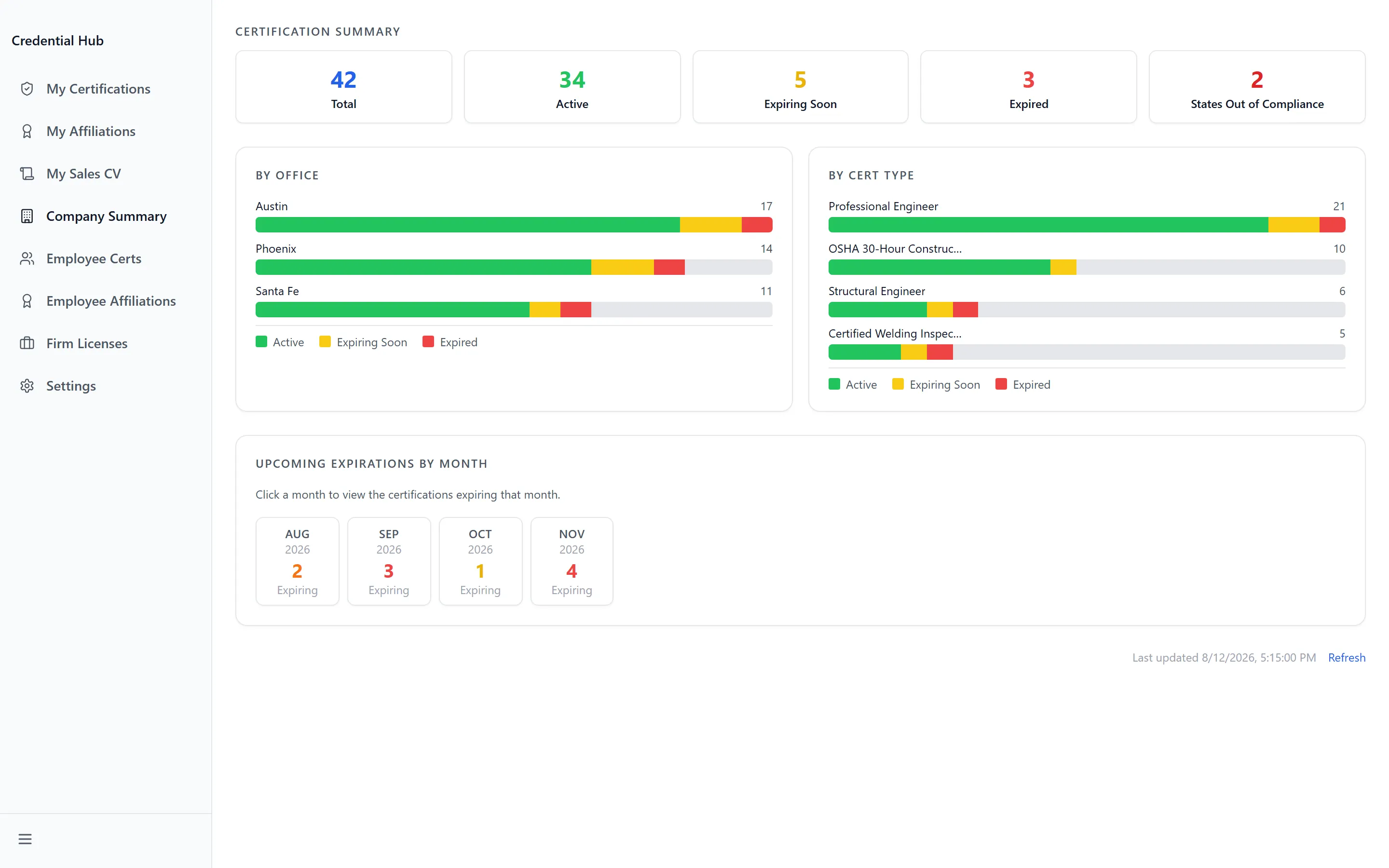
Section titled “Company Summary”Company Summary is the firm-wide picture. It opens on Certification Summary — five counts across everyone: Total, Active, Expiring Soon, Expired and States Out of Compliance.
Three breakdowns sit below it:
- By Cert Type — which credentials the firm holds, and how many
- By Office — the same split by location
- Upcoming Expirations by Month — what is coming, and when
Refresh re-reads the figures. Before anything is recorded the page reads “No data yet”.
States Out of Compliance is the one to watch — it counts states where the firm does not hold what it needs, which is a different question from whether individual certificates are current.
Employee Certs
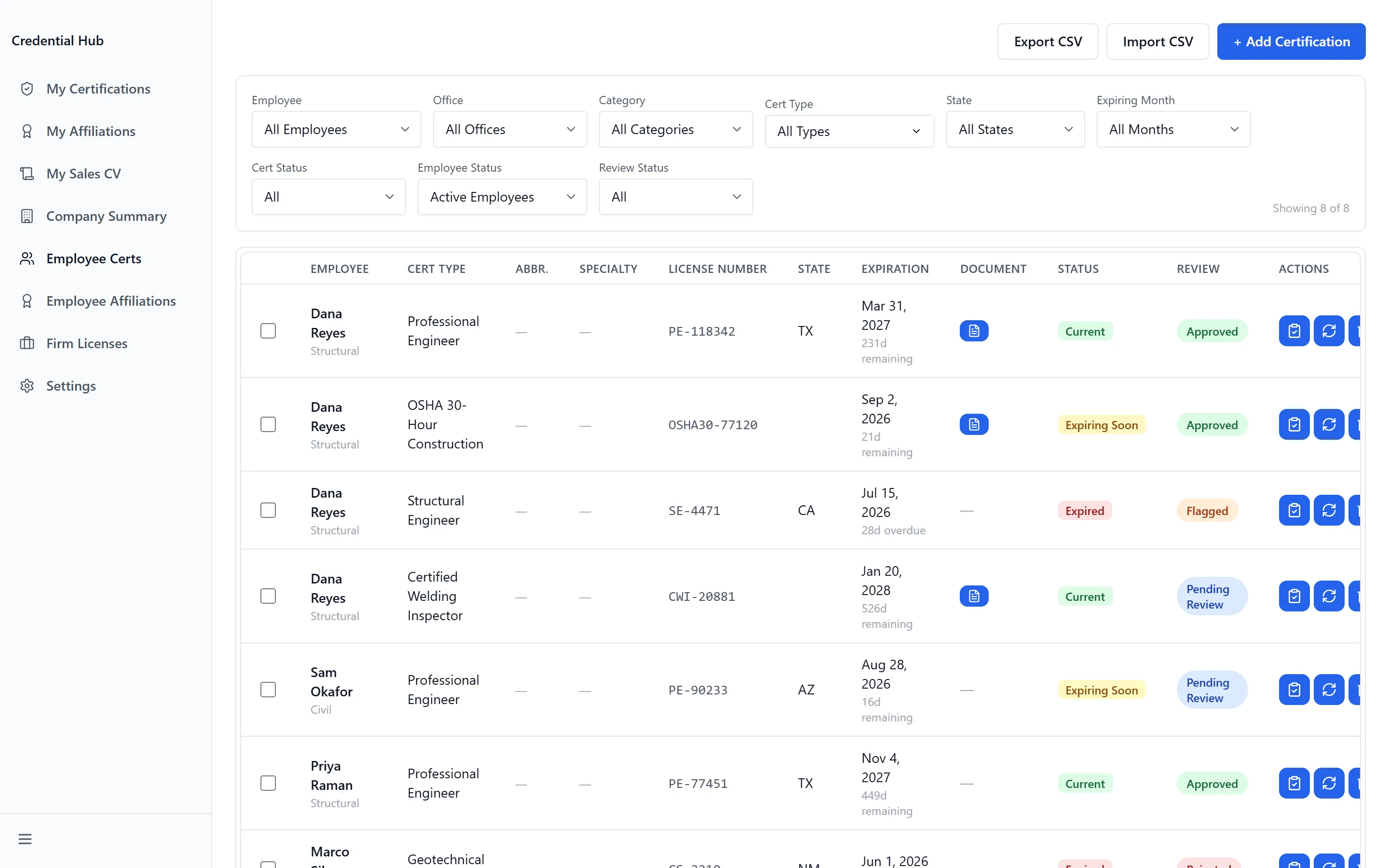
Section titled “Employee Certs”Employee Certs is every certification held by everyone, and it is where reviewing happens. With nothing matching it reads “No certifications found.”
Filters narrow it, and they combine:
- All Employees — or one person
- All Offices, All States, All Categories
- Cert Status — Current, Expiring Soon, Expired
- Cert Type and Expiring Month (All Months)
- Review Status — Pending, Approved, Rejected, Flagged
- Employee Status — Active, Departed, Departed (last 90 days)
Clear resets them. Departed (last 90 days) is worth knowing about: it catches credentials still attached to people who have recently left, which is where firm-wide compliance quietly slips.
Reviewing a certification
Section titled “Reviewing a certification”- Find the certification and open Review. The Review Certification dialog opens.
- Check the attached document with View. Document History shows earlier versions where they exist.
- Set the Review Decision — Approve, Reject, Flag for Follow-up, or Reset to Pending.
- Add Review Notes.
- Click Submit Review.
Flag for Follow-up sits between approval and rejection — the record stands but needs attention. Reset to Pending returns a decided certification to the queue, which is the way to undo a review made in error.
Correcting and renewing
Section titled “Correcting and renewing”A manager can edit any certification directly — Certificate / License Type, State, Specialty, License Number, Issuing Authority, Issued Date, Expiration Date and Notes. When replacing a document, the field notes “Leave blank to keep existing”.
Use Renew rather than editing the expiry date. It opens Renew Certification, takes a New Expiration Date and Confirm Renewal, and keeps the history as one credential.
Importing and exporting
Section titled “Importing and exporting”Export CSV takes the current filtered view out — filter first, then export, and the file matches what is on screen.
Import Certifications from CSV brings records in. The dialog takes a file by Drag
& drop your CSV here and states its CSV Format Requirements. Dates must be
YYYY-MM-DD — the dialog says so, and it is the most common reason an import is
rejected.
Bulk Edit changes several records at once, for corrections that apply across a group rather than one at a time.
Employee Affiliations
Section titled “Employee Affiliations”Employee Affiliations is the same idea for professional memberships — Employee, Organization, Member Type, Membership Number, Joined Date, Renewal Date, Website and Notes.
It carries the same bulk tools: Import CSV, Export CSV and Bulk Edit, with the same CSV Format Requirements. A finished import confirms with Import Complete.
Renewal Date is the field that earns its keep here — memberships lapse quietly, and it is what makes a lapse visible before it matters.
Firm Licenses
Section titled “Firm Licenses”Firm Licenses holds licences belonging to the company rather than to a person — the ones that let the firm practise in a given state. Empty, it reads “No firm licenses found. Add one to get started.”
Each licence records:
- License Type and State
- Firm License Number
- Issue Date and Expiration Date
- Renewal Frequency — how often it comes round
- Status, License Document and Notes
Search state or license #… finds one quickly, and All States narrows to a jurisdiction. Renew Firm License works like a certification renewal, taking a New Expiration Date. A licence with no expiry recorded shows Not set.
CV Tools
Section titled “CV Tools”Full cert managers also get the CV tools. CV Generator builds a Sales CV for anyone — Find Employee takes a name or email, and Generation History lists what has been produced before.
The employee CV library holds every profile, and reads “No employee CVs found. Use Add to create one.” when empty. Sections drawn from a person’s own certifications and affiliations are marked Auto-synced; the rest — Professional Summary, Areas of Expertise, positions and education — can be edited on their behalf. Import CV takes an existing document by CV File, and Apply Selected applies a change across the chosen profiles.
Troubleshooting
Section titled “Troubleshooting”I can see the pages but can’t change anything
Section titled “I can see the pages but can’t change anything”Solutions:
- You hold read-only cert manager access. Employee Certs, Employee Affiliations and Firm Licenses are visible; reviewing and editing are not.
- Company Summary and the CV tools are absent for the same reason — their absence is the clearest sign of which level you hold.
- Ask an administrator to raise your access in Settings.
My CSV import was rejected
Section titled “My CSV import was rejected”Solutions:
- Check the dates. They must be
YYYY-MM-DD, which the CSV Format Requirements in the dialog states. - Check the certificate types match ones that already exist. An import cannot invent a type that has not been created in Settings.
- Export a filtered view first and use it as the shape to match.
An employee doesn’t appear in the list
Section titled “An employee doesn’t appear in the list”Solutions:
- Check Employee Status. The list defaults to Active, so anyone who has left is hidden until you choose Departed or Departed (last 90 days).
- Check All Offices and All Employees are not still narrowed from an earlier search. Clear resets every filter at once.
- Someone who has never opened Credential Hub may not be registered yet. Ask them to open the app once.
States Out of Compliance looks wrong
Section titled “States Out of Compliance looks wrong”Solutions:
- That count comes from state rules and Firm Licenses, not from individual certifications. A state can show out of compliance while every person’s certificate is current.
- Check Firm Licenses for rows showing Not set — a licence with no Expiration Date cannot be counted as current.
- State rules themselves are maintained by administrators. See Administering Credential Hub.
Related Articles
Section titled “Related Articles”- Tracking Your Credentials with Credential Hub — What your employees see, and what you’re asking them to fix
- Administering Credential Hub — Credential types, state rules, approvals and notifications
- Getting Access to Apps and Extensions — Start here if Credential Hub is missing or you see “Access Denied”