
Getting Started with Template Builder
Template Builder is where you design the document a quote turns into — a proposal, laid out once and reused for every quote after it. This article covers reaching the app, finding your way around it, and the things you do to a template from the list: create, rename, duplicate, archive and restore.
What a Template Is
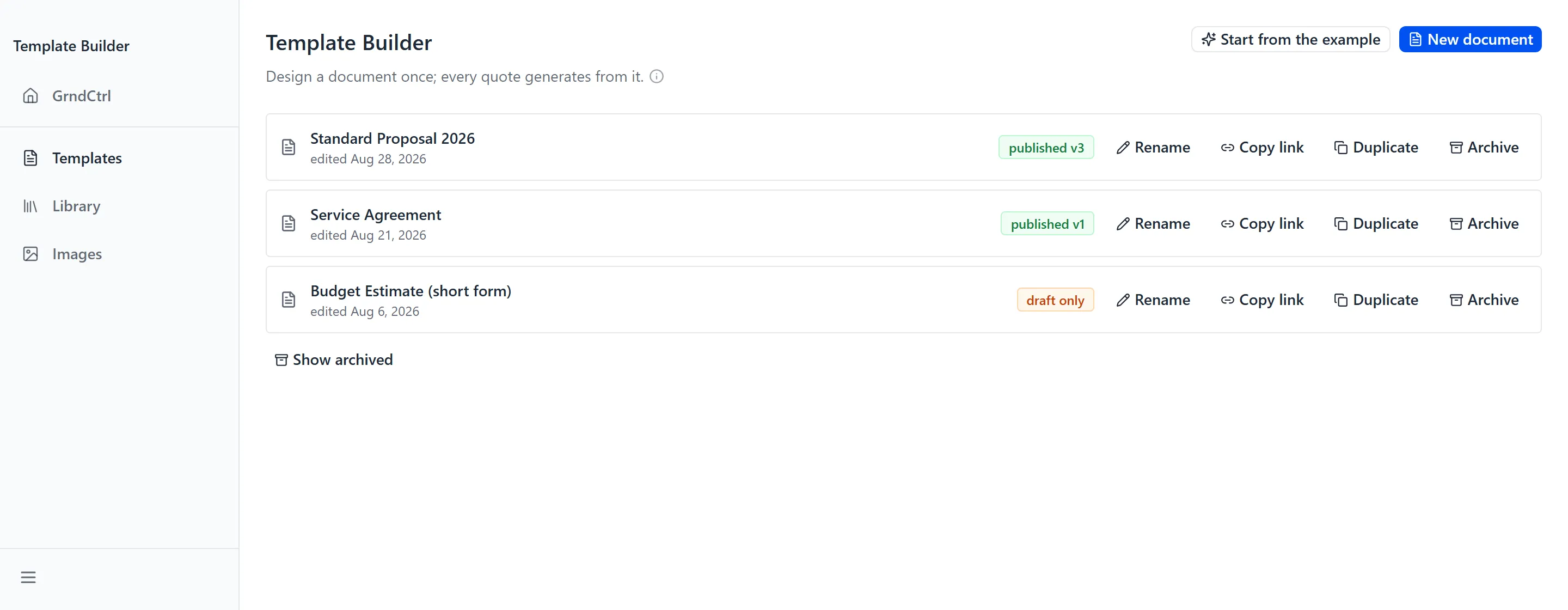
Section titled “What a Template Is”A template is a stack of pages you design, with slots that fill themselves from a quote. The app states it in one line under the page title — “Design a document once; every quote generates from it.” — and the How templates work information button beside it expands on it: “A template is a stack of pages you design, with slots bound to data another extension publishes — the quote. Generate a document from it and the slots fill with that quote’s values.”
So the template holds the design and the wording; the quote supplies the numbers. You are not building one proposal here — you are building the shape every proposal takes.
Opening the App
Section titled “Opening the App”Open Template Builder from the app launcher. The sidebar has three entries:
- Templates — every template in your organization, and the editor you open one in
- Library — reusable sections you can drop into any template
- Images — the shared image library, used by every template
Images is organization-wide rather than per template, which is why it sits beside Templates instead of inside it. One logo serves every template you build. The editor carries its own Images tab over the same library, so you never have to leave a document to upload a picture.
The Templates List
Section titled “The Templates List”Templates opens the list of every template in your organization. Each row shows the template’s name, when it was last edited, and a badge saying where it has got to:
| Badge | What it means |
|---|---|
| draft only | The template has never been published. You can keep editing it, but no quote can generate a document from it yet. |
| published v{number} | A version has been frozen and is available to quotes. The draft you edit is separate from it. |
| archived | Filed away. It cannot be opened or published until it is restored. |
Publishing is what moves a template from draft only to published v{number} — see Previewing and Publishing a Template.
Creating a Template
Section titled “Creating a Template”There are two ways to start, both in the top right of the templates list:
- Click Start from the example to get a finished, designed document you can take apart. It creates a fresh copy and opens it, so you can change anything in it without affecting the original.
- Click New document instead to begin on one blank page and design it yourself.
If your organization has no templates yet, the list says so — “No templates yet”, with the same advice: ““Start from the example” gives you a finished document to take apart; “New document” a blank page.”
Whichever you choose, the editor opens. Designing it is covered in Designing a Template.
Working With a Row
Section titled “Working With a Row”Each row on the list carries four controls. None of them require opening the template first.

| Control | What it does |
|---|---|
| Rename | Turns the row’s name into a text field. Press Enter or click away to save it; press Escape to leave the name as it was. |
| Copy link | Copies a direct link to the template, so you can paste it to a colleague. It confirms with “Link copied.” |
| Duplicate | Makes a copy and opens it. Use this to start next year’s template from last year’s rather than editing the one in use. |
| Archive | Files the template away. On an archived row this reads Restore. |
Archiving and Restoring
Section titled “Archiving and Restoring”Archiving takes a template out of the working list without destroying anything. Click Archive on its row. A notice appears above the list — “Archived ‘{template name}’. It is out of the list and every published version still renders.” — with Undo beside it and Dismiss to clear the notice.
Archived templates are hidden by default. Click Show archived at the bottom of the list to reveal an Archived group; the same control then reads Hide archived. If nothing has been archived it says “Nothing is archived.”
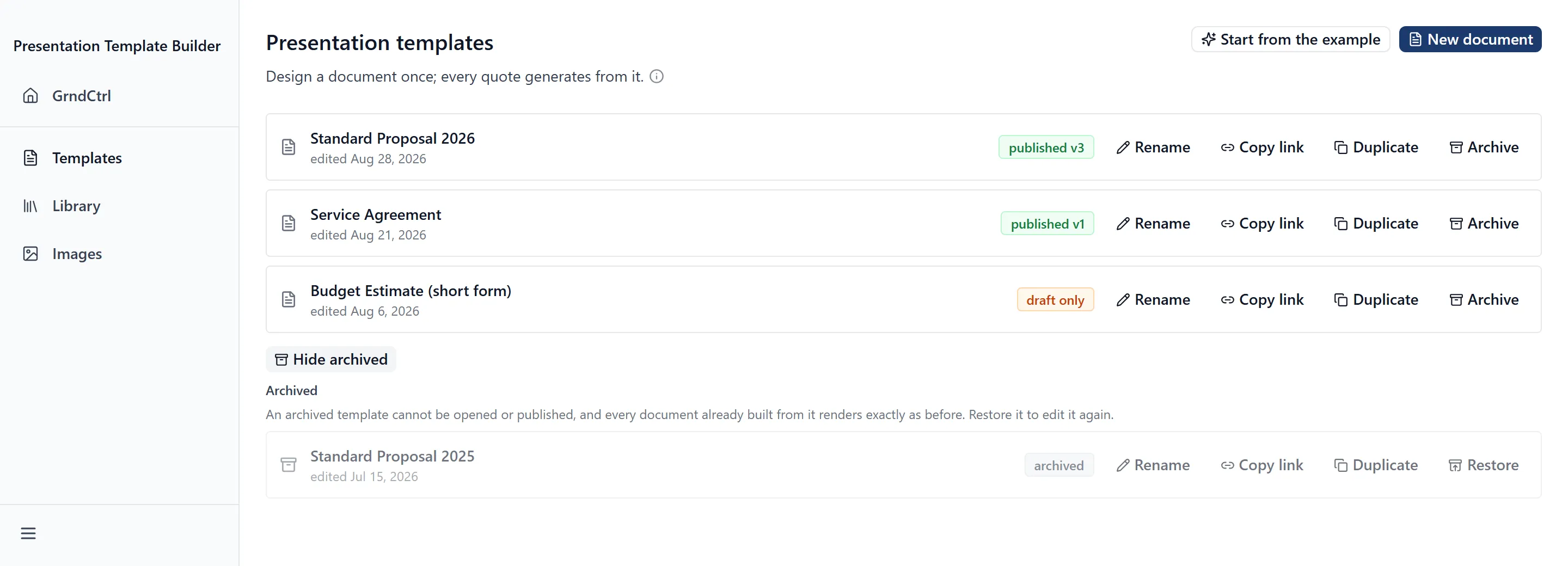
The Archived group explains the state it puts a template in: “An archived template cannot be opened or published, and every document already built from it renders exactly as before. Restore it to edit it again.” Click Restore on the row to bring it back.
Troubleshooting
Section titled “Troubleshooting”Template Builder isn’t in my launcher
Section titled “Template Builder isn’t in my launcher”Solutions:
- An administrator has to enable it from the App Store and grant your group access. See App Store.
- If it was granted while you were signed in, sign out and back in so your new access is picked up.
A link to a template says it did not open
Section titled “A link to a template says it did not open”The message is “Template {id} did not open in this tenant.”
Solutions:
- The link points at a template that belongs to a different organization. Templates are not shared between organizations, so a link copied from one cannot be opened in another.
- Open Templates and find the template by name instead. Use Copy link on its row to get a link that works for your colleagues.
I can’t open a template on the list
Section titled “I can’t open a template on the list”Solutions:
- Check whether its badge reads archived. Archived rows have no open control at all, because saving to one is refused.
- Click Restore on the row to make it editable again, or Duplicate it if you only need its content.
My rename didn’t take
Section titled “My rename didn’t take”Solutions:
- A name cannot be empty. Reopen Rename and type one.
- Renaming an archived template is refused. Restore it first.
- If another change to the same row is still saving, wait for it to finish and try again.
Related Articles
Section titled “Related Articles”- Quote Generator Help
- Designing a Template — Pages, text, images and shapes in the template editor
- Previewing and Publishing a Template — Check a template, then freeze a version quotes can use
- Reusing Sections with the Library — Build a page once and insert it into any template
- Creating Quotes with Quote Generator — The app that generates documents from your published templates
- Getting Access to Apps and Extensions — Start here if the app is missing or you see “Access Denied”