
Storing Secrets with Key Management
Key Management is where your organization’s API keys, tokens, passwords and other credentials live. This article covers the everyday work — finding a secret, adding one, revealing a value when you need it, and rotating it when it changes.
Finding Your Way Around
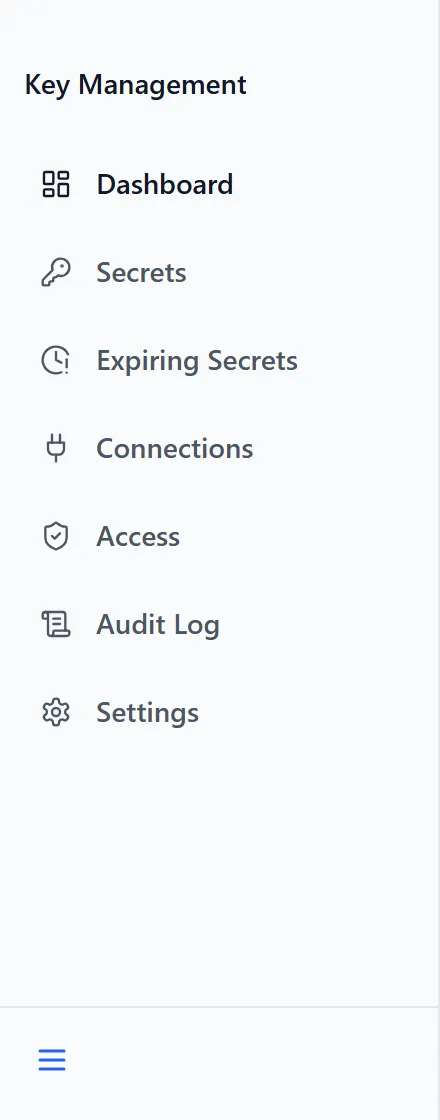
Section titled “Finding Your Way Around”Open Key Management from the app launcher. You’ll land on the Dashboard. The sidebar on the left is your map:
- Dashboard — Counts across every secret, and four short lists
- Secrets — The full list, with filters and search
- Expiring Secrets — Only what expires soon or already has
- Connections — Structured credentials that belong to an integration
- Access — Who holds which role
- Audit Log — Every action taken in the app
- Settings — Role assignment and app configuration
You will not see all seven. The sidebar is built from your permissions, so Connections, Access, Audit Log and Settings appear only if your role includes them. Everyone with access to the app sees Dashboard, Secrets and Expiring Secrets. A missing entry is a permission, not a fault — see Administering Key Management.
Your Dashboard at a Glance
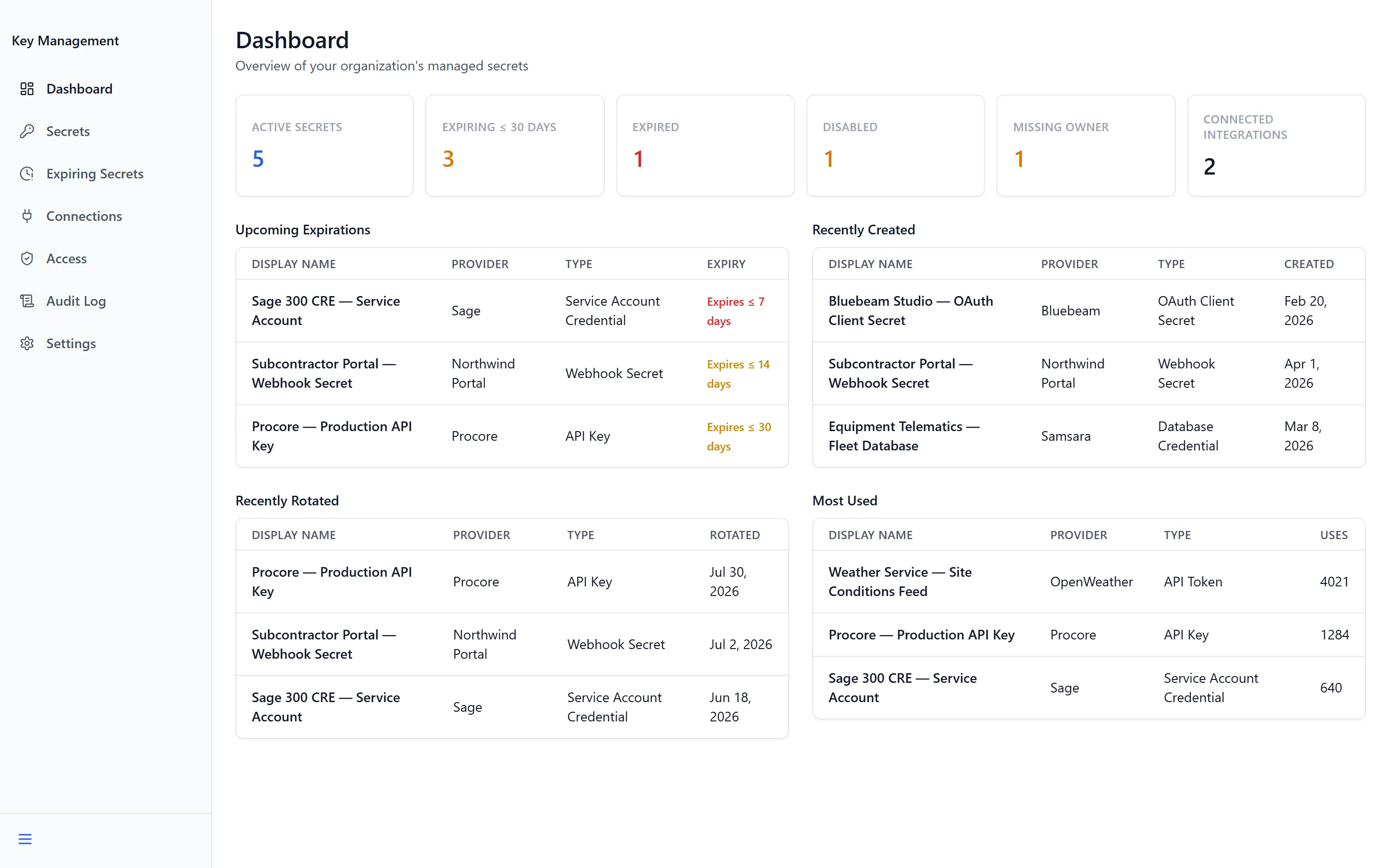
Section titled “Your Dashboard at a Glance”The Dashboard opens on “Overview of your organization’s managed secrets” and leads with six counts. Every one of them is clickable and takes you to the Secrets list already filtered:
| Card | What it counts |
|---|---|
| Active Secrets | Everything currently in use |
| Expiring ≤ 30 days | Still active, but with an expiry date inside a month |
| Expired | Past its expiry date |
| Disabled | Turned off, and no longer resolvable |
| Missing Owner | No one is named as responsible for it |
| Connected Integrations | Integrations resolving at least one secret |
Below the cards are four short lists — Upcoming Expirations, Recently Created, Recently Rotated and Most Used. Each shows Display Name, Provider and Type, plus one column matching the list it’s in. A list with nothing to report reads “Nothing to show yet”.
Finding a Secret
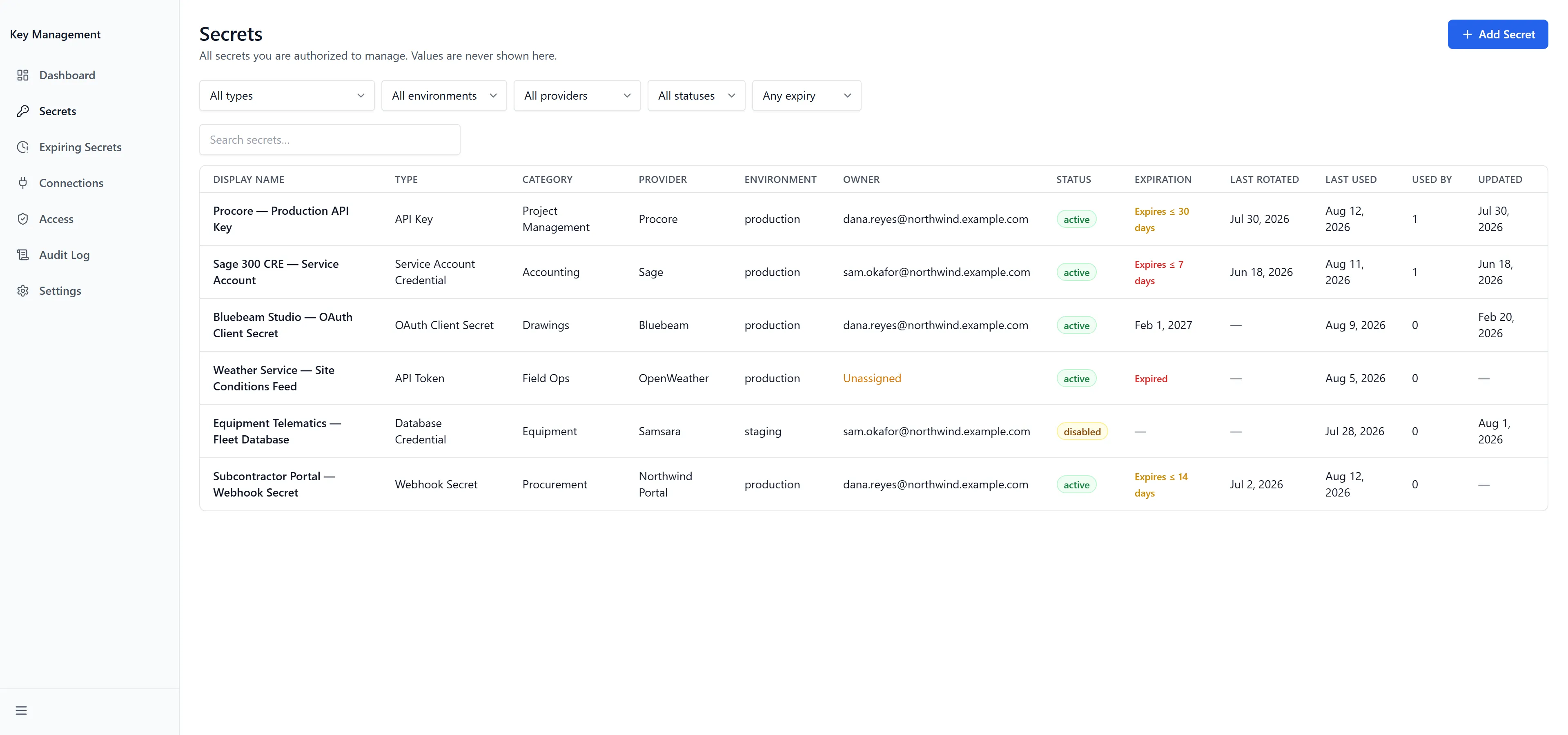
Section titled “Finding a Secret”Secrets lists everything you’re allowed to see, under the subtitle “All secrets you are authorized to manage. Values are never shown here.” That last sentence is literal — the list holds metadata only, and a value is shown only when you deliberately reveal one.
Five dropdowns narrow the list, and they combine:
- All types — Connection, or any of the ten secret types
- All environments — built from the environments actually in use
- All providers — built from the providers actually in use
- All statuses — Active, Disabled, Archived
- Any expiry — Expiring soon, Expired
Search secrets… searches four fields — name, provider, category and owner email — so a partial provider name finds every key for that service. The list pages at 15 rows. When filters exclude everything it reads “No secrets match your filters”.
Twelve columns are available: Display Name, Type, Category, Provider, Environment, Owner, Status, Expiration, Last Rotated, Last Used, Used By and Updated. A secret with nobody responsible for it shows Unassigned in amber rather than a blank.
Adding a Secret
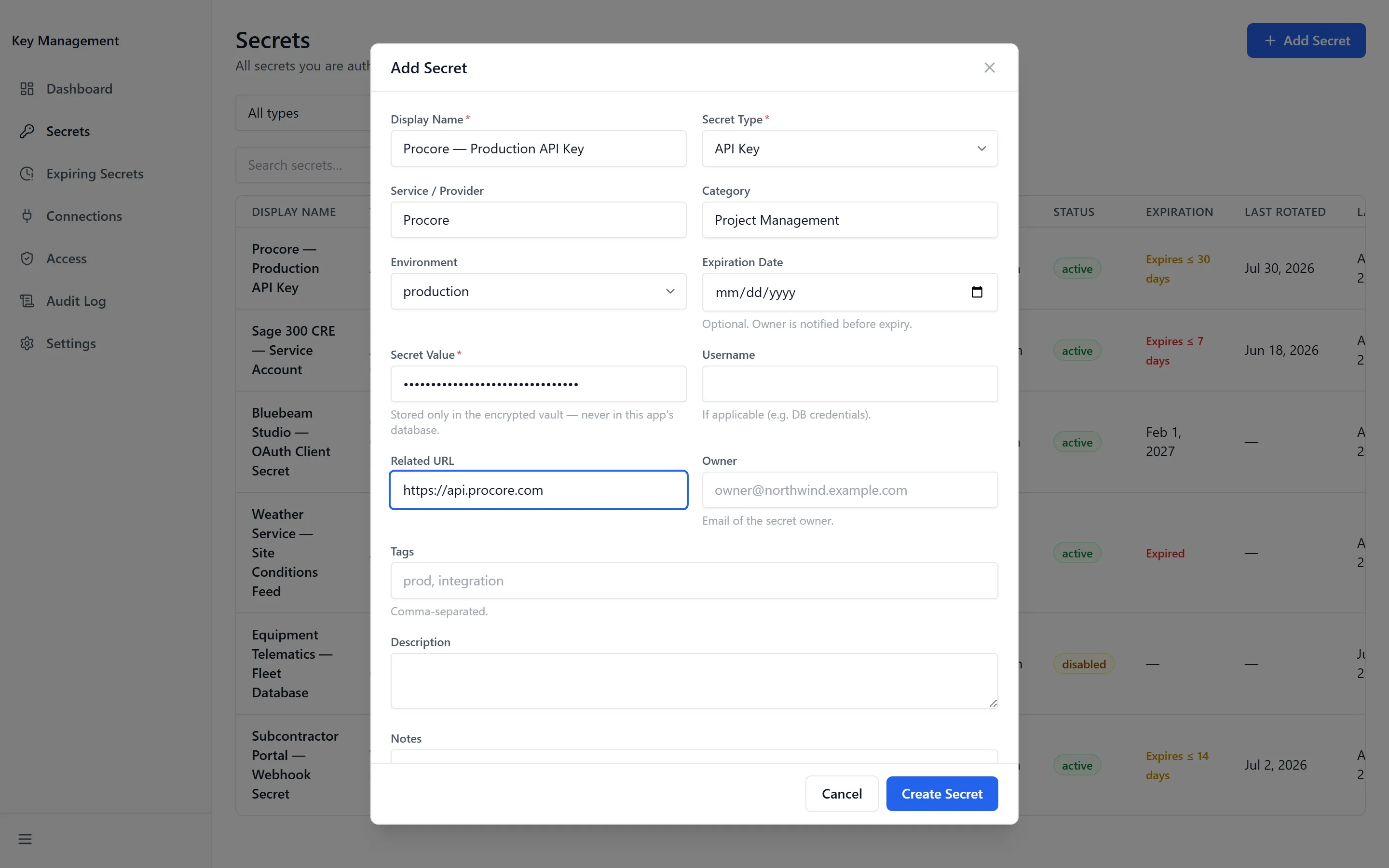
Section titled “Adding a Secret”Add Secret sits at the top right of the Secrets list. It appears only if your role allows creating.
- Click Add Secret. The Add Secret form opens.
- Enter a Display Name. This is required, and it’s what everyone else will search for.
- Choose a Secret Type.
- Paste the credential into Secret Value. This is required, and it’s the only time you’ll type it.
- Optional: fill in Service / Provider, Category, Environment, Expiration Date, Username, Related URL, Tags, Description and Notes.
- Click Create Secret. A confirmation reads “Secret created”.
Environment offers production, staging, development and test. Tags are comma-separated. Expiration Date is optional, and its help text explains what it buys you: “Optional. Owner is notified before expiry.” Without a date, nothing warns anyone when the credential stops working.
Secret Type offers ten choices:
- API Key, API Token, OAuth Client Secret
- Username & Password, Database Credential, Connection String
- Webhook Secret, Certificate Password, Service Account Credential
- Custom Secret
Connection is not in that list, and cannot be chosen. Connections are created by an integration’s own credential flow, and carry a field map the plain form can’t produce. Open one for editing and the type is fixed, with the hint “Connections are structured integration credentials — their type is fixed; edit the values on the Connections page.”
Opening a Secret
Section titled “Opening a Secret”Click any row to open it. The heading is the secret’s name, with its Status badge, an expiry badge if one applies, and its type. Below the action bar sits a grid of everything recorded about it: Provider, Category, Environment, Owner, Username, Related URL, Expiration, Last Rotated, Last Used, Created, Updated and Tags. Anything not filled in shows a dash.
Used by lists the integrations that have actually resolved this secret, with a count. Where nothing has, it reads “No integration has resolved this secret yet. Access is approved per credential in the platform’s Integrations hub, not here.”
Audit history closes the page — When, Event and By for every action taken on this secret, ten at a time.
Revealing a Value
Section titled “Revealing a Value”Reveal shows the stored value for 30 seconds.
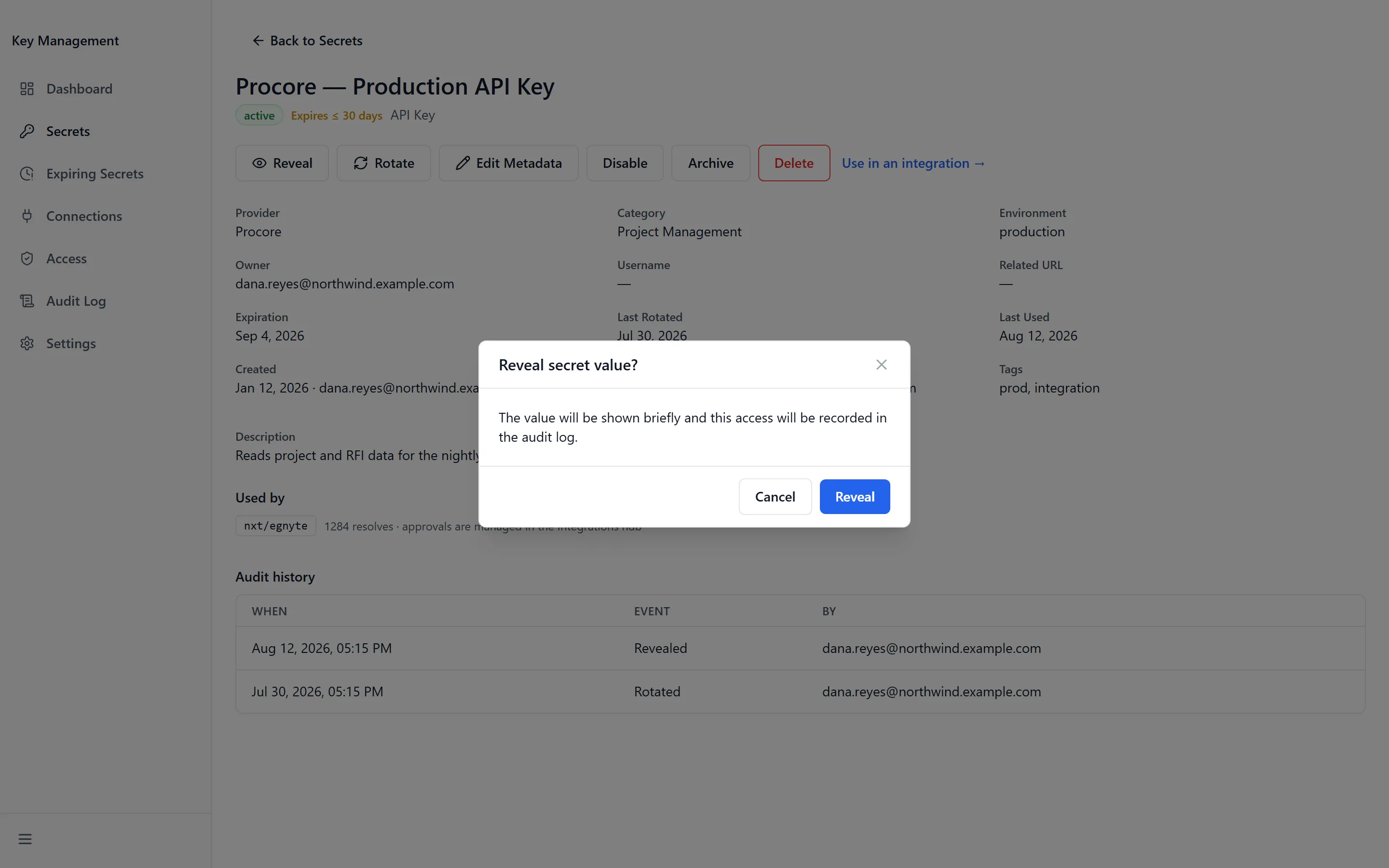
- Click Reveal. A confirmation asks “Reveal secret value?” and warns “The value will be shown briefly and this access will be recorded in the audit log.”
- Click Reveal to confirm. The value appears in a panel headed Secret value, which “auto-hides in {n}s”, counting down.
- Click Copy to put it on your clipboard. A confirmation reads “Copied to clipboard”.
- Optional: click Hide to clear it before the timer runs out.
The value is never stored in the page — it clears when the timer ends, when you click Hide, and when you navigate away. If your browser blocks clipboard access you’ll see “Clipboard is unavailable in this context.” and can select the value manually.
Rotating a Secret
Section titled “Rotating a Secret”Rotating replaces the stored value while keeping the secret’s identity, history and every integration pointing at it. Use this whenever the credential changes at the provider — never delete and re-add, which breaks those links.
- Open the secret and click Rotate. The Rotate Secret dialog opens on “Enter the new value. The previous value is replaced in the vault and is never shown.”
- Paste the new credential into Secret Value.
- Click Rotate. A confirmation reads “Secret rotated” and Last Rotated updates.
Disabling, Enabling and Archiving
Section titled “Disabling, Enabling and Archiving”Three states, and they do different things:
- Disable — stops the secret resolving, with the warning “Applications and users will no longer be able to resolve this secret.” Reversible with Enable.
- Archive — “Archiving hides the secret from active use and stops expiry alerts. You can still view its history.” Use it for a credential that’s genuinely finished with.
- Enable — returns a disabled secret to active use. No confirmation.
Reach for Disable when you suspect a credential is compromised — it takes effect immediately and can be undone once you know more.
Deleting a Secret
Section titled “Deleting a Secret”Delete appears only for roles that permit it, and it asks you to type the secret’s name before it will proceed.
- Open the secret and click Delete. The Delete Secret dialog opens.
- Type the secret’s exact name into Confirm name.
- Click Delete permanently.
Expiring Secrets
Section titled “Expiring Secrets”Expiring Secrets is the Secrets list narrowed to “Active secrets expiring within 30 days or already expired” — the same columns, without the filter dropdowns, because the filter is the point of the page.
A secret only appears here if it has an Expiration Date. One without a date never warns anybody, which is the reason to set it even when it feels optional.
Using a Secret in an Integration
Section titled “Using a Secret in an Integration”An active secret shows Use in an integration → on its action bar, which takes you to the platform’s Integrations Hub. Key Management stores the credential and records who resolved it; whether an integration is allowed to is approved per credential in the Integrations Hub, not here.
Troubleshooting
Section titled “Troubleshooting”Key Management is missing, or I get “Access Denied”
Section titled “Key Management is missing, or I get “Access Denied””Solutions: three things have to be true. Check them in order.
- An administrator has enabled Key Management in the App Store.
- Your group has been granted access to it.
- You have signed out and back in since that change. See Getting Access to Apps and Extensions.
There’s no Reveal or Rotate button on a secret
Section titled “There’s no Reveal or Rotate button on a secret”Solutions:
- Those actions need you to be a Secrets Administrator, or the named Owner of that secret. Check the Owner field — if it isn’t your address, you can see the secret but not act on it.
- Ask an administrator to either assign you as Owner or reveal the value for you. Ownership is set on the secret itself, in Edit Metadata.
Half the sidebar entries are missing
Section titled “Half the sidebar entries are missing”Solutions:
- Expected. Connections, Access, Audit Log and Settings are each gated on a permission your role may not include.
- If you need one of them, ask an administrator to change your role in Settings.
An integration stopped working after I deleted a secret
Section titled “An integration stopped working after I deleted a secret”Solutions:
- Deleting cascades — every linked credential pointing at that secret is removed from your integrations. Re-add the credential in the Integrations Hub and point it at a current secret.
- Rotate instead of delete next time. Rotation replaces the value and leaves every link intact.
I can’t find a secret I know exists
Section titled “I can’t find a secret I know exists”Solutions:
- Clear the filters. Expiring Secrets and any dashboard card you clicked through leave a filter applied.
- Check All statuses — archived and disabled secrets are hidden behind it.
- Search secrets… looks at name, provider, category and owner only. A term that appears solely in Notes or Description won’t match.
Related Articles
Section titled “Related Articles”- Administering Key Management — Roles, connections, and the audit log
- Getting Access to Apps and Extensions — Start here if Key Management is missing or you see “Access Denied”
- Connecting Your Systems with Integrations — Where a stored credential actually gets used