
Composite Tables: Combining Your Data
A composite table joins and rolls up your synced sources into a single, governed table that your extensions and the AI can read. This article covers creating one and keeping it healthy.
What a Composite Table Is
Section titled “What a Composite Table Is”Open Integrations Hub → Composite tables. The panel explains it in one line: “Join and roll up your synced sources into the tables extensions read.” The list shows each table’s Name, how many Sources it draws from, and when it was last Updated. Use + Add composite table to create one.
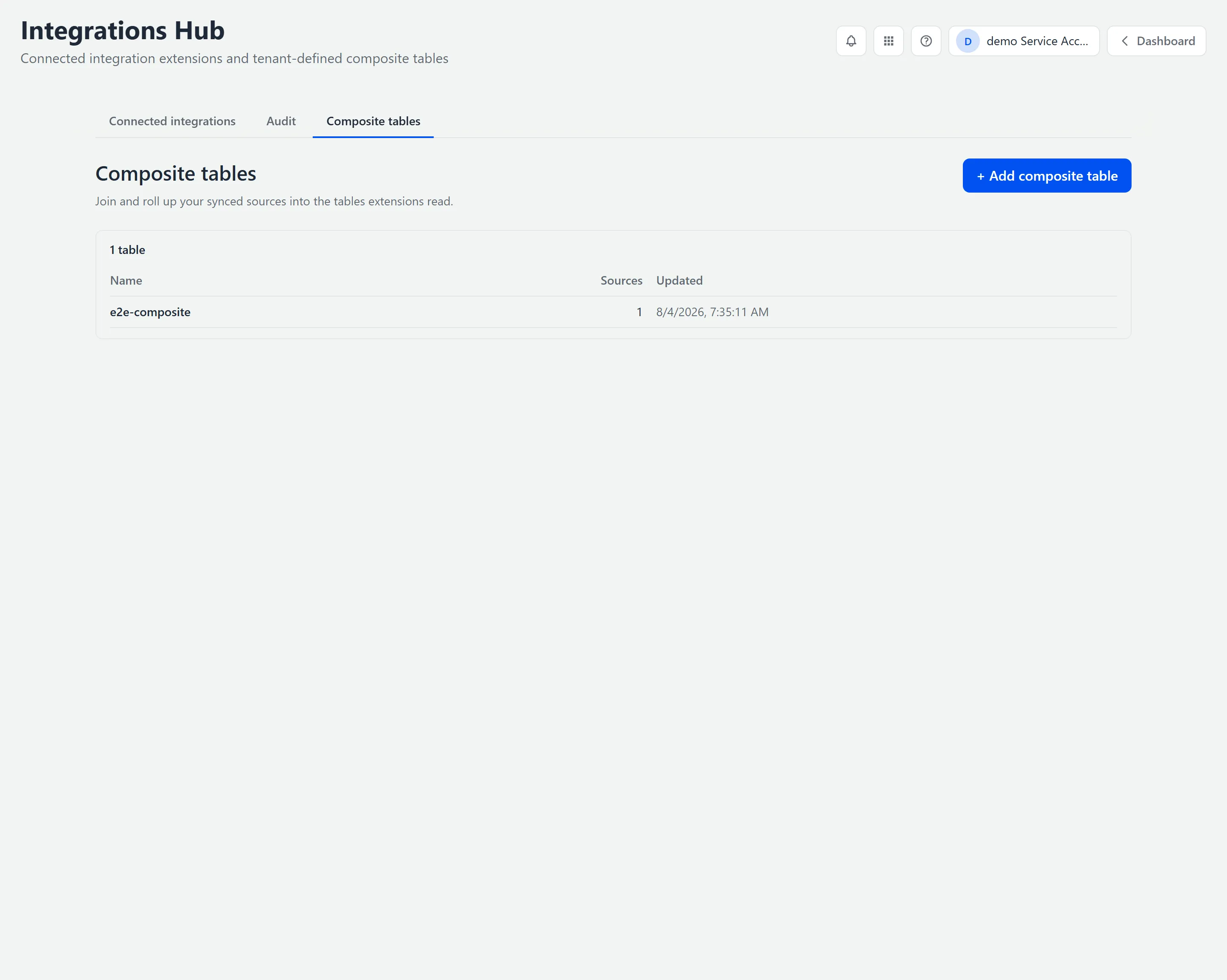
A composite draws from one or more sources — a table published by an integration, for example a Google Sheets worksheet, or another composite you’ve already built — and produces a clean set of rows.
Creating One (Settings)
Section titled “Creating One (Settings)”Click + Add composite table. The editor has four tabs — Columns, Computed rows, Activity, and Settings. Start on Settings:
- Set the Id — a kebab-case slug like
projects-with-revenue. This is the table’s permanent identifier. Until you enter one, the editor shows “This table needs an id.”. - Give it a Name and an optional Description.
- Choose a Rebuild setting. As soon as a source row changes (recommended) recomputes the table automatically whenever a source updates.
- Click Create composite. This returns you to the list, so reopen the table you just made to keep building. Its sources and columns are on the Columns tab.
Adding Sources and the Key (Columns)
Section titled “Adding Sources and the Key (Columns)”On the Columns tab, the Sources panel on the left is where you choose what to combine. Click + Add source for each table you want to join. Each source shows where it comes from — for example, google-sheets · worksheet.
On a large source, the fields come from a sample of its first rows, and the source’s section in the panel ends with a line saying so, for example “Sampled 5,000 rows — a field that appears only in later rows may be missing.” A field that is in the source but not in the sample can still be added by name; see the note below.
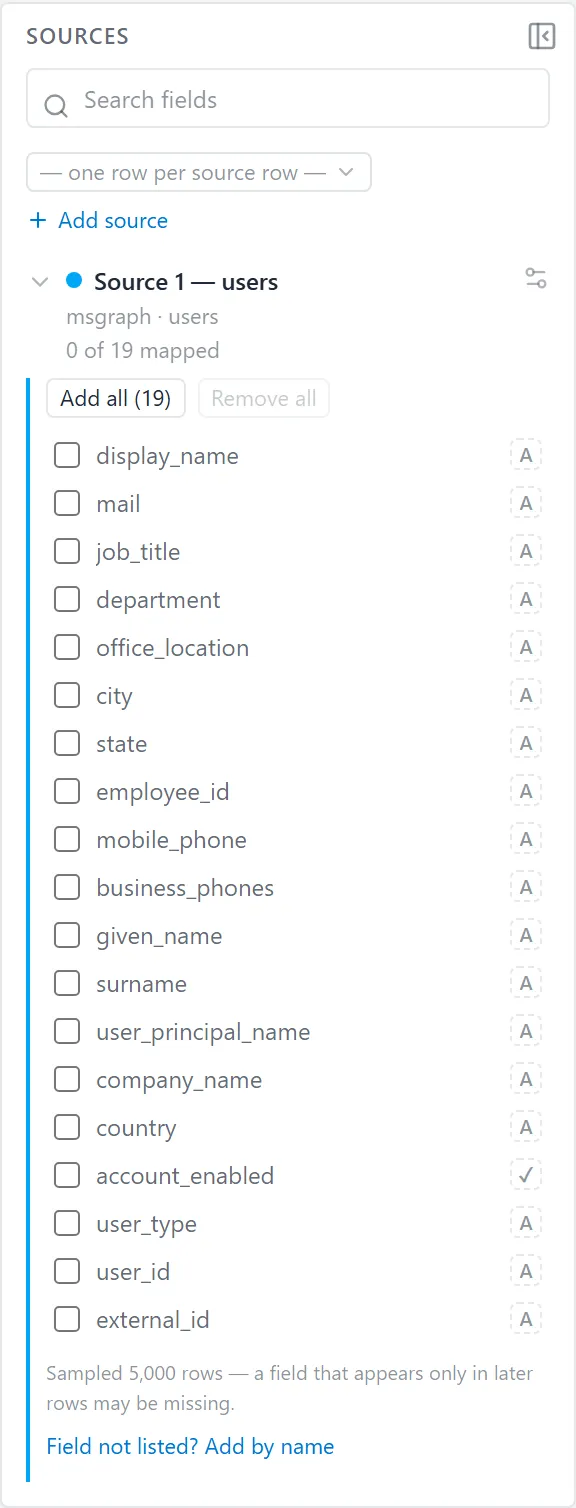
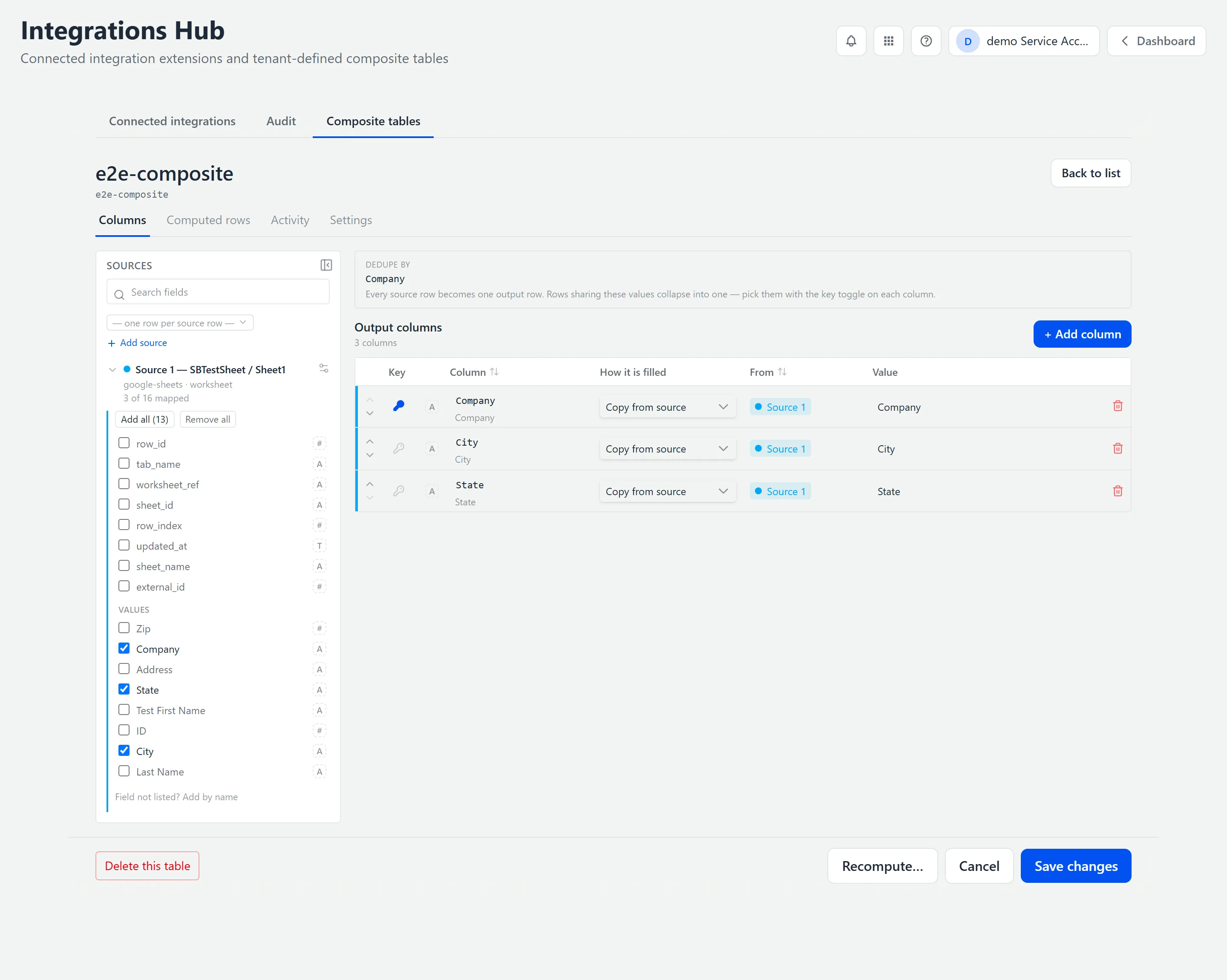
How rows line up has two modes. In the default, Rows are identified by — “Every source row becomes one output row. Rows sharing these values collapse into one — pick them with the key toggle on each column.” — you set the grain by flipping the Key toggle on the output columns that identify a row. When you join multiple sources, the grain is instead set by Joined on, above the Sources panel, and the Key toggle won’t change it. Leave it one row per source row, or dedupe on a key like an item number.
Choosing a join type. When a composite draws on more than one source, you pick how they combine — and this decides which rows survive:
| Join | What it keeps |
|---|---|
| inner | Only rows found in every source. |
| left | The first source decides which rows exist; columns from the others come through empty when there’s no match. |
| full outer | A row found in any source is kept. |
Choosing Output Columns
Section titled “Choosing Output Columns”The Output columns table is the shape of your composite. Click + Add column for each column you want to expose. Each row has:
| Field | What it does |
|---|---|
| Key | Toggle on if this column helps identify a row. It becomes part of the dedupe key. |
| Column | The name this column has in the composite. |
| How it is filled | One of three: Copy from source (take a source field’s value), Roll up (aggregate matching rows — add up, count, count distinct, smallest, largest, average, or join together), or Formula (compute a value from an expression). |
| From / Value | Which source the value comes from, and which field. |
Previewing the Result (Computed Rows)
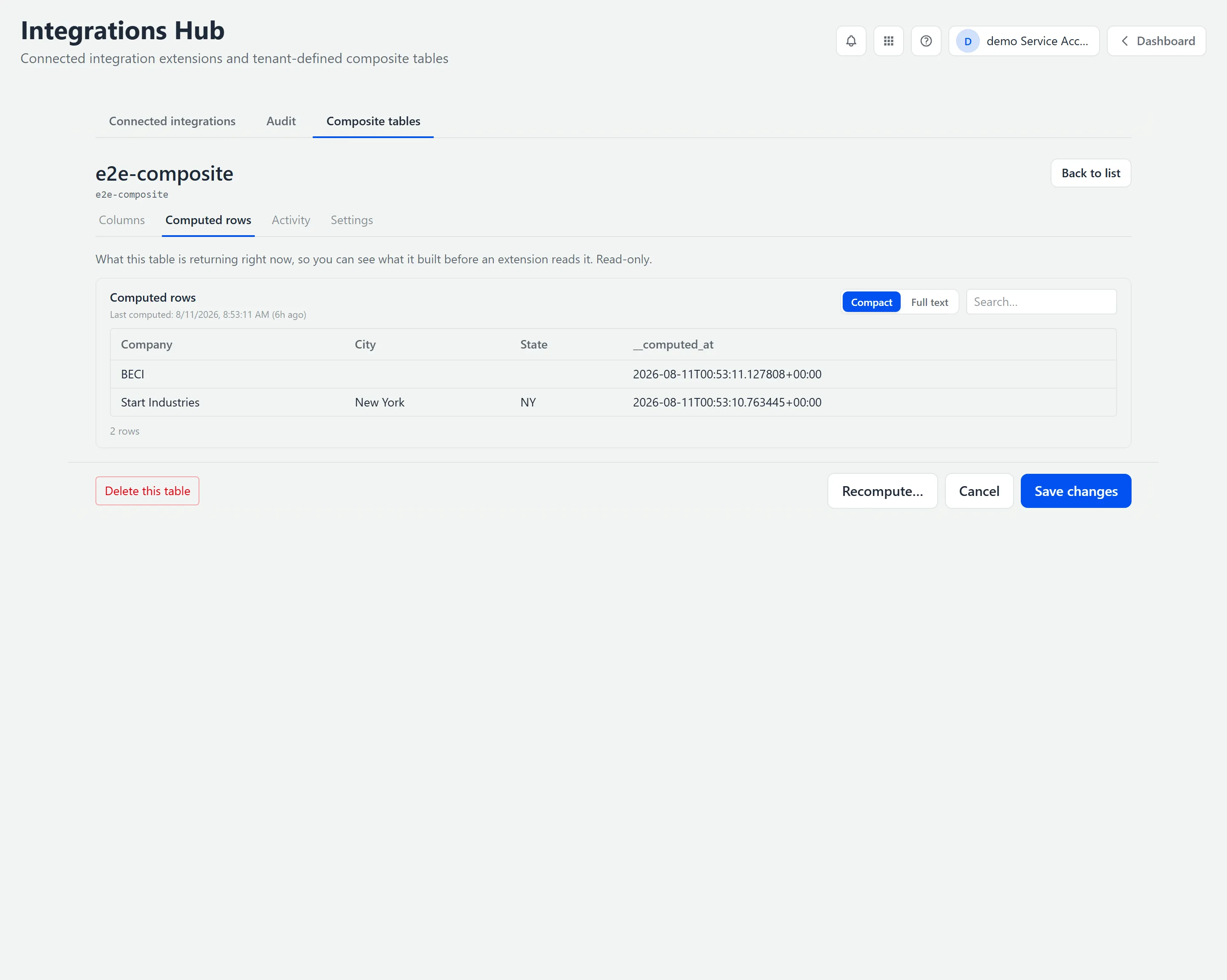
Section titled “Previewing the Result (Computed Rows)”The Computed rows tab shows “What this table is returning right now, so you can see what it built before an extension reads it. Read-only.” It shows when the table was last computed, a Compact / Full text toggle, and a search box, and it previews the rows. The header shows the real row count, and for very large tables you’ll see a note to “refine upstream or scope the source.”
Rebuilding and Housekeeping
Section titled “Rebuilding and Housekeeping”- Save changes whenever you edit the definition.
- Recompute… rebuilds the rows on demand — handy after a change if you don’t want to wait for the automatic rebuild.
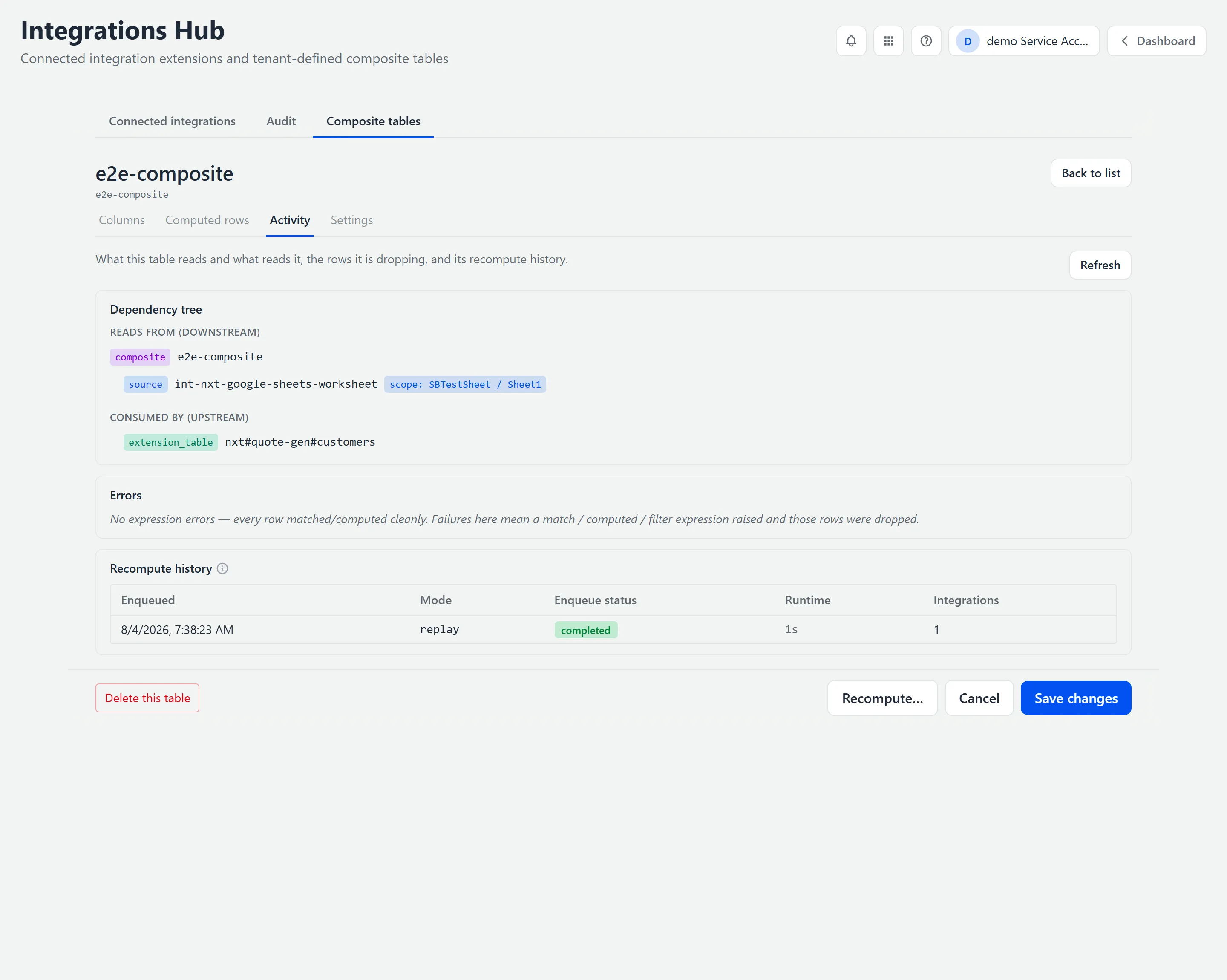
- The Activity tab is more than history. It shows a dependency tree (what feeds this table and what reads it), the rows it’s dropping, an errors count, and the recompute history — so when something’s off, it usually tells you exactly what.
- Delete this table removes the composite; Cancel discards unsaved edits.
When a Source Row Goes Away
Section titled “When a Source Row Goes Away”A composite follows its sources. When a row leaves a source table, the composite works out again whether that row’s key still belongs in the table, and the join decides the answer. Nothing is kept on the composite’s side because it used to be there.
What removes a row from a source table
Section titled “What removes a row from a source table”A row leaves a source table only when its integration removes it, and that depends on how the source is read:
- A source read whole on every sync, such as a worksheet, is replaced each time. A row the worksheet no longer has leaves the table.
- A source read by what changed since the last sync adds and updates rows and never removes one. A record deleted in the other system can stay in the source table, and so stays in every composite built on it.
What the composite does with the key
Section titled “What the composite does with the key”On a composite with more than one source, the setting under When a key is missing from a source, beside Joined on, decides what happens to a key that one source no longer has:
| Setting | When a source loses the key |
|---|---|
| Drop the row — only rows found in every source (inner) | The composite row is removed as soon as any one source has no row for the key. |
| Keep it — the first source decides; other columns come through empty (left) | If the first source loses the key, the composite row is removed. If any other source loses it, the row stays and the columns that come from that source are empty. |
| Keep it — a row found in any source is kept (full outer) | The row stays while any source still has the key, with the lost source’s columns empty. It is removed only when no source has the key. |
A composite with one source has no setting to choose: when the source row goes, the composite row for it goes too. A Roll up is recomputed over the rows that remain, and its row is removed only when no row is left for its key.
Where you see it
Section titled “Where you see it”Open the table and click Activity. A key that one source no longer has is counted under Join notes, as an Unmatched keys entry named after that source. The Activity tab carries a count you can see from any tab: red when there are errors, grey when there are only notes. Each entry says what the count means for this table’s join, for example “{N keys} with no match in [the source] are excluded from this table — an inner join requires every source to match.”
- The count is “Distinct keys seen failing since the last full rebuild.” A key counts once however many recomputes see it.
- A key that starts matching again drops off the entry on the recompute that fixes it.
- An entry stays until its keys match again, however long it has been since a recompute last saw them. Only an expression error, such as a Formula that fails, is removed automatically, 7 days after a recompute last saw it.
- A join note is not an error. It is the join setting doing what it says, and it is grey for that reason. Red entries under Errors are the ones that mean something is broken.
This entry is the one place a removal is shown. The composite’s rows simply no longer include the key, and nothing else on screen says that it left.
Apps that keep a copy: bound tables
Section titled “Apps that keep a copy: bound tables”An app can keep its own copy of a composite’s rows, in a table of its own, so that it can read them quickly and add fields of its own to each row. That table is bound to the composite, and it is called a bound table. You bind a table in the app that owns it, not in the Hub. In Quote Generator, Admin → Operations → Integrations shows each synced table’s current source.
Every change to a composite row is sent to each table bound to it, including a removal. A bound table keeps the row it was last sent and marks it as removed by the composite:
- The row is not deleted, so anything that already points at it keeps working. The mark is not shown on screen; the app reads it.
- If the composite brings the key back, the next change it sends updates the row and clears the mark.
- What the app does with a marked row is up to the app. In Quote Generator, an opportunity the composite removed no longer appears in the opportunity list you pick from when you start or link a quote. A quote that already uses it keeps its data, because a quote still reads the row it points at.
- The app is also handed a record that the row’s source link is broken. Quote Generator writes that record to its own log only.
So when a key leaves a composite, check the composite’s Join notes first. Its Unmatched keys entry still lists the key, while the app hides the row where it offers new choices and keeps it where a record already uses it.
A change that could not be delivered at all is different, and it is an error. It appears under Errors as Not delivered to a bound table, names the rows, and says the bound table is missing them. A row too large for the queue never fits: narrow it (a shorter roll-up, fewer columns) and recompute. Each row drops off that entry when it is delivered.
Troubleshooting
Section titled “Troubleshooting”Create composite is refused
Section titled “Create composite is refused”Solutions: the editor names the missing piece. Work through whichever it reports.
- “Add at least one source.” — nothing has been chosen to combine yet.
- “Add at least one output column — check a field in the Sources panel.” — sources are chosen but no column is selected for output.
- “Add the key column as an output column so this table has a row key.” — your key is not among the output columns, so rows would have nothing to identify them.
- “This table needs an id.” — the table has no identifier yet.
The table is empty after I saved a change
Section titled “The table is empty after I saved a change”Solutions:
- Changing the key discards every computed row and the table reads empty until the rebuild finishes. Wait for it rather than changing anything else.
- Check the preview to confirm the table is returning what you expect once the rebuild completes.
The numbers changed and nothing looks different
Section titled “The numbers changed and nothing looks different”Solutions:
- This is the dangerous case. Changing what a source lines up on changes every roll-up over it, and the grid gives no visual sign. If a total moved unexpectedly, check whether a key or a join was edited.
- Compare against the preview, which shows what the table is returning right now rather than what you expect it to return.
A row left the composite, but an app still shows it
Section titled “A row left the composite, but an app still shows it”Solutions:
- A record that already uses the row keeps showing it: the bound table keeps the row and marks it as removed, and a quote still reads the row it points at. See Apps that keep a copy: bound tables.
- If the row is still offered as a new choice, such as an opportunity in Quote Generator’s opportunity list, it was removed before removals were marked. Contact support with the composite’s name and the key.
- Open the composite’s Activity tab. An Unmatched keys entry under Join notes confirms the key was excluded and names the source that no longer has it.
- If the key should still be there, fix it at that source and recompute.
A record deleted in the other system is still in the composite
Section titled “A record deleted in the other system is still in the composite”Solutions:
- A source read by what changed since its last sync never removes a row, so the composite still has a row to match. See What removes a row from a source table.
The field I need is not in the list
Section titled “The field I need is not in the list”Solutions:
- Use Field not listed? Add by name to name it directly.
- If the source’s section says “Sampled 5,000 rows”, the field may only appear in later rows. Page through the source’s synced data with Next to confirm it exists, then add it by name; see Large Sources: Pages and Samples.
- If the field is new in the source system, the integration may not have synced it yet — check its synced data first.
Related Articles
Section titled “Related Articles”- Connecting Your Systems with Integrations — Connect a source before you build a composite on it
- Getting Access to Apps and Extensions — Start here if the Hub is missing or you see “Access Denied”
- Creating Quotes with Quote Generator — Turn an RFQ into a priced, formatted quote