
App Store
The App Store is where an administrator decides which apps their organization can use. This article covers browsing it, turning an app on, and — importantly — the difference between the several ways of turning one off.
Accessing the App Store
Section titled “Accessing the App Store”Click the Apps button — the grid icon in the header, available on every page — and choose App Store. See Finding and Opening Your Apps if it is not listed.
Finding Your Way Around
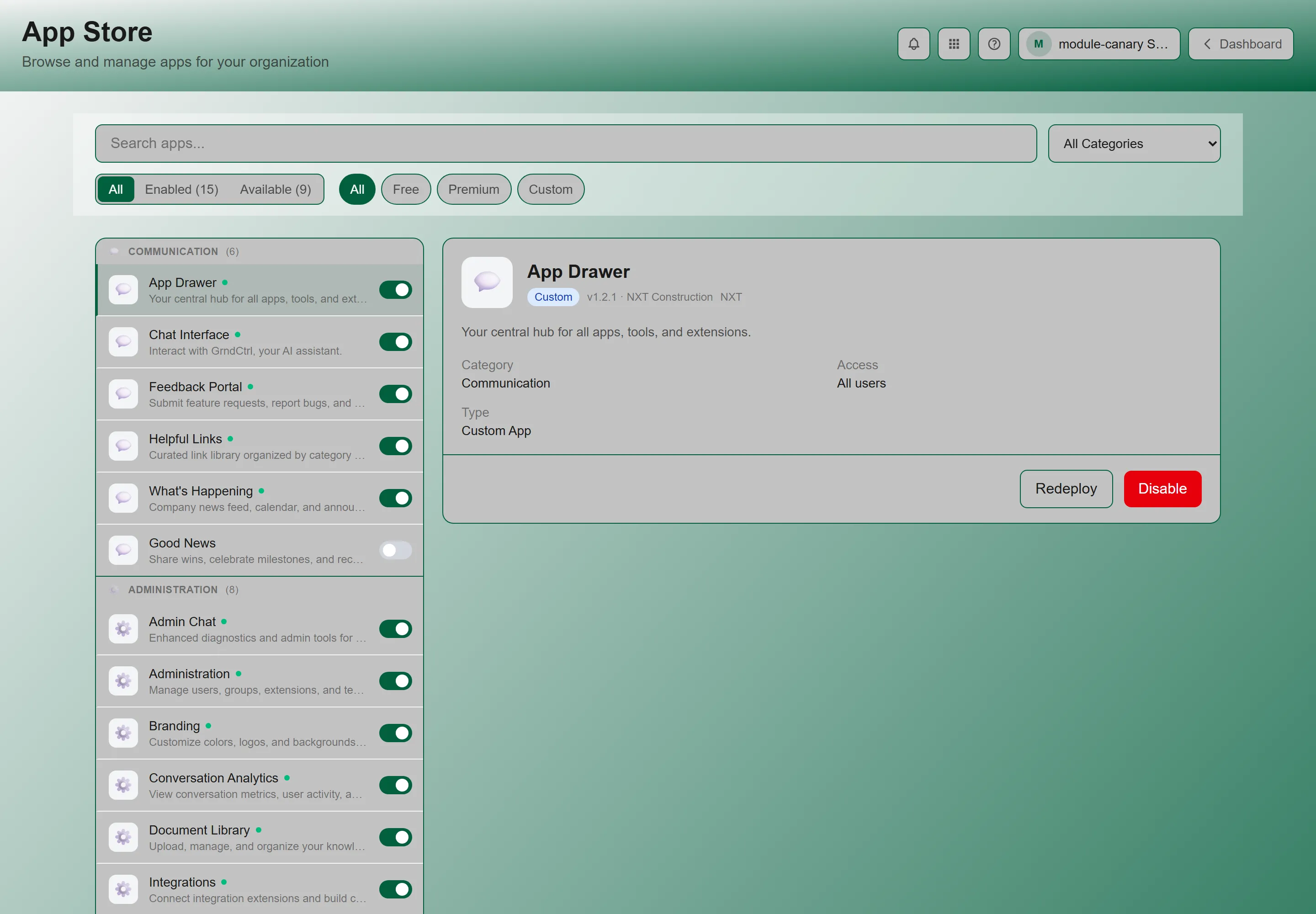
Section titled “Finding Your Way Around”The App Store is a two-panel screen:
- On the left, a compact list of apps grouped by category. Each row carries the app’s name, a dot when it is enabled, and its enable toggle — so you can turn something on without leaving the list.
- On the right, a detail pane for whichever app is selected.
On a narrow screen the pane becomes a panel that opens when you tap a row.
Narrowing the List
Section titled “Narrowing the List”Above the list are a Search apps… box and three filters:
| Filter | Options |
|---|---|
| Status | All, Enabled, or Available. Each carries a live count, so Enabled (7) tells you how many apps you are running without counting rows. |
| Tier | All, Free, Premium, Custom |
| Category | All Categories, Communication, Administration, Business Management, Integrations |
Filter everything out and you get “No apps found” — “Try adjusting your filters”.
What the Detail Pane Tells You
Section titled “What the Detail Pane Tells You”- Screenshots of the app, where the publisher supplied them
- The full description, longer than the one-liner in the list
- Requires — other apps this one depends on. If they are not enabled, enable them first
- Category
- Access — Admin only or All users, so you can see who will be able to reach it
- Type — where the app comes from
- Enabled by — who turned it on, once it is enabled
Enabling an App
Section titled “Enabling an App”- Select the app, or use the toggle on its row.
- Confirm when asked. Enabling is not instant and not silent — it triggers a deployment, so GrndCtrl checks that you meant it.
- Watch the status. The app shows Installing… with a spinner while its infrastructure is set up, refreshing every few seconds on its own.
When a Deploy Fails
Section titled “When a Deploy Fails”If the deployment does not complete, the app shows Failed. Open it and click Retry — the same button that reads Redeploy on a healthy app. Redeploy re-runs the deployment without disabling the app, so it is safe to use on something people are relying on.
Turning an App Off: Four Different Things
Section titled “Turning an App Off: Four Different Things”| Action | What it does | Who can do it |
|---|---|---|
| Disable | Stops traffic to the app. Its infrastructure and all of its data stay in place. Re-enabling picks up where you left off. This is the reversible option. | Tenant administrator |
| Uninstall | Destroys the app’s infrastructure and its data. Runs after a grace window, and is not reversible once destruction starts. | Developer administrator |
| Remove group access | Leaves the app enabled but takes it away from particular people. Done on the Extensions tab of Tenant Administration, not here. | Tenant administrator |
| Unpublish | Withdraws the app from the store for everyone. This is the publisher’s action, not yours. | The app’s publisher |
Disabling an App
Section titled “Disabling an App”Turn the app’s toggle off, or use the button in the detail pane. Traffic stops immediately; nothing is deleted.
Uninstalling an App
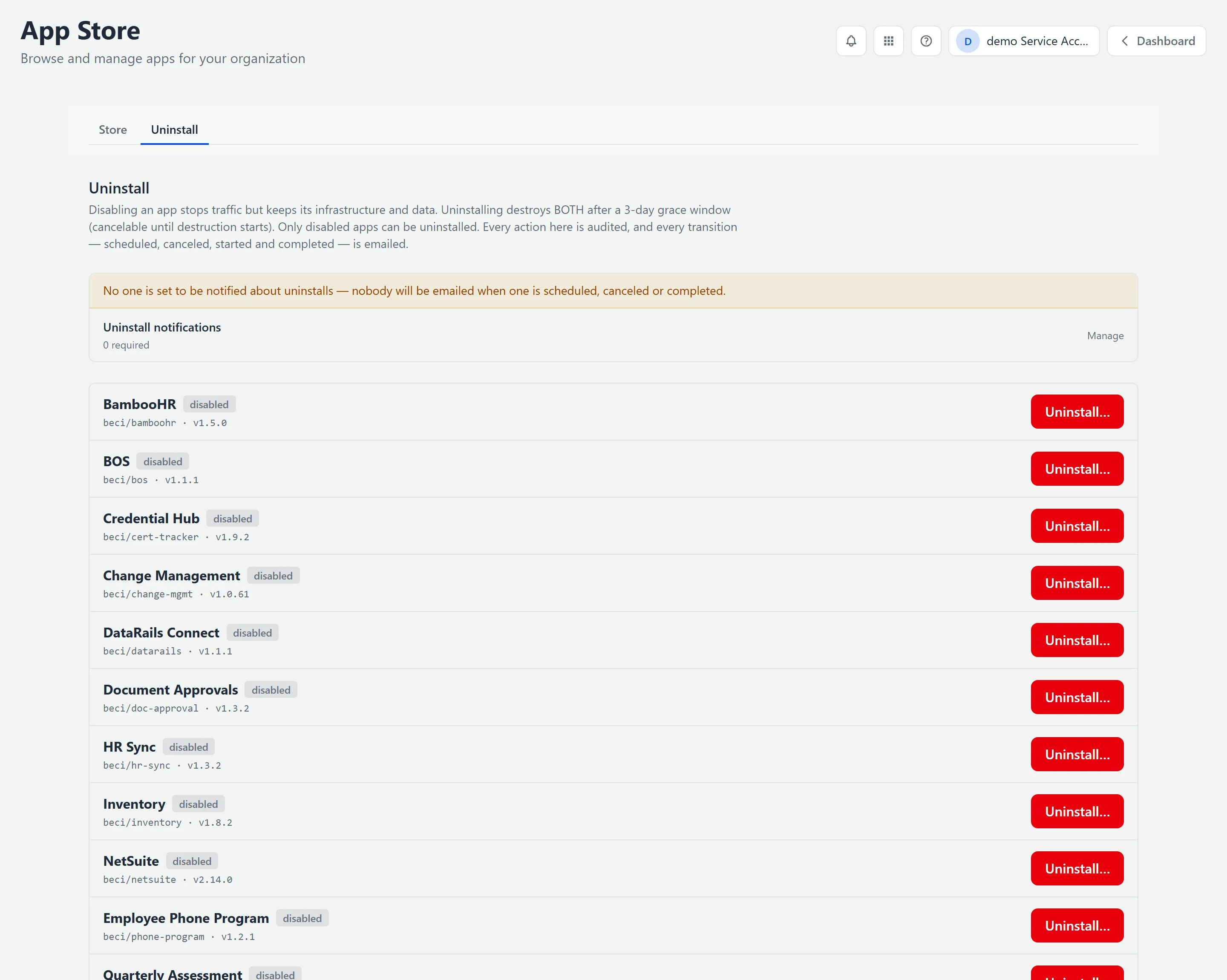
Section titled “Uninstalling an App”The tab states its own terms plainly: disabling an app stops traffic but keeps its infrastructure and data; uninstalling destroys both after a grace window, cancelable until destruction starts.
How It Works
Section titled “How It Works”-
Disable the app first. Only disabled apps can be uninstalled. If the tab is empty you will see “No disabled apps — disable an app in the Store tab first; it becomes uninstallable here.”.
-
Click Schedule uninstall on the app. You must type the app’s id to confirm — there is no single-click path to this.
-
The app moves to scheduled, and the row records who scheduled it, when, and the date after which everything is destroyed.
-
During the grace window you have two choices:
- Cancel uninstall — calls it off. The app goes back to being merely disabled, data intact.
- Destroy now — skips the wait. Also type-to-confirm, and the dialog spells out that it destroys every resource the app deployed and all data in them within minutes, with no undo.
Notifications and the Audit Trail
Section titled “Notifications and the Audit Trail”Every transition — scheduled, canceled, started, and completed — is emailed to the recipients configured on this tab, and recorded in an audit table below it showing When, the app, the Action, and Detail.
App Tiers
Section titled “App Tiers”Every app carries a tier badge:
| Badge | Meaning |
|---|---|
| Free | Included with GrndCtrl at no extra cost. |
| Premium | Requires licensing. Talk to your NXT contact if one you want is not available. |
| Custom | Built for your organization specifically. |
The Apps Documented Here
Section titled “The Apps Documented Here”Every app below has its own guide. Where an app has a separate article for the people who administer it, that one is listed too — the administrator’s guide is linked from the top of each user guide.
| App | What it is for |
|---|---|
| Key Management | Store the API keys, tokens and passwords your integrations use |
| Credential Hub | Track certifications, licences and professional memberships |
| Service Hub | Ask an internal team for help, and work the resulting queue |
| Scheduling | See who is free and book a meeting without leaving GrndCtrl |
| Change Management | Put a proposed change through review before it happens |
| Employee Phone Program | Request a company line, move a number, or add an international plan |
| Quote Generator | Turn an RFQ into a priced, formatted quote |
| Care Fund | Give to the Care Fund straight from your paycheck |
| Inventory | Track company assets across offices, with QR labels for the field |
Troubleshooting
Section titled “Troubleshooting”I enabled an app but nobody can see it
Section titled “I enabled an app but nobody can see it”Solutions:
- Enabling and granting access are two separate steps — enabling alone is not enough.
- Go to Tenant Administration → Extensions and check whether the app reads “Not visible (no groups assigned)”. Assign a group and it clears.
- Have the affected users sign out and back in — permissions load into the session at sign-in.
- Full walkthrough: Getting Access to Apps and Extensions.
An app is stuck on “Installing…”
Section titled “An app is stuck on “Installing…””Solutions:
- Give it a moment — the status refreshes on its own every few seconds, so it may already be finishing.
- If it turns to Failed, open the app and click Retry.
- If it fails repeatedly, contact support with the app name.
An app will not enable
Section titled “An app will not enable”Solutions:
- Check the Requires list in its detail pane — it may depend on another app you have not enabled yet.
- A Premium app also needs to be licensed for your organization.
I cannot find the Uninstall tab
Section titled “I cannot find the Uninstall tab”Solutions:
- The tab only appears for developer administrators. A tenant administrator can disable an app but not destroy it.
- If you need an app destroyed rather than disabled, ask a developer administrator or contact NXT support.
Related Articles
Section titled “Related Articles”- Getting Access to Apps and Extensions — The step after enabling: granting your groups access
- Finding and Opening Your Apps — How users reach the apps you enable
- Tenant Administration — Users, groups, extension access, and GrndCtrl Access
- Connecting Your Systems with Integrations — Setting up the integration-class apps